
AI or you: taking a chat over from the assistant and handing it back
ჩატებიგანახლდა 21 ოქტომბერი, 2026ვიდეო 1:13
ეს ინსტრუქცია ჯერჯერობით ინგლისურადაა.
Every chat in Solwees is handled either by the assistant or by your team. While the assistant has the chat, it answers the client by itself. When you answer yourself, the assistant goes quiet in that chat and doesn’t talk over you until you hand the conversation back.
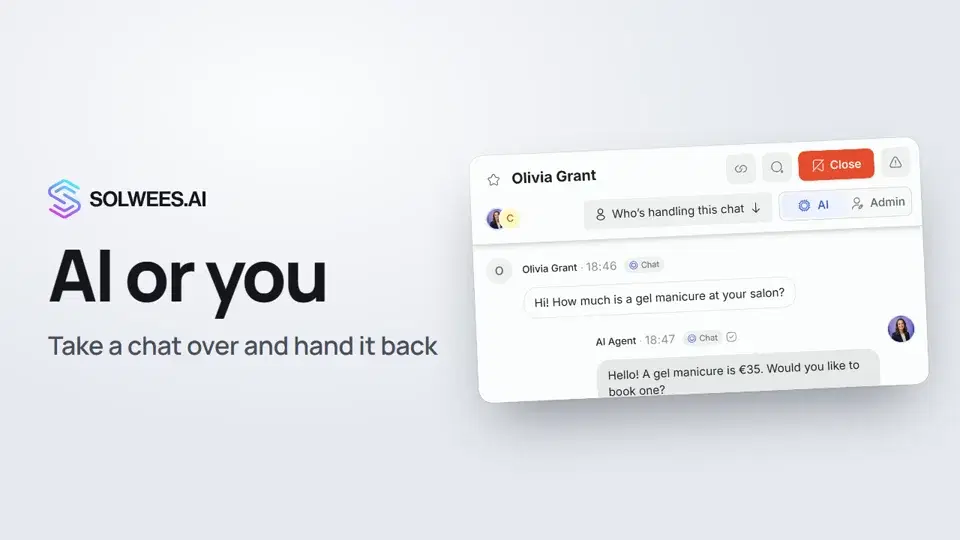
Where to find it
Open Chats and click a conversation. On the right of the chat header there are two controls:
| Control | What it does |
|---|---|
| The AI / Admin switch | Autopilot mode. AI: the assistant answers by itself. Admin: the assistant is quiet and you answer |
| Who’s handling this chat | Makes a specific teammate responsible for the chat |
Hover over the switch to see the “Autopilot mode” hint.
How to answer the client yourself
- Open the chat.
- Write your reply in the box at the bottom.
- Send it.
As soon as the message is sent, the switch moves to Admin and the assistant stops answering in this chat. Sending a voice message, a photo or a file works the same way. You can also click Admin in advance: the assistant goes quiet before you reply.
While you are only typing, the chat stays with the assistant. If you start writing and then delete the draft, the assistant carries on by itself.
How to hand the chat back to the assistant
Click AI in the chat header. The assistant gets the client’s next message. Your messages stay in the conversation.
If the assistant itself called for a person, you can also hand the chat back with Hand back to AI on the “Client is waiting for an operator” card (the Needs attention panel in the top right corner).
How to assign a teammate
- Click Who’s handling this chat in the chat header.
- Pick a teammate from the list.
The chat switches to Admin, and the header shows the teammate’s name. They get a notification that the conversation has been handed to them.
Internal note
To write something to your colleagues right in the chat, click the Internal note button under the message box and send the text. Only your team sees the note: it never goes to the client, and it doesn’t take the chat from the assistant. The switch stays where it was.
Tips
- Just want to give a colleague a hint without answering the client? Use a note: the assistant keeps handling the conversation.
- Done talking and no person is needed any more? Click AI right away so the client isn’t left waiting.
- The Who handles filter on the left of Chats shows the assistant’s chats (“AI”) separately from chats where a person answers (“Operator”).
FAQ
Will the assistant answer while I’m typing?
Yes, if the client writes in the meantime: the chat moves to you only once you send a message. To silence the assistant right away, click Admin.
Does the assistant come back to the chat by itself?
Usually the chat stays with the person until you click AI. There is one exception, so a client is never left without an answer: if more than an hour has passed since your team’s last reply, nobody on the team has written in any chat during that hour, and nobody has opened this chat in the last 15 minutes, the assistant gets the client’s next message again.
Will the client see my note?
No. The note is kept in the conversation for your team only and is never sent to the client’s channel.
What happens if I assign a teammate while the assistant is handling the chat?
The chat switches to Admin and moves to that teammate, and the assistant goes quiet. Your teammate gets a notification.
ვიდეოს ტექსტი
ყველაფერი, რასაც დიქტორი ამბობს. დროის ნიშნული ვიდეოს ამ მომენტიდან რთავს.
Who handles the chat: the assistant or you
Every chat is handled either by the assistant or by your team. The chat header shows who's answering right now. Open Chats and pick a conversation. On the right of the header is the autopilot switch: AI and Admin. While AI is on, the assistant answers the client by itself, and you see the whole conversation.
Answering the client yourself
Want to answer yourself? Start writing to the client. While you type, the chat stays with the assistant. It steps back only when you send the message. Sent, and the chat has switched to Admin. Now the assistant is quiet, and you do the talking.
Handing back and assigning a teammate
To hand the chat back to the assistant, click AI. It gets the client's next message. To assign a teammate, click Who's handling this chat and pick them.
Notes for your team
They get a notification. Need to tell your team something? Switch on Internal note. The client never sees it, and it doesn't take the chat from the assistant. Done. Next: what to do when the assistant calls for a person.
სტატიამ უპასუხა თქვენს კითხვას?
მეტი ამ თემაზე
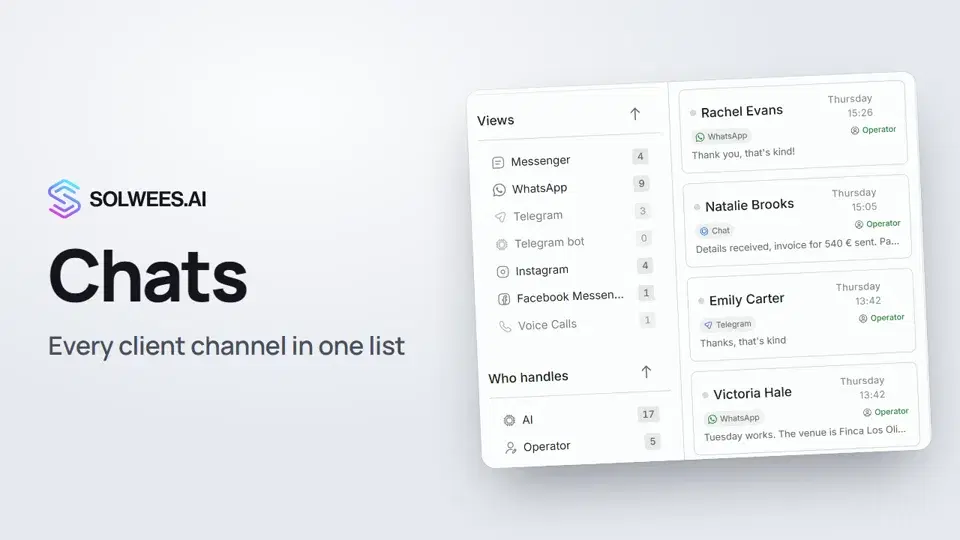 Chats: every channel in one placeHow to work with Chats in Solwees: folders, the channel and Who handles filters, search, status, sorting and opening a conversation with the client card.1:35
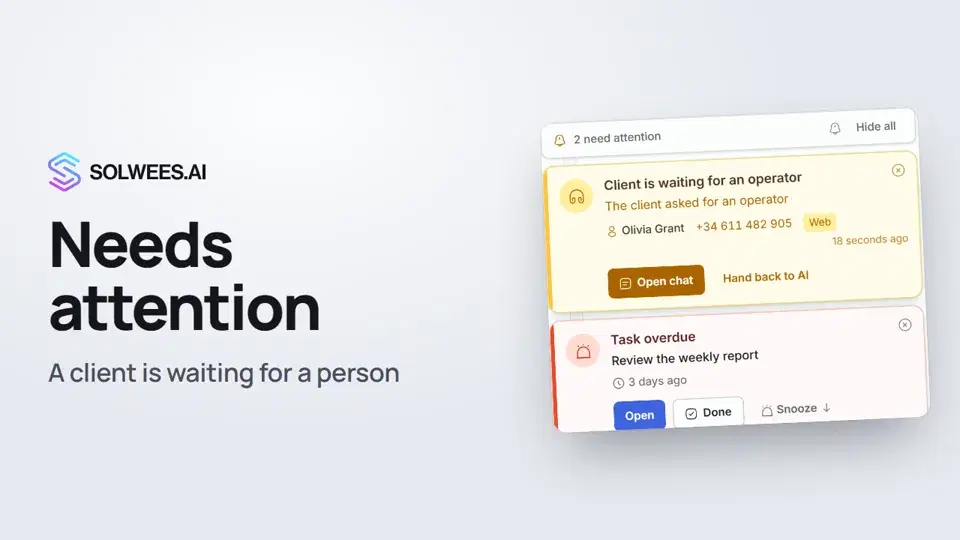 Needs attention: when a client is waiting for a personWhat to do when the Solwees AI receptionist calls for a person: the Needs attention panel, the Client is waiting for an operator card, replying, handing back to AI and task reminders.1:14
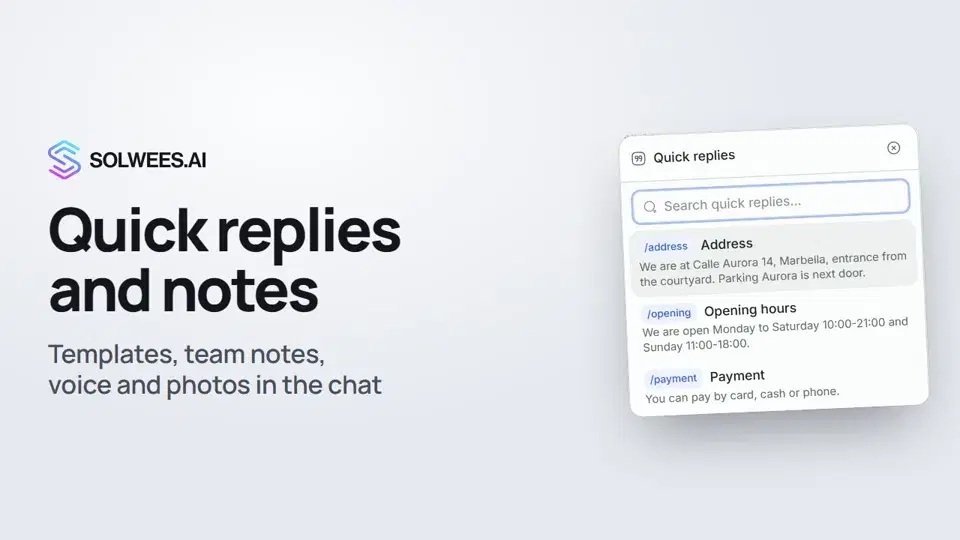 Quick replies and notes: what the chat input can doHow to answer clients faster in Solwees chats: quick replies with a slash, internal notes for your team, mentioning a teammate, voice messages and photos from your knowledge base.1:23
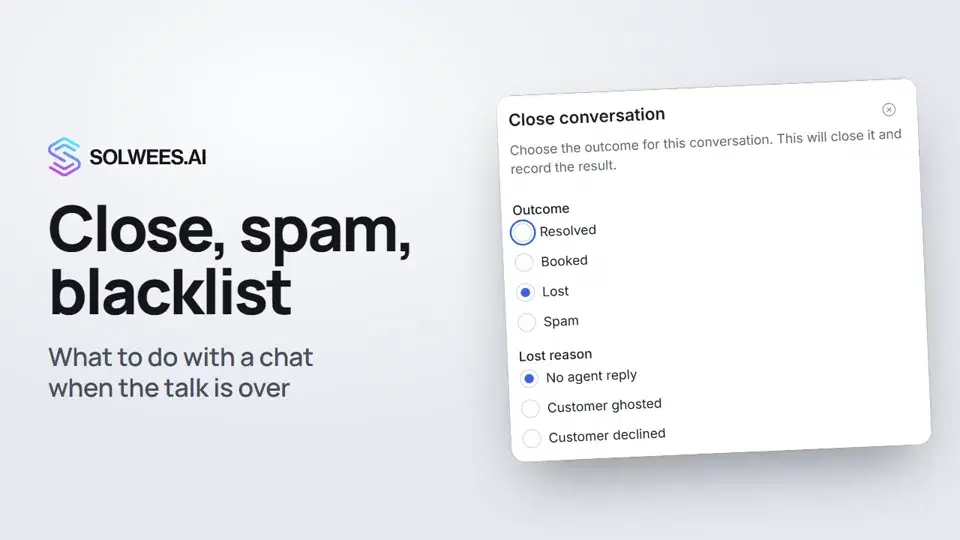 Close a chat, spam and blacklistHow to close a chat in Solwees and record the outcome, send a spammer to the Spam folder, block a client with the blacklist and merge two contacts of the same person.1:25
გჭირდებათ დახმარება?
ჰკითხეთ Sola-ს კაბინეტში
ასისტენტის ღილაკი კაბინეტის ნებისმიერი გვერდის კუთხეში ყველა პარამეტრს იცნობს და გაჩვენებთ, სად არის.
კაბინეტის გახსნა