
Importing clients: from a CSV file or from your CRM
კლიენტები, გარიგებები და ამოცანებიგანახლდა 19 ოქტომბერი, 2026ვიდეო 0:57
ეს ინსტრუქცია ჯერჯერობით ინგლისურადაა.
Import brings your client base into Solwees. There are two ways: upload a CSV file, such as an export from a spreadsheet, or pull clients together with their visit history from a connected Altegio booking system. Clients you already have are not duplicated.
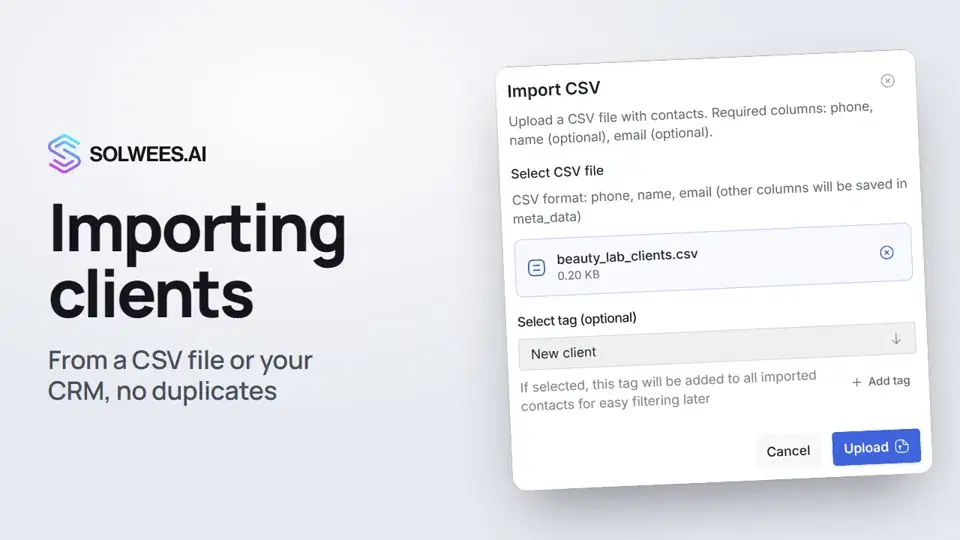
Where to find it
Open Customers in the left menu. At the top right there are two buttons: Import (from a file) and Import from CRM.
Importing a CSV file
- Click Import.
- Click Upload File and choose a file with the .csv extension.
- If you like, pick a tag: it is added to every client from the file. Need a new tag? Click Add tag and create it right there.
- Click Upload. When the upload finishes, a message shows how many clients were imported and how many rows had errors, and the list refreshes.
Which columns you need
Columns are matched by the headers in the first row. There is no separate field-mapping step, and nothing that isn’t recognised is lost.
| What | Column header | How it’s used |
|---|---|---|
| Phone | phone, phone number | Required. A row without a phone is not imported |
| Name | name, full name | The client’s name in the list and the card |
| email, e-mail | The Email field in the card | |
| Client ID | client_id | Optional. Recognises the same client when you upload again |
| Everything else | note, birthdate, company and any columns of your own | Saved in the client card |
Example file:
name,phone,email,note
Chloe Bennett,+34 611 55 58 14,chloe@example.com,Morning slots
Grace Turner,+34 622 55 57 03,,
If the client already exists
Clients are recognised by phone number, and by client_id if your file has it. When a client with that phone already exists, no new card is created: the existing one is updated. A name the card already has is never overwritten, while the email and other columns are updated from the file. So you can upload the same file again without creating duplicates.
Importing from your CRM
Import from CRM brings in clients together with their visit history. Right now, Altegio is the booking system that can export its client base, so connect it first: AI Agent → App Directory. Until a booking system is connected, the window says “This workspace has no active CRM connections.”
- Click Import from CRM.
- Under Branches, every branch of yours with a connected CRM is already ticked. With several branches, the import runs for all of them at once; untick any you don’t need.
- Choose How far back to read visits: six months, one year or two years. Two years is the default.
- Click Import.
What comes over:
- clients with a phone number (clients without one are skipped: you can’t message them, and their visits can’t be matched);
- visits for the chosen period plus bookings 90 days ahead: they show in the client card under Visit history, and the Bookings and Last Seen columns in the list are updated;
- client categories from Altegio as tags, and “no marketing messages” marks.
Import only adds and updates. It never deletes clients or visits.
Where to see the result
The import runs in the background, so you can close the window. For a large salon it takes a few minutes. Progress and the result are shown in the same window under Run history: the status (Queued, Running, Done, Partial, Failed) and how many contacts and bookings were brought in.
Tips
- Write phone numbers with the country code, for example +34 611 55 58 14. A number without it is saved as is and may not match a client you already have.
- Save the file as comma-separated CSV in UTF-8. The easiest way is from Google Sheets: File → Download → CSV. Some spreadsheet apps use semicolons in some regions, and such a file isn’t recognised.
- Tag everyone you import, for example “Import October”. Later they are easy to find by that tag.
- Before a big upload, try a file with two or three rows and check the cards.
- For import from CRM, keep two years of history: you can see how often a client comes, even if they book once every few months.
FAQ
Can I upload an Excel file (.xlsx)?
No, only CSV. Open the spreadsheet and save it as CSV.
What happens if I upload the same file again?
No duplicates: clients with the same phone are updated.
Do I need to keep the CRM import window open?
No. The import runs in the background. Open the window again to see the result in Run history.
Will import delete clients who aren’t in the CRM?
No. Import only adds and updates.
I use a different booking system. Will import from CRM work?
Right now only Altegio exports its client base. With another system, the run ends with the status Partial and no clients are brought in. Bring your clients in with a CSV file instead.
Why are some clients from the CRM missing?
Clients without a phone number are not imported. Check that the phone is filled in the client’s card in Altegio and run the import again.
ვიდეოს ტექსტი
ყველაფერი, რასაც დიქტორი ამბობს. დროის ნიშნული ვიდეოს ამ მომენტიდან რთავს.
Where to find import
Import brings your client base into Solwees, from a file or from your CRM. Open Customers, click Import and choose a CSV file.
File columns and a tag
Columns are matched by their headers: name, phone and email. Phone is required, and everything else goes to the client card. You can tag everyone at once, then click Upload.
Duplicates and import from CRM
If a client with that phone number already exists, their card is updated and no duplicate is created. Import from CRM brings in clients and their visits from Altegio, once it's connected. Choose how far back to read visits: six months, one year or two years. The import runs in the background, so you can close the window. Next: the deals board, where you see each client's stage.
სტატიამ უპასუხა თქვენს კითხვას?
მეტი ამ თემაზე
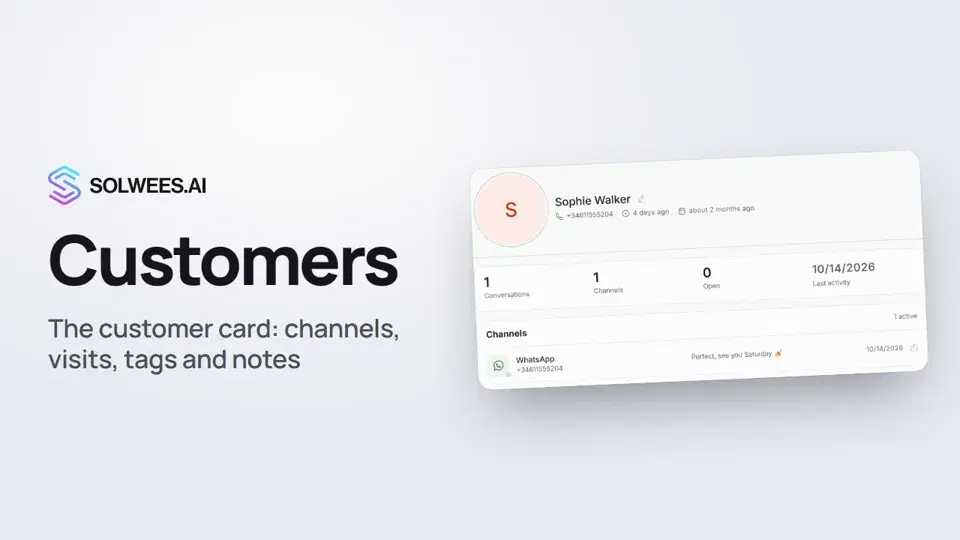 Customers and the customer cardHow to work with Customers in Solwees: finding a client, the card with channels and Start chat, details, the visit history from your CRM with the average per visit, tags and team notes.1:19
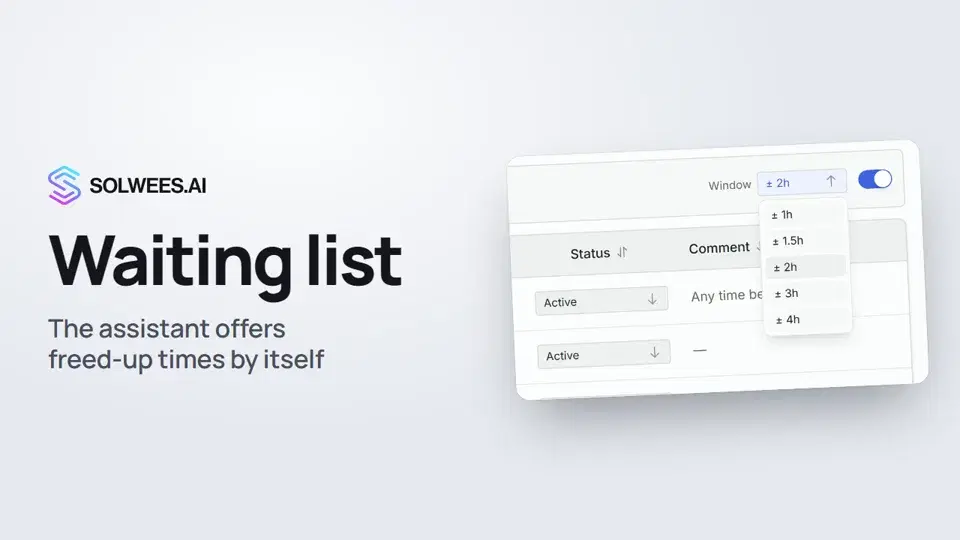 Waiting list: the assistant offers a freed-up time by itselfHow the waiting list works in Solwees: the assistant adds clients when the time they want is taken, and with AI auto-rebooking on it offers them a freed-up time by itself.0:54
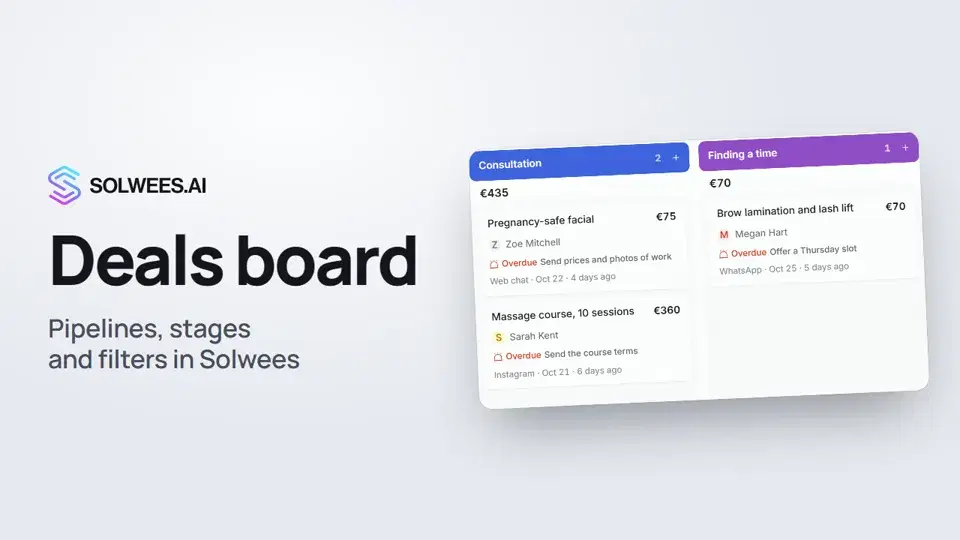 Deals: the boardHow to work with the deals board in Solwees: switch pipelines, add a quick deal, drag cards between stages, find overdue deals and view them as a list.1:28
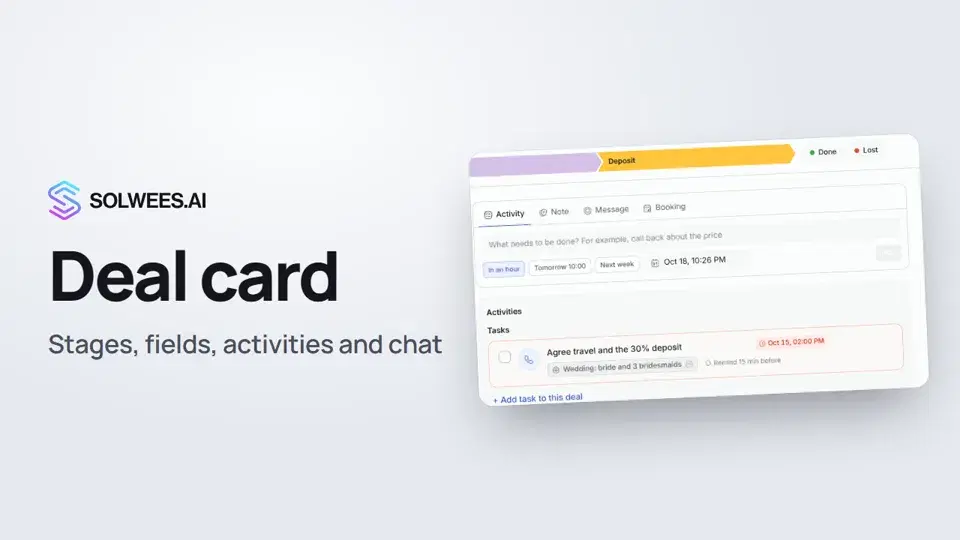 The deal card: stage, fields, activities and chat in one placeHow to work with a deal card in the Solwees CRM: move the deal to another stage, change the amount and your own fields, plan an activity, leave a note, message the client, open the chat and close the deal as won or lost.1:15
გჭირდებათ დახმარება?
ჰკითხეთ Sola-ს კაბინეტში
ასისტენტის ღილაკი კაბინეტის ნებისმიერი გვერდის კუთხეში ყველა პარამეტრს იცნობს და გაჩვენებთ, სად არის.
კაბინეტის გახსნა