
Sola: the setup assistant in Solwees
დაწყებაგანახლდა 18 ოქტომბერი, 2026ვიდეო 1:03
ეს ინსტრუქცია ჯერჯერობით ინგლისურადაა.
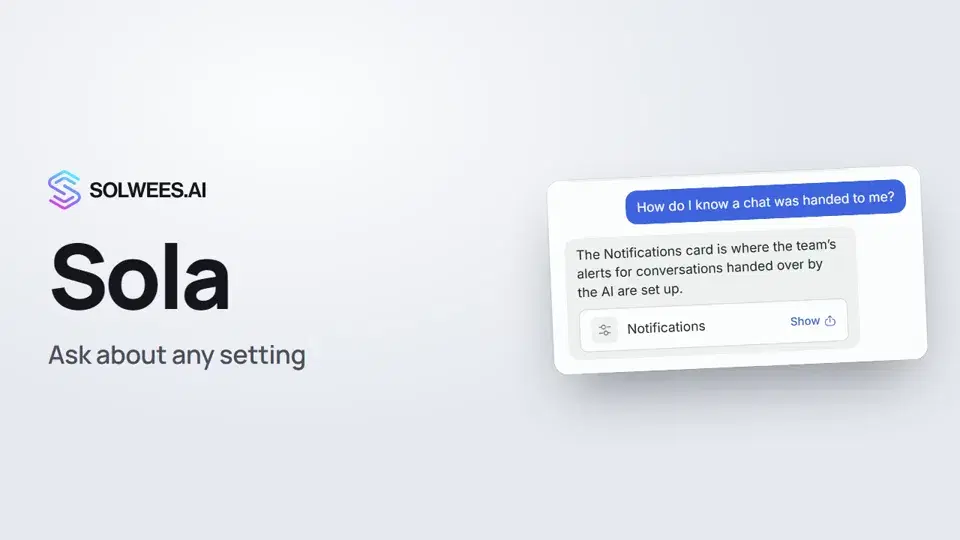
Sola is the assistant built into your Solwees workspace. Ask her about any setting in your own words: she tells you where it is, and the Show button opens the right page and highlights the spot. If you have the rights, Sola can also make a change for you: fill in an assistant setting or add a knowledge base article.
Where to find it
The Sola orb is always in the bottom right corner, on every page of your workspace. Click it to open the chat. To minimize the chat, click «−» in its header or press Esc.
What Sola can do
| What | How it looks |
|---|---|
| Find a setting | Sola answers and attaches a card with a Show button. The button opens the right page and highlights the block for a few seconds. |
| Help with any section | Not only the assistant settings: inbox, knowledge base, marketing, reports, notifications, channels, integrations, workspace settings. |
| Make a change for you | Short facts (address, phone, opening hours, languages, description) go to the business profile; details (services with prices, answers to common questions, policies) go to a knowledge base article. |
| Interface tour | The Interface tour button at the bottom of the chat walks you through the main sections. |
Sola replies in the language you write in.
How to ask
- Click the Sola orb in the bottom right corner.
- Type your question in your own words, for example: “How do I know a chat was handed to me?”
- Read the answer and click Show on the card below it. The right page opens and the block is highlighted.
The highlight fades on its own after a few seconds, on any click, or when you press Esc. The chat stays open when the page changes, so you can carry on the conversation.
How Sola makes changes
It always goes the same way:
- You ask, for example: “Add an article: we have free Wi-Fi.”
- Sola suggests the text and asks whether to save it like that.
- You say “yes”.
- Sola saves it and confirms in the chat.
Without your “yes”, Sola saves nothing. She can edit or delete an article only after you confirm too, and a deleted article can’t be restored.
Sola decides where to save by the kind of information: a one-line fact goes to a business profile card, a paragraph, list or price list goes to a knowledge base article. If the text doesn’t fit a field, Sola says so and offers a shorter version or an article.
Who can make changes
What Sola does depends on the person’s rights in the workspace:
| Role | What they can do through Sola |
|---|---|
| Owner, administrator | Ask, change assistant settings, add and edit knowledge base articles |
| Manager | Ask, add and edit knowledge base articles |
| Operator, viewer | Ask only: Sola shows where things are, and changes are made by the owner or an administrator |
These are the default rights. The role and section access for each teammate are set in Settings → Users.
Interface tour
Click Interface tour at the bottom of the Sola chat. The tour goes through the business profile (business, language, contacts, address, opening hours, description), the knowledge base and notifications. Next takes you to the next step, Skip tour closes it.
If your workspace runs without the assistant, the tour shows the sidebar sections you work with every day. The tour button is shown to people who can open the AI Agent section.
Tips
- Ask the way you’d ask a colleague: “where do I change the opening hours”, “how do I connect WhatsApp”, “where do alerts go”.
- Ask for one change at a time: it’s easier to check what was saved.
- Keep services, prices and policies in knowledge base articles, and the address, phone and opening hours in the business profile.
FAQ
Can every teammate see Sola?
Yes, everyone has the Sola orb. What she can do depends on the person’s rights (see the table above).
Can Sola change something without my consent?
No. Before every change Sola shows the text and waits for your “yes”.
Where do I find an article Sola added?
In the Knowledge section, together with your other articles. You can edit it by hand like any other.
What if Sola can’t find an answer?
If there’s no such setting, Sola says so plainly and suggests contacting support.
ვიდეოს ტექსტი
ყველაფერი, რასაც დიქტორი ამბობს. დროის ნიშნული ვიდეოს ამ მომენტიდან რთავს.
What Sola is and where to find her
Sola is the setup assistant in your workspace. Ask her about any setting, and she shows you the right place. She's always in the bottom right corner, on every page of your workspace. Click the orb to open the chat.
Asking a question and the Show button
Ask in your own words, for example, how to know when a chat is handed to you. Sola answers and attaches a card. The Show button opens the right page and highlights the spot.
Sola makes changes for you
Sola can also make changes for you. Ask her, for example, to add an article about Wi-Fi: she suggests the text and saves it once you say yes. The owner and admins can change settings through Sola, and managers can add articles too. Everyone else just gets directions.
Interface tour
New here? Click Interface tour, and Sola walks you through the business profile, knowledge base and notifications. Start with your business profile: that's our next video.
სტატიამ უპასუხა თქვენს კითხვას?
მეტი ამ თემაზე
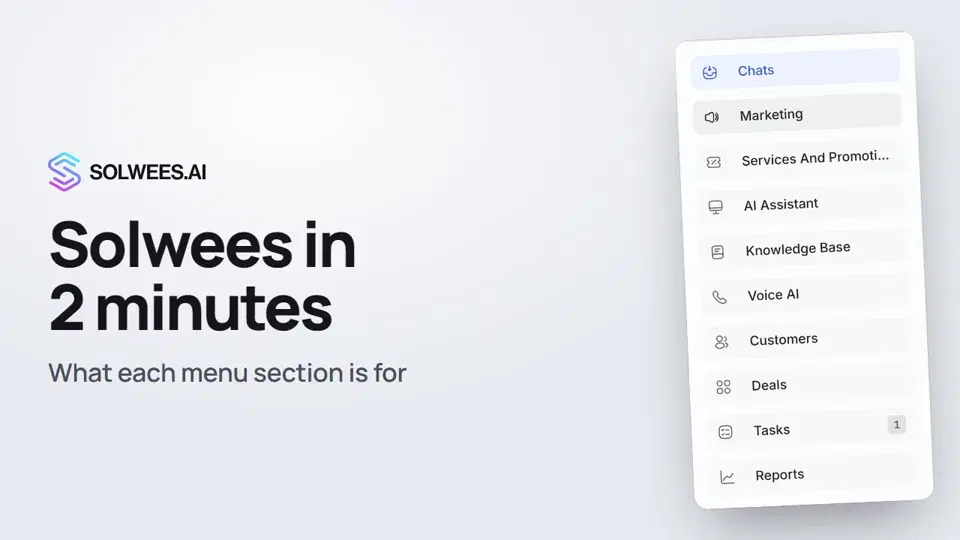 Solwees in 2 minutes: a tour of the menuA short tour of Solwees: what each menu section is for, where Settings and your profile are, and how not to miss what matters.2:10
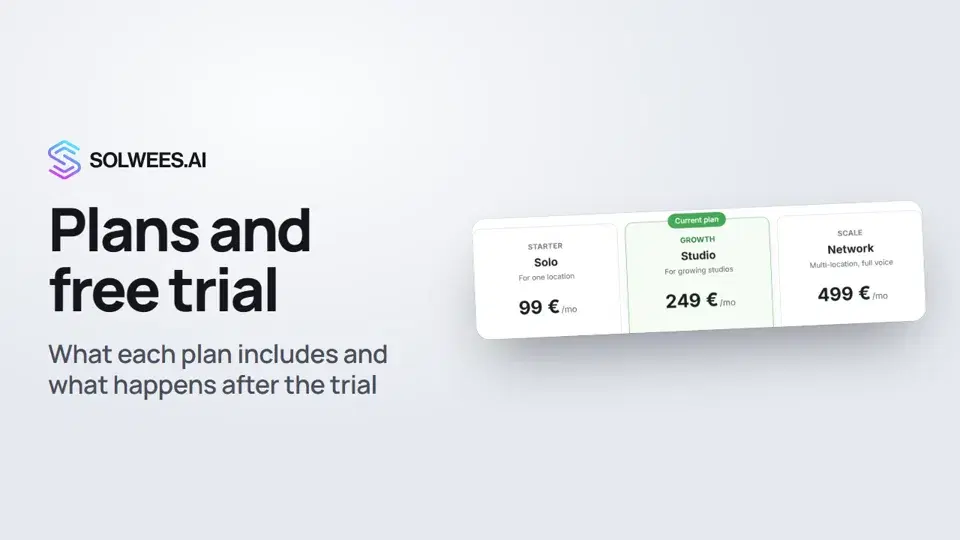 Plans and free trial: what's included and how to chooseWhich plans Solwees offers, how they differ, what your plan includes and how the free trial works.1:19
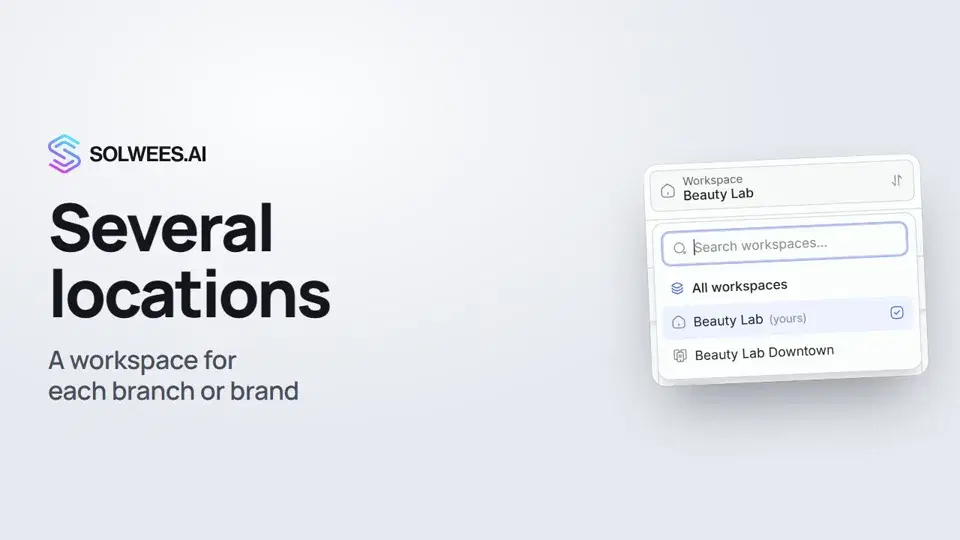 Several locations or brands: workspacesHow to run several locations or brands in Solwees: create a workspace, switch between workspaces and see every location's chats in one list.1:01დაყენება Sola-სთან ერთადროგორ აწყობს Sola, დაყენების ასისტენტი, თქვენს ასისტენტს თქვენი საიტისა და ფაილების მიხედვით.ტექსტური ინსტრუქცია
გჭირდებათ დახმარება?
ჰკითხეთ Sola-ს კაბინეტში
ასისტენტის ღილაკი კაბინეტის ნებისმიერი გვერდის კუთხეში ყველა პარამეტრს იცნობს და გაჩვენებთ, სად არის.
კაბინეტის გახსნა