
Unsorted: how to triage new leads
ჩატებიგანახლდა 19 ოქტომბერი, 2026ვიდეო 0:57
ეს ინსტრუქცია ჯერჯერობით ინგლისურადაა.
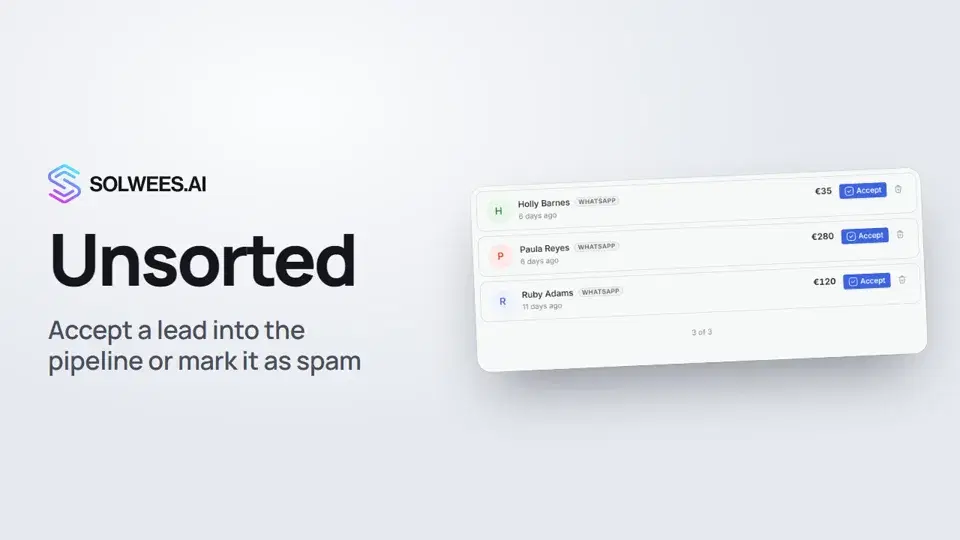
Unsorted is a folder in Chats that collects new leads nobody has handled yet. For each one you decide: take it on or remove it as spam.
Where to find it
Open Chats in the left menu and choose the Unsorted folder. The number next to the folder and next to the page title shows how many leads are waiting.
How leads get there
If the Solwees CRM app is connected in the App Directory (AI Agent → App Directory), a lead appears here on its own as soon as a client writes to any connected channel. It is a deal on the first stage of your main pipeline. A client has one open deal in the main pipeline: their next messages are attached to it, and no new lead appears until that deal is closed.
The list refreshes itself about every 30 seconds. The most recently changed leads are on top.
What a card shows
| What | Where it comes from |
|---|---|
| Client name | From the contact. With no name, the phone or email is shown |
| Channel | Where the lead came from, for example WhatsApp or web chat |
| Amount | The deal amount, if it is set |
| Time | How long ago the lead appeared |
Accept
Accept moves the deal to the first working stage (type Regular) of your main pipeline, the one marked with a star. The lead leaves the folder, and you continue with it in Deals.
If the main pipeline has no regular stage, the button is inactive. Right after you open the folder it can also stay grey for a few seconds while the pipeline stages load.
Mark as spam
- Click the bin icon on the right of the card.
- In the dialog, click Mark as spam. Cancel closes the dialog without deleting anything.
What happens:
- Only the lead is deleted: the deal itself, its history and the tasks attached to that deal. It can’t be restored.
- The contact and the whole conversation stay.
- The client does not go to the Spam folder, and the assistant keeps replying to them. If they write again, the lead comes back.
To make the assistant stop replying to someone, mark them as spam in the chat itself: the spam icon in the chat header. See the video “Close, spam, blacklist”.
Tips
- Go through the folder every day: undecided leads pile up, and the number next to the folder tells you how many are left.
- Not sure whether it’s a lead or spam? Find the client in Chats by name or phone, read the conversation, then come back to the card.
- Don’t mark a lead as spam if it already has a task: the task is deleted together with the deal.
FAQ
Can I open the conversation from the card?
No, a card in this folder doesn’t open the chat. Find the client in Chats by searching for their name or phone.
Why is the folder empty?
When every lead is handled you see “All caught up”. If new leads never appear at all, check that the Solwees CRM app is connected in the App Directory.
Where does the deal go after Accept?
To the first regular stage of your main pipeline. The main pipeline is marked with a star on the Deals page and in the pipeline settings. The Deals section itself is part of the CRM and tasks module.
The client wrote again after Mark as spam. Why are they back in the folder?
Mark as spam here deletes only the lead, it doesn’t block the client. To make the assistant stop replying, mark them as spam in the chat header or add the contact to the blacklist.
ვიდეოს ტექსტი
ყველაფერი, რასაც დიქტორი ამბობს. დროის ნიშნული ვიდეოს ამ მომენტიდან რთავს.
What Unsorted is and where to find it
Unsorted collects new leads: this is where you decide whether to take them on. Open Chats and choose the Unsorted folder. The number next to it shows how many leads are waiting.
How leads get there and what the card shows
Leads land here on their own as soon as a client writes, if the Solwees CRM app is connected. Each card shows the client's name, the channel, the amount if there is one, and when the lead came in.
Accept a lead or mark it as spam
The Accept button moves the deal to the first working stage of your main pipeline. Not a real lead? Click the bin icon and confirm Mark as spam. Only the lead is deleted: the contact and the chat stay. If the client writes again, the lead comes back. Done. Next: the chat side panel, with everything about the client right next to the conversation.
სტატიამ უპასუხა თქვენს კითხვას?
მეტი ამ თემაზე
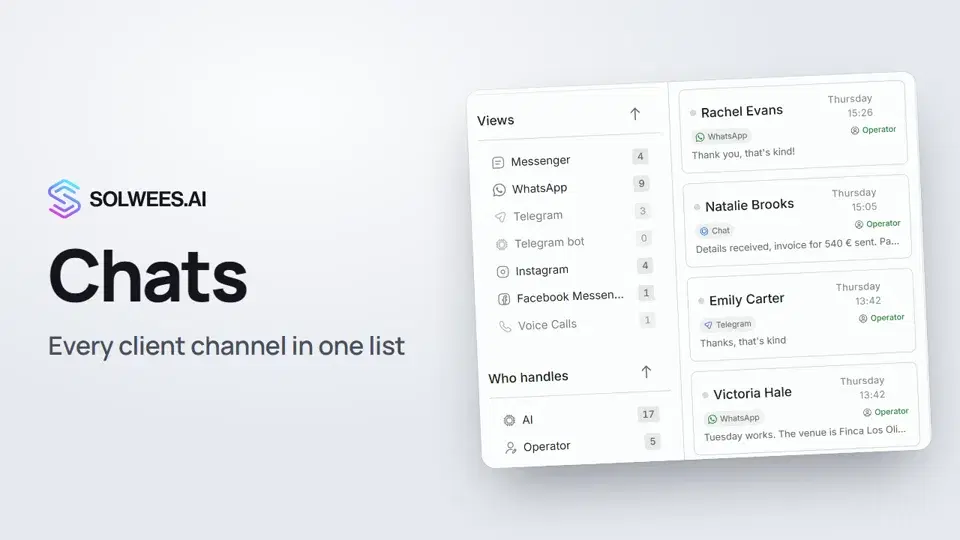 Chats: every channel in one placeHow to work with Chats in Solwees: folders, the channel and Who handles filters, search, status, sorting and opening a conversation with the client card.1:35
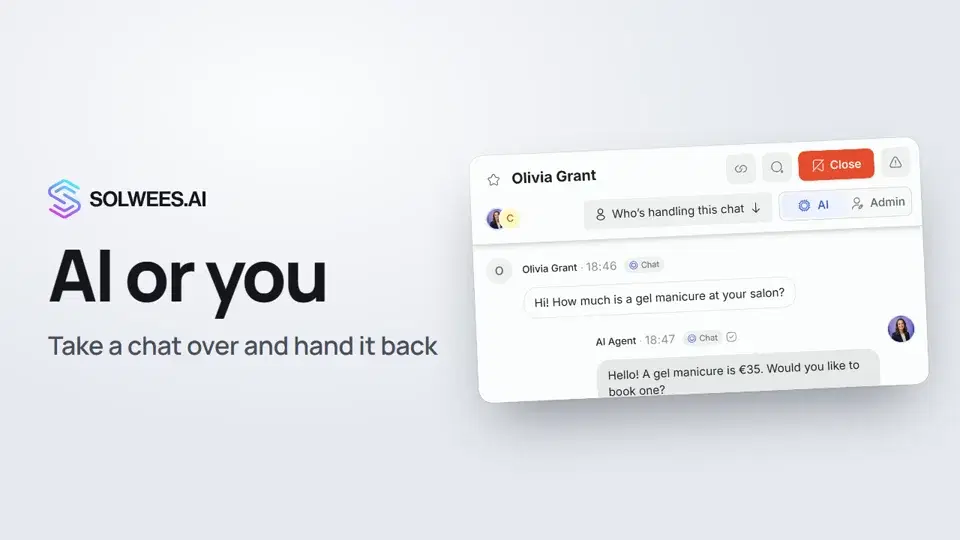 AI or you: taking a chat over from the assistant and handing it backHow to answer a client yourself instead of the Solwees AI receptionist and hand the chat back: the AI and Admin switch in the chat header, assigning a teammate and internal notes.1:13
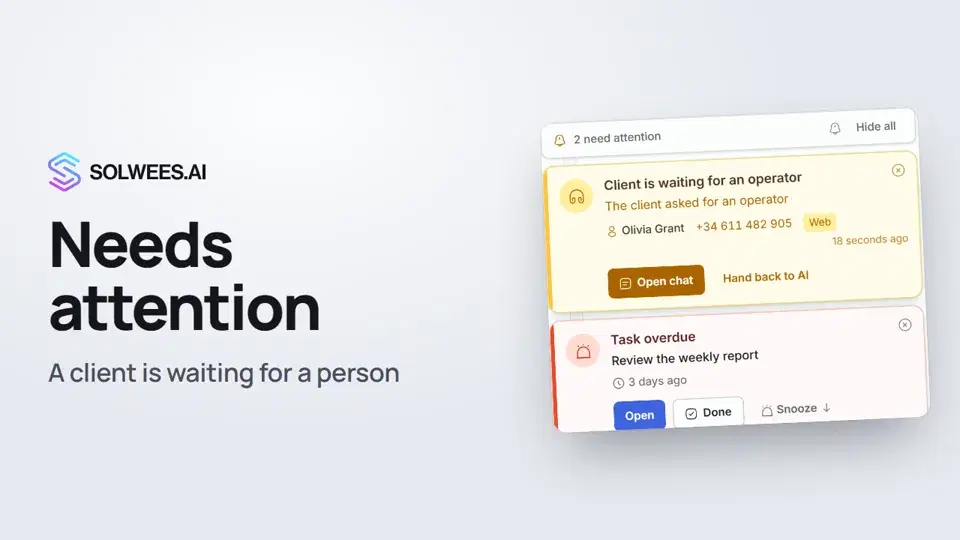 Needs attention: when a client is waiting for a personWhat to do when the Solwees AI receptionist calls for a person: the Needs attention panel, the Client is waiting for an operator card, replying, handing back to AI and task reminders.1:14
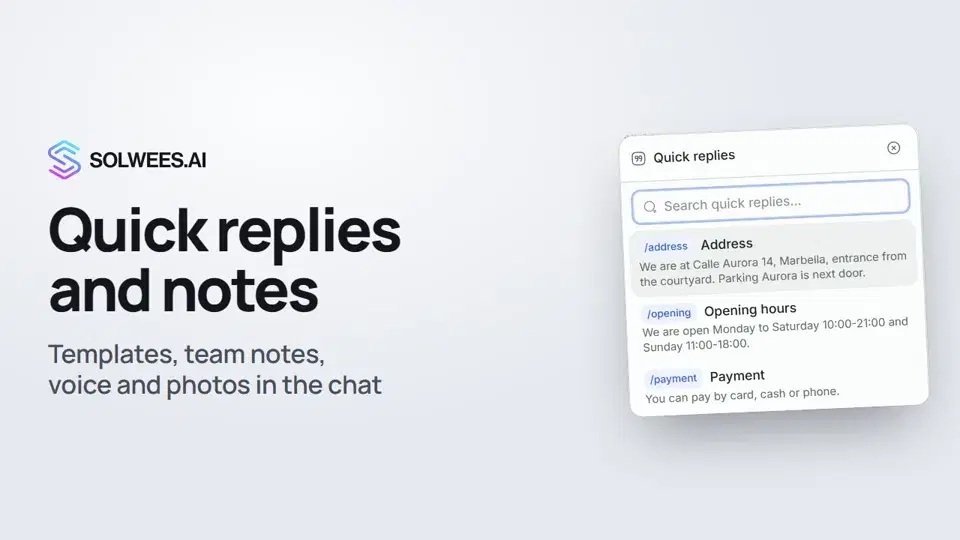 Quick replies and notes: what the chat input can doHow to answer clients faster in Solwees chats: quick replies with a slash, internal notes for your team, mentioning a teammate, voice messages and photos from your knowledge base.1:23
გჭირდებათ დახმარება?
ჰკითხეთ Sola-ს კაბინეტში
ასისტენტის ღილაკი კაბინეტის ნებისმიერი გვერდის კუთხეში ყველა პარამეტრს იცნობს და გაჩვენებთ, სად არის.
კაბინეტის გახსნა