
Restaurant bookings: connecting SevenRooms, OpenTable and CoverManager
ინტეგრაციებიგანახლდა 21 ოქტომბერი, 2026ვიდეო 1:21
ეს ინსტრუქცია ჯერჯერობით ინგლისურადაა.
If your restaurant keeps its bookings in SevenRooms, OpenTable or CoverManager, connect that system to the assistant. It then checks for free times for the right number of guests and books right in your system, so guests don’t have to wait for a host.
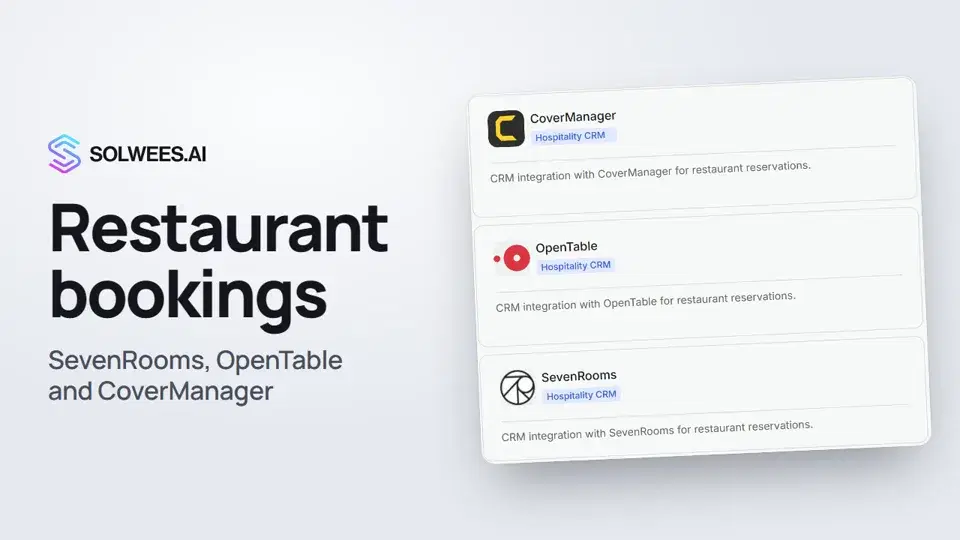
Where to find it
Open the AI Agent section, then App Directory and the Restaurants CRM tab. Click your system’s card: a panel opens on the right, and the badge under the name shows whether the system is connected.
How to connect
| System | How it connects | What to enter |
|---|---|---|
| SevenRooms | Yourself, on the Connection tab | An API key (api_key) or a client_id and client_secret pair from SevenRooms. The required field is venue_id: your venue’s code in SevenRooms. venue_group_id is only needed if you run a group of venues |
| CoverManager | Yourself, on the Connection tab | The required Scheduler Slug: your restaurant’s code from its CoverManager address. Plus a CoverManager API Key, or, without a key, your back-office login and password (the Email and Password fields) |
| OpenTable | Through support | There is no Connect button. Write to the address on the card, support@solwees.ai, and support will connect OpenTable to your workspace |
For SevenRooms and CoverManager:
- Open the system’s card and the Connection tab.
- Fill in the fields from the table. Required fields have an asterisk.
- Click Connect.
CoverManager also has two optional fields, Default Duration (minutes) and Duration by Party Size: how long a booking lasts by default and depending on the number of guests, for example 1:90,2:90,3:105,4:120. You can leave the other fields empty.
Once connected, the system is attached to the first agent in your workspace automatically.
What the assistant does once connected
- Checks for free times on the requested date for the number of guests.
- Creates the booking in your system under the guest’s name and phone number.
- Moves a guest’s booking to another time.
- Cancels a booking: in CoverManager and OpenTable.
- Puts the guest on the waiting list when there are no tables: in CoverManager.
The assistant handles table bookings when the role in your Business Profile is Restaurant Concierge.
How to test it
Open AI Agent → Agent Settings and ask for a table in the test chat, for example: “Do you have a table for two tomorrow at 8 pm?”. The assistant should offer times from your system. If there’s no answer or the assistant reports an error, check the details on the Connection tab. A booking made during the test is real: cancel it in your system afterwards.
Tips
- Test the assistant right after connecting: Connect saves the details, and a typo in a key or venue code only shows up on the first request.
- API access keys are issued by the booking system itself. If you don’t have them, request them from SevenRooms or CoverManager.
- One agent can have one booking system connected.
FAQ
Why doesn’t OpenTable have a Connect button?
OpenTable can’t be connected on your own yet. Write to support at the address on the card, and they will connect it for your workspace.
What is the Scheduler Slug in CoverManager?
It’s your restaurant’s code in CoverManager, shown in the address of your restaurant’s page. CoverManager won’t connect without it.
Can I connect two booking systems at once?
Not to one agent: the assistant books in one system.
How do I disconnect a system?
Open its card in the App Directory, click Disconnect and confirm.
ვიდეოს ტექსტი
ყველაფერი, რასაც დიქტორი ამბობს. დროის ნიშნული ვიდეოს ამ მომენტიდან რთავს.
Why connect your booking system
If your restaurant keeps its bookings in SevenRooms, OpenTable or CoverManager, connect that system to the assistant. Then it checks for free tables and books right in your system. Open the AI Agent section, then App Directory and the Restaurants CRM tab.
SevenRooms: access details and venue_id
Here you'll find SevenRooms, OpenTable and CoverManager. Open your system's card. On the Connection tab, enter your SevenRooms access details: api_key, or client_id and client_secret. The required field is venue_id, your venue's code in SevenRooms. Then click Connect.
CoverManager: required fields
CoverManager requires the Scheduler Slug: your restaurant's code from its CoverManager address. You also need an API key, or else your back-office login and password.
OpenTable and testing in the chat
OpenTable is connected by our support team: there's no Connect button here. Write to the address on the card. Once connected, try the assistant in the test chat: ask for a table for two tomorrow. It should offer times from your system. Done. Next: prepayment with Stripe.
სტატიამ უპასუხა თქვენს კითხვას?
მეტი ამ თემაზე
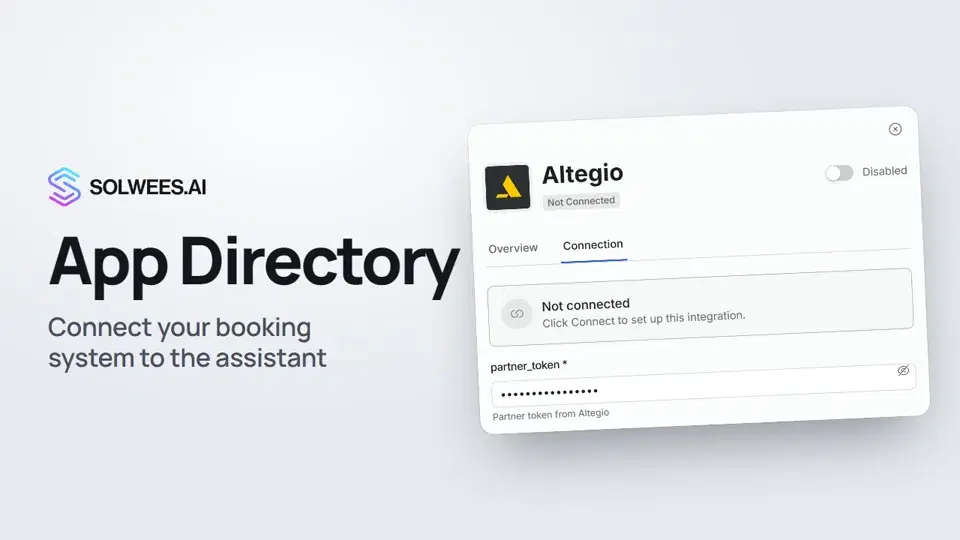 App Directory: connect your booking system, CRM and paymentsWhere to find the App Directory in Solwees and how to connect a booking system, CRM or payments to your AI receptionist: tabs, search, the integration card and the Connect button.1:06
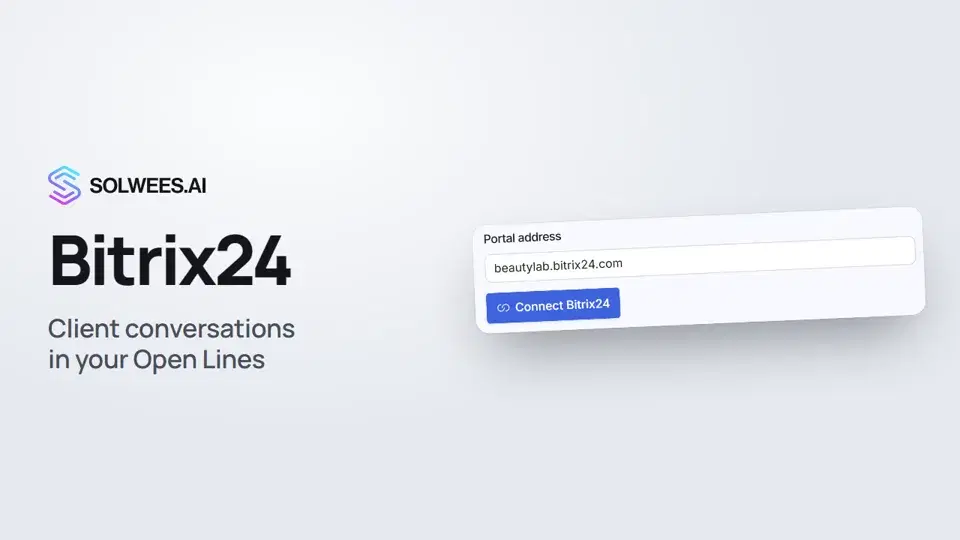 Bitrix24: client conversations in your Open LinesHow to connect your Bitrix24 portal to Solwees so the AI receptionist's conversations with clients go to your Open Lines: the portal address, confirming access on the portal, the agent's line and the No agent tab.1:03
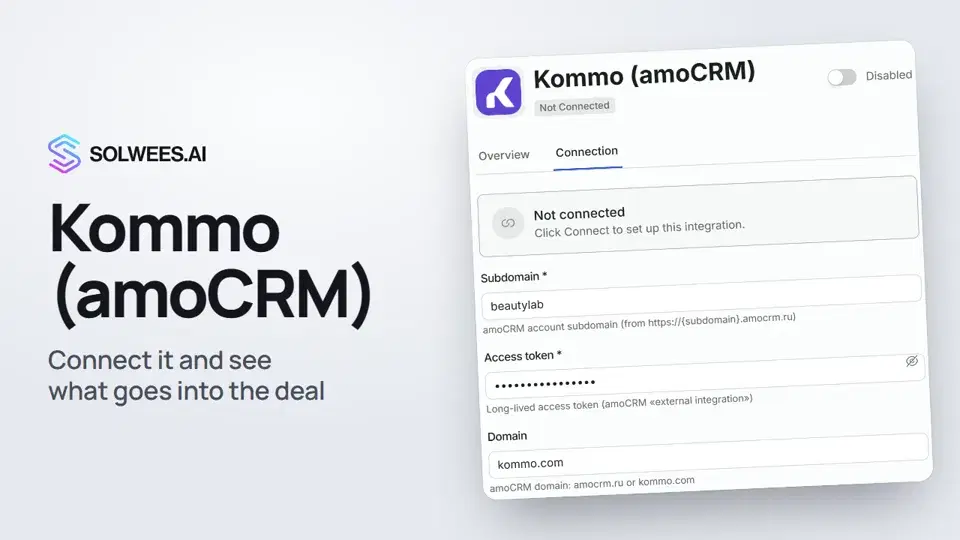 Kommo (amoCRM): how to connect it and what goes into the dealHow to connect Kommo (amoCRM) to your Solwees AI assistant: subdomain, long-lived token and domain, what the assistant sends into the deal and which assistant role it takes.1:19
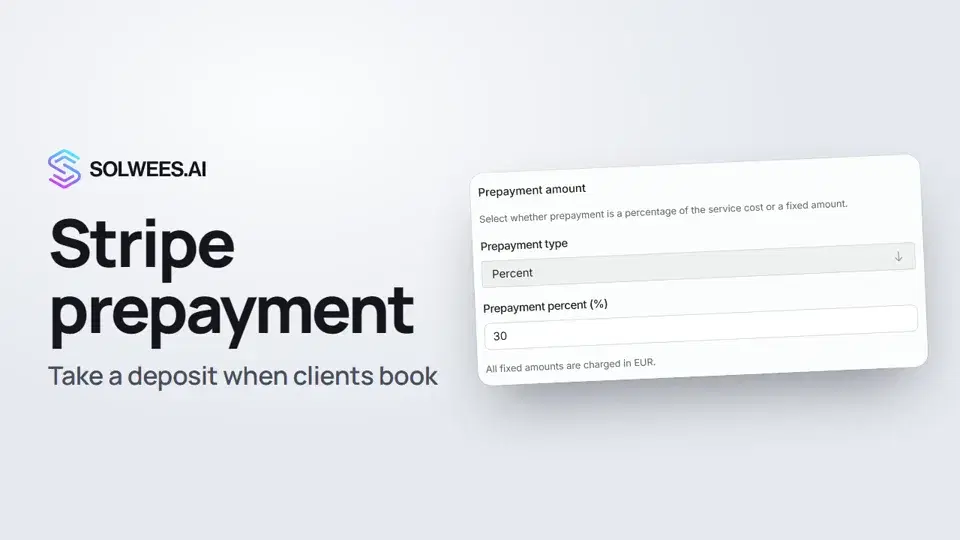 Stripe prepayment: take a deposit when clients bookHow to connect Stripe to Solwees and set up prepayment: the AI receptionist names the deposit before booking and sends the client a payment link, and you get notified once it's paid.1:28
გჭირდებათ დახმარება?
ჰკითხეთ Sola-ს კაბინეტში
ასისტენტის ღილაკი კაბინეტის ნებისმიერი გვერდის კუთხეში ყველა პარამეტრს იცნობს და გაჩვენებთ, სად არის.
კაბინეტის გახსნა