
Stripe prepayment: take a deposit when clients book
ინტეგრაციებიგანახლდა 21 ოქტომბერი, 2026ვიდეო 1:28
ეს ინსტრუქცია ჯერჯერობით ინგლისურადაა.
With Stripe prepayment, the assistant tells the client the deposit amount when they book and sends a payment link. The money goes to your Stripe account, and you get a notification when the client pays or misses the deadline.
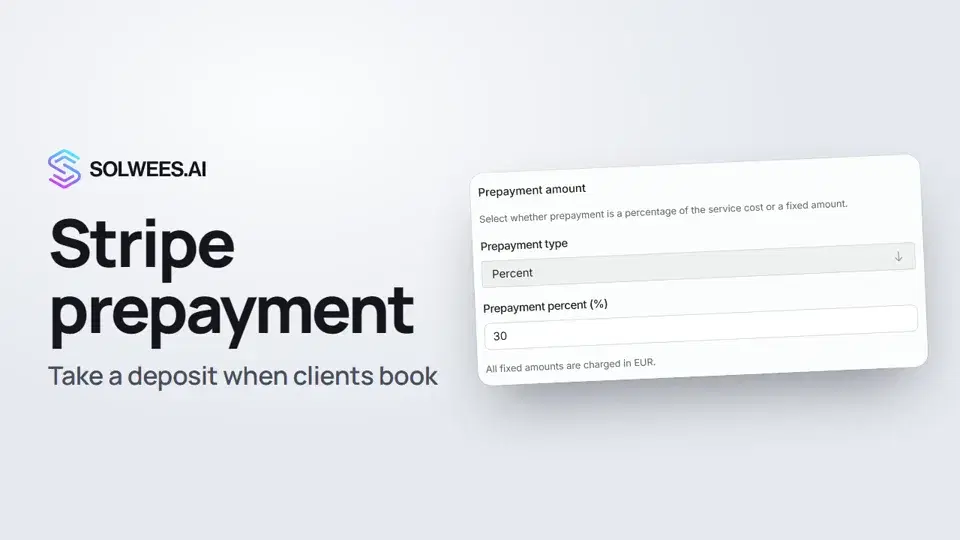
Where to find it
Open AI Agent → App Directory, go to the Payments tab and click the Stripe card.
How to connect
- Click Connect.
- A Stripe window opens: sign in to your account and allow access.
- The badge under the name changes to Connected, and the card gets a Settings tab with the prepayment rules.
If the window does not open, allow pop-ups for the Solwees site and click Connect again.
Prepayment settings
Everything is on the Settings tab of the Stripe card. After any change, click Save Settings at the bottom.
| Setting | What it does |
|---|---|
| Payment webhook | How Stripe reports a payment. The card has the steps, the endpoint URL and the event for your Stripe dashboard, plus a field for the Signing secret (whsec_…) |
| Your own domain for the payment link | Optional. By default the link points at our domain. With your own subdomain the client sees your salon’s address |
| Require prepayment | Turns prepayment on for bookings |
| Condition | Always or First visit only: for clients who have no past visits in your booking system yet |
| High cancellation rate (CRM history) | Prepayment for clients who often cancel, based on your CRM history (for example, Booksy), with a threshold in percent |
| Prepayment type and amount | A percentage of the price of the booked services, or a fixed amount in euros |
| Pay before booking (hours) | The payment deadline before the visit: from 1 to 48 hours |
| If client did not pay in time | Only notify (keep the booking) or Cancel booking in CRM |
Payment webhook
- Open your Stripe dashboard → Developers → Webhooks.
- Click «Add endpoint» and paste the endpoint URL from the card.
- Under events to send, select the event shown in the card.
- Copy the Signing secret (whsec_…), paste it into the field in the card and click Save Settings.
Your own domain for the link
- At your domain registrar, create a CNAME record for a subdomain (for example, pay.yoursalon.com) pointing to the address in the card.
- Write to us: we issue a certificate for the subdomain and send you a validation record to add as well.
- Only once the subdomain opens over https, enter it in Domain for payment links and save.
Do not fill this in ahead of time: once the domain is saved, every new link is built on it, and if the domain is not ready yet, the client’s link will not open.
What the client sees
- Before booking, the assistant names the service, the time and the deposit amount and asks the client to confirm it all in one reply.
- Once confirmed, the assistant books the client and sends the payment link as a separate message in the same chat. If the client booked by phone, the link arrives by SMS.
- The client pays on the Stripe page and then gets a message that the payment was received and the booking is confirmed.
- If the client does not pay in time and Cancel booking in CRM is selected, the booking is cancelled and the client gets a message about it.
What you see
- A Prepayment received notification: who paid, the amount, the service and the visit time.
- If the deadline passes: Prepayment not received (the booking is kept, confirm or cancel it yourself) or Booking cancelled, no prepayment (the slot is released).
- In the booking comment in your CRM: the invoice link and a note that it was paid or not paid.
Deposit on cancellation and rescheduling
What the assistant says about the deposit when a client cancels or reschedules is set separately: AI Agent → Business Profile, Advanced settings, the Deposit card. Click Edit:
- Deposit rules: in your own words, what happens to the deposit when a client cancels or reschedules. The assistant uses them when a client asks about the deposit or changes a booking at the last minute. Empty: it never mentions the deposit.
- Free reschedule window, hours: if a client reschedules earlier than this, the deposit moves to the new booking and they don’t pay again. Later than that, the assistant releases the slot and says the administrator will be in touch about the deposit. 0 turns the rule off.
Then click Update. The assistant never promises a refund and never says the deposit is lost: that is the administrator’s call.
Tips
- Set up the payment webhook first, then turn on Require prepayment.
- Connect Stripe while signed in to Solwees as the workspace owner: payment invoices are issued from the owner’s connection.
- A percentage is counted from the price of the services in the booking. If the amount is under €1, no prepayment is requested.
- If prepayments for services are already set in Altegio, the assistant uses those amounts. To ignore them, turn on «Disable Altegio prepayments» on the Settings tab of the Altegio card.
FAQ
How long does the client have to pay?
The payment link is valid for 30 minutes. If the client has not paid by then, the action you chose applies: a notification or cancelling the booking. The Pay before booking deadline applies when the link lives longer: support can extend it up to 24 hours.
Can the booking be created only after payment?
Yes, support can turn this mode on. Then the booking appears in your system only after the client has paid the deposit.
Where does the money go?
To the Stripe account you connected. You can refund a deposit to the client in your Stripe dashboard.
ვიდეოს ტექსტი
ყველაფერი, რასაც დიქტორი ამბობს. დროის ნიშნული ვიდეოს ამ მომენტიდან რთავს.
What Stripe prepayment is
Stripe prepayment: when a client books, the assistant asks for a deposit and sends a payment link. Open the AI Agent section, then App Directory, go to the Payments tab and click the Stripe card.
Connecting Stripe
Click Connect and sign in to your Stripe account: client deposits will be paid into it. Once Stripe is connected, the card gets a Settings tab.
Webhook, condition and amount
First, set up the payment webhook: the steps and the address for your Stripe dashboard are right in the card. Turn on Require prepayment and pick the condition: always, or first visit only. Set the amount: a percentage of the service price, or a fixed amount in euros.
Payment deadline and what the client sees
Set the payment deadline and what happens if the client misses it: only notify you, or cancel the booking. Save the settings. The assistant names the amount before booking and sends the link, and you're notified once it's paid.
Deposit on cancel and reschedule
What the assistant says about the deposit when a client cancels or reschedules is set in Business Profile, in the Deposit card. Describe your rules and the free reschedule window: reschedule earlier, and the deposit moves to the new booking. Done. Next: how to connect Calendly and Cal.com.
სტატიამ უპასუხა თქვენს კითხვას?
მეტი ამ თემაზე
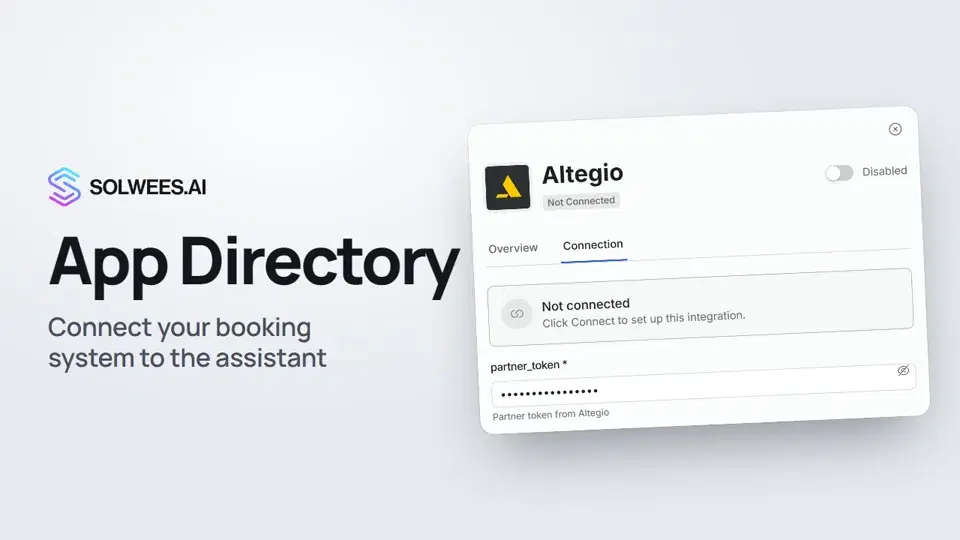 App Directory: connect your booking system, CRM and paymentsWhere to find the App Directory in Solwees and how to connect a booking system, CRM or payments to your AI receptionist: tabs, search, the integration card and the Connect button.1:06
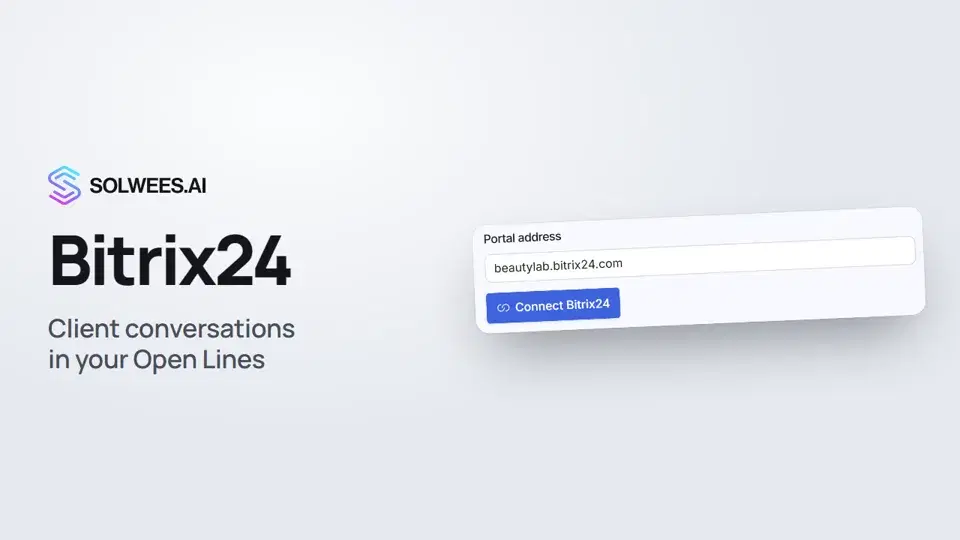 Bitrix24: client conversations in your Open LinesHow to connect your Bitrix24 portal to Solwees so the AI receptionist's conversations with clients go to your Open Lines: the portal address, confirming access on the portal, the agent's line and the No agent tab.1:03
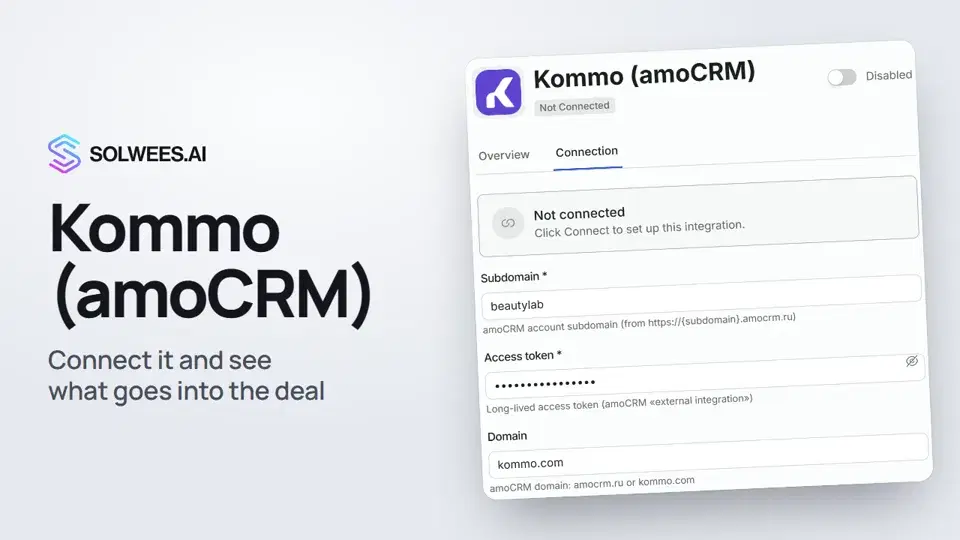 Kommo (amoCRM): how to connect it and what goes into the dealHow to connect Kommo (amoCRM) to your Solwees AI assistant: subdomain, long-lived token and domain, what the assistant sends into the deal and which assistant role it takes.1:19
 Restaurant bookings: connecting SevenRooms, OpenTable and CoverManagerHow to connect your restaurant booking system to the Solwees AI receptionist: SevenRooms and CoverManager connect in the App Directory, OpenTable is switched on by support. Once connected, the assistant checks for free tables and books right in your system.1:21
გჭირდებათ დახმარება?
ჰკითხეთ Sola-ს კაბინეტში
ასისტენტის ღილაკი კაბინეტის ნებისმიერი გვერდის კუთხეში ყველა პარამეტრს იცნობს და გაჩვენებთ, სად არის.
კაბინეტის გახსნა