
Google Sheets and Docs: the assistant answers from your file
Asistente de IA y base de conocimientoActualizado el 19 de octubre de 2026Vídeo 1:10En todos los planes salvo Hub
Esta guía está en inglés por ahora.
Connect your own Google Sheet or Google Doc to the knowledge base: a price list, promotions, policies, answers to common questions. Solwees turns the file into articles, and the assistant answers clients from them. The file stays yours: you edit it as usual, and Solwees updates the articles when you ask it to.
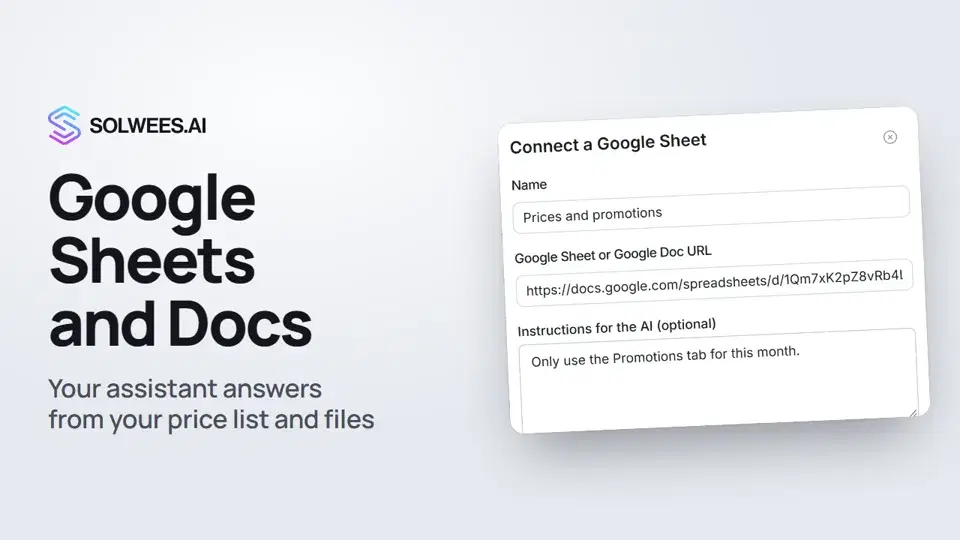
Available on every plan except Hub.
Where to find it
Open Knowledge Base in the menu and scroll down to Knowledge sources. Click Add there.
How to connect a file
- Share the file in Google: in its sharing settings, add the Solwees service account as a Viewer. Without access the connection fails.
- In Knowledge sources, click Add. The Connect a Google Sheet window opens.
- Name: how you will recognise the source in the list, for example “Prices and promotions”. Optional, up to 120 characters.
- Google Sheet or Google Doc URL: copy the link from the file’s address bar. Links like
https://docs.google.com/spreadsheets/d/...(a sheet) andhttps://docs.google.com/document/d/...(a doc) work. - Instructions for the AI (optional): what to take from the file and how. For example: “Only use the Promotions tab for this month.” Leave it empty to read every tab. Up to 4,000 characters.
- Click Connect.
The sync starts right after you connect. When it finishes, the file’s articles appear in the knowledge base list and the assistant starts answering from them.
How Solwees reads the file
| File | How it is split into articles |
|---|---|
| Google Sheet | Tab by tab. Hidden tabs, tabs with “archive” in the name and tabs whose name holds a promotion period that has already ended (for example “Promo 01.06.2026 - 30.06.2026”) are skipped |
| Google Doc | By top-level headings, or by second-level headings if there are none |
| Excel file (.xlsx) in Google Drive | Like a sheet, tab by tab. Open the file in Google Sheets and copy its link |
If you wrote instructions, Solwees takes only the tabs and sections that match them.
Articles from a file appear in the knowledge base list next to your other articles. Change them in the file itself: the next sync rewrites the article from the file, and an edit made in the knowledge base is lost.
The source card
A connected file shows up in Knowledge sources as a card: the name, the status (active, paused or error), the link to the file and the time of the last sync. The card’s buttons:
| Button | What it does |
|---|---|
| Sync now | Reads the file again and updates the articles: adds new ones, updates changed ones, removes those deleted from the file |
| Edit | Changes the name and the instructions for the AI. After Save, click Sync now to rebuild the articles with the new instructions |
| Pause / Resume | Pauses the source and resumes it. The articles stay in the base and the assistant keeps answering from them |
| Delete | Deletes the source together with all its articles. Click twice: after the first click the button asks you to click again to confirm |
When to click Sync now
Solwees reads the file when you connect it and every time you click Sync now. It does not re-read the file on a schedule at the moment. So after any change in the sheet or doc, and after changing the instructions, click Sync now on the source card.
Tips
- Keep one topic per tab: “Prices”, “Promotions”, “Booking rules”. The articles come out clearer.
- Don’t delete old promotions: hide the tab or add “archive” to its name, and Solwees skips it.
- In a doc, break the text up with headings: each heading becomes its own topic.
- If the file holds a lot you don’t need, say in the instructions which tabs and data to use.
- Check the result in the test chat: AI Agent → Agent Settings, ask, for example, the price of a service from the sheet.
If the card shows an error
| Message | What to do |
|---|---|
| No access to this file | Share it with the Solwees service account as a Viewer and click Sync now |
| File not found | Check the link and the access: Google hides a file the account can’t open |
| The spreadsheet is empty | Fill in the sheet and sync again |
| The spreadsheet is too large for one sync | Split the data into several tabs |
| No tab matches your instructions | Check the instructions and the tab names |
FAQ
How often are the file’s articles updated?
When you connect the file and every time you click Sync now. There is no scheduled update at the moment.
Can I edit such an article right in the knowledge base?
Better not: the next sync rewrites it from the file. Change the file and click Sync now.
Where do I find the service account address?
The connect window doesn’t show it. If you don’t have it, contact Solwees support.
What does Pause do?
It marks the source as paused. Its articles stay in the base and the assistant keeps answering from them. To remove the articles, delete the source.
Can I connect several files?
Yes. Each file is connected separately and gets its own card in Knowledge sources.
Transcripción del vídeo
Todo lo que dice el narrador. Un tiempo reproduce el vídeo desde ese momento.
Where to connect a Google Sheet or Doc
Google Sheets and Docs: connect your price list or a file with answers, and the assistant answers from it. Open Knowledge Base and scroll down to Knowledge sources.
The link and instructions for the AI
Click Add. Give the source a name and paste the link to your Google Sheet or Google Doc. In Instructions for the AI, say what to take from the file, for example only the promotions tab. Leave it empty to read every tab.
File access and the articles it makes
Before you connect, share the file in Google with the Solwees service account as a Viewer. Then click Connect. Solwees turns the file into articles: a sheet tab by tab, a doc by its headings. To change them, edit the file itself.
Sync now and Pause
The file appears under Knowledge sources. Changed the file or the instructions? Click Sync now on its card. Pause doesn't remove the articles: the assistant keeps answering from them. To remove them, delete the source. Done. Next: photos for replies.
¿Ha respondido a tu pregunta?
Más sobre este tema
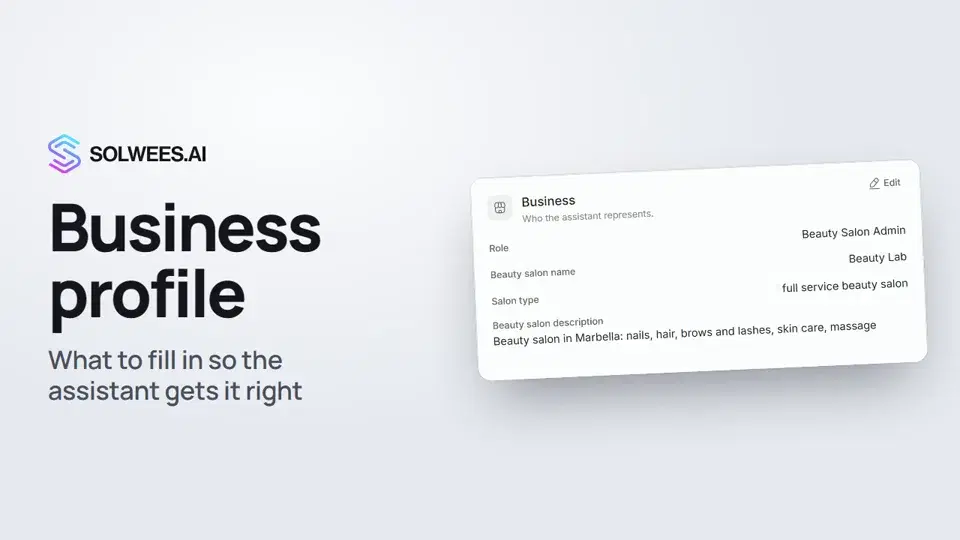 Business profile: what the assistant knows about your companyHow to fill in your business profile in Solwees so the AI receptionist answers clients accurately: name, language, contacts, address, working hours and the assistant's persona.1:35
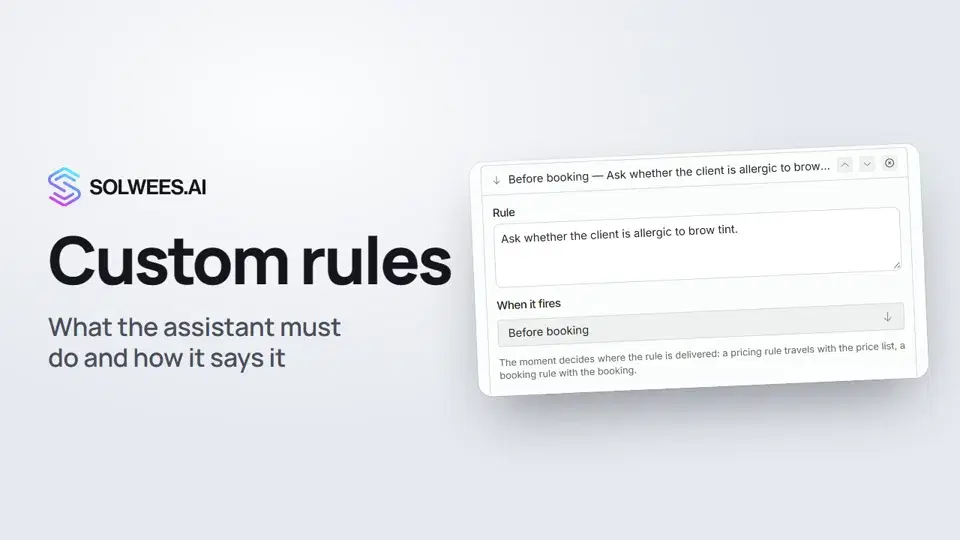 Custom rules and wordingHow to give the Solwees AI receptionist mandatory rules and wording: rules by moment, general rules and ready-made speaking styles for the key moments of a conversation.1:14
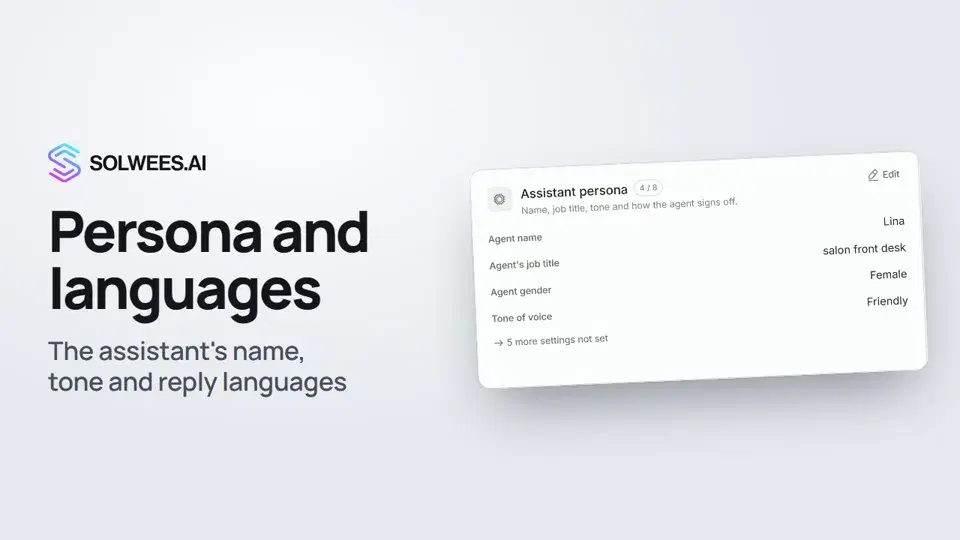 Persona and languages: how the assistant introduces itself and which languages it speaksHow to set the greeting language, allowed languages, name, job title, gender, tone of voice and closing lines of your Solwees AI receptionist in the Language and Assistant persona cards.1:22
 Booking rules: how the assistant books your clientsHow to set up booking rules for the Solwees AI receptionist: who makes the appointment, which windows it offers, what it says about a deposit, 4 and 6 hands services and add-on offers.1:38
¿Necesitas más ayuda?
Pregunta a Sola en tu panel
El botón del asistente en la esquina de cualquier página del panel conoce cada ajuste y te muestra dónde está.
Abrir el panel