
Calls: history, recordings, transcripts and the assistant's calls
Llamadas, informes y avisosActualizado el 19 de octubre de 2026Vídeo 1:11En Studio, Network y Enterprise
Esta guía está en inglés por ahora.
The Call tab of Voice AI brings together every phone conversation of your assistant: a summary, the call history, recordings and transcripts, and the calls the assistant will make on its own. It is available on the Studio, Network and Enterprise plans.
Where to find it
Open Voice AI in the left menu. The page is called Phone, and you need the Call tab. Next to it is the Campaigns tab, where you run a campaign over your own client list.
What the Call tab shows
| Block | What it shows |
|---|---|
| Summary | Total calls (inbound and outbound), connect rate (how many calls connected), average duration of connected calls and total duration |
| Call outcomes | How many calls connected and how many did not |
| Scheduled AI calls | Who the assistant will call on its own and when: the client and number, the reason, the status, the call time and the attempt number. The Call now and Cancel buttons |
| Completed AI calls | The assistant’s calls that already happened: the result, time, duration and a short summary of the conversation |
| Call history | Every call: contact, date, direction (inbound or outbound), status, call time and recording |
The scheduled calls block is expanded when it has calls and collapsed when it is empty. The list refreshes by itself about every 15 seconds.
The assistant’s scheduled calls
This is who the assistant will call without you. The reason is shown on each row: Campaign (with the campaign name), Program sent, Invoice issued, Missed call or Deal stage. The status “Waiting” means the call waits for its time, and the row says when the assistant will call.
- Call now is shown for calls in the “Waiting” status. The assistant dials the client within seconds, without waiting for the scheduled time. Calling windows still apply: outside a window, Solwees tells you when the next one opens.
- Cancel removes the call from the queue. You can cancel both a waiting call and one that is already dialing.
A call the assistant scheduled on its own after a chat (for example, after sending a document) is cancelled if the client has replied in the chat by then.
History, recordings and transcripts
- Find the call in the history. Search and the filters above the table narrow calls down by status (for example, “Missed”), direction and period.
- In the Recording column, listen to the call right in the table: click the track to jump, and switch the speed between 1×, 1.5× and 2×. The button next to it downloads the recording.
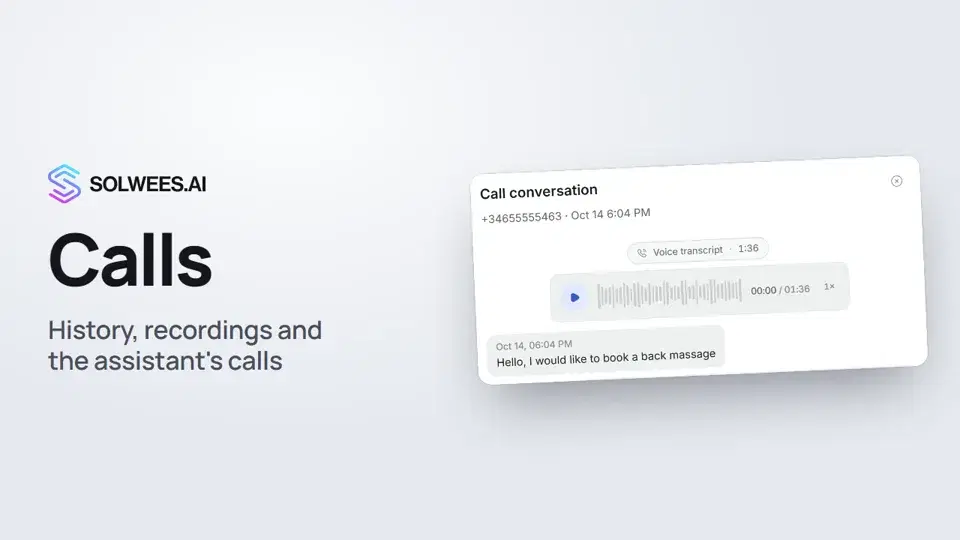
- Click the call row: the Call conversation window opens with the recording and the whole conversation as text, turn by turn.
A dash in the Recording column means the call has no recording.
Where recordings are kept and who can see them
The recording and transcript are kept with the client’s conversation. That is why the same call is also in Chats: in the Voice Calls view, in the conversation with this client, the call starts with a “Voice transcript” block with a player, followed by the turns of the conversation.
Everyone on your team with access to Chats or to calls can see recordings and transcripts. By default every role has this access: Administrator, Manager, Operator and Viewer. To narrow a teammate’s access, go to Settings → Users → Edit access → Fine-tune rights by section (the “Chats” and “Calls and numbers” sections). More in the “Team and access” article.
Tips
- To find clients you could not reach, choose the “Missed” status in the filter.
- Need the client’s whole context, not just the call? Open their conversation in Chats: calls sit there together with messages from other channels.
FAQ
Where do scheduled calls come from?
From the campaigns you run on the Campaigns tab, and from calls the assistant schedules on its own, for example after sending a document or an invoice.
Can I remove a call from the queue for good?
Yes, with Cancel. The call moves to “Completed AI calls” with the “Cancelled” status.
Why does a call have no recording?
A dash in the Recording column means the call has no recording, for example when the call did not connect.
Which teammates can listen to recordings?
Everyone with access to Chats or to calls. By default that is every role; you can narrow it in the teammate’s permissions.
Transcripción del vídeo
Todo lo que dice el narrador. Un tiempo reproduce el vídeo desde ese momento.
What Calls is and where to find it
Calls: every phone conversation of your assistant in one place: the history, recordings, transcripts and the calls it will make on its own. Open Voice AI in the left menu. At the top is a summary: how many calls, the connect rate and the duration.
The assistant's scheduled calls
Scheduled AI calls show who the assistant will call on its own and when, for example in a campaign. Call now dials the client without waiting for the scheduled time. Cancel removes the call from the queue.
History, recordings and transcripts
Below is the history of all calls. Filters help you find, say, the missed ones. In the Recording column, you can listen to a call or download it. Click a call, and the whole conversation opens as text, together with the recording.
Calls in Chats and what's next
The recording and transcript are also in Chats, in the conversation with the client. Anyone on your team with access to Chats can see them. Done. How to run a campaign over your own client list, we'll show in the Outbound campaigns video.
¿Ha respondido a tu pregunta?
Más sobre este tema
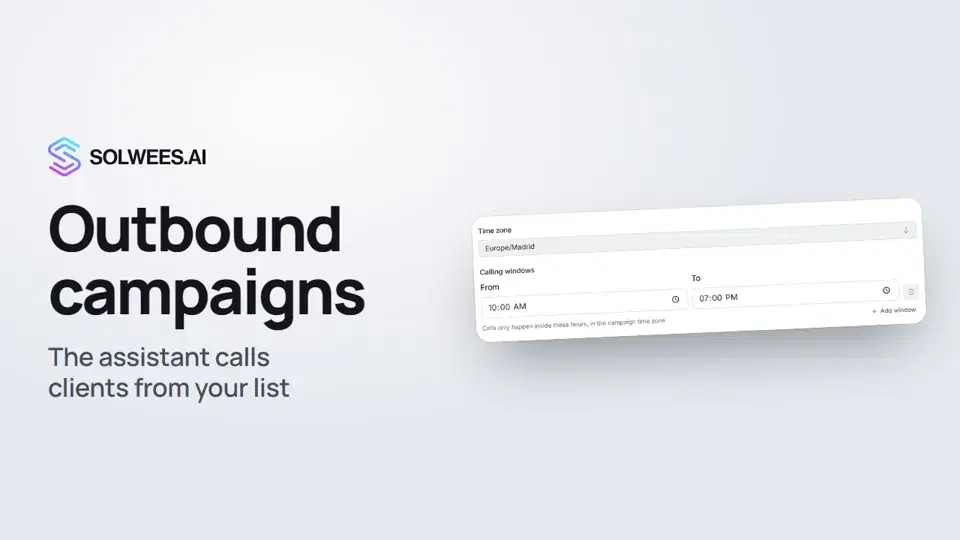 Outbound campaigns: the assistant calls clients from your listHow to run an outbound calling campaign in Solwees: upload a client file, set calling windows, pace and retries, pick a voice agent, then launch and pause it.1:43
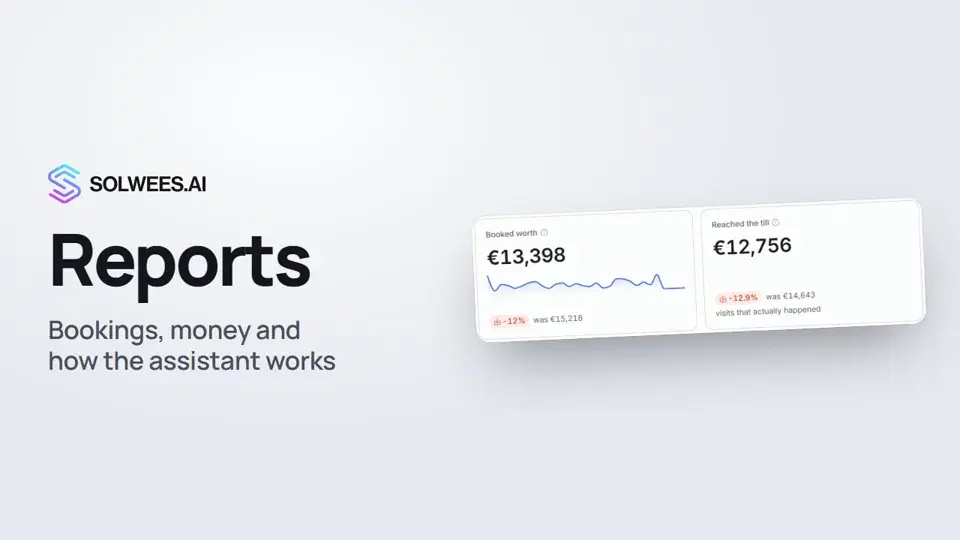 Reports: bookings, money and how the assistant worksHow to read reports in Solwees: bookings and revenue the service brought, the comparison with the previous period, how the figures are calculated, the report tabs, the period and the channel filter.1:38
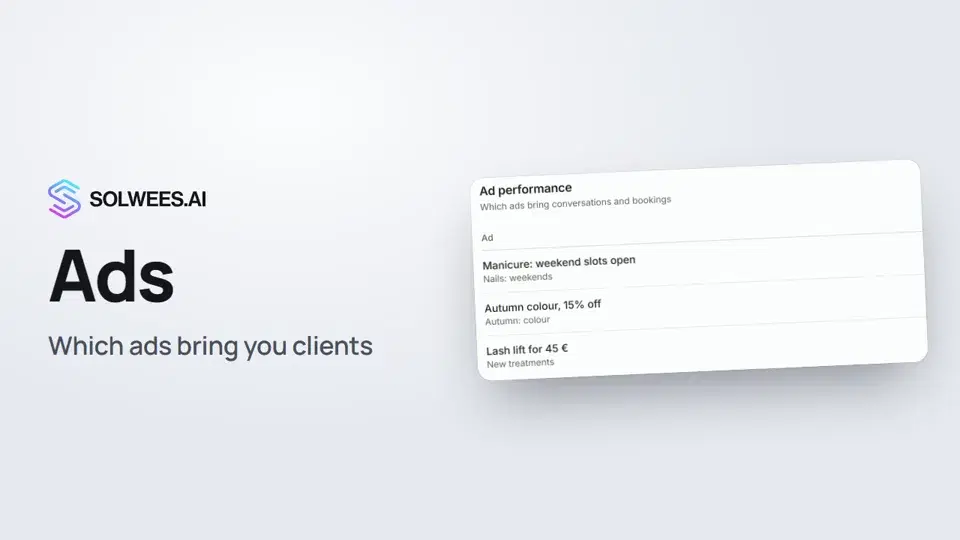 Ads: which ads bring you clientsHow to see in Solwees which Instagram, Facebook and WhatsApp ads bring you clients: the conversations, bookings and revenue from each ad, and where a chat shows which ad the client came from.1:14
 Conversation summaries, printing a report and a link to a report tabHow to get conversation summaries on a schedule in Solwees, pick their language, print a report or save it as a PDF, and send a colleague a link to the right report tab.1:08
¿Necesitas más ayuda?
Pregunta a Sola en tu panel
El botón del asistente en la esquina de cualquier página del panel conoce cada ajuste y te muestra dónde está.
Abrir el panel