
Custom rules and wording
Asistente de IA y base de conocimientoActualizado el 18 de octubre de 2026Vídeo 1:14En todos los planes salvo Hub
Esta guía está en inglés por ahora.
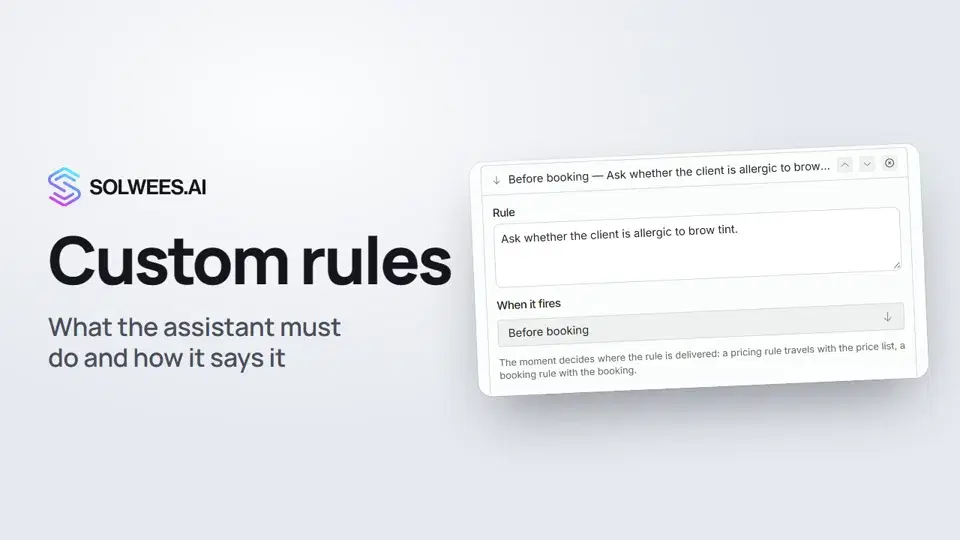
Custom rules set what the assistant must do: for example, ask about allergies before booking brow tinting. Wording sets the words it uses at key moments of a conversation: when it says hello, offers a time or confirms a booking. Both are optional: if they are empty, the assistant works as usual.
Available on every plan except Hub: Hub has no AI assistant.
Where to find it
Open AI Agent, choose Business Profile and expand Advanced settings (optional) at the bottom of the page. The cards you need are Custom rules and Wording. The set of cards depends on your type of business; this article covers a beauty salon.
What you can set
| Card and field | What to set | How the assistant uses it |
|---|---|---|
| Custom rules → Rules by moment | The rule text, the moment in “When it fires”, optionally the services and “Do not book without it” | Gets the rule together with that moment’s data: the price list, the free times, the booking. A rule set to “Always, throughout the conversation” applies to the whole conversation |
| Custom rules → General rules | One rule per line, short and specific | Keeps these rules in mind in every reply |
| Wording | A style (Formal, Warm or Brief), then your own phrases for ten moments | At those moments it uses your phrases as the model and fills in the data: date, time, specialist, service. At other moments it talks as usual |
| Ready-made reminder texts | A text per service, per reminder and per language | Sends a client who went quiet exactly this text. When to write and when to stop works as before |
Moments a rule can be tied to
- Before naming a price
- Before offering a time
- Before booking
- When calling a human
- When talking about the specialists
- Always, throughout the conversation (the default)
How to add a rule by moment
- In the Custom rules card, click Edit.
- Click Add a rule and write it in the Rule field, for example “Ask whether the client is allergic to brow tint.”
- In When it fires, choose the moment, for example “Before booking”.
- If the rule only applies to some services, set them in Only for these services. Empty means all services.
- If you can’t book without the client’s answer (a photo, a confirmation), tick Do not book without it. The rule then becomes a booking condition: the assistant is told to say what is missing and not to book without it.
- Click Update. To leave without changes, click Cancel.
General rules are added below, with the Add button under the list.
How to set the wording
- In the Wording card, click Edit.
- Pick a style: Formal, Warm or Brief. It fills in the phrases for every moment.
- Adjust the phrases you want. The buttons under a field, such as
{date},{time}and{master}, insert booking data: the assistant fills it in itself. - Click Update.
The wording moments: client says hello, first reply about a service, free time, the soonest slot, asking for contacts, adding a service, booking made, booking cancelled, after any change, passing to a person.
Tips
- If a rule must fire at a specific moment, such as before a price or before booking, set it as a rule by moment rather than a general rule. That way it reaches the assistant together with that moment’s data.
- Write each rule as one short sentence, the way you’d brief a new receptionist.
- For a temporary general rule, give a deadline with the year, for example “until 31.12.2026” (day, month, year). After that date the assistant stops applying it.
- Write wording phrases the way your receptionist would reply in a messenger. A phrase longer than 300 characters is cut off.
- Custom rules don’t override the safety rules.
- After any change, try the assistant in the test chat: write something the rule is about, for example “It’s my first visit. How much is a gel manicure?”.
FAQ
How is a rule by moment different from a general rule?
The assistant keeps general rules in mind for the whole conversation. A rule by moment also reaches it at the moment it is needed: together with the price list, the free times or the booking.
How many rules can I add?
The assistant gets up to five rules per moment. If there are more, rules with “Do not book without it” come first.
Will the assistant repeat my phrase word for word?
It uses it as the model: it fills in the date, time, specialist and service, and for a client writing in another language it translates the phrase. Only Ready-made reminder texts are sent word for word.
How do I clear the chosen wording style?
Click the selected style again: all phrases are cleared. Then click Update.
Where else do general rules show up?
In the Conversation flow diagram: each general rule is a separate node there.
I don’t see the Custom rules card. Why?
The cards under Advanced settings depend on your type of business: a card appears only if your type of agent has its settings. This article covers a beauty salon.
Transcripción del vídeo
Todo lo que dice el narrador. Un tiempo reproduce el vídeo desde ese momento.
What custom rules are and where to find them
Custom rules: what the assistant must do. Wording: the words it uses at key moments. Open the AI Agent section, then Business Profile, and expand Advanced settings.
Rules by moment and general rules
In the Custom rules card, click Edit, then Add a rule, and describe it. Choose when the rule fires: for example, before naming a price or before booking. The assistant gets such a rule with that moment's data: the price list, free times or the booking. General rules below apply throughout the conversation, one per line.
Wording: styles and phrases
In the Wording card, click Edit and pick a style: formal, warm or brief. The style fills in the phrases, and you can edit them. The assistant adds the date, time and specialist itself.
Checking in the test chat
Try it in the test chat: a client says it's her first visit, and the assistant mentions the discount from the general rule. Done. Next: persona and languages.
¿Ha respondido a tu pregunta?
Más sobre este tema
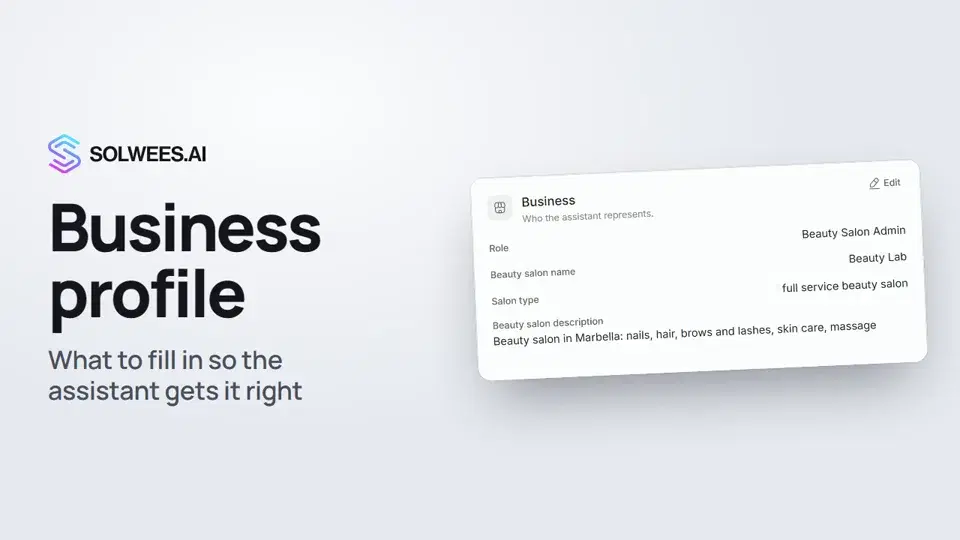 Business profile: what the assistant knows about your companyHow to fill in your business profile in Solwees so the AI receptionist answers clients accurately: name, language, contacts, address, working hours and the assistant's persona.1:35
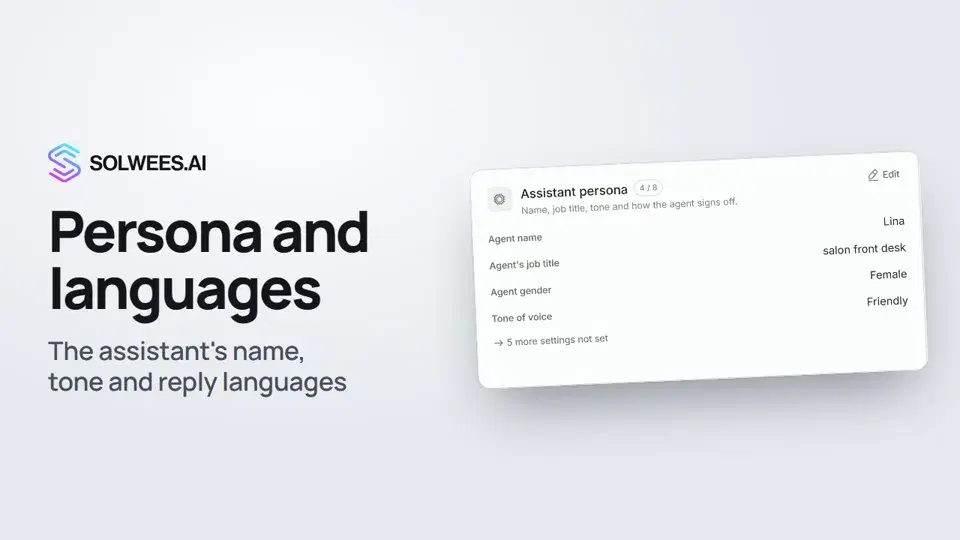 Persona and languages: how the assistant introduces itself and which languages it speaksHow to set the greeting language, allowed languages, name, job title, gender, tone of voice and closing lines of your Solwees AI receptionist in the Language and Assistant persona cards.1:22
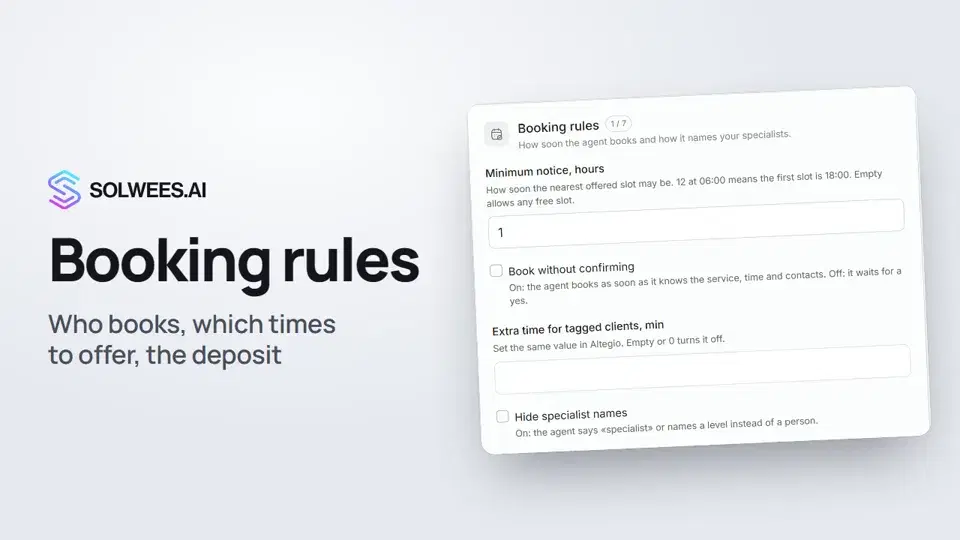 Booking rules: how the assistant books your clientsHow to set up booking rules for the Solwees AI receptionist: who makes the appointment, which windows it offers, what it says about a deposit, 4 and 6 hands services and add-on offers.1:38
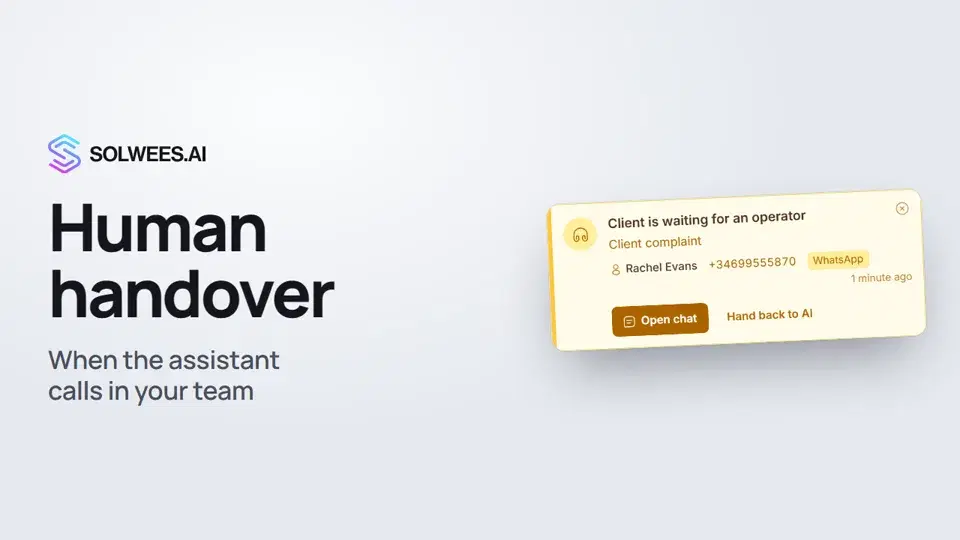 Handing over to a person: when the assistant calls in your teamHow the Solwees AI receptionist hands a conversation to your team: handover reasons in the business profile, the Client is waiting for an operator card, handing the chat back to AI and Telegram alerts.1:16
¿Necesitas más ayuda?
Pregunta a Sola en tu panel
El botón del asistente en la esquina de cualquier página del panel conoce cada ajuste y te muestra dónde está.
Abrir el panel