
Persona and languages: how the assistant introduces itself and which languages it speaks
AI asistent a znalostní bázeAktualizováno 18. října 2026Video 1:22Ve všech tarifech kromě Hub
Tento návod je zatím v angličtině.
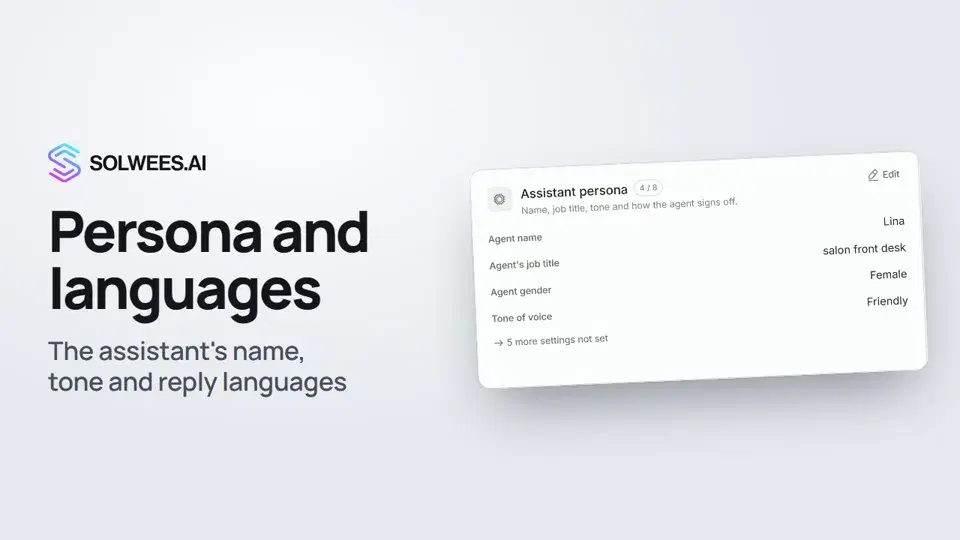
Two cards in your business profile decide how the assistant sounds to clients. In the Language card: which language it greets in, which languages it replies in, which emojis it uses and which greeting it opens with. In the Assistant persona card: its name, job title, gender, tone of voice and closing lines.
Available on every plan except Hub: Hub has no AI assistant.
Where to find it
Open the AI Agent section and choose Business Profile. The Language and Assistant persona cards are on the right: Language at the top, Assistant persona below Location & directions.
The Language card
| Field | What to set | How it works |
|---|---|---|
| Greeting language | A language from the list | The assistant starts the conversation in it, until it knows which language the client writes in |
| Reply only in the allowed languages | A tick and up to four more languages | Unticked, the assistant replies in the client’s language. Ticked, it replies only in the greeting language and the languages you chose (five at most) |
| Emojis the assistant may use | A set of emojis, for example 😊 🙌 ✨ | The assistant uses only these emojis. Empty: no restriction |
| Offer the client a choice of language | A tick | The first reply of a conversation ends with a list of languages, for example “Slovenský / English / Русский”. The client answers with a language name, and the conversation goes on in it |
| How to write the languages in that list | Language names, one per row | This is how the languages appear in the list. Empty: the assistant’s languages, each written in itself |
| Greetings | A language and a greeting text, several if you like | The assistant opens its first reply with your text in the client’s language. {name} inserts the client’s name, {honorific} inserts Ms./Mr. |
In read mode the Allowed languages row shows the result: “Replies in the client’s language” or the list of languages marked “locked”.
The Assistant persona card
| Field | What to set | How it works |
|---|---|---|
| Agent name | A name, for example “Lina” | The name the assistant introduces itself with |
| Agent’s job title | For example “salon front desk” | The assistant says it when it introduces itself. Write it in your greeting language: in a conversation in another language it neither says nor translates it. Empty: it calls itself an assistant |
| Do not announce being an AI | A tick | In the greeting the assistant gives only its name and the salon. Asked directly whether it is a bot, it still answers honestly. A job title you entered wins over this tick |
| Ask for the client’s name | A tick | The assistant asks how to address the client when the name did not come from the messenger or the CRM |
| Greet again after a pause | “As now”, “Every new message” or a time from 30 minutes to two days | How long the client must be silent before the assistant greets them again. “As now”: after 12 hours of silence or on a new day |
| Agent gender | Female, male or neutral | The gender the assistant uses when it speaks about itself |
| Tone of voice | Playful, professional, friendly, caring, luxury or energetic | How the assistant sounds in conversation. Not selected: the usual neutral tone |
| Closing lines | Your own sign-offs, several if you like | The assistant signs off with them after a booking and rotates through them |
| Thank-you in first message | A tick | The assistant opens its first reply with “thank you for choosing us” in the client’s language |
| Reminder when the client goes quiet | A tick and when to send it | The assistant follows up when the client stops replying. You can add a second reminder too |
How to change a card
- Click Edit on the card.
- Pick an option, tick a box or fill in a field.
- Click Update. To leave without changes, click Cancel.
Tips
- Tick “Reply only in the allowed languages” with care. The assistant still understands a client who writes in another language, but replies in the greeting language or one of the allowed ones, and says once that it can only help in those. A client who doesn’t speak that language may leave.
- If you do need the tick, keep only the languages your clients really write in. The more languages you allow, the higher the chance the assistant switches language by accident.
- The language choice list is built from the greeting language and the allowed languages. If “Reply only in the allowed languages” is unticked, type the languages yourself in “How to write the languages in that list”, otherwise there is nothing to list.
- Write a greeting for every language clients often use. For a language without its own greeting, the assistant builds one from its name and your salon’s name.
- After any change, try the assistant in the test chat: write to it in another language and see how it replies.
FAQ
Which language does the assistant reply in if the client writes in a language that isn’t on the list?
With “Reply only in the allowed languages” unticked, it replies in the client’s language. Ticked, it replies in the greeting language or in the allowed language the conversation was already in, and says once that it can only help in those languages.
How many languages can I allow?
Up to five: the greeting language and four more.
Does “Do not announce being an AI” make the assistant hide that it is an AI?
No. The tick only changes the greeting: the assistant gives its name and the salon. If a client asks directly whether they are talking to a bot, the assistant answers honestly.
Where do I change the assistant’s name?
In the Assistant persona card, in the Agent name field. Your business name is set in the Business card.
Přepis videa
Vše, co říká mluvčí. Časová značka přehraje video od toho místa.
Where to find persona and languages
Persona and languages decide how the assistant introduces itself, the tone it writes in, and which languages it replies in. Open the AI Agent section, then Business Profile. You need two cards: Language and Assistant persona.
Language: greeting, allowed languages, emojis
In the Language card, click Edit and choose the greeting language. The assistant starts the conversation in it. Without the box below, the assistant replies in the client's language. With it, only in the greeting language and up to four more. Use it with care: the assistant understands a client in another language, but replies only in your allowed languages, and that client may leave. Here you also set the emojis it may use, a language choice in the first reply, and your own greeting for each language.
Persona: name, job title, gender and tone
In the Assistant persona card, click Edit and set the name and job title. That's how the assistant introduces itself. Below: the gender it uses for itself, the tone of voice, and the lines it signs off with after a booking.
How to save and what comes next
Done. To save, click Update. Next up: booking rules, how the assistant books your clients.
Odpověděl článek na vaši otázku?
Další k tématu
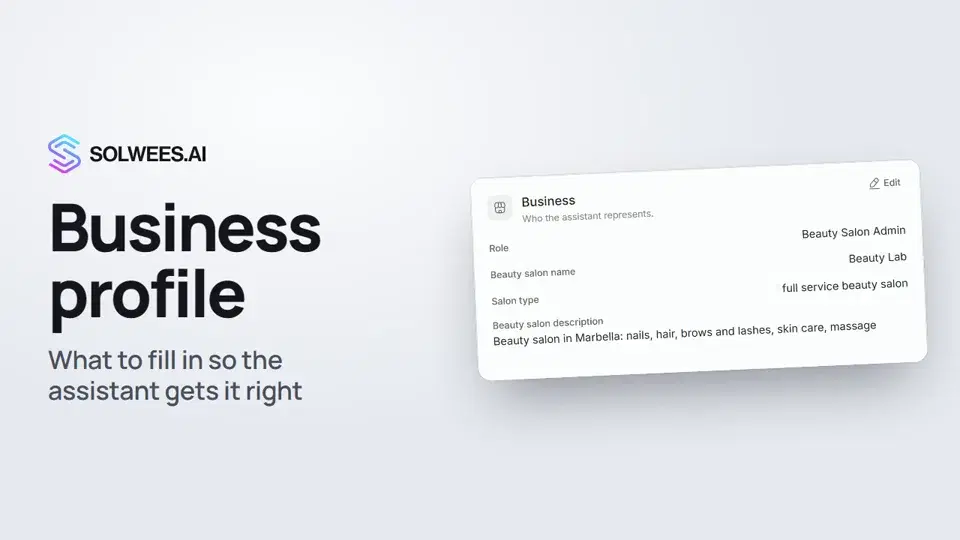 Business profile: what the assistant knows about your companyHow to fill in your business profile in Solwees so the AI receptionist answers clients accurately: name, language, contacts, address, working hours and the assistant's persona.1:35
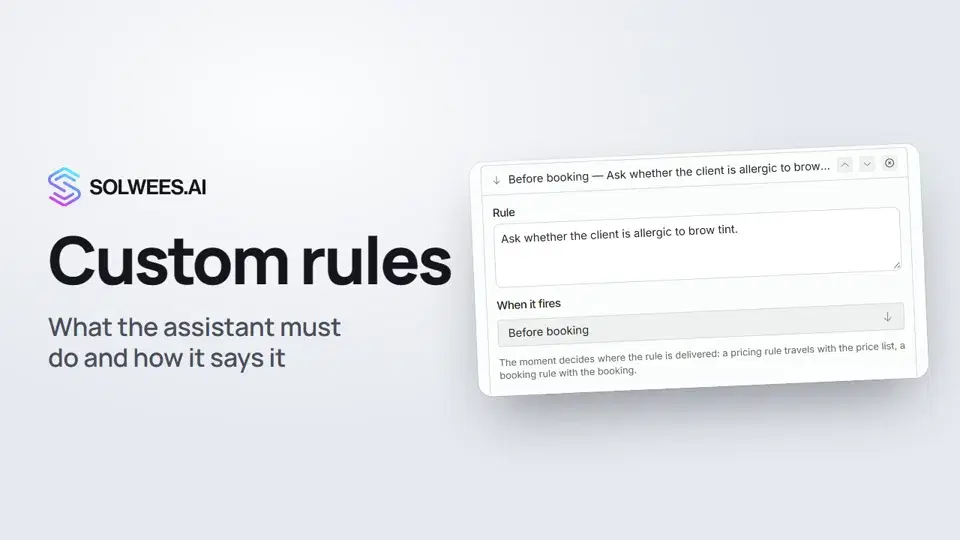 Custom rules and wordingHow to give the Solwees AI receptionist mandatory rules and wording: rules by moment, general rules and ready-made speaking styles for the key moments of a conversation.1:14
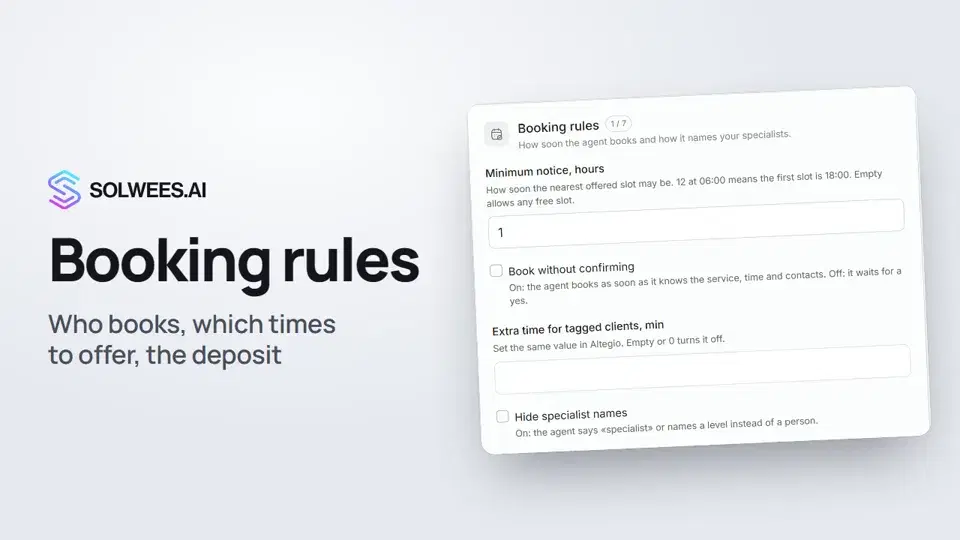 Booking rules: how the assistant books your clientsHow to set up booking rules for the Solwees AI receptionist: who makes the appointment, which windows it offers, what it says about a deposit, 4 and 6 hands services and add-on offers.1:38
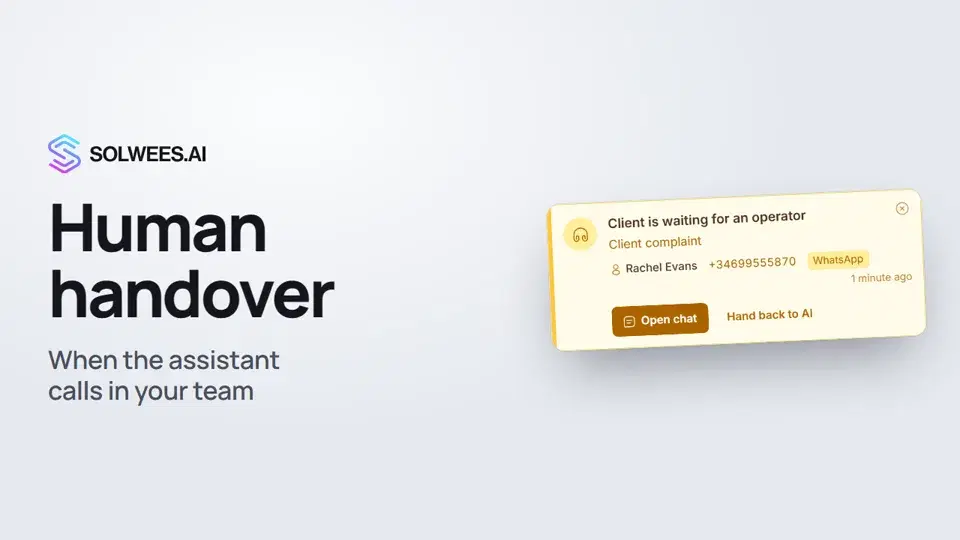 Handing over to a person: when the assistant calls in your teamHow the Solwees AI receptionist hands a conversation to your team: handover reasons in the business profile, the Client is waiting for an operator card, handing the chat back to AI and Telegram alerts.1:16
Potřebujete pomoc?
Zeptejte se Soly v rozhraní
Tlačítko asistenta v rohu každé stránky rozhraní zná každé nastavení a ukáže, kde je.
Otevřít rozhraní