
Close a chat, spam and blacklist
ChatyAktualizováno 21. října 2026Video 1:25
Tento návod je zatím v angličtině.
When a conversation is over, you close the chat. People who write off topic go to spam, and a client the assistant should no longer answer goes to the blacklist. All of this lives in Chats: in the header of an open chat and in the menu of the contact card on the right.
How to close a chat
- Open Chats and click the chat.
- In the chat header, click Close.
The conversation closes and the timeline shows “Conversation closed”. You can’t reply in a closed conversation. If the client writes again, a new conversation starts. To bring a closed one back, click Re-open in the chat header. If the client has no open conversation left, their chat leaves the open list: find it by choosing “All” or “Closed” above the list.
You don’t have to close every chat by hand: conversations where nobody writes for a while close by themselves.
How to record the outcome
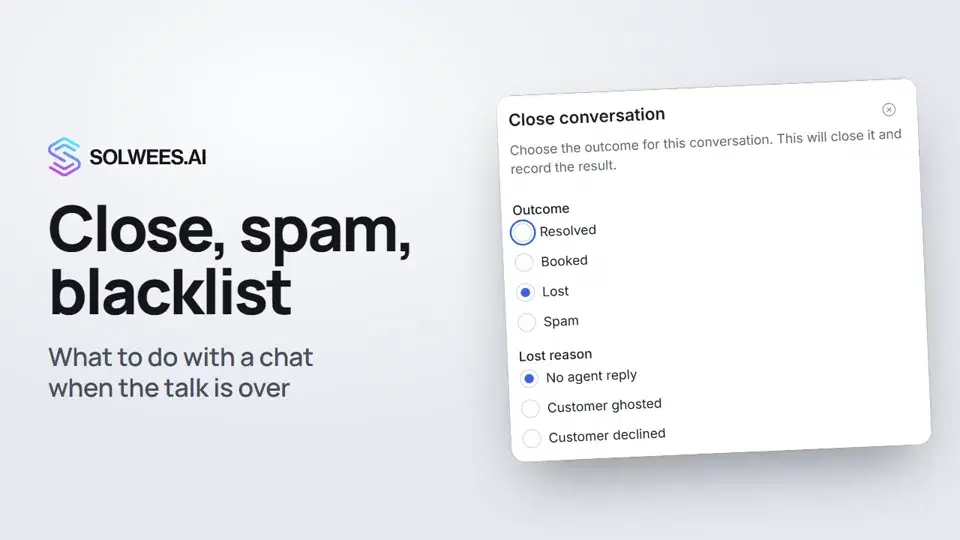
Close in the header closes the conversation as Resolved. To choose another outcome:
- Above the chat list, click Select (the square icon with a tick).
- Tick one or more chats.
- Click Close selected.
- Choose the outcome and click Close conversation.
| Outcome | When to choose it |
|---|---|
| Resolved | The client’s question is answered |
| Booked | The client made a booking |
| Lost | The client left. Pick a reason: No agent reply, Customer ghosted or Customer declined |
| Spam | Off-topic messages |
Only chats with an open conversation can be ticked.
Based on the outcome, the client’s deal can move to the right stage by itself. Set this up in Settings → Pipelines, block Stages move on their own, group “When the chat is closed”: for example, “The client booked” can move the deal to the stage where bookings are confirmed.
Spam
- Open the chat.
- In the chat header, click the spam icon (an octagon with an exclamation mark, right of Close) and confirm with Mark as spam.
What happens:
- every open conversation of the contact closes with the outcome Spam;
- the contact disappears from the inbox, search and counters and can only be found in the Spam folder;
- the assistant stops replying to it.
Made a mistake? Open the Spam folder, pick the contact and click Not spam in the chat header (or in the ⋮ menu of the contact card). The contact returns to the inbox, but closed conversations stay closed: when the client writes, a new one opens.
Blacklist
- Open the client’s chat.
- On the contact card on the right, click the three dots ⋮.
- Choose Add contact to blacklist and confirm.
The chat header shows Blocked. The assistant stops replying to this client in chats and on calls. In chats, the block also works by phone number: if the client has several contacts with the same number, the assistant stays silent in all of them. You can still reply yourself from the chat.
To lift the block, use the same menu: Remove contact from blacklist. Everyone you blocked is listed in Customers, on the Blacklist tab. There you can also block a number that hasn’t written to you yet.
Merge contact
If one client wrote to you from two channels, for example WhatsApp and Telegram, they may have two contacts.
- Open the chat of one of them.
- On the contact card, click ⋮ and choose Merge contact.
- Find the other contact by name, phone or ID and click Merge.
The other contact’s conversations, channels and history move into the current one, its empty fields are filled from the other contact, and the other contact is removed. A merge can’t be undone.
FAQ
What is the difference between spam and the blacklist?
Spam hides the contact from the inbox and closes its conversations: use it for mass mailings and random messages. The blacklist keeps the contact where it is, but the assistant stops replying to it in chats and on calls: use it for clients you only talk to yourself.
Does the assistant reply to a contact in spam?
No. A new message from such a contact gets no reply from the assistant.
Can I reply to a blocked client?
Yes. The block applies to the assistant only, you can still write to the client yourself.
Why can’t I reply in a chat?
The conversation is closed. Click Re-open in the chat header and the reply box comes back.
Přepis videa
Vše, co říká mluvčí. Časová značka přehraje video od toho místa.
How to close a chat
Conversation over? Close the chat. And anyone who writes off topic can go to spam or the blacklist. Open the chat and click Close. If the client writes again, a new conversation starts, and Re-open brings a closed one back.
Outcome: resolved, booked, lost
Want to record how it ended? Click Select above the list, tick the chat and click Close selected. Choose the outcome: Resolved, Booked, or Lost with a reason. Based on it, the deal can move to the right stage by itself.
Spam and the Spam folder
Getting spam? Click the spam icon in the chat header and confirm. Their conversations close, and the assistant stops replying to them. The contact moves to the Spam folder. Made a mistake? Open it there and click Not spam.
Blacklist
To block a client, click the three dots on their contact card and choose Add contact to blacklist. The assistant stops replying to them in chats and on calls. You can still reply yourself.
Merge contact
Same client writing from two channels? In the same menu, choose Merge contact: the other contact's history moves here. Done. Next: the Unsorted folder, where new leads wait to be sorted.
Odpověděl článek na vaši otázku?
Další k tématu
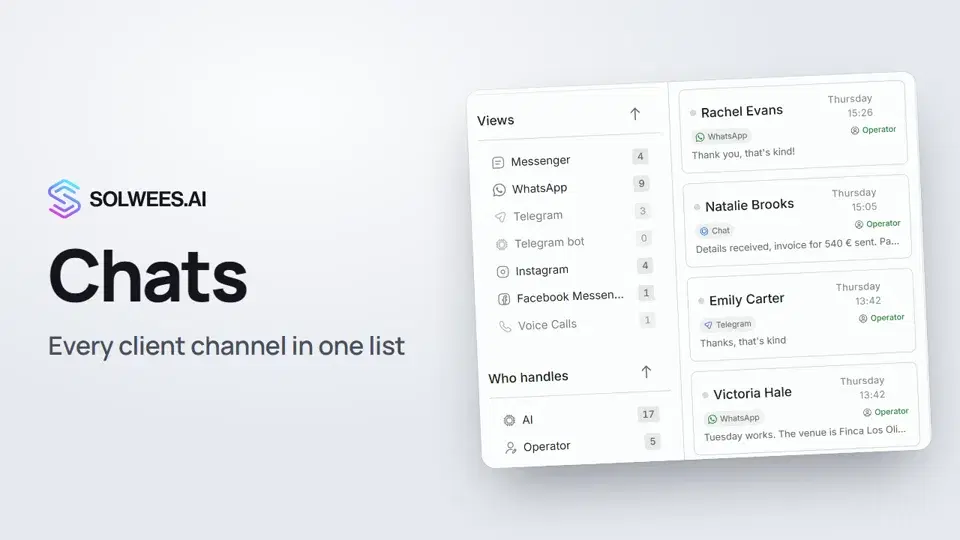 Chats: every channel in one placeHow to work with Chats in Solwees: folders, the channel and Who handles filters, search, status, sorting and opening a conversation with the client card.1:35
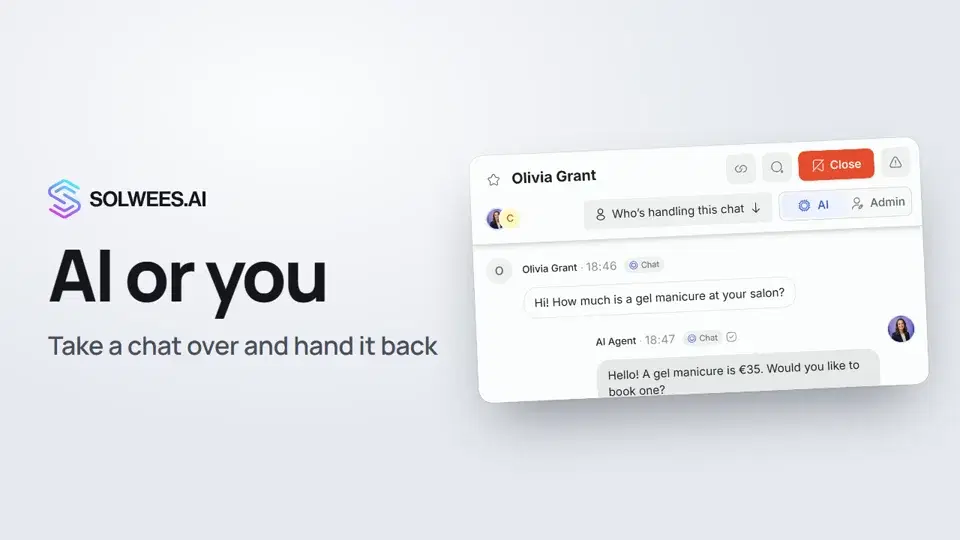 AI or you: taking a chat over from the assistant and handing it backHow to answer a client yourself instead of the Solwees AI receptionist and hand the chat back: the AI and Admin switch in the chat header, assigning a teammate and internal notes.1:13
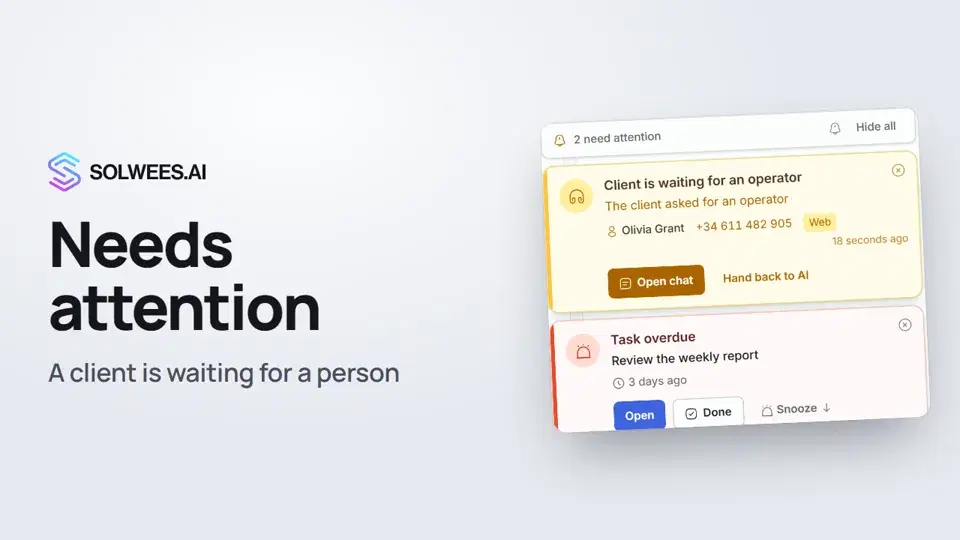 Needs attention: when a client is waiting for a personWhat to do when the Solwees AI receptionist calls for a person: the Needs attention panel, the Client is waiting for an operator card, replying, handing back to AI and task reminders.1:14
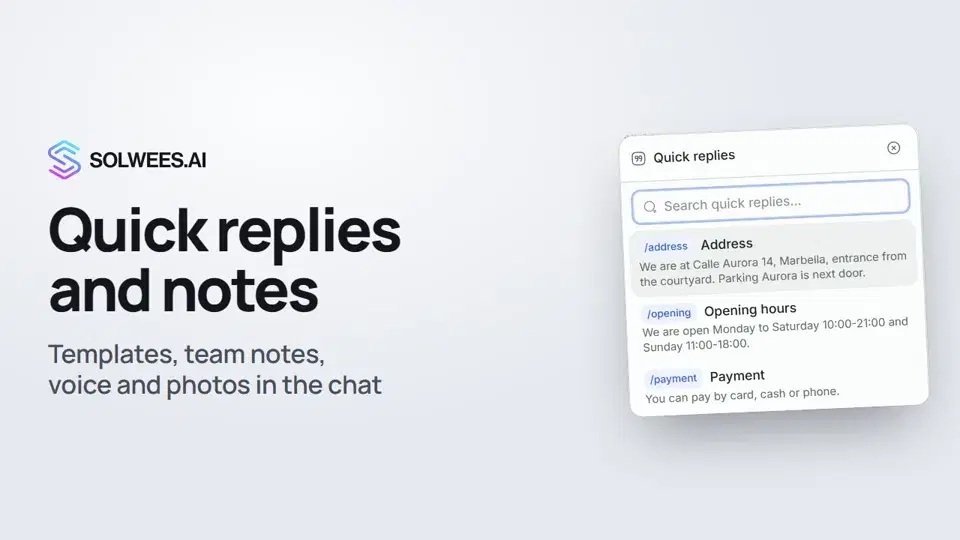 Quick replies and notes: what the chat input can doHow to answer clients faster in Solwees chats: quick replies with a slash, internal notes for your team, mentioning a teammate, voice messages and photos from your knowledge base.1:23
Potřebujete pomoc?
Zeptejte se Soly v rozhraní
Tlačítko asistenta v rohu každé stránky rozhraní zná každé nastavení a ukáže, kde je.
Otevřít rozhraní