
Pipelines and automation: stages, rules and who gets the deals
Klienti, obchody a úkolyAktualizováno 19. října 2026Video 1:27S modulem CRM a úkoly
Tento návod je zatím v angličtině.
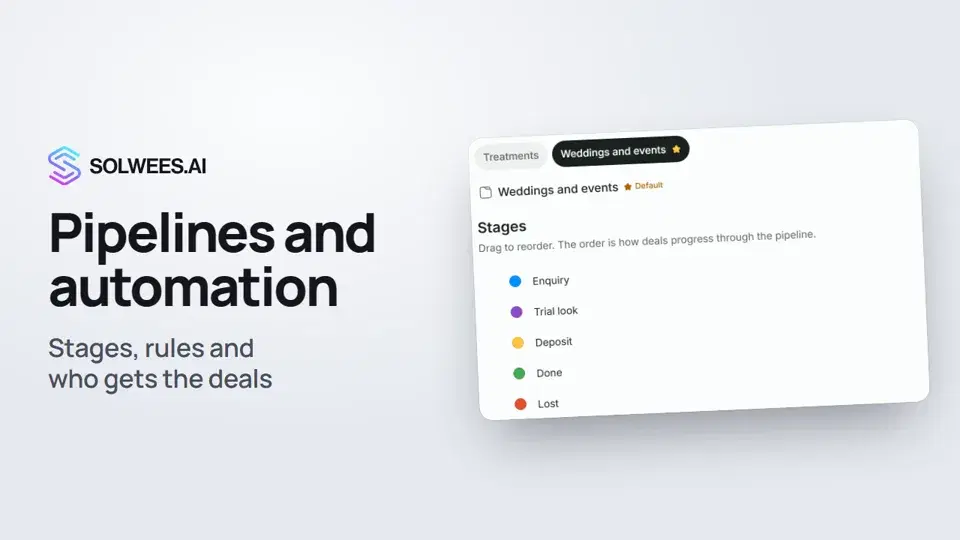
A pipeline is the set of stages a deal goes through, from the client’s first message to payment or a lost deal. In the pipeline settings you set the stages, the rules that move a deal to the right stage on their own, and who gets new deals.
Pipelines work with the Deals section from the CRM and tasks module. If the module is not connected, the Deals page offers to connect it. Pipelines can be set up by a team member with the right to manage the CRM.
Where to find it
Open Settings at the bottom of the left menu and choose Pipelines in the CRM group. There are two more ways from the Deals page: the gear button “Manage pipelines” and the “Pipeline automation” button, which opens the rules straight away.
The pipeline switcher is at the top of the page. The main pipeline is marked with a star and the Default label.
The main pipeline
- New deals from chats land in the main pipeline: a deal appears on the first stage as soon as the client writes (when the “Solwees CRM” app is connected).
- The Deals section opens on the main pipeline.
- To make another pipeline the main one, select it at the top, open the menu to the right of its name and click Make default.
Stages
| Action | How |
|---|---|
| Add a stage | Type a name in the line under the list, pick a colour (the dot on the left) and a type, then click Add or press Enter |
| Rename | Double-click the name, type a new one and press Enter or the tick. Escape or the cross cancels. If you click elsewhere on the page, the new name is saved |
| Change the order | Hover over a row and drag it by the handle on the left. The order of stages is the deal’s path through the pipeline |
| Change the colour | Click the stage’s colour dot |
| Delete | The bin icon on the right. You can only delete a regular stage that has no deals |
Stage types:
| Type | What it means |
|---|---|
| Inbox | The first stage, new deals land here. There is one per pipeline and it can’t be deleted |
| Regular | A working stage: consultation, finding a time, booking and so on |
| Won | A deal on this stage counts as won and is closed |
| Lost | A deal on this stage counts as lost and is closed |
Inbox, Won and Lost stages can’t be deleted, but you can rename them.
Stages move on their own
In the Stages move on their own block, pick for each event the stage the deal moves to, or leave Do not move. The rule works without the assistant or a manager.
| Group | Event | When it fires |
|---|---|---|
| During the conversation | AI replied to the client | The assistant replied in the deal’s chat |
| During the conversation | The chat is handed to a manager | A team member replied in the chat |
| When the chat is closed | The client booked | The chat was closed with the outcome “booked” |
| When the chat is closed | The question is resolved | The chat was closed with the outcome “resolved” |
| When the chat is closed | The client is lost | The chat was closed with the outcome “client lost” |
| When the chat is closed | Spam | The chat was closed as spam |
Each pipeline has its own rules. If the deal is already on that stage, nothing changes. If a rule leads to a Won or Lost stage, the deal is closed.
Who gets new deals
| Way | How it works |
|---|---|
| Manually | You pick the owner. If nobody is set, the deal goes to whoever replies to the client first |
| Take turns | New deals go in turn to the people of the pipeline |
| Least busy | The deal goes to whoever has the fewest open deals in this pipeline |
Pipeline team: tick who sees this pipeline and gets its deals. Take turns and Least busy need at least one person, otherwise new deals stay without an owner (the page warns you about it).
The switches below:
- A returning client goes to their manager. If the client wrote before, the deal goes to the same person, even when it is someone else’s turn. This works while that person is in the pipeline team.
- While the AI replies, it owns the deal. A person is assigned when the chat is handed over.
There is no Save button for the rules and the assignment: every change is saved right away, and “Saved” appears next to the block title.
New pipeline and archive
- New pipeline at the top of the page: type a name and click Create. Pipeline names can’t repeat. A new pipeline starts with four stages that you can rename and add to.
- A workspace can have up to 10 pipelines. When you reach the limit, the New pipeline button is disabled: move a pipeline you don’t need to the archive. Archived pipelines don’t count towards the limit.
- Archive: the menu to the right of the pipeline name, then confirm. Before that, move the open deals to another pipeline or close them. The main pipeline can’t be archived: make another one the main pipeline first.
Tips
- Name stages the way the client experiences them: “Consultation”, “Finding a time”, “Booked”. Five to seven stages are usually enough.
- Start with the “When the chat is closed” rules: “The client booked” and “The client is lost”. Then the deals board shows how each conversation ended.
- The “During the conversation” rules fire on every reply in the chat. Pick an early stage for them, for example “Consultation”.
- For a separate line of business (for example weddings and events), create a separate pipeline with its own stages and its own team.
FAQ
Why can’t I archive a pipeline?
It has open deals, or it is the main pipeline. Move or close the deals, and make another pipeline the main one.
Why can’t I delete a stage?
It has deals, or it is an Inbox, Won or Lost stage. Move the deals to another stage and try again.
A rule didn’t fire. What should I check?
A rule works for a deal linked to the chat, and only in the pipeline where it is set. Check that a stage is picked for the event, not “Do not move”.
Why did a deal move back to an earlier stage on its own?
The “The chat is handed to a manager” rule fires on every reply from a team member and moves the deal to the chosen stage, even if it has already moved further. If that gets in the way, set the event to “Do not move”.
Where are the tasks for deals?
In the Tasks section: all of the team’s to-dos with due dates and reminders. That’s the next video.
Přepis videa
Vše, co říká mluvčí. Časová značka přehraje video od toho místa.
What a pipeline is and where to find it
A pipeline is the set of stages a deal goes through. Let's set up the stages and what the pipeline does on its own. Open Settings at the bottom of the menu and choose Pipelines. The main pipeline is marked with a star. New deals from chats land there. To make another pipeline the main one, use the menu on the right.
Stages: add and rename
Stages follow the way a deal moves. To add one, type a name, pick a type and click Add. Double-click a name to rename a stage. Won and Lost close the deal, and they can't be deleted.
Stages move on their own
In Stages move on their own, choose where the deal goes when the assistant replies or the chat is handed to a manager. And when the chat is closed: the client booked, the question is resolved or the client is lost.
Who gets new deals
Below, choose who gets new deals: manually, taking turns or whoever is least busy. Then tick the pipeline team. A returning client goes to their manager. There's no Save button: changes are saved right away.
Up to ten pipelines and archiving
You can have up to ten pipelines. Before archiving one, move its open deals out. Done. Next: tasks, so you never miss the next step.
Odpověděl článek na vaši otázku?
Další k tématu
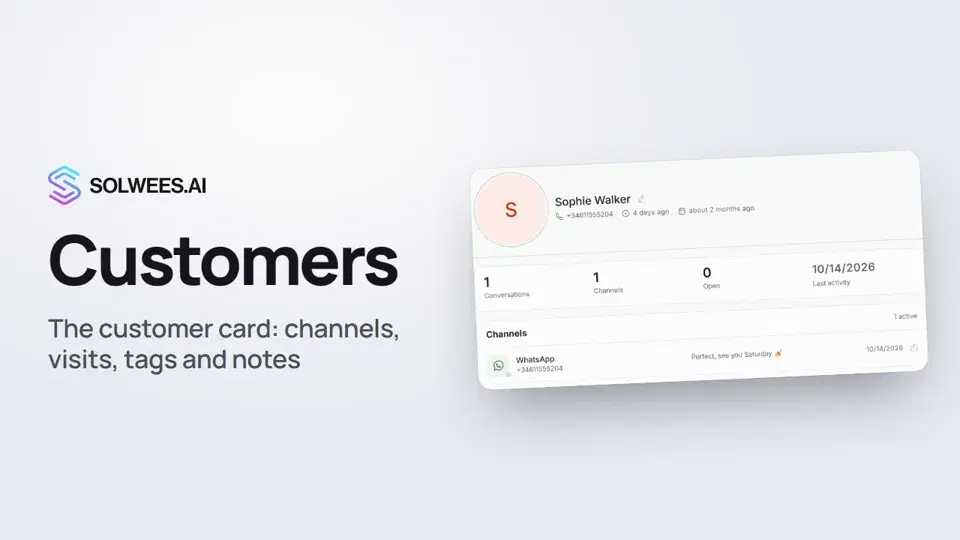 Customers and the customer cardHow to work with Customers in Solwees: finding a client, the card with channels and Start chat, details, the visit history from your CRM with the average per visit, tags and team notes.1:19
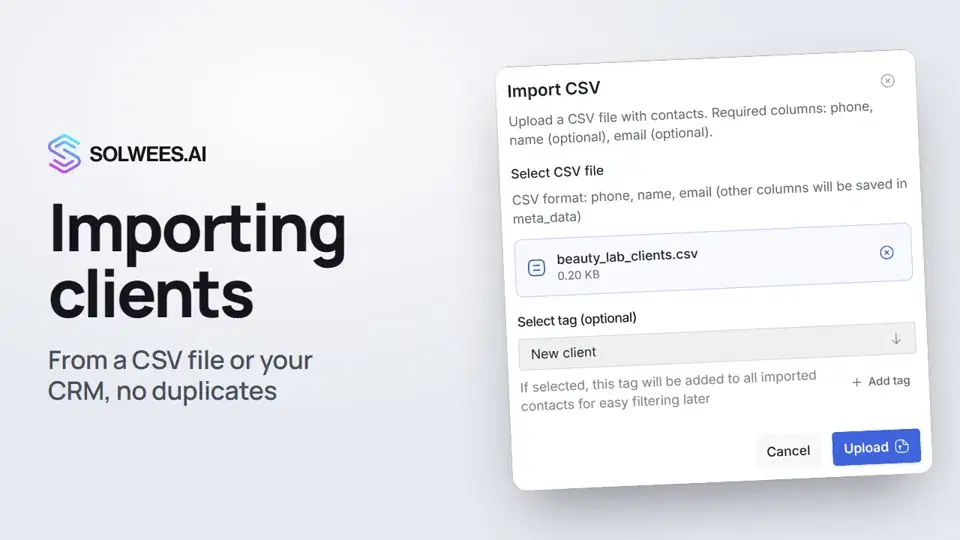 Importing clients: from a CSV file or from your CRMHow to bring your client base into Solwees: upload a CSV file with names, phones and emails, or pull clients with their visit history from a connected Altegio. Clients with the same phone are updated, never duplicated.0:57
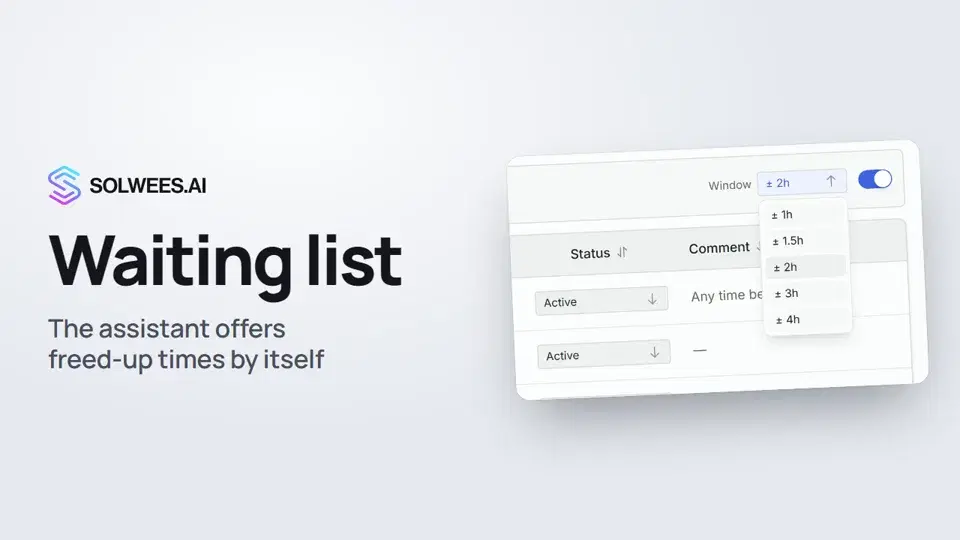 Waiting list: the assistant offers a freed-up time by itselfHow the waiting list works in Solwees: the assistant adds clients when the time they want is taken, and with AI auto-rebooking on it offers them a freed-up time by itself.0:54
 Deals: the boardHow to work with the deals board in Solwees: switch pipelines, add a quick deal, drag cards between stages, find overdue deals and view them as a list.1:28
Potřebujete pomoc?
Zeptejte se Soly v rozhraní
Tlačítko asistenta v rohu každé stránky rozhraní zná každé nastavení a ukáže, kde je.
Otevřít rozhraní