
Konfiguracja z Solą
Pierwsze krokiZaktualizowano 4 października 2026
Jak Sola, pomocnica w konfiguracji, tworzy Państwa asystenta na podstawie strony internetowej i plików.
Sola to pomocnica w konfiguracji, która otwiera się po rejestracji. Pyta o trzy rzeczy: nazwę firmy, rodzaj działalności i strefę czasową.
Potem czyta Państwa stronę internetową. Widać wtedy komunikat „Reading your website: services, prices, hours and contacts”. To, co znajdzie, trafia do profilu firmy i bazy wiedzy, gdzie można to sprawdzić i poprawić.
Jeśli ceny lub odpowiedzi są w arkuszu Google Sheets albo dokumencie Google Docs, proszę dodać go w Knowledge Base > Sources. Inne pliki, na przykład cennik w PDF, dodaje się przyciskiem „Add file”.
Następnie Sola prowadzi Państwa przez wybór planu (okres próbny nie wymaga karty), system rezerwacji i kanały. Można przerwać i wrócić później: „Continue setup” wznawia konfigurację tam, gdzie Państwo skończyli, a „Ask Sola” odpowiada na pytania o każdy krok.
Czy to odpowiedziało na Twoje pytanie?
Więcej w tym temacie
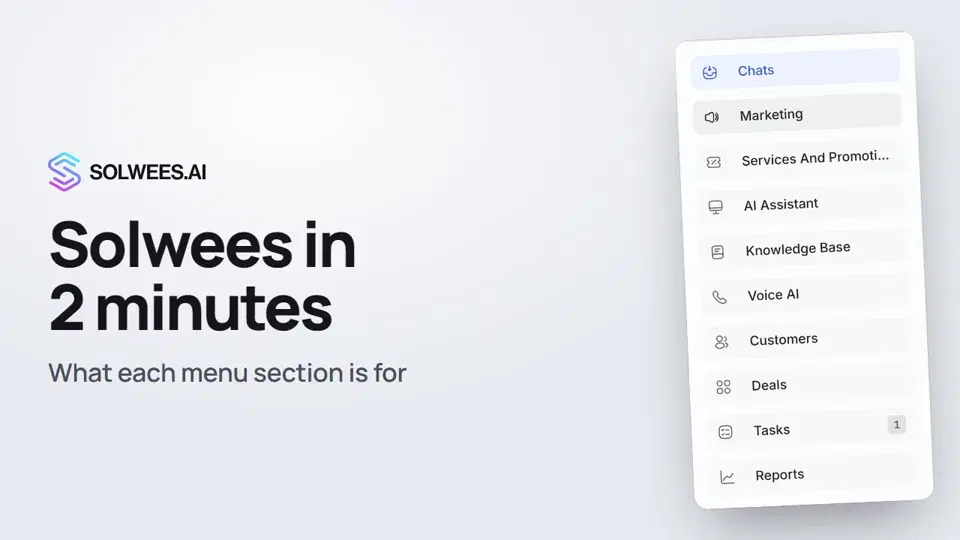 Solwees in 2 minutes: a tour of the menuA short tour of Solwees: what each menu section is for, where Settings and your profile are, and how not to miss what matters.2:10
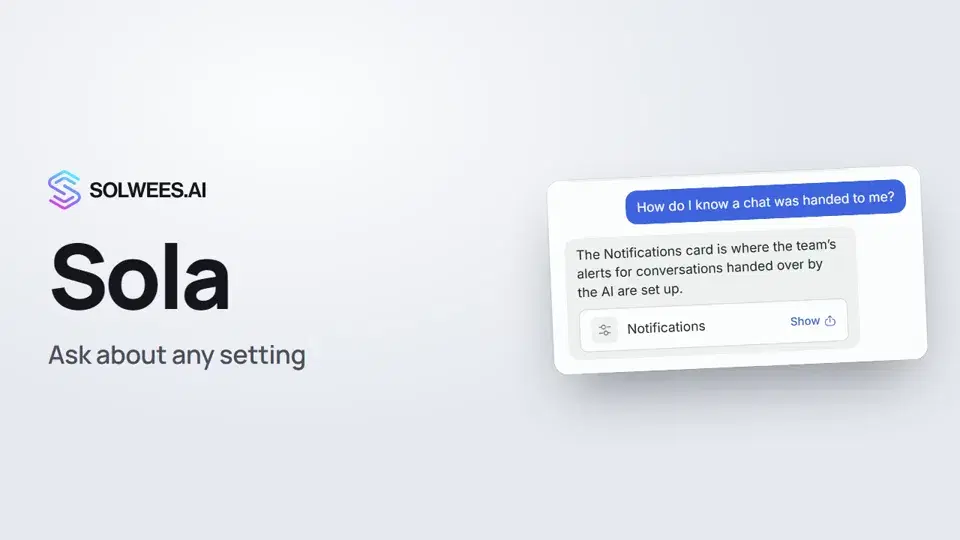 Sola: the setup assistant in SolweesHow to use Sola, the setup assistant in Solwees: ask in your own words, jump to the right place with the Show button, ask her to make a change, or start the interface tour.1:03
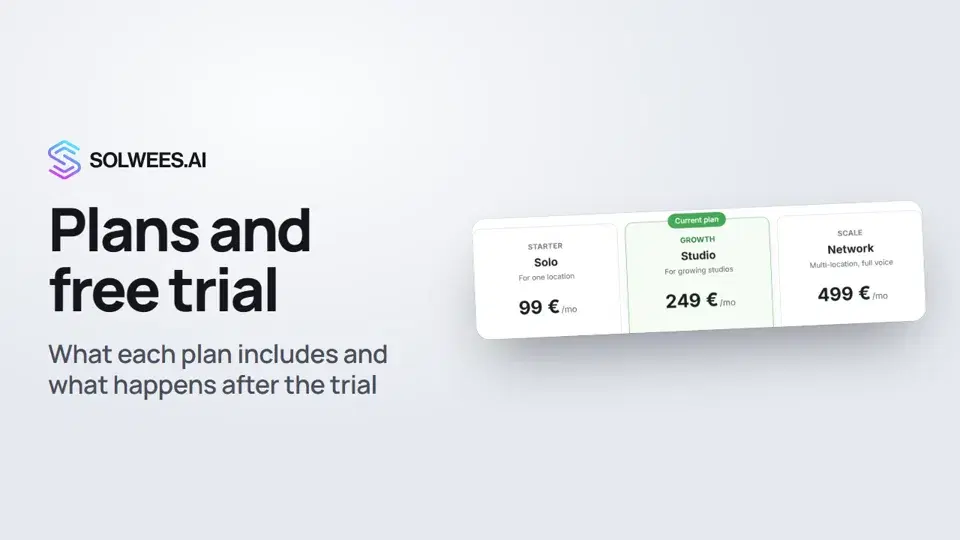 Plans and free trial: what's included and how to chooseWhich plans Solwees offers, how they differ, what your plan includes and how the free trial works.1:19
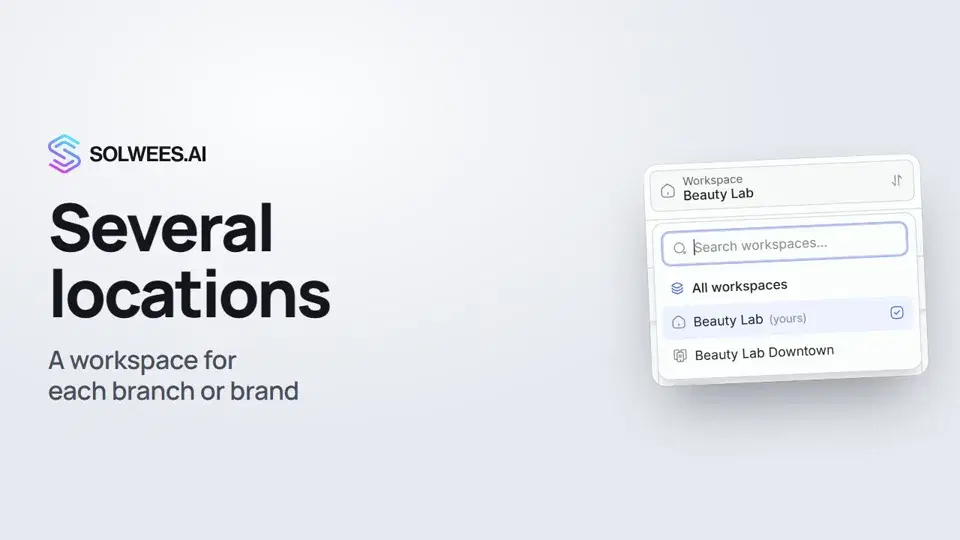 Several locations or brands: workspacesHow to run several locations or brands in Solwees: create a workspace, switch between workspaces and see every location's chats in one list.1:01
Potrzebujesz pomocy?
Zapytaj Solę w panelu
Przycisk asystenta w rogu każdej strony panelu zna każde ustawienie i pokazuje, gdzie jest.
Otwórz panel