
Services and promotions: the prices and offers your assistant quotes
Marketing i promocjeZaktualizowano 19 października 2026Film 1:29
Ta instrukcja jest na razie po angielsku.
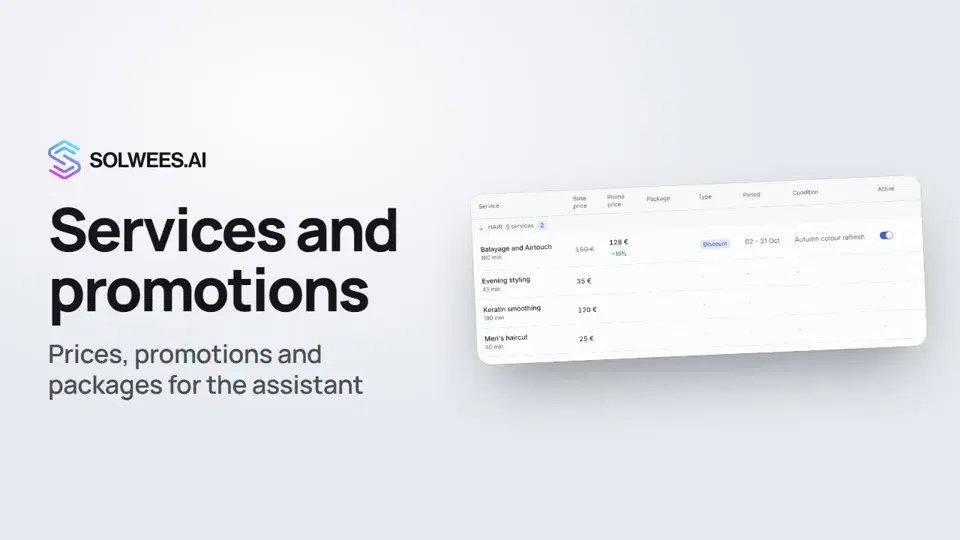
Services and promotions is the catalogue of your services with their prices and every offer for clients: promotions, packages and the first-visit discount. The assistant takes prices and promotion terms from here when it answers clients.
Where to find it
Open Services and promotions in the left menu. The section is available on every plan. The owner can open it, and so can team members whose access includes «Campaigns and promotions».
What is on the page
| Block | What it holds |
|---|---|
| Categories (left) | Service categories. The number shows how many services there are, or how many of them have offers |
| Services table | Name, duration, base price, promo price, package, type, period, condition and the Active switch |
| Sync mark next to the title | When the catalogue was last updated from your CRM. Click it to pull in new prices |
| Buttons at the top | Google Sheet, Export, Add service, Add promotion |
| Right column | First-visit discount, Bundles, Network promotions and the change History |
Base prices come from your connected CRM; you set only the promotional ones. If you have no CRM, add a service by hand with Add service.
How to create a promotion
- Click Add promotion.
- Enter a name and the terms for the client: the assistant quotes them together with the price.
- Set the dates or turn on Ongoing, and pick a condition (for example, New clients).
- Click Save.
A promotion does not change any price by itself: you pick it when you set a discount for a category or a service.
A discount for a whole category
Hover over a category on the left and click the percent icon. Pick the promotion, a percentage or a fixed price, the dates, and tick the services. A percentage is the safer choice: prices inside a category differ. Apply sets the discount on the ticked services.
A discount or a package for one service
- Add in a service row: a percentage discount or a fixed promo price. The price cannot be saved without a promotion: the assistant has to tell the client why the price is lower.
- Package in the same row: several sessions upfront at a lower price. Enter the type, the number of sessions and the package price; the price per session is worked out for you.
First-visit discount
The card on the right. Enable the discount, enter the percentage and click Save. The system works out the discounted price, and the assistant quotes the ready number.
Importing from a Google Sheet
Google Sheet opens the promo price import. The sheet only proposes values: nothing is written until you confirm. Share the sheet with the service account, the same one the knowledge base uses.
How the assistant uses promotions
- It quotes the promo price together with the promotion’s terms and end date.
- It does not offer a promotion that is switched off, has not started yet or is over.
- It does not quote a promo price that is not linked to a promotion.
- If a service has a price below the regular one, it never tells the client there are no promotions.
Tips
- Create the promotion with clear terms first, then set the prices: several services then share the same terms.
- For a category discount, choose a percentage: a fixed price would not be a discount for every service.
- After changes, check the assistant in the test chat: ask for a service’s promo price.
FAQ
Who can change prices and promotions?
Only the workspace owner. Everyone else sees the section marked View only: the cards open, but nothing can be changed.
Why is there no sync mark?
It appears when a CRM with a service catalogue is connected. If your services were added by hand, there is nothing to sync.
How soon does the assistant see a new promotion?
Within about fifteen minutes. A call that is already in progress keeps the old prices.
What are bundles?
Several different services for one price in one visit: the assistant names the bundle and books the client in a single booking. A bundle is built from the services of one branch: pick the branch in the filter above the table (the filter appears when you have more than one branch) and click Create on the Bundles card.
Transkrypcja filmu
Wszystko, co mówi lektor. Znacznik czasu odtwarza film od tego miejsca.
What Services and promotions is and where to find it
Services and promotions holds your services, their prices and your offers. This is where the assistant takes them from. Open the section in the left menu. Services are grouped by category, and base prices come from your CRM.
CRM sync and Google Sheet import
The mark next to the title shows when the catalogue was last updated. Click it to pull in new prices. You can load promo prices from a Google Sheet. Nothing is written until you confirm.
A promotion and a category discount
First create a promotion: Add promotion, then a name, the terms for the client and the dates. For a whole category, click the percent icon next to it, then pick the promotion, the discount and the services.
A discount and a package for one service
For one service, click Add in its row: a percentage discount or a fixed price. Package, in the same row, sells several sessions upfront at a lower price.
First-visit discount and the assistant's answers
On the right is the first-visit discount for new clients. The system works out the price, not the assistant. The assistant quotes the promo price with its terms and end date. It never offers a promotion that is off or over.
Who can change promotions
Only the workspace owner can change prices and promotions. Everyone else sees View only. Done. Next: booking messages for your clients.
Czy to odpowiedziało na Twoje pytanie?
Więcej w tym temacie
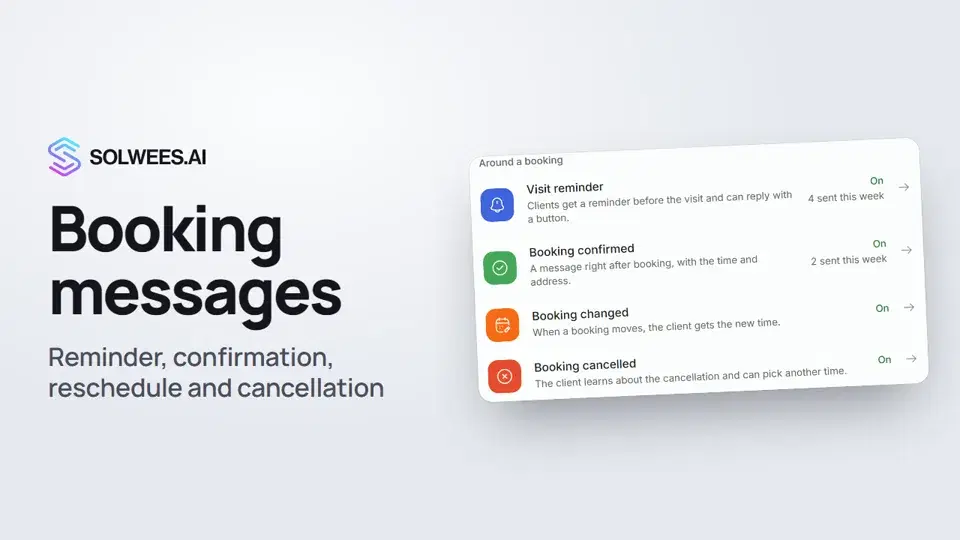 Booking messages: reminder, confirmation, reschedule and cancellationHow to turn on automatic booking messages in Solwees: the visit reminder, booking confirmed, changed and cancelled, and where they are sent.1:27
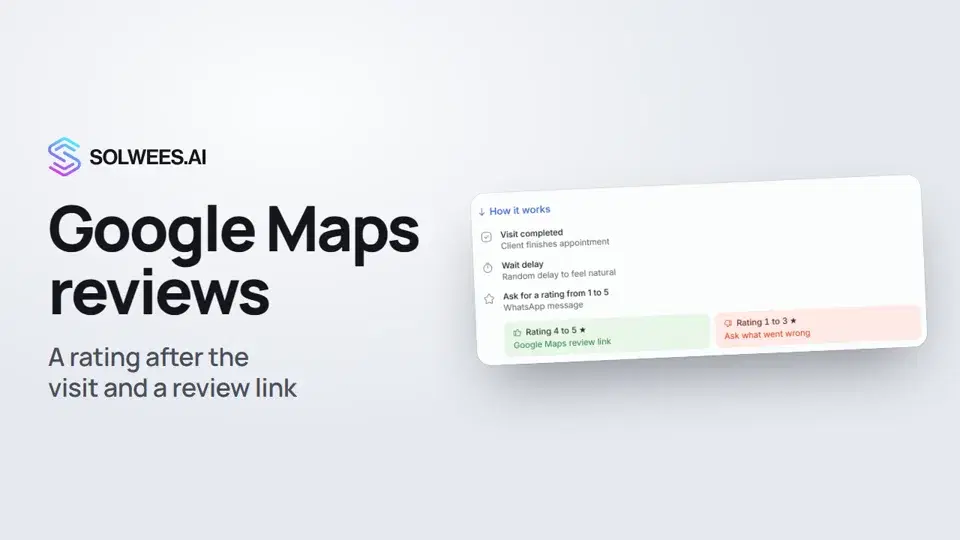 Google Maps reviews: a rating after the visit and a review linkHow to set up the after-visit rating request in Solwees: happy clients get a link to review you on Google Maps, unhappy ones are asked what went wrong.0:54
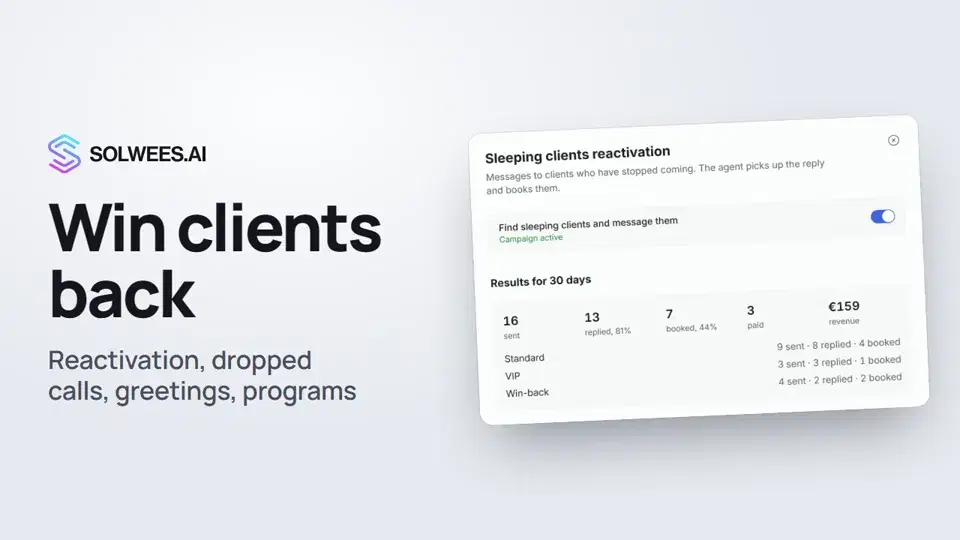 Winning clients back: reactivation, call follow-up, greetings and programsHow to win clients back with Solwees: sleeping clients reactivation, a follow-up after a dropped call, birthday and holiday greetings, and retention programs after a visit.1:36
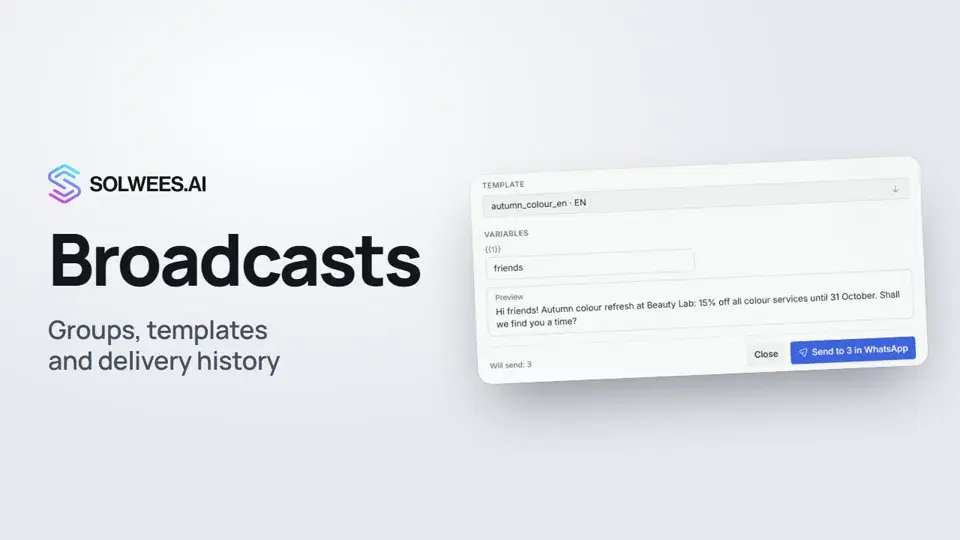 Broadcasts: how to message clients in WhatsApp and TelegramHow to send a broadcast to clients in Solwees: build a client group, pick a WhatsApp template or write in Telegram, check who got the message and see the analytics.1:26
Potrzebujesz pomocy?
Zapytaj Solę w panelu
Przycisk asystenta w rogu każdej strony panelu zna każde ustawienie i pokazuje, gdzie jest.
Otwórz panel