
Waiting list: the assistant offers a freed-up time by itself
Clientes, negócios e tarefasAtualizado a 19 de outubro de 2026Vídeo 0:54
Este guia está em inglês por agora.
The waiting list holds clients who wanted to book, but the time they wanted was taken. The assistant adds them here itself when the client agrees to wait. With AI auto-rebooking on, the assistant messages the client as soon as a time near the preferred one frees up.
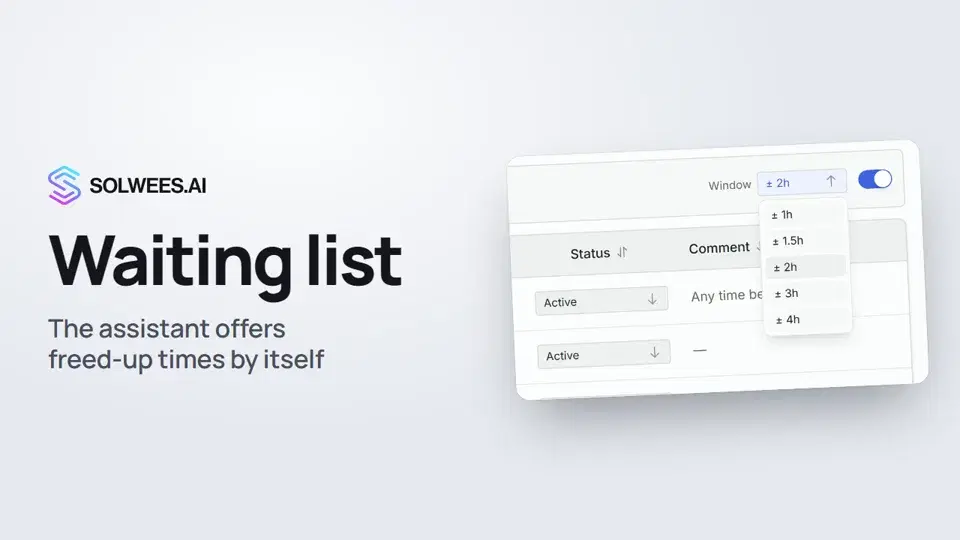
Where to find it
Open Customers in the left menu and go to the Waiting List tab.
What’s in the table
| Column | What it shows |
|---|---|
| Name and Phone | The client who is waiting |
| Service | What the client wanted to book |
| Preferred time | The time or time range the client asked for |
| Status | Active, Contacted or Closed |
| Comment | A short note from the assistant, for example “Any time before lunch” |
Click a row to open the conversation with the client. This works for clients who joined the list from a chat.
Statuses
| Status | What it means |
|---|---|
| Active | The client is waiting. The assistant only looks for times for active entries |
| Contacted | The client has been offered a time: the assistant sets this status itself after its message, or you set it by hand |
| Closed | No need to wait any more: the client has booked or changed their mind |
Change the status right in the table row: click it and pick the one you need.
AI auto-rebooking
- Turn on the AI auto-rebooking switch above the table.
- In Window, choose how much earlier or later than the preferred time the assistant can offer: ± 1, 1.5, 2, 3 or 4 hours. The default is ± 2 hours.
What happens next:
- About every 5 minutes the assistant checks free times in your booking system for active waiting-list entries.
- If the client gave an exact time, the assistant looks within the chosen Window. If the client gave a range, such as “10 to 1”, it looks inside that range.
- When a time is free, the assistant messages the client in the same chat where they asked to book, in the client’s language. For example: “A slot opened up on 17.10 at 11:00 for a pedicure. Shall I book it for you?”
- The entry gets the Contacted status, and a note for your team with the offered time appears in the conversation.
- If the client agrees, the assistant makes the booking right in that conversation.
The assistant offers a time to each waiting-list client once.
When auto-rebooking works
- A booking system the assistant books through is connected: Altegio, Booksy, Fresha, Treatwell, Bokadirekt, Bookio, Bitrix24 and others (AI Agent → App Directory). Without one the assistant can’t see free times.
- The entry is Active.
- The entry has a preferred time.
- The client joined the list from a conversation: without a chat the assistant has nowhere to write. Contact those clients yourself.
Tips
- A ± 2 hour window suits most services. If the exact time matters to the client, use ± 1 hour.
- Close entries once the client has booked or changed their mind: the list stays short and the assistant doesn’t search for nothing.
- See a Contacted status? Open the row and check what the client replied.
FAQ
How does a client get onto the waiting list?
When the time they want is taken, the assistant offers the nearest free time and the waiting list. When the client agrees to wait, the assistant adds them with the service, the preferred time and a comment. Your team gets a notification.
Will the assistant book a client without asking?
No. It first offers the freed-up time and asks whether to book it. The booking is made only when the client agrees.
Can I add a client to the list by hand?
There’s no add button on this page: the assistant fills the list from conversations with clients.
Why didn’t the assistant offer a time to a client?
Check that AI auto-rebooking is on, a booking system is connected, the entry is Active, it has a preferred time, and the client joined the list from a chat. And that a time near the preferred one has actually freed up.
Transcrição do vídeo
Tudo o que o narrador diz. Um tempo reproduz o vídeo a partir desse momento.
Where to find the waiting list
The assistant adds clients to the waiting list itself when the time they want is taken. Open Customers in the left menu and the Waiting List tab.
AI auto-rebooking and the window
Turn on AI auto-rebooking: when a time frees up, the assistant offers it to the client itself. In Window, set how much earlier or later than the preferred time it can offer. The assistant messages the client where they wrote to you and sets the status to Contacted. It books once the client agrees.
Statuses and the booking system
Change the status right in the table. The assistant only looks for times for active entries. Auto-rebooking works when a booking system is connected, such as Altegio. Next: the deals board, where you see what stage every client is at.
Respondeu à sua pergunta?
Mais sobre este tema
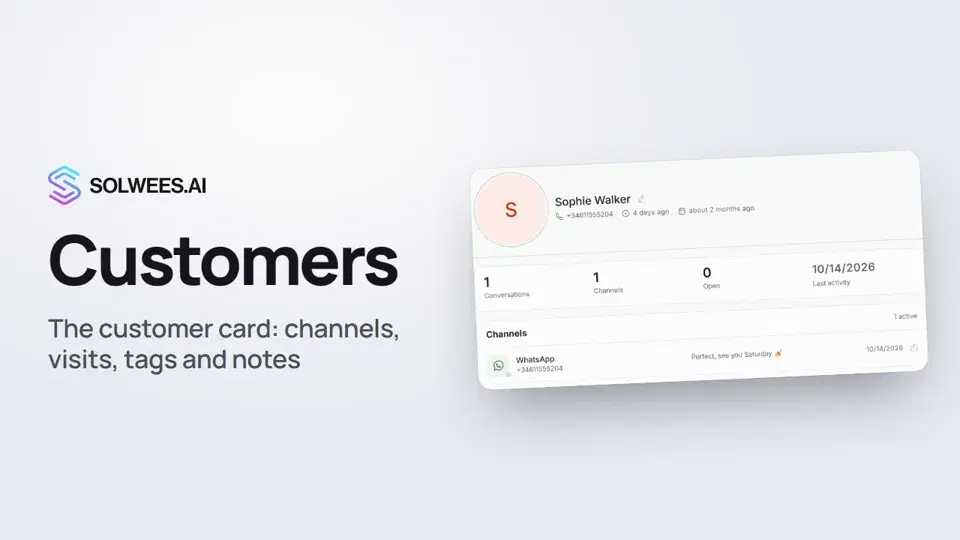 Customers and the customer cardHow to work with Customers in Solwees: finding a client, the card with channels and Start chat, details, the visit history from your CRM with the average per visit, tags and team notes.1:19
 Importing clients: from a CSV file or from your CRMHow to bring your client base into Solwees: upload a CSV file with names, phones and emails, or pull clients with their visit history from a connected Altegio. Clients with the same phone are updated, never duplicated.0:57
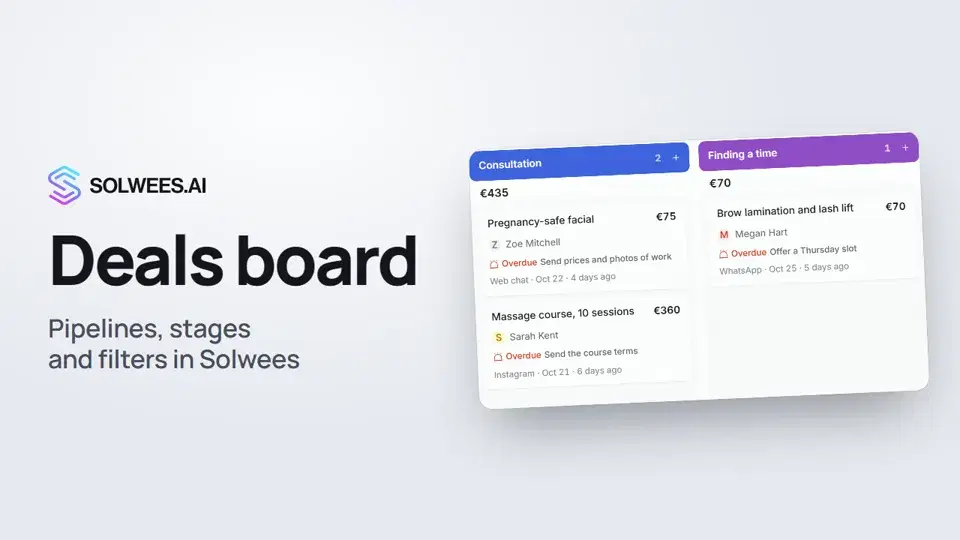 Deals: the boardHow to work with the deals board in Solwees: switch pipelines, add a quick deal, drag cards between stages, find overdue deals and view them as a list.1:28
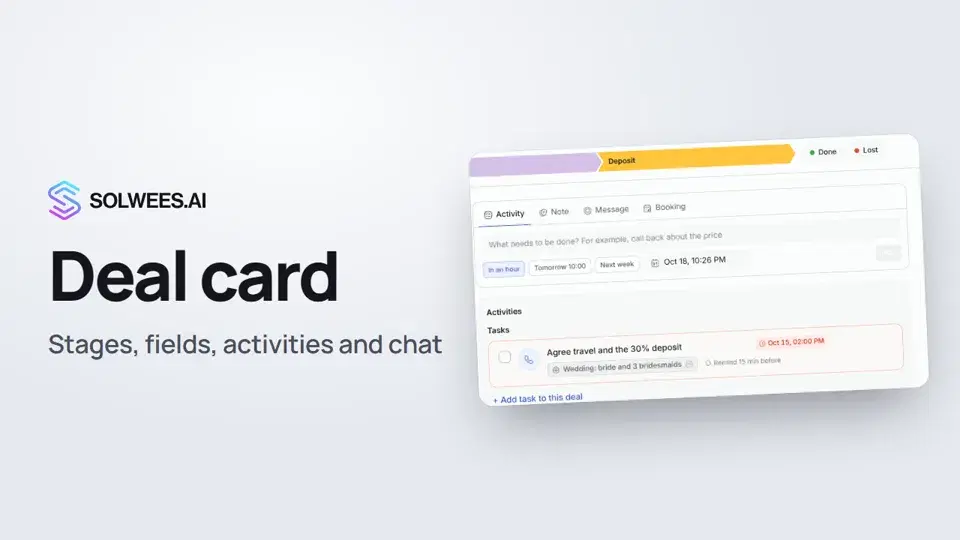 The deal card: stage, fields, activities and chat in one placeHow to work with a deal card in the Solwees CRM: move the deal to another stage, change the amount and your own fields, plan an activity, leave a note, message the client, open the chat and close the deal as won or lost.1:15
Precisa de mais ajuda?
Pergunte à Sola no painel
O botão do assistente no canto de qualquer página do painel conhece cada definição e mostra onde está.
Abrir o painel