
Kommo (amoCRM): how to connect it and what goes into the deal
IntegraçõesAtualizado a 21 de outubro de 2026Vídeo 1:19
Este guia está em inglês por agora.
Kommo, also known as amoCRM, is a CRM for deals. Once it’s connected, an assistant with the Product & service sales role opens a deal in it for every new chat with a client and keeps adding the conversation to it. The assistant can’t book appointments through Kommo: for bookings you need a booking system, such as Altegio.
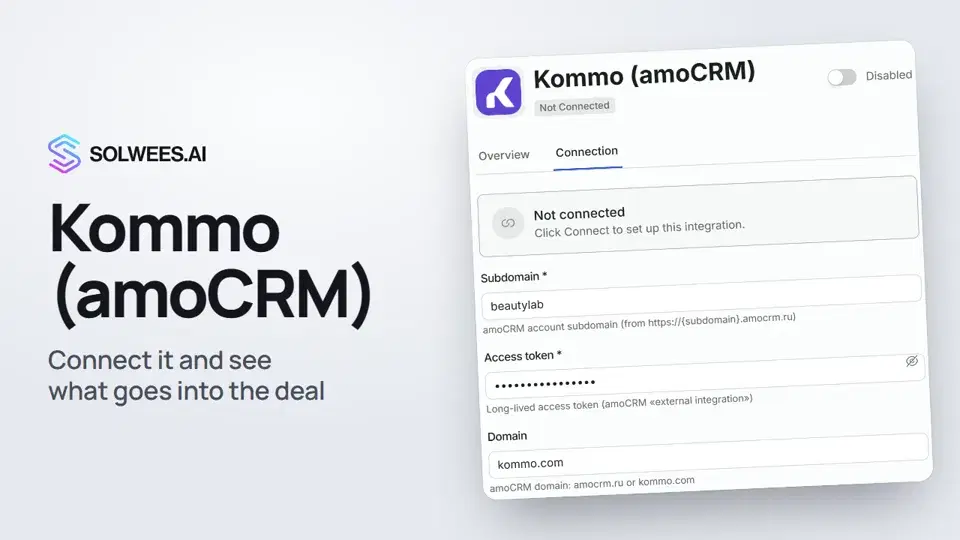
Where to find it
Open AI Agent, choose App Directory and type “Kommo” in the search. The Kommo (amoCRM) card with the Sales CRM badge is also on the Beauty & Wellness tab.
Click the card. Under the name you can see whether Kommo is connected: Not Connected or Connected.
How to connect
- Open the Connection tab.
- Subdomain: the first part of your account address. For https://beautylab.amocrm.ru it is beautylab.
- Access token: the long-lived token of an amoCRM external integration.
- Domain: if your account is on kommo.com, enter kommo.com. An empty field means amocrm.ru.
- Click Connect.
- Open the card again: Pipeline ID and Initial stage ID now offer a list of your account’s pipelines and stages. Pick where new deals go and click Save. If you leave them empty, amoCRM puts the deal into the first stage of the main pipeline. The system “Incoming leads” stage can’t be picked: amoCRM doesn’t accept deals into it.
Only the subdomain and the token are required. The other fields:
| Field | What it does |
|---|---|
| Lost stage ID | The stage for lost deals. By default, the system “Closed - lost” stage |
| Timezone | The time zone for the meeting date field. The default is Europe/Kyiv; for a salon in Spain enter Europe/Madrid |
| amoJo channel ID, secret, title | An amoCRM chat channel, issued by amoCRM support. With it, the conversation goes into a real chat on the deal card; without it, messages are added as notes to the deal feed |
| Brak after days | Currently has no effect: deals are not moved to lost automatically when a client goes quiet |
What goes into the deal
| What | Where |
|---|---|
| Client’s name and phone | The deal’s contact. If a contact with this phone already exists, the assistant uses it; otherwise it creates one |
| The channel the client wrote from | The deal name (it holds the word “Заявка”, the channel and the client’s name) and the channel field, if your deals have one |
| Client’s language | The client language field, if your deals have one |
| Interest, preferred date and time, budget | The service and meeting date fields and the deal budget, once the client names them |
| The conversation | Notes in the deal feed, or the amoJo chat if it’s set up |
| Handover to a manager | A summary of the conversation, the contact and the reason in the deal feed. The deal moves to the “waiting for a manager” stage if your pipeline has one |
One chat gives one deal: the client’s next messages are added to the same deal.
Important: the role you need
Only an assistant with the Product & service sales role opens deals in Kommo. You choose the role in AI Agent → Business Profile, on the Business card, in the Business type field. With other roles, such as Beauty Salon Admin, a connected Kommo doesn’t create deals.
If Bitrix24 Open Lines are connected in the workspace, Bitrix24 creates the deals and they are not duplicated in Kommo.
Tips
- The assistant finds deal fields by their name and fills only the ones that exist. It looks for Russian names: Канал обращения (or Канал, Источник) for the channel, Язык клиента (or Язык, Language) for the language, Услуга for the service and Дата встречи for the meeting date. Values are written in Russian too, for example «Английский» for English.
- To see where the assistant is in the conversation, add the stages Квалификация / Запись and Ждёт ответа менеджера to the pipeline: a new deal goes to the first one and moves to the second after a handover.
FAQ
Does the assistant book clients in Kommo?
No. Kommo keeps deals and contacts; it has no schedule or appointments. Connect a booking system for bookings.
Why aren’t deals appearing?
Check three things: the assistant’s role is Product & service sales, the Kommo card says Connected, and Bitrix24 Open Lines aren’t connected in the workspace.
Can I pick the pipeline before connecting?
No. The list of pipelines and stages comes from your account, so it appears after you connect.
Where do I get the token?
In amoCRM, create an external integration and copy its long-lived token. Enter it only in the Access token field and don’t send it to anyone.
Transcrição do vídeo
Tudo o que o narrador diz. Um tempo reproduz o vídeo a partir desse momento.
What the integration does and where to find it
Kommo, also known as amoCRM, is a CRM for deals. Once it's connected, the assistant opens a deal in it for every new conversation with a client. Open the AI Agent section, choose App Directory and find Kommo with search. Click the card. Under the name, you can see whether Kommo is connected.
Connecting: subdomain, token, domain
On the Connection tab, enter your account subdomain and a long-lived token from an amoCRM external integration. If your account is on kommo.com, enter that domain. You can leave the other fields empty. Click Connect. Then open the card again: you can pick the pipeline and stage for new deals from a list.
What goes into the deal
The deal gets the client's name and phone, the channel they wrote from, and the whole conversation. When the assistant hands a chat over to a manager, the deal gets a summary of the conversation and the reason.
Which assistant role you need
Note: deals are opened by an assistant with the Product & service sales role. You choose it in the Business Profile, under Business type. Done. Next: Booksy, Fresha and Treatwell.
Respondeu à sua pergunta?
Mais sobre este tema
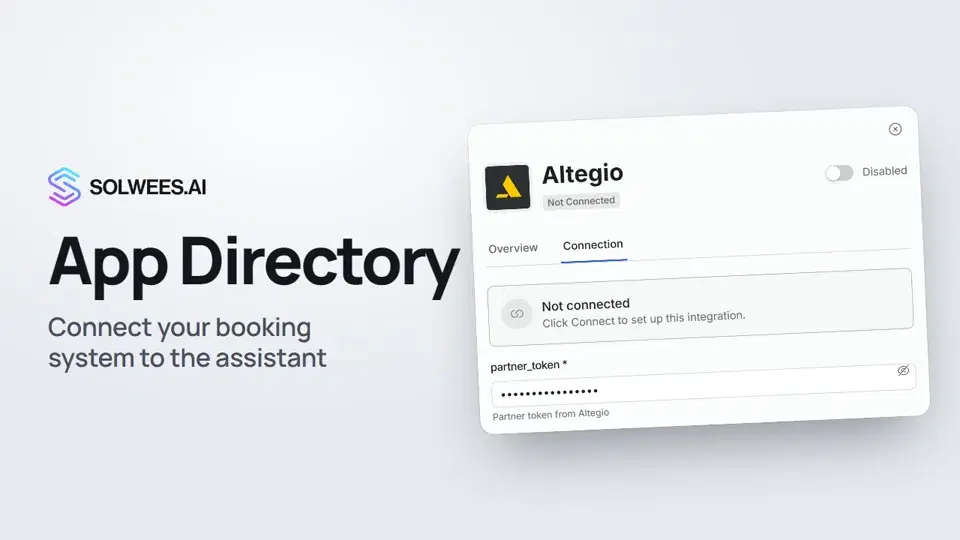 App Directory: connect your booking system, CRM and paymentsWhere to find the App Directory in Solwees and how to connect a booking system, CRM or payments to your AI receptionist: tabs, search, the integration card and the Connect button.1:06
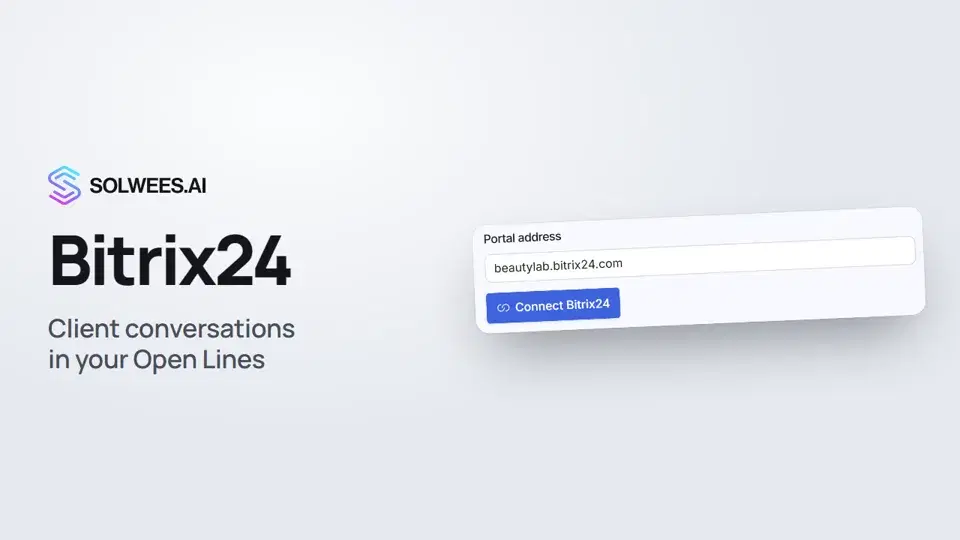 Bitrix24: client conversations in your Open LinesHow to connect your Bitrix24 portal to Solwees so the AI receptionist's conversations with clients go to your Open Lines: the portal address, confirming access on the portal, the agent's line and the No agent tab.1:03
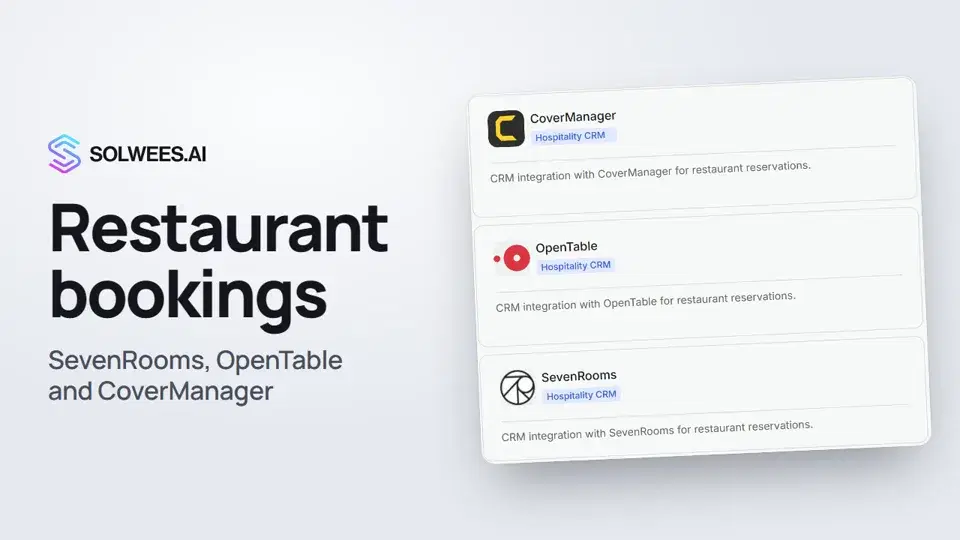 Restaurant bookings: connecting SevenRooms, OpenTable and CoverManagerHow to connect your restaurant booking system to the Solwees AI receptionist: SevenRooms and CoverManager connect in the App Directory, OpenTable is switched on by support. Once connected, the assistant checks for free tables and books right in your system.1:21
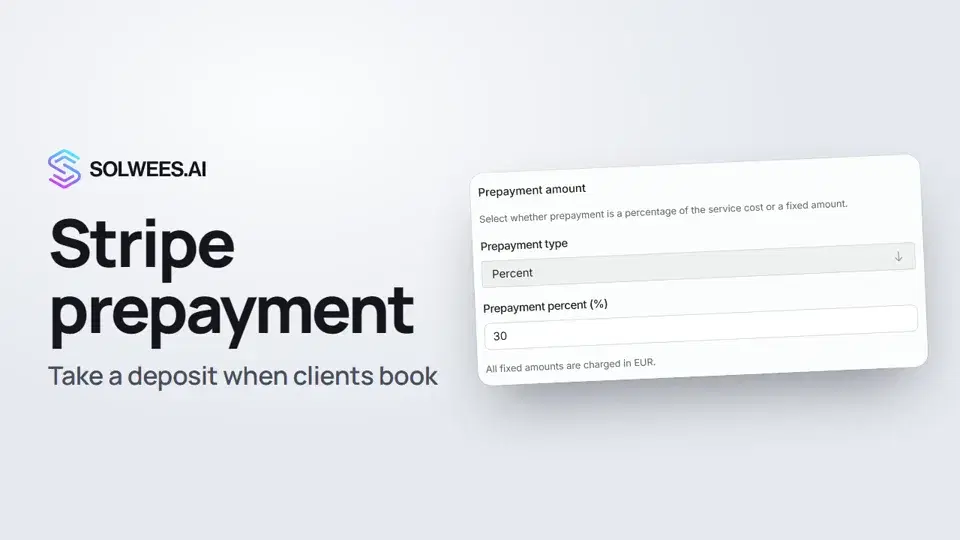 Stripe prepayment: take a deposit when clients bookHow to connect Stripe to Solwees and set up prepayment: the AI receptionist names the deposit before booking and sends the client a payment link, and you get notified once it's paid.1:28
Precisa de mais ajuda?
Pergunte à Sola no painel
O botão do assistente no canto de qualquer página do painel conhece cada definição e mostra onde está.
Abrir o painel