
Telegram: how to connect the assistant
КаналиОновлено 18 жовтня 2026 р.Відео 1:31
Ця стаття поки що англійською.
Connect Telegram, and the assistant replies to your clients in this messenger. There are two ways: the platform bot, through which the assistant replies in your personal Telegram account, and your own bot, which you create yourself.
Where to find it
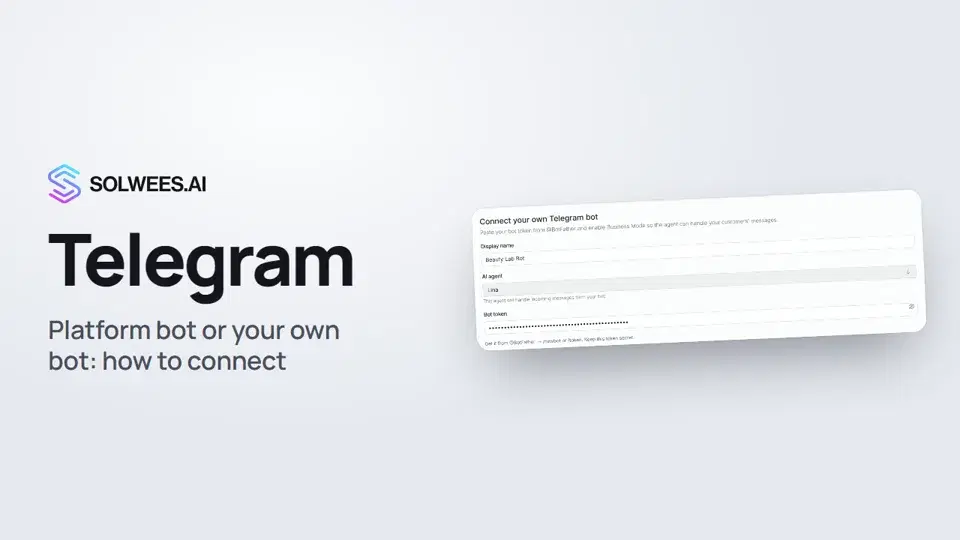
Open Settings, go to Channels and choose Telegram. At the top there are two tabs: Platform bot and Your own bot.
Which way to choose
| Platform bot | Your own bot | |
|---|---|---|
| Where the assistant replies | In your personal Telegram account, in your chats with clients | In the chat with your bot: clients write to it directly |
| What you need | Telegram Premium and Telegram Business on the account you connect | A bot created with @BotFather and its token |
Platform bot: how to connect
- Set a Display name: that’s how the channel appears in the dashboard. If you leave it empty, the channel is called “Telegram”.
- In the AI agent field, choose the agent that will reply. The connect button stays inactive until an agent is chosen.
- Click Connect Telegram. A link and a QR code appear.
- Open the link or scan the QR code and press Start in Telegram.
- In Telegram, go to Settings → Telegram Business → Chatbots and add the bot the page names.
- The page updates by itself. To check manually, click Check status.
Once connected, the account card below shows the connection status and whether the assistant can reply.
Important: this way only works with an active Telegram Premium subscription on the account you connect. Without Premium, Telegram does not let the assistant reply in your chats. The Before you start block at the bottom of the page reminds you of that.
Your own bot: how to connect
- Open @BotFather in Telegram, create a bot with /newbot and copy the token.
- On the Your own bot tab, set a Display name and choose the AI agent.
- Paste the token into the Bot token field.
- Click Connect bot.
The bot appears under Connected bots with the status “Waiting for first message”. The status turns Active after the first incoming message: write to your bot in Telegram, and the page updates by itself.
For the bot to reply in your personal chats too, the Setup steps block lists two more steps: enable Business Mode in @BotFather (/mybots → your bot → Bot Settings → Allow Business) and add the bot in Telegram: Settings → Telegram Business → Chatbots. Telegram Business requires Telegram Premium.
On a connected bot’s card you can change the agent, open the bot setup (the /start welcome message, commands and menu buttons), Reconnect or Disconnect the bot.
Tips
- Keep the token secret: it gives control over the bot. The token field hides it behind dots.
- For the platform bot, check that Premium is active on the account you connect before you start.
- If you reply to a client yourself from your own Telegram account, the conversation moves to you and the assistant goes quiet in that chat. To hand the chat back to the assistant, use the AI / Admin switch in Chats or the Auto-return to AI setting in Settings → Conversations.
- All Telegram conversations arrive in Chats, together with your other channels.
FAQ
Do I need Telegram Premium?
For the platform bot, yes: it works through Telegram Business, and Telegram Business requires Premium on the account you connect. Clients write to your own bot directly. You only need Premium if you want your own bot to reply in your personal chats through Telegram Business as well.
Why doesn’t my own bot’s status turn Active?
The bot becomes active after the first incoming message. Write to it in Telegram, and the status updates by itself.
How do I change the agent that replies in Telegram?
Choose another agent in the AI agent field: on the Platform bot tab or on your bot’s card. The change is saved right away.
Can I connect several bots?
Yes. On the Your own bot tab, each new bot is added as a separate card, and each one can have its own agent.
How do I disconnect Telegram?
Click Disconnect: on the Platform bot tab once connected, or on your bot’s card. Next: website chat.
Текст відео
Усе, що каже диктор. Таймкод вмикає відео з цього місця.
Where to find the Telegram settings
Connect Telegram, and the assistant replies to your clients there. There are two ways: the platform bot or your own bot. Open Settings, go to Channels and choose Telegram. Each way has its own tab.
Platform bot: name, agent and Telegram Premium
On the Platform bot tab, the assistant replies in your personal Telegram. It connects through Telegram Business. Set a display name: that's how the channel appears in the dashboard. Then choose the AI agent that will reply. Click Connect Telegram and open the link or scan the QR code. Then follow the steps under How to connect. This way only works with Telegram Premium on the account you connect. The Before you start block reminds you of that.
Your own bot: BotFather token
The second way is the Your own bot tab. Clients write to your own bot, and the assistant replies. First, create a bot with @BotFather and copy its token. All the setup steps are listed below. Set a display name, choose the AI agent and paste the token into the Bot token field. Keep the token secret.
Connecting and the Active status
Click the Connect bot button. The status turns Active after the first incoming message. Done. To have the assistant reply on your website too, watch the next video: website chat.
Стаття відповіла на ваше запитання?
Ще з цієї теми
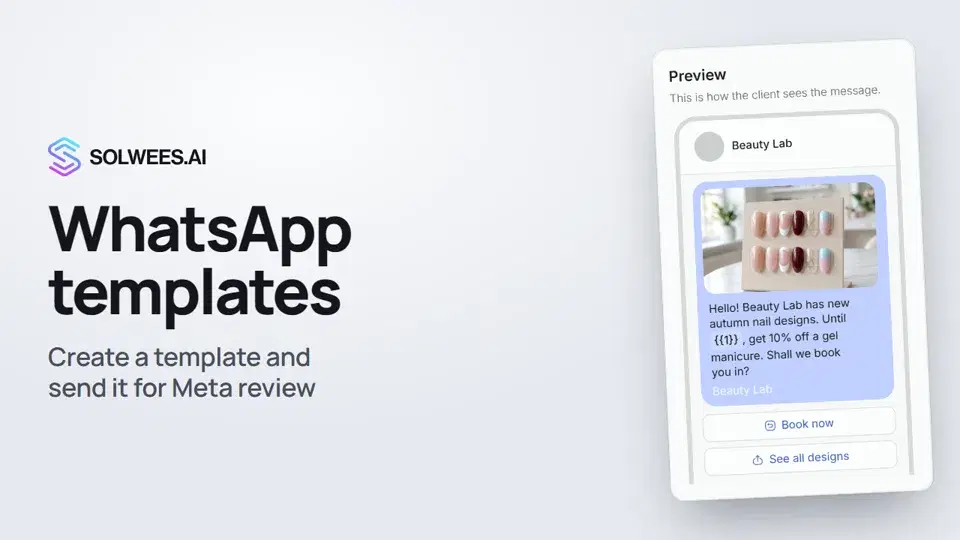 WhatsApp templates: messages approved by MetaHow to create a WhatsApp template in Solwees and send it for Meta review: category, language, image, variables in the text and buttons. You need a template to message a client who hasn't written to you for more than 24 hours.1:30
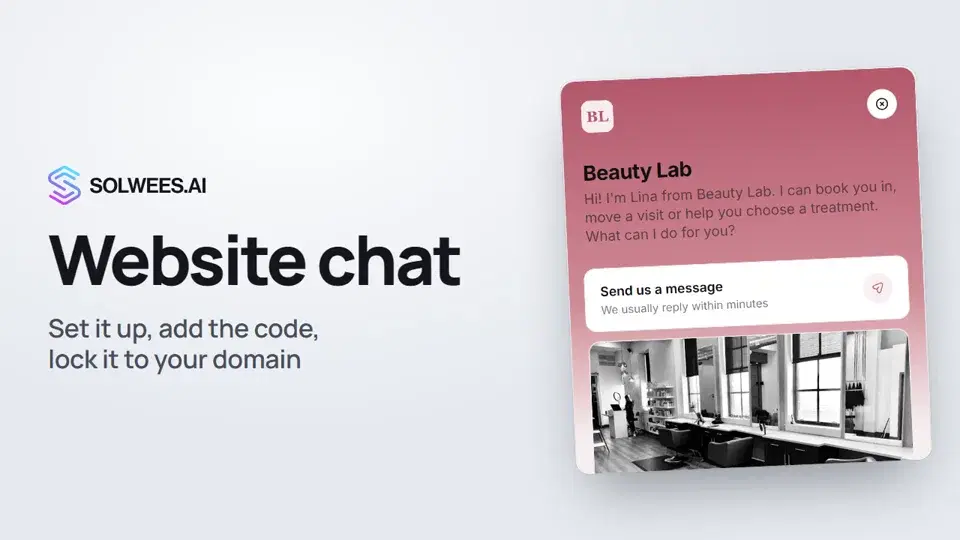 Website chat: how to set it up and install itHow to add the Solwees chat to your website: languages, visitor contact, welcome message, appearance, chat button, the install code and allowed domains. Visitors write in the chat and the AI assistant replies right away.1:52
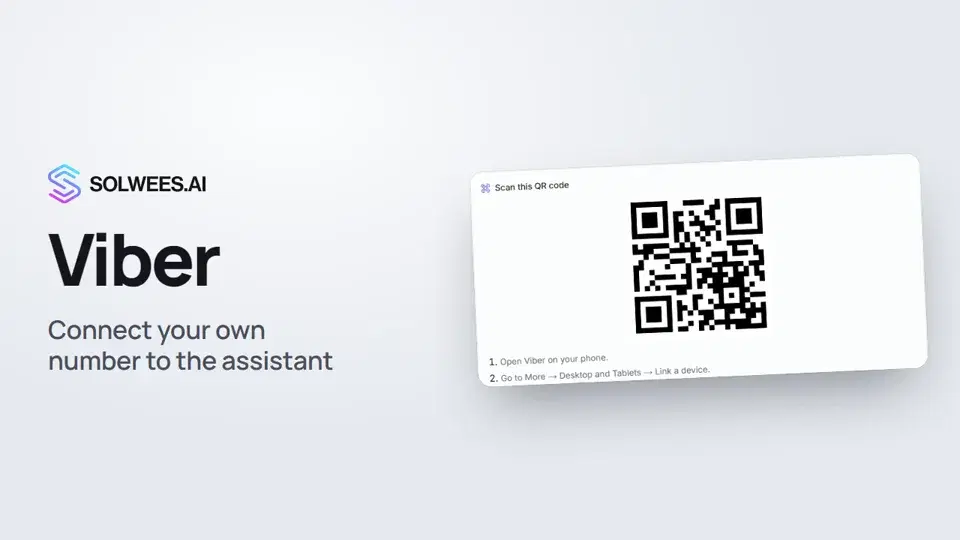 Viber: how to connect your own number to the assistantHow to connect Viber to Solwees so the AI assistant replies to your clients: paying for the channel, display name and AI agent, Connect number and linking with a QR code in Viber.1:11
 Phone: a number for the assistantHow to buy a phone number for your AI receptionist in Solwees: applicant verification and documents, choosing a number, assigning an agent, call recording and transcription.1:56
Потрібна допомога?
Запитайте Sola в кабінеті
Кнопка помічника в куті будь-якої сторінки кабінету знає кожне налаштування й показує, де воно.
Відкрити кабінет