
The deal card: stage, fields, activities and chat in one place
Клієнти, угоди та завданняОновлено 19 жовтня 2026 р.Відео 1:15З модулем «CRM і завдання»
Ця стаття поки що англійською.
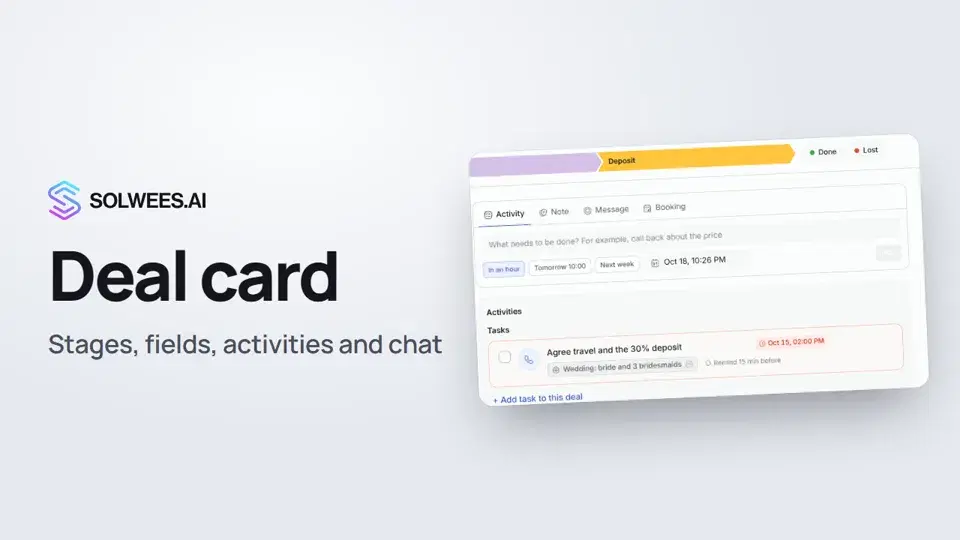
The deal card holds everything about one sale: the stage the deal is at, the amount and the assignee, your own fields, activities with reminders, team notes, the chat with the client and the full history of changes. This is also where you close the deal as won or lost.
Deals are available with the CRM and tasks module.
Where to find it
Open Deals in the left menu and click a deal on the board or in the list. The card opens on top of the board, and the board stays as it was underneath. From a client’s chat, the Open in deals button in the Deal block opens the same card.
What the card contains
| Block | What it shows | What you can do |
|---|---|---|
| Stages at the top | The pipeline stages in order, the stages already passed are filled with colour. The outcomes, for example Done and Lost, sit separately on the right | Click a stage to move the deal there |
| About the deal | Name, amount, currency, expected close, assignee, source | Click a value to change it |
| Contact | Client name, phone, email | Open the client card from the name |
| Custom fields | Your own fields, for example visit date, specialist, services | Fill them in, add new ones with Manage fields |
| Conversations | The client’s chats by channel | Open chat on top of the card |
| Bookings | The client’s bookings linked to the deal, with their status | See the service, time and specialist |
| Actions | The Activity, Note, Message and Booking tabs | Plan a step, leave a note, message the client, book them |
| Activities | The deal’s tasks | Mark one done, Add task to this deal |
| History | Who changed the stage, amount, assignee or fields, and when, plus team notes | See what happened to the deal |
How to move a deal to another stage
Click the stage you need in the bar at the top. The deal moves there straight away, and the history gets a line “Stage: old → new”.
How to change a field
- Click the value, for example the amount.
- Type the new value.
- Press Enter or click the tick. Escape cancels the change.
The assignee can be a team member or the assistant, listed as “AI agent”. Custom fields come in several types: text, select, multi-select, integer, decimal, yes or no, date, date and time.
The action tabs
- Activity: what to do and when. Pick a quick due time, for example “In an hour”, “Tomorrow 10:00” or “Next week”, or set your own date. The activity is assigned to you, and the reminder arrives 15 minutes before it is due.
- Note: for the team only, the client never sees it. The note is saved in the deal history.
- Message: the text goes to the client’s latest chat, on WhatsApp for example. If the client has several channels, pick the one you need. If the client has never written to you, you cannot message them from here.
- Booking: book the client into a free slot right from the deal. Pick the service, a specialist or “Any specialist”, the day and the time, check the name and phone and click Book for …. The booking is created in your booking system and linked to the deal straight away.
The chat inside the deal
In the Conversations block, click Open chat. The conversation opens on top of the card: you see what the assistant replied and what the manager wrote. It is the same chat as in Chats. Back to at the top returns you to the deal, and Open in inbox opens the conversation in Chats.
How to close a deal
- The deal went through: click the won outcome on the right of the stages, for example Done. A “Deal won” message with the amount appears.
- The client said no: click the lost outcome, for example Lost. The “Why was the deal lost?” window opens. Pick a reason (“Too expensive”, “No suitable time”, “Went elsewhere”, “Stopped replying”, “Changed their mind”), add details if you like and click Mark as lost. No reason closes the deal without a reason.
If you close the window with the cross, the deal stays at its stage. The reason is saved in the deal: the About the deal block gets a “Lost reason” field. The … menu in the top right corner has the same options: “Mark as Won” and “Mark as Lost”.
Tips
- Keep a next activity on every open deal. When there is none, the card shows “No next step planned” with a Plan next step button.
- Booking from the deal works once a booking system is connected, for example Altegio, Booksy or Fresha. Without one, the Booking tab asks you to connect it in Integrations.
- Pick the lost reason from the ready options: the same wording is easier to compare across deals.
FAQ
Can the client see notes?
No. A note is visible only to your team in the deal history. The client only receives what you send from the Message tab or from the chat.
Why can’t I message the client from the deal?
The Message tab writes to the client’s latest chat. If the client has never written to you, there is no chat yet, and the tab tells you so. To start the conversation yourself, use New chat in Chats: on WhatsApp Business the first message goes out as an approved template.
Why are there no services in the Booking tab?
No booking system is connected. Connect it in Integrations, and the services, specialists and free times come from it.
Can I reopen a closed deal?
Yes. Click any working stage in the bar at the top, and the deal becomes active again.
Текст відео
Усе, що каже диктор. Таймкод вмикає відео з цього місця.
What the deal card is and how to open it
The deal card holds everything about one sale: the stage, the amount, activities, the chat with the client and the history. Click a deal on the board, and its card opens on top of the board.
Stages and deal fields
The pipeline stages are at the top. To move the deal on, click the stage you need. On the left are the amount, the assignee and your own fields. To change a value, click it.
Activity, note, message and booking
On the right are the actions: an Activity with a reminder, a Note for the team, and a Message to the client, on WhatsApp for example. The Booking tab books the client right from the deal. It works once a booking system is connected.
History and the client chat
Below are the deal's activities and its history: who changed the stage, the amount or the assignee, and when. Open chat shows the conversation on top of the card: what the assistant replied and what the manager wrote.
How to close a deal
To close the deal as won, click Done on the right. If the client said no, click Lost and pick a reason. Next: pipelines and automation, so stages move on their own.
Стаття відповіла на ваше запитання?
Ще з цієї теми
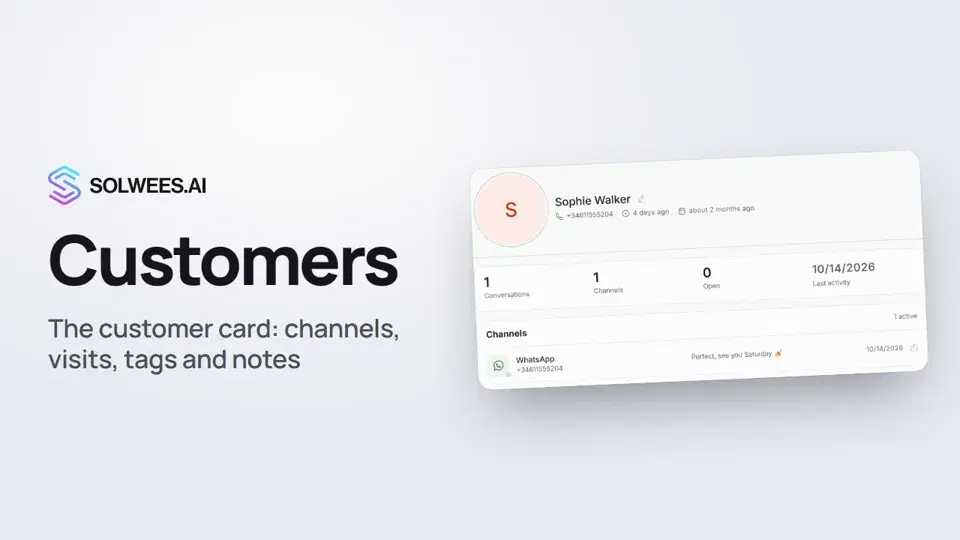 Customers and the customer cardHow to work with Customers in Solwees: finding a client, the card with channels and Start chat, details, the visit history from your CRM with the average per visit, tags and team notes.1:19
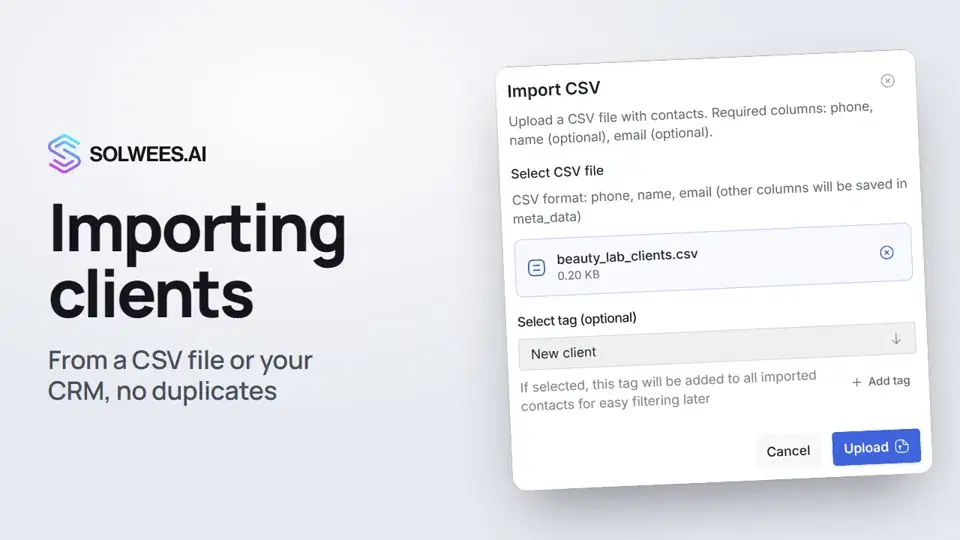 Importing clients: from a CSV file or from your CRMHow to bring your client base into Solwees: upload a CSV file with names, phones and emails, or pull clients with their visit history from a connected Altegio. Clients with the same phone are updated, never duplicated.0:57
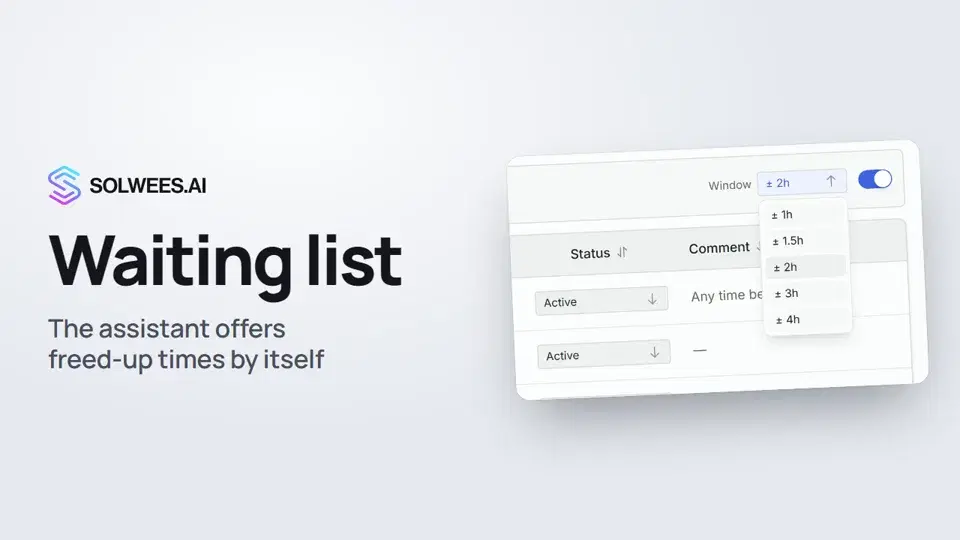 Waiting list: the assistant offers a freed-up time by itselfHow the waiting list works in Solwees: the assistant adds clients when the time they want is taken, and with AI auto-rebooking on it offers them a freed-up time by itself.0:54
 Deals: the boardHow to work with the deals board in Solwees: switch pipelines, add a quick deal, drag cards between stages, find overdue deals and view them as a list.1:28
Потрібна допомога?
Запитайте Sola в кабінеті
Кнопка помічника в куті будь-якої сторінки кабінету знає кожне налаштування й показує, де воно.
Відкрити кабінет