
Tasks: due dates, assignees and reminders
Клієнти, угоди та завданняОновлено 18 жовтня 2026 р.Відео 1:11З модулем «CRM і завдання»
Ця стаття поки що англійською.
Tasks help you keep what you promised a client: call back, send a booking reminder, check a payment. Every task has a due time and an assignee, and when the time comes, the assignee gets a reminder in the dashboard and in Telegram.
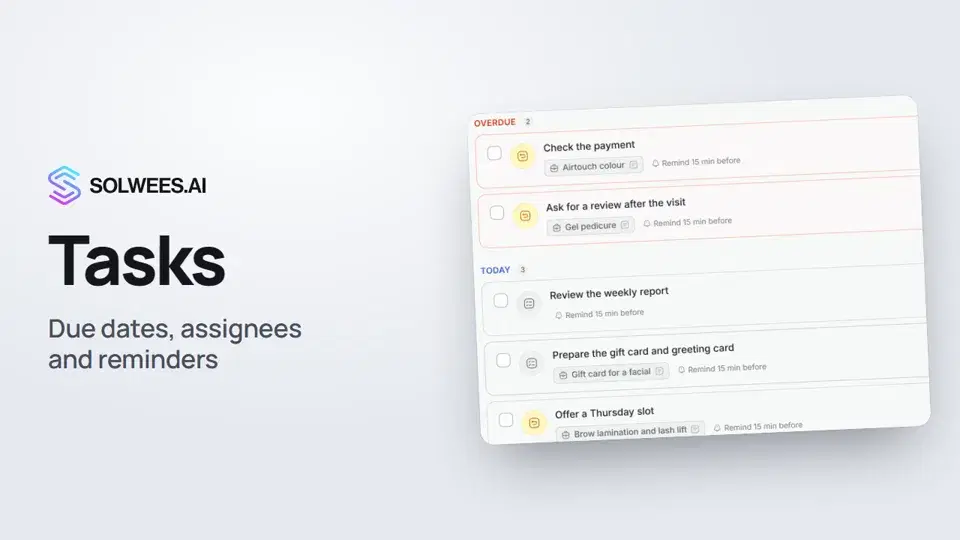
The section is part of the CRM and tasks module. It is open during the free trial and on the Enterprise plan; on other plans the module is added separately.
Where to find it
Open Tasks in the left menu. The number next to the menu item is how many of your tasks are overdue.
The line at the top of the page shows how many tasks are active, overdue and due today.
What is on the page
| Element | What it does |
|---|---|
| The line «New task: type and press Enter» | Quick add: opens the form with the title already typed |
| New task button | Opens an empty form |
| Search tasks | Searches by title, description, assignee name, client name or phone, deal name |
| Mine / Whole team | Only your tasks, or the tasks of every teammate |
| Active / Done | Open or completed tasks. The red number on «Active» is how many are overdue |
| Groups | Overdue, Today, Tomorrow, This week, Later. Overdue tasks are marked red |
How to add a task
- Type the task in the line at the top, for example «Call Megan back about the colour», and press Enter. The form opens with this title. The task is not created yet.
- Choose the Due at time: in the calendar or with one button: In an hour, Today 18:00 (until the evening comes), Tomorrow 10:00, Next week.
- Choose the Type: call, meeting, follow-up or other. The type sets the task’s icon.
- Choose the Reminder: at the due time, 15 minutes before (the default), 1 hour before or 1 day before.
- Choose the Assignee. It is you by default; the list has every member of the workspace. The reminder goes to this person.
- If the task is about a client, find them in Client (optional) by name, phone or email.
- Click Create task. The task appears in the group for its due date.
Tasks for a deal
In a deal card you can set a task in two ways:
- the Deal actions block, Activity tab: type what to do, pick the due time and click Plan. The task is assigned to you with a reminder 15 minutes before;
- the Activities block, + Add task to this deal button: opens the full form.
Such a task is linked to the deal and the client. The task list shows the deal’s name, and clicking it opens the chat with that client in Chats.
What you can do with a task
Hover over a task to see its buttons on the right.
- Snooze (alarm clock): move the due time by 15 minutes, 1 hour, 3 hours or to tomorrow, 10:00. The new time counts from now, and the reminder comes again.
- Edit (pencil): change the title, description, due time, type, reminder or assignee, then click Save changes.
- Delete (bin): the task is deleted after you confirm.
- The checkbox on the left: the task is done and moves to «Done». The confirmation message has an Undo button in case of a misclick. You can also bring a task back later: the Reopen button in the «Done» tab.
How reminders arrive
A reminder comes at the moment chosen in the «Reminder» field, and only to the assignee.
In the dashboard. A Task reminder card (after the due time: Task overdue) appears at the top right with Open, Done and Snooze. The card shows on any page and plays a sound (you can mute it in the panel itself). If the dashboard tab is in the background and browser notifications are allowed, a browser notification comes too. A line about the task appears in the Notifications feed.
In Telegram. If the alerts bot is connected in Settings → Notifications:
- the reminder goes to the personal chat with the bot that the assignee connected themselves, from their own account;
- if there is no such chat, it goes to the team group chat;
- if there is no group either, to the connected personal chats (for example, the owner’s).
Chats can be connected by the owner and administrators, and by a teammate allowed to manage settings. That is why operators’ reminders usually arrive in the team group chat. The message has what to do, the due time, the client and the deal, and the Open task and Open chat buttons.
Tips
- Put the action and the name in the title: «Call Megan back about the colour» is clearer than «Megan».
- For a morning call, remind 15 minutes or 1 hour before; to prepare for a visit, 1 day before.
- Set client tasks from the deal card: the task then opens the client’s chat in one click.
- A manager can start the day on Whole team: everyone’s overdue tasks are at the top.
- Connect a team group chat so that Telegram reminders are never lost.
FAQ
Does quick add create the task right away?
No. Enter in the line at the top only opens the form with the title. The task is created with Create task.
Who can see the team’s tasks?
Anyone with access to Tasks can open Whole team. Only the assignee gets the reminders.
Why didn’t the reminder come to Telegram?
Check that Settings → Notifications has a connected chat and it is switched on. If the assignee has no personal chat with the bot, the reminder went to the team group chat.
What happens to an overdue task?
It stays under Overdue until it is done or snoozed. The assignee sees a «Task overdue» card in the dashboard.
Can I change the assignee?
Yes. Click the pencil on the task, pick another teammate and click Save changes.
Текст відео
Усе, що каже диктор. Таймкод вмикає відео з цього місця.
What tasks are and where to find them
Tasks help you keep what you promised a client: call back, send a booking reminder, check a payment. Open Tasks in the left menu. The line at the top shows how many tasks are active, overdue and due today.
How to add a task
To add a task, type it in the line at the top and press Enter. A form opens. Choose the due time, the assignee and when to remind: at the due time or earlier. Then click Create task.
Mine, Whole team, due dates
Mine shows your own tasks, and Whole team shows everyone's. Tasks are grouped by due date: overdue, today, tomorrow and later.
Deal, Snooze and Done
If a task was set from a deal card, it shows which deal it belongs to. Hover over a task: Snooze moves the due time, and the checkbox on the left marks it done.
Reminders in the dashboard and in Telegram
The assignee gets a reminder in the dashboard, and in Telegram: in their personal chat with the bot if they connected one, or in the team chat. Done. Next: team notifications.
Стаття відповіла на ваше запитання?
Ще з цієї теми
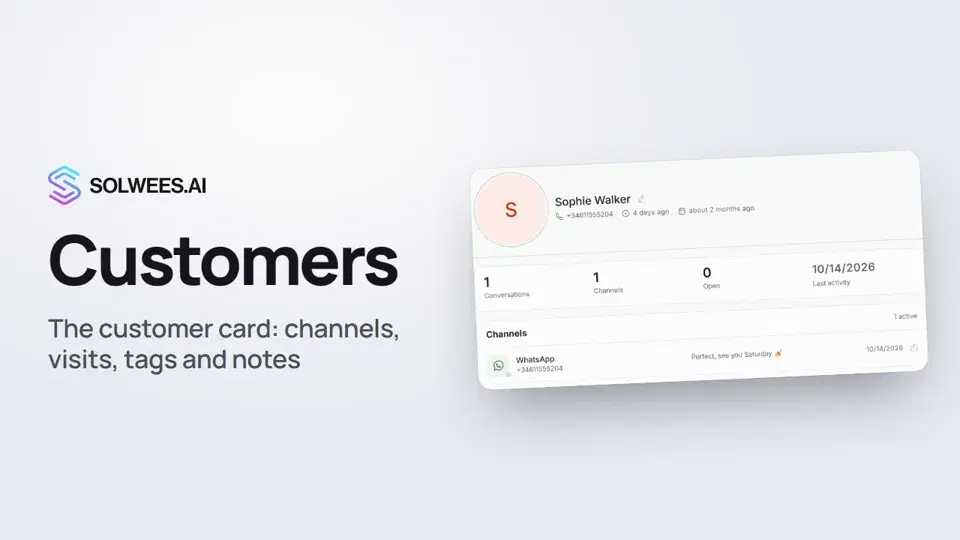 Customers and the customer cardHow to work with Customers in Solwees: finding a client, the card with channels and Start chat, details, the visit history from your CRM with the average per visit, tags and team notes.1:19
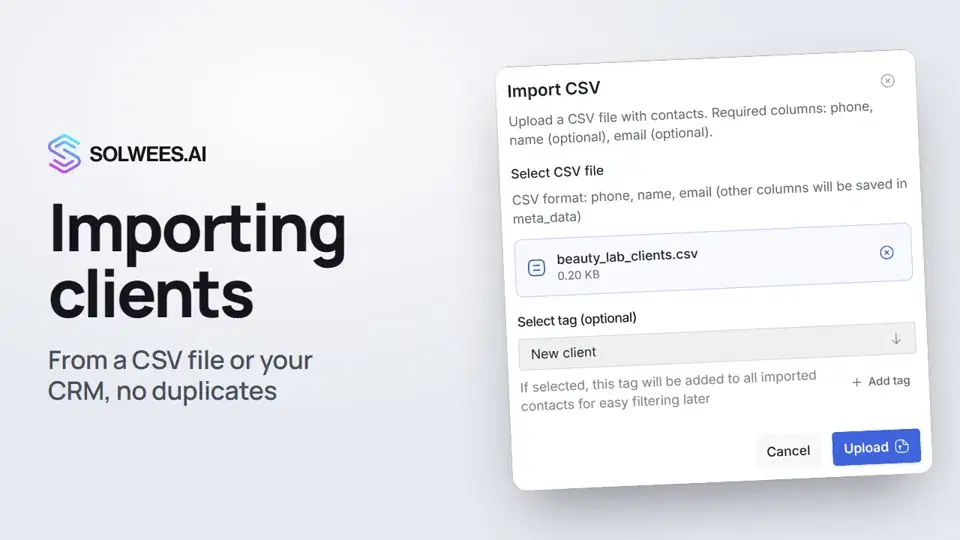 Importing clients: from a CSV file or from your CRMHow to bring your client base into Solwees: upload a CSV file with names, phones and emails, or pull clients with their visit history from a connected Altegio. Clients with the same phone are updated, never duplicated.0:57
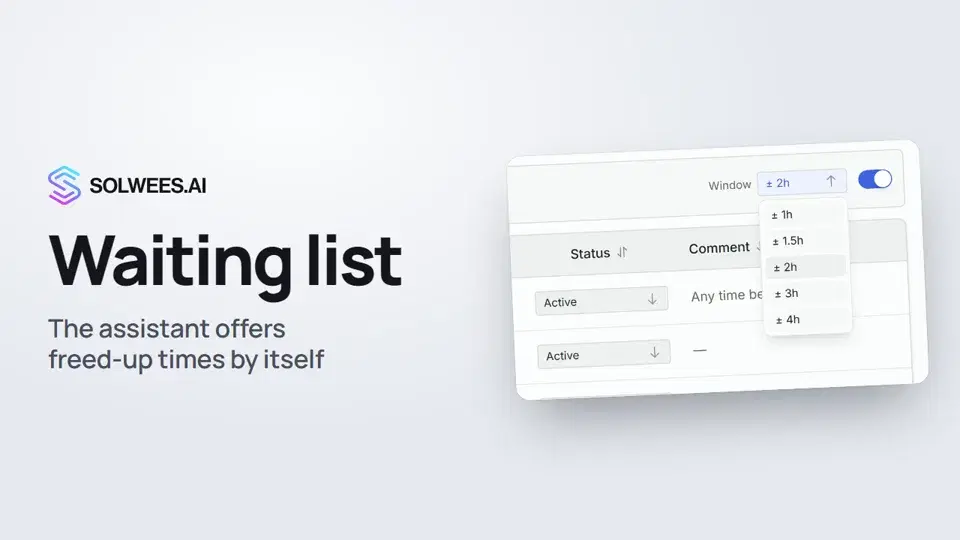 Waiting list: the assistant offers a freed-up time by itselfHow the waiting list works in Solwees: the assistant adds clients when the time they want is taken, and with AI auto-rebooking on it offers them a freed-up time by itself.0:54
 Deals: the boardHow to work with the deals board in Solwees: switch pipelines, add a quick deal, drag cards between stages, find overdue deals and view them as a list.1:28
Потрібна допомога?
Запитайте Sola в кабінеті
Кнопка помічника в куті будь-якої сторінки кабінету знає кожне налаштування й показує, де воно.
Відкрити кабінет