
App Directory: connect your booking system, CRM and payments
ІнтеграціїОновлено 18 жовтня 2026 р.Відео 1:06
Ця стаття поки що англійською.
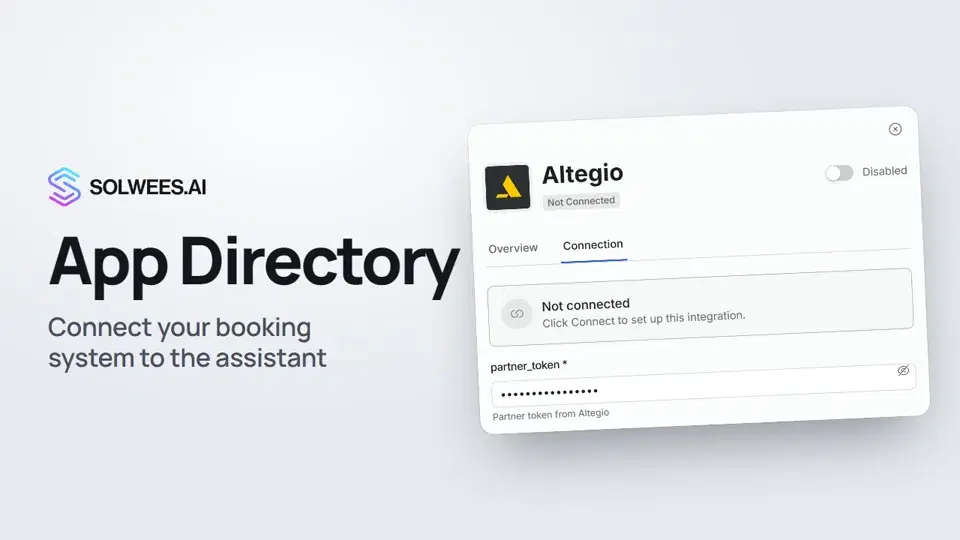
The App Directory holds ready-made integrations you connect to the assistant: booking systems, CRMs, payments and scheduling. With a booking system connected, for example Altegio, the assistant sees your services, staff and free times and books clients straight into it.
Where to find it
Open the AI Agent section and choose App Directory.
How to find your system
| Way | How it works |
|---|---|
| Tabs | All, Restaurants CRM, Beauty & Wellness, Payments, Scheduling. For example, Altegio, Booksy and Fresha are under Beauty & Wellness, SevenRooms and CoverManager under Restaurants CRM, Stripe under Payments, Calendly and Cal.com under Scheduling |
| Search | Type the system’s name. Search looks at the card’s name and description |
| Sort | Connected first by default, or by name A to Z or Z to A |
Connected systems carry a green Connected label.
How to connect
- Click the system’s card. A panel opens on the right: under the name you can see whether the system is connected.
- The Overview tab sums up what the integration does.
- Open the Connection tab and enter the access details from your system. Required fields are marked with an asterisk.
- Click Connect.
Once connected, some integrations get a Settings tab, for example Altegio and Stripe. Bitrix24 has an Open Lines tab instead of Connection.
For what to enter for Altegio, see the article and video on connecting Altegio.
If there is no Connect button
Some systems, such as Booksy and Fresha, only have the Overview tab, with a Need this integration? block at the bottom. You can’t connect these yourself: support turns them on. Write to the address on the card, support@solwees.ai.
If your system isn’t in the directory
Send a request on the Integrations page at solwees.ai: the Don’t see your system? form, Request integration button. Tell us which system you use. We reply by email within 24 hours.
How to check after connecting
Open AI Agent → Agent Settings and ask in the test chat, for example: “Do you have a free slot tomorrow for a manicure?”. The assistant should offer times from your booking system. Bookings you make in the test are real: cancel them afterwards.
Tips
- Use search to find your system: it’s quicker than going through the tabs.
- An agent can have one booking system. A booking system and a sales CRM, for example Altegio and Bitrix24, can be connected together.
- To disconnect an integration, open its card, click Disconnect and confirm.
FAQ
What does the assistant do with a connected booking system?
It sees your services, staff and free times, offers the client suitable slots and makes the booking right in the system.
Can I connect two booking systems at once?
Not to one agent: the assistant books into one system. A booking system and a sales CRM can be connected together.
Why doesn’t Booksy have a Connect button?
This integration can’t be connected on your own yet. Write to support at the address on the card, and they’ll turn it on for your workspace.
Текст відео
Усе, що каже диктор. Таймкод вмикає відео з цього місця.
What the App Directory is and where to find it
The App Directory is where you connect your booking system, CRM and payments to the assistant. With a booking system, it sees free times and books clients itself. Open the AI Agent section and choose App Directory.
Tabs and search
Tabs group the apps by purpose: Restaurants CRM, Beauty & Wellness, Payments and Scheduling. Or find your system with search: type its name, for example, Altegio.
The integration card and connecting
Click the card. Under the name, you can see whether the system is connected. On the Connection tab, enter the access details from your system and click Connect.
No Connect button or your system isn't listed
Some systems, like Booksy, have no Connect button. Support turns these on for you: write to the address on the card. Your system isn't in the directory? Send a request on the Integrations page at solwees.ai. Done. Next: connecting Altegio step by step.
Стаття відповіла на ваше запитання?
Ще з цієї теми
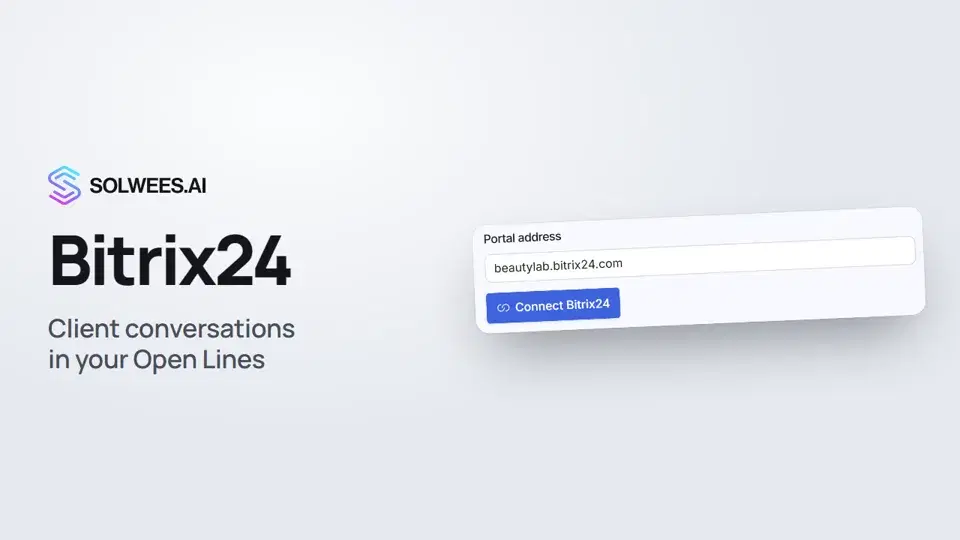 Bitrix24: client conversations in your Open LinesHow to connect your Bitrix24 portal to Solwees so the AI receptionist's conversations with clients go to your Open Lines: the portal address, confirming access on the portal, the agent's line and the No agent tab.1:03
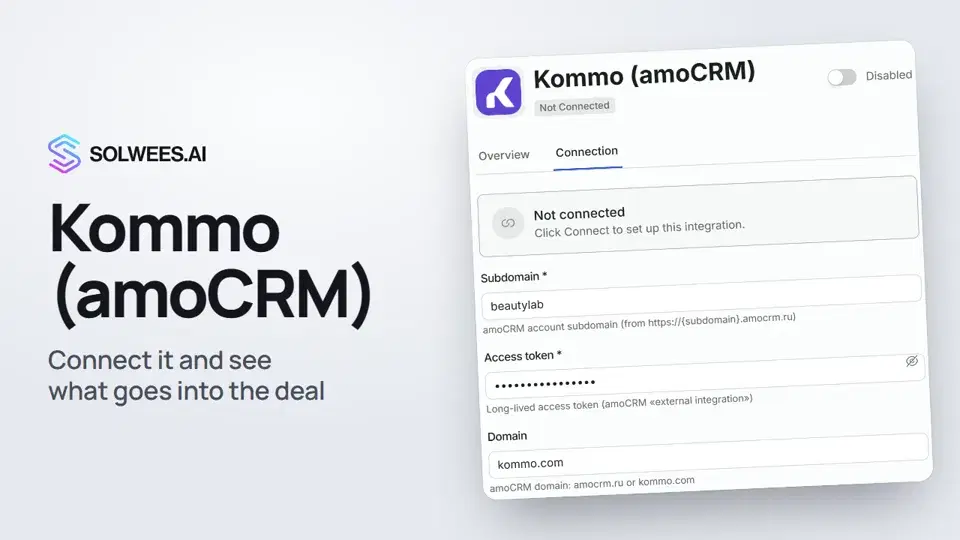 Kommo (amoCRM): how to connect it and what goes into the dealHow to connect Kommo (amoCRM) to your Solwees AI assistant: subdomain, long-lived token and domain, what the assistant sends into the deal and which assistant role it takes.1:19
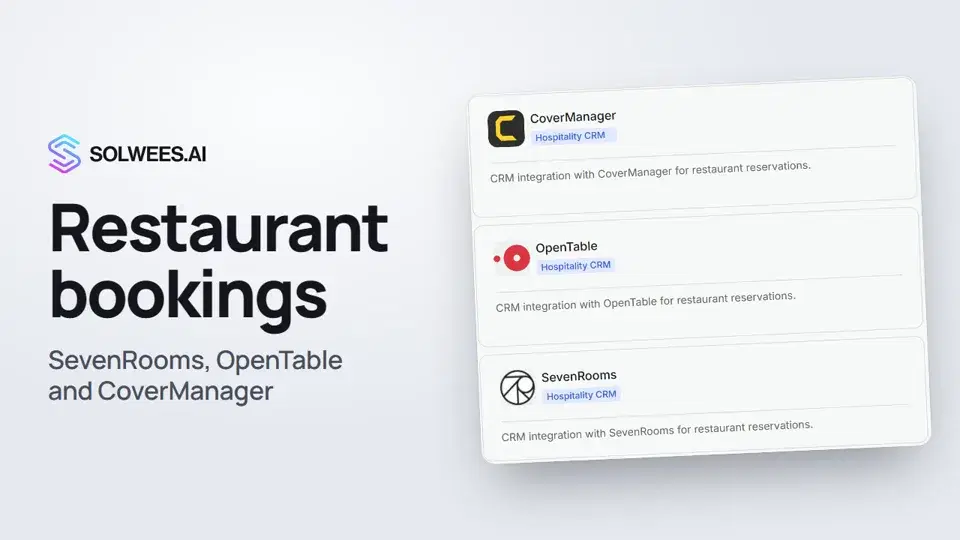 Restaurant bookings: connecting SevenRooms, OpenTable and CoverManagerHow to connect your restaurant booking system to the Solwees AI receptionist: SevenRooms and CoverManager connect in the App Directory, OpenTable is switched on by support. Once connected, the assistant checks for free tables and books right in your system.1:21
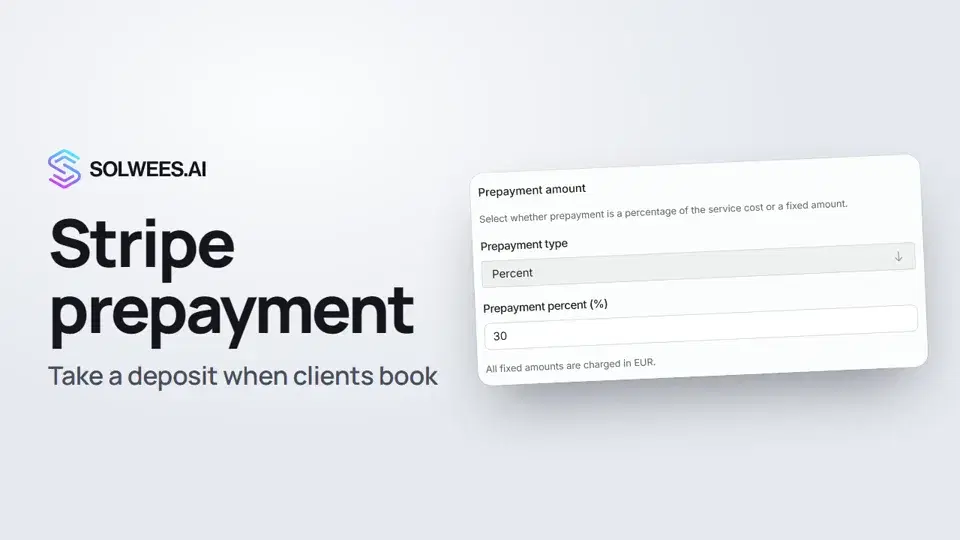 Stripe prepayment: take a deposit when clients bookHow to connect Stripe to Solwees and set up prepayment: the AI receptionist names the deposit before booking and sends the client a payment link, and you get notified once it's paid.1:28
Потрібна допомога?
Запитайте Sola в кабінеті
Кнопка помічника в куті будь-якої сторінки кабінету знає кожне налаштування й показує, де воно.
Відкрити кабінет