
Billing and invoices: your plan, modules, invoices and cancelling
الفريق والإعدادات والفوترةتاريخ التحديث 19 أكتوبر 2026الفيديو 1:28لمالك مساحة العمل
هذا الدليل بالإنجليزية حاليًا.
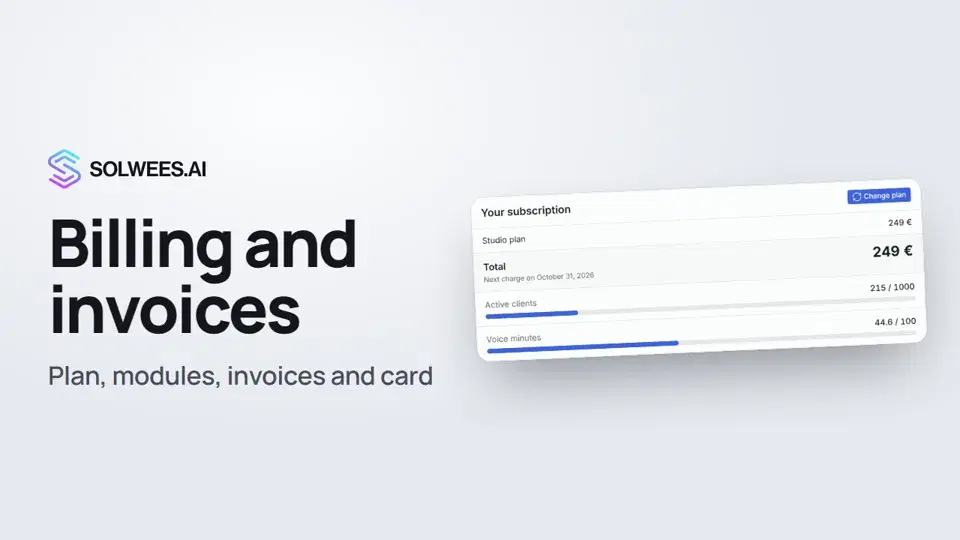
Billing shows what you pay for and how much: your plan, limits, enabled modules and the date of the next charge. It is also where you change your plan, buy voice minute packs, download invoices and cancel your subscription.
Where to find it
Open Settings and, under Subscription, choose Billing. There are three tabs at the top: Subscription, Invoices and Payment details.
Only the business owner can see this section. Administrators and other teammates don’t see it, even with every other right.
The Subscription tab
Your subscription
| Row | What it shows |
|---|---|
| Plan | Your current plan and its monthly price. On the free trial: “Free trial” and its end date. |
| Purchased items | Enabled modules, paid channels and client packs, each with its price. |
| Total | The amount of the next charge and its date. |
| Active clients | How many active clients you have this period and how many your limit allows. |
| Voice minutes | Call minutes used and available: your plan’s minutes plus any packs you bought. |
A limit bar turns amber at 80% and red when the limit is reached.
An active client is anyone the assistant replied to during the current billing period, in any channel. An inbound call longer than 10 seconds counts too. Each person is counted once per period, however many messages they send. Broadcasts, reminders and other messages the system sends on its own don’t make anyone an active client.
The active clients limit = the number in your plan (Solo: 400, Studio: 1,000, Network: 2,500) plus any client packs. On the Hub plan (it has no assistant) the card shows team seats instead of active clients.
How to change your plan
- Click Change plan on the Your subscription card.
- At the top of the window choose how often to pay: monthly, 3 months (5% off), 6 months (10% off) or yearly (15% off). The prices on the cards update.
- Compare the plans: each card lists its limits, features and channels. Your current plan is marked in green.
- Click the button of the plan you want. If a payment is due, the checkout page opens.
When you move to a cheaper plan, Solwees asks you to confirm first: a new billing period starts right away and the new plan’s limits apply immediately. For Enterprise the button is “Contact Sales”.
Modules
Modules open parts of the product and are added separately from your plan:
| Module | What it opens | Price |
|---|---|---|
| CRM and tasks | Deals, pipelines and client tasks | €19/mo |
| Campaigns | Broadcasts and campaigns across your client base | €19/mo |
| AI in marketing | Assistant-written campaign copy and hints | €39/mo |
- Connect: click the button with the price and confirm. Your saved card is charged right away for the days left in the current period, then the module is billed monthly together with your plan.
- Disable: the section closes; the paid period is not refunded.
- On the free trial every module is open. On Enterprise they are included in the plan.
Below the modules is Paid channels: Viber, for example, is a separate subscription that no plan includes.
Voice minute packs
If your plan’s minutes run short, buy a pack: Mini (100 minutes, €39), Standard (500 minutes, €149) or XL (1,000 minutes, €249).
- You pay once, on the checkout page. The minutes are credited right after.
- Your plan’s minutes are used first, then the pack.
- Plan minutes renew every billing period; pack minutes don’t expire at the end of the period.
- Packs are available on plans with calls: Studio, Network and Enterprise.
Active client packs
To raise your active clients limit, pick packs (+200, +500, +1,000, +3,000, +5,000 or +10,000 clients) with the + and − buttons and click Apply. Packs are charged to your saved card on top of the subscription and renew monthly until you disable them. After you disable them, the extra clients stay until the end of the paid period.
Overage mode
On Studio, Network and Enterprise you can turn on Overage mode: when the included minutes run out, calls continue at the overage rate. Set a spending limit in euros first: the mode won’t turn on without it, and spending for the period won’t go over it.
The Invoices tab
Every charge is listed here: invoice number, status (“Payment successful” or “Payment required”), due date, total and balance due.
- Download invoice opens the invoice as a PDF. A document appears after every charge, ready for your accountant.
- If an invoice says “Payment required”, a Pay by card button appears next to it.
The Payment details tab
- Billed to: the card you are charged from. The number is hidden: only the card type, the last four digits and the expiry date are shown.
- Company details: location, company name and tax ID.
To change your card, use the secure payment page that opens from the button next to Cancel subscription.
How to cancel your subscription
- Open the Payment details tab.
- Click Cancel subscription and confirm.
You keep access until the end of the paid period. Until then the Your subscription card shows “Cancellation scheduled for …”. When the period ends, the assistants stop replying and add-ons can’t be bought. To continue, choose a plan with Choose a plan.
If an invoice is unpaid, the subscription can’t be cancelled: pay it on the Invoices tab first.
Tips
- Keep an eye on the limit bars: amber means over 80% is used. Raise the limit with a client pack or a higher plan.
- Paying for a year? Choose Yearly in the Change plan window: 15% off.
- A module can be added for a month and disabled when you no longer need the section.
FAQ
Why can’t I see Billing?
Only the business owner can see it. Ask the owner to open it or to send you the invoices you need.
Who counts as an active client?
Anyone the assistant replied to during the current billing period. Each person counts once per period. Messages the system sends on its own (broadcasts, reminders) don’t count.
Do purchased minutes expire?
Pack minutes don’t expire at the end of the billing period. Only unused plan minutes reset: each new period starts with your plan’s full allowance again.
Where do I get an invoice for my accountant?
On the Invoices tab, click Download invoice in the row of the charge.
What happens after I cancel?
Everything works as usual until the end of the paid period. After that the assistants stop replying. You can come back any time by choosing a plan.
What’s next?
Add your teammates and decide what each of them can do. That’s the next video, “Team and access”.
نص الفيديو
كل ما يقوله الراوي. التوقيت يشغّل الفيديو من تلك اللحظة.
Where to find Billing
Billing shows what you pay for and how much. It's also where you change your plan, add modules and download invoices. Open Settings and choose Billing. Only the business owner can see this section.
Subscription, limits and changing plans
The Your subscription card shows your current plan, the total and the date of the next charge. Below are the limits: active clients and voice minutes. An active client is anyone the assistant replied to this period. To switch plans, click Change plan. Compare the plans, and get a discount when you pay for several months at once.
Modules and minute packs
The CRM and tasks, Campaigns and AI in marketing modules are added separately from the plan, each at its own monthly price. Running short of voice minutes? Buy a pack: you pay once, the minutes arrive right away and don't expire at the end of the period.
Invoices, card and cancelling
The Invoices tab lists every charge with its date, amount and status. Download any invoice with the Download invoice button. Payment details hold your card and company details. The card number is hidden: only the last four digits are shown. You can cancel your subscription here too. You keep access until the end of the paid period. Done. Next up: team and access.
هل أجابت المقالة عن سؤالك؟
المزيد في هذا الموضوع
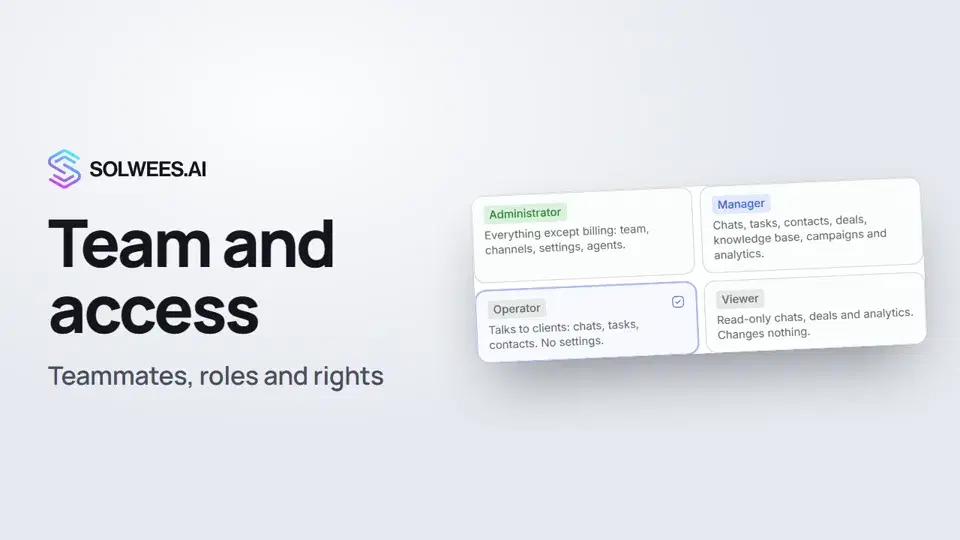 Team and access: add teammates and choose what they can doHow to add a teammate in Solwees, give them a role (administrator, manager, operator or viewer) and limit their access by section and pipeline.1:19
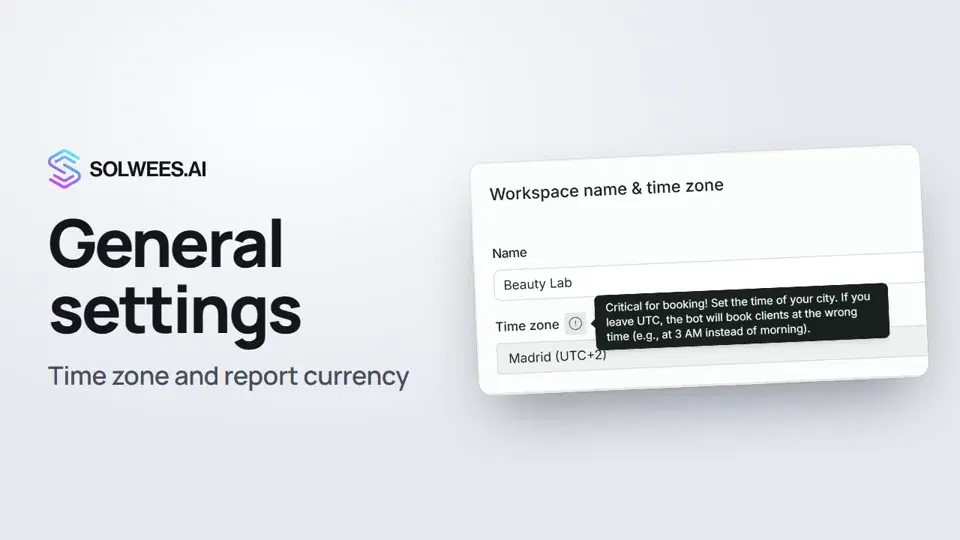 General settings: workspace name, time zone and report currencyWhere to set your workspace name, time zone, report currency and admin hourly rate in Solwees, and what they affect: booking times, the agent's schedule and the amounts in reports.1:02العملاء النشطونمن يُحتسب عميلاً نشطاً، وما يحدث عند بلوغ الحد، وباقات العملاء.دليل نصيباقات دقائق المكالماتدقائق مكالمات إضافية تُشترى مرة واحدة، لأي خطة فيها المساعد.دليل نصي
تحتاج إلى مساعدة؟
اسأل Sola في لوحة التحكم
زر المساعد في زاوية أي صفحة من لوحة التحكم يعرف كل إعداد ويريك مكانه.
افتح لوحة التحكم