
Team notifications: the feed and Telegram alerts
المكالمات والتقارير والإشعاراتتاريخ التحديث 18 أكتوبر 2026الفيديو 1:12
هذا الدليل بالإنجليزية حاليًا.
Notifications show what needs your team’s attention: a client who needs a person, a missed call, a client added to the waiting list, a task that is due. Every event lands in the Notifications feed, and the most urgent ones can also come to Telegram: to you personally or to your team’s group chat.
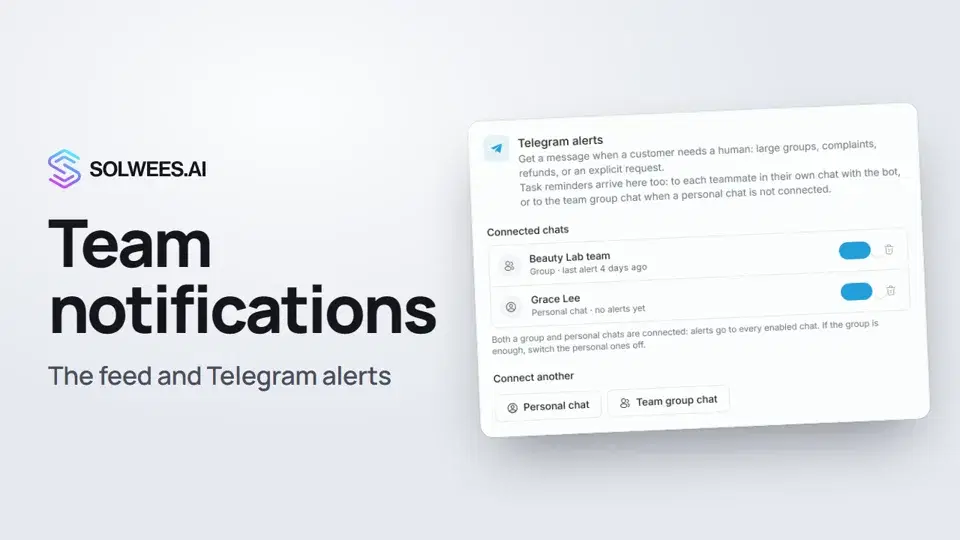
Where to find it
- The feed: the bell at the bottom of the left menu. A red dot on it means there are unread items. Hover over the menu to see how many next to Notifications.
- Telegram alerts: Settings → Notifications (in the Workspace group). The owner and administrators see this page, and so does a teammate who was given the right to manage settings.
The feed is there for every teammate, on every plan.
What shows up in the feed
| Row | When it appears | Filter |
|---|---|---|
| A customer needs a human | The assistant handed the conversation to a person: a large group, a complaint, a refund, or the client asked for a person | Messages |
| Conversation handed off from AI | A chat moved from the assistant to a teammate | Messages |
| New conversation | A client started a new conversation | Messages |
| Customer added to waiting list | The assistant put a client on the waiting list for a service | Messages |
| Missed call | A call went unanswered | Calls |
| Manager call missed | During a call with the assistant the client asked for the manager, and the manager didn’t pick up | Calls |
| Task due | A task reached its due time. Only the assignee sees it | System |
| New teammate joined | A new teammate accepted the invitation | System |
System also holds other service events, such as a sign-in from a new device.
Working with the feed
- Events are grouped by day: Today, Yesterday, Earlier this week, Older. Newest on top.
- Unread items have a blue dot on the right and a bar on the left. The unread count sits next to the Notifications title.
- Click a row and it is marked as read. The row of an AI agent summary also opens the summary itself.
- Mark all read clears every unread mark at once.
- The filter above the feed: All, Calls, Messages, System, each with its count.
- Read marks are personal: when you read a row, it stays new for your teammates.
- A new notification also pops up as a short message, whichever dashboard page you are on.
Telegram alerts
The @SolweesAlertsBot bot writes to Telegram when:
- a client needs a person. The message has a short summary of what happened, the client’s name and phone, the channel, and a button that opens the chat in the dashboard. For WhatsApp clients there is also a button to reply on WhatsApp;
- a client asked for the manager during a call and the manager didn’t answer;
- a task is due (see Task reminders below).
New conversations, the waiting list and other events don’t go to Telegram; they stay in the feed.
Connect a personal chat
- Open Settings → Notifications.
- Click Personal chat.
- Click Open in Telegram or scan the QR code with your phone. You can also copy the link with Copy.
- In Telegram, tap Start. The bot replies that the chat is connected.
- Within a few seconds the chat appears under Connected chats.
Connect your team group
- Click Team group chat.
- Add the @SolweesAlertsBot bot to your team group in Telegram.
- Click Copy command and send that command in the group.
- The group appears under Connected chats.
One command connects one group. For a second group, click Team group chat again.
Switch off or disconnect a chat
- The switch on a chat’s row stops alerts to that chat without disconnecting it. The same switch turns them back on.
- The bin button disconnects the chat for good.
- From Telegram: the /stop command in the chat with the bot stops alerts to that chat.
If both a group and personal chats are connected, alerts go to every enabled chat. If the group is enough, switch the personal ones off.
Task reminders
A task reminder goes to the task’s assignee: to their personal chat with the bot, if they connected it themselves, from their own account. If there is no such chat, the reminder goes to the team group chat. In the feed, only the assignee sees the reminder.
Tips
- The link and the command work for 60 minutes and only once. Ran out of time, or the link was already used: click Generate a new link.
- For shift work a team group is handier: everyone on shift sees the alert.
- Send a personal-chat link only to the person who should get the alerts: whoever taps Start first connects their chat.
FAQ
Who can connect Telegram?
The owner and administrators. Other roles don’t see Settings → Notifications unless they were given the right to manage settings.
Why didn’t an alert come to Telegram?
Check that the chat is listed under Connected chats and its switch is on. Telegram only gets a client who needs a person, a call the manager didn’t answer, and task reminders. Everything else is in the feed.
The bot says the link is invalid or has expired.
The link is more than 60 minutes old or has already been used. Generate a new one in Settings → Notifications.
What language does the bot write in?
The bot sends its alerts in English.
How do I mark a notification as read?
Click its row. To clear all of them, click Mark all read.
نص الفيديو
كل ما يقوله الراوي. التوقيت يشغّل الفيديو من تلك اللحظة.
The notification feed and where to find it
Notifications show what needs your team's attention: a client who needs a person, or a missed call. A red dot on the bell in the left menu means there's something unread. Click the bell. The feed is grouped by day: handovers from the assistant, missed calls, the waiting list, new teammates. Unread items have a blue dot, and the filter at the top can show only calls, for example.
Telegram alerts: where to set them up
Telegram alerts are set up by the owner or an administrator, in Settings, under Notifications. The bot writes when a client needs a person, and reminds you about tasks.
Personal chat and team group
Click Personal chat, open the link or scan the QR code, and tap Start in Telegram. For a group, choose Team group chat: add the bot to the group and send the command there. The link and the command work for 60 minutes, and only once. The connected chat then shows up in the list. Done. Next: team and access.
هل أجابت المقالة عن سؤالك؟
المزيد في هذا الموضوع
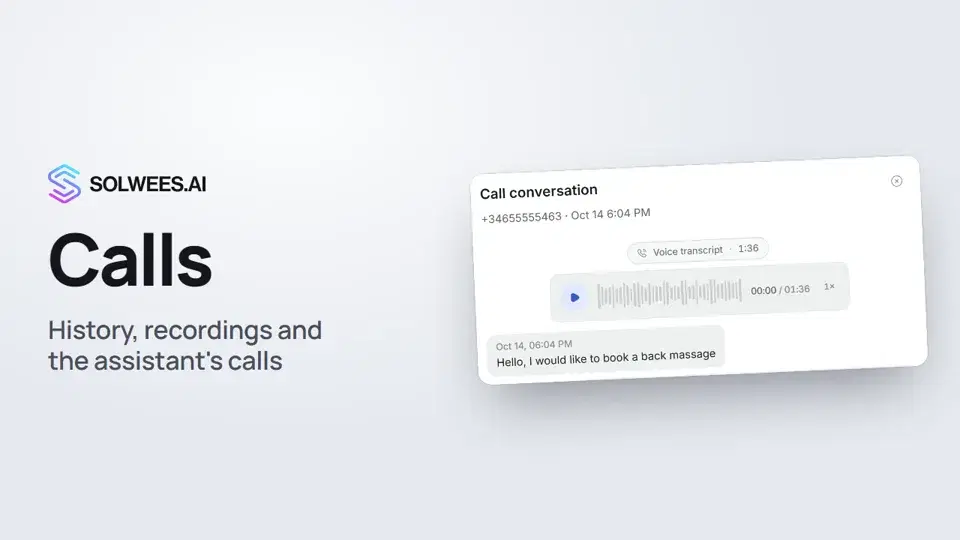 Calls: history, recordings, transcripts and the assistant's callsWhere to find every phone conversation of your AI receptionist in Solwees: call history, recordings, transcripts and scheduled calls with Call now and Cancel.1:11
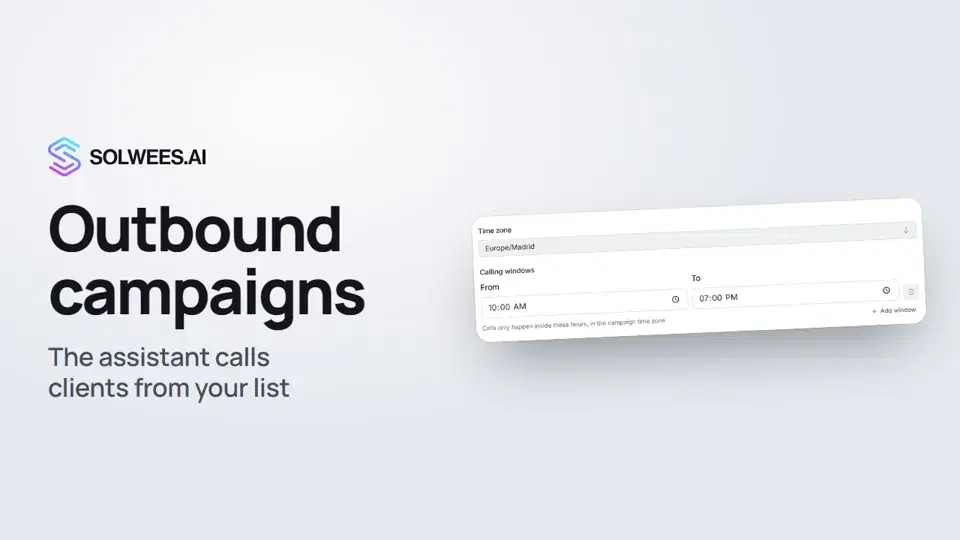 Outbound campaigns: the assistant calls clients from your listHow to run an outbound calling campaign in Solwees: upload a client file, set calling windows, pace and retries, pick a voice agent, then launch and pause it.1:43
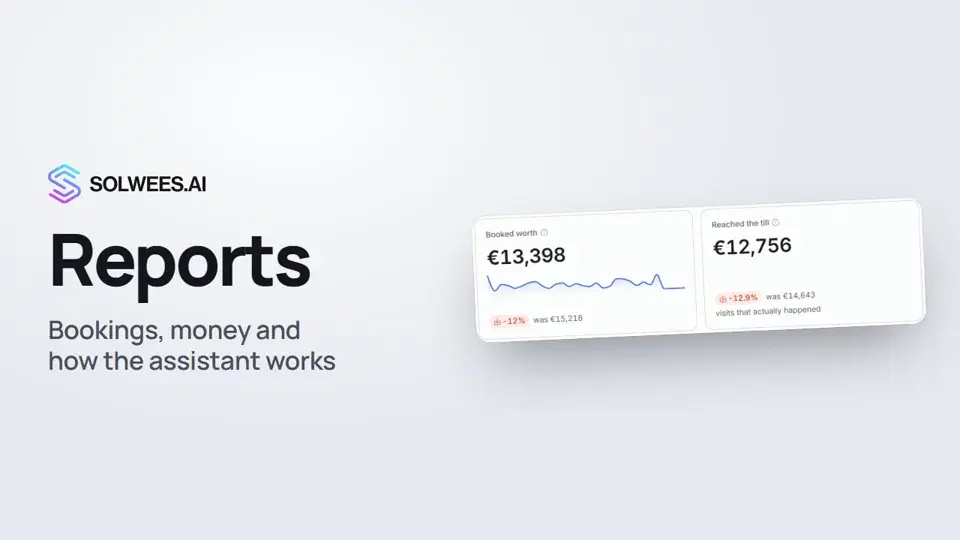 Reports: bookings, money and how the assistant worksHow to read reports in Solwees: bookings and revenue the service brought, the comparison with the previous period, how the figures are calculated, the report tabs, the period and the channel filter.1:38
 Ads: which ads bring you clientsHow to see in Solwees which Instagram, Facebook and WhatsApp ads bring you clients: the conversations, bookings and revenue from each ad, and where a chat shows which ad the client came from.1:14
تحتاج إلى مساعدة؟
اسأل Sola في لوحة التحكم
زر المساعد في زاوية أي صفحة من لوحة التحكم يعرف كل إعداد ويريك مكانه.
افتح لوحة التحكم