
Several locations or brands: workspaces
البدايةتاريخ التحديث 19 أكتوبر 2026الفيديو 1:01
هذا الدليل بالإنجليزية حاليًا.
A workspace is a separate space for one location or brand. Each workspace has its own chats and clients, its own assistant with a business profile and knowledge base, its own channels, team, settings and plan. If you run several salons or brands, give each one its own workspace: the assistant of every location then knows its address, hours and prices.
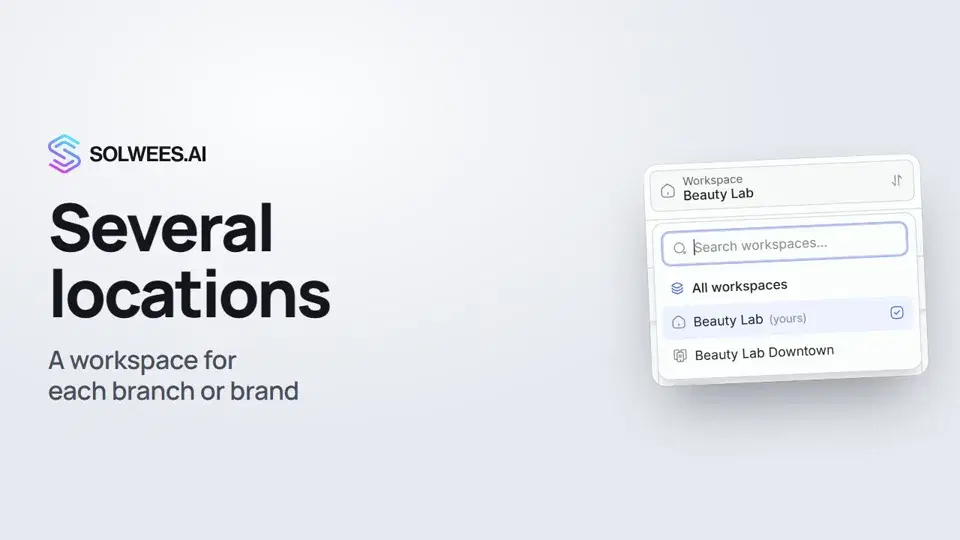
Where to find it
Hover over Profile at the bottom of the left menu, then over Workspace. A card opens with your workspaces and the Create workspace button.
The same list is in Settings → General, under My Workspaces.
How to create a workspace
- Hover over Profile at the bottom of the menu, then over Workspace.
- Click Create workspace.
- Enter a name, such as the location’s address or the brand name. The description is optional.
- Click Create workspace.
The new workspace opens right away, and Sola helps you set it up.
Workspaces are created by the account owner. Teammates only see the workspaces they have been given access to.
How to switch
| Where | What to do |
|---|---|
| Profile menu | Profile → Workspace, pick the one you need. The current one is highlighted |
| Settings | Settings → General → My Workspaces, the Switch button next to a workspace |
After switching, the whole dashboard opens in the chosen workspace: chats, clients, the assistant and settings.
All chats in one list
Once you have two or more workspaces, a Workspace picker appears above the list in Chats:
- All workspaces: the chats of every workspace in one list. Each chat shows which workspace it comes from;
- a single workspace: only its chats are listed, while the rest of the dashboard stays where it is.
The choice is remembered: go to another section, come back, and Chats shows the same list. In All workspaces mode the list takes up to the 50 most recent chats of each workspace.
Tips
- Name a workspace so it is easy to spot in the list: by the location’s address or area, or by the brand name.
- Right after creating it, fill in the new location’s business profile: address, working hours and contacts. Without them the assistant can’t tell clients how to find you.
- If one admin looks after several locations, keep Chats on All workspaces: new messages from every location land in one list.
FAQ
How many workspaces can I create?
Up to 10 per account. Once you reach the limit, the Create workspace button is disabled.
Is the plan shared between workspaces?
No, each workspace has its own plan and billing. Sola asks you to choose a plan for a new workspace while setting it up.
How do I give a teammate access to one location only?
Add them in Settings → Users and, at the access step, tick only that workspace. Teammates see only the workspaces they have access to.
نص الفيديو
كل ما يقوله الراوي. التوقيت يشغّل الفيديو من تلك اللحظة.
What a workspace is and how to create one
A workspace is a separate space for one location or brand, with its own chats, assistant and team. To add one, hover over Profile at the bottom of the menu, then over Workspace. Click Create workspace and enter a name, such as the location's address. Sola then helps you set it up.
Switching and All workspaces in Chats
You switch between workspaces in the same menu. The current one is highlighted. In Chats, a Workspace picker appears above the list. All workspaces brings every location's chats into one list. Each chat shows which workspace it comes from.
Your workspaces, the limit and what is next
All your workspaces are listed in Settings, General, with a Switch button. You can create up to 10. Next, fill in the business profile for the new location: address, hours and contacts.
هل أجابت المقالة عن سؤالك؟
المزيد في هذا الموضوع
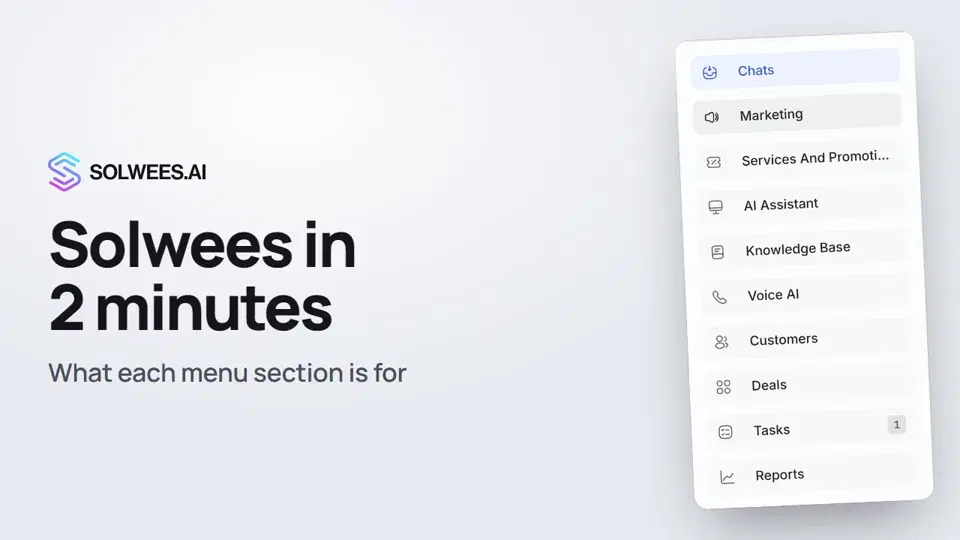 Solwees in 2 minutes: a tour of the menuA short tour of Solwees: what each menu section is for, where Settings and your profile are, and how not to miss what matters.2:10
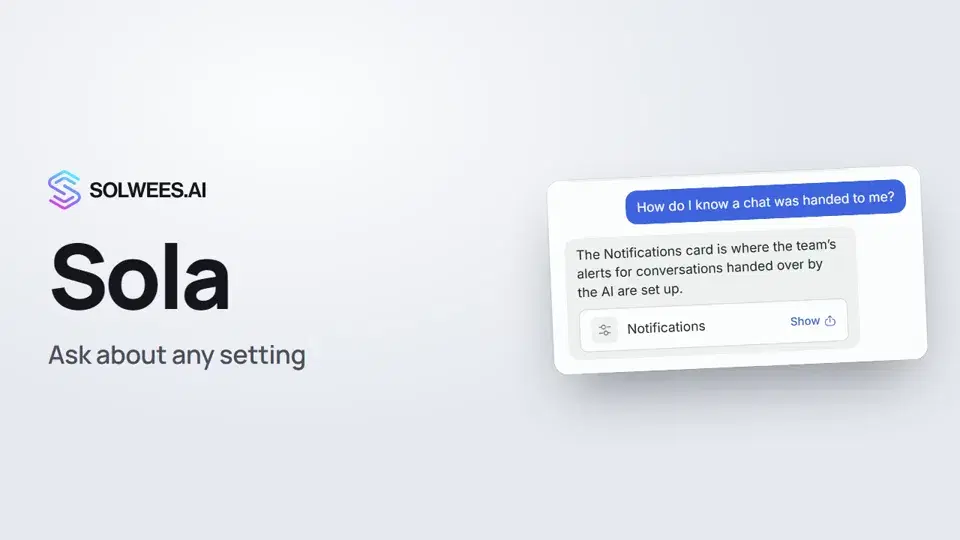 Sola: the setup assistant in SolweesHow to use Sola, the setup assistant in Solwees: ask in your own words, jump to the right place with the Show button, ask her to make a change, or start the interface tour.1:03
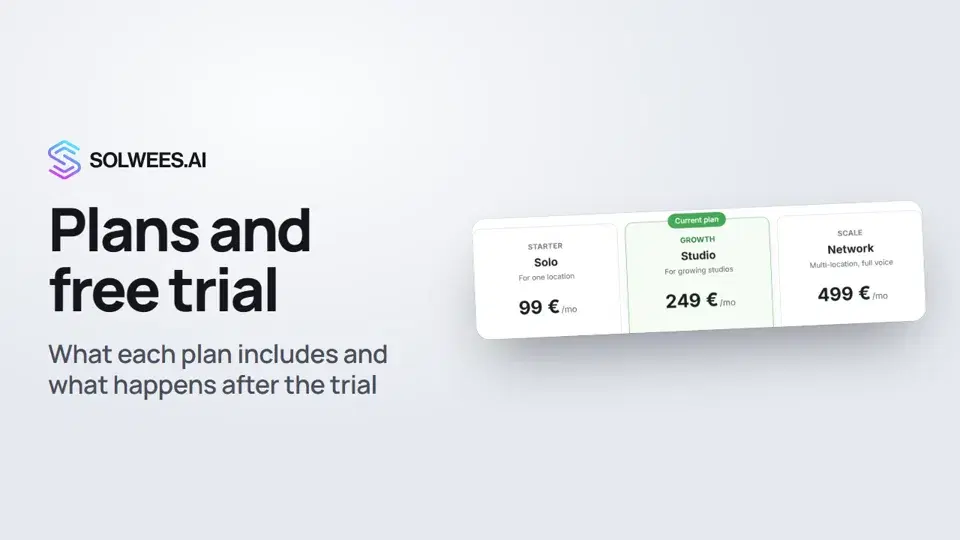 Plans and free trial: what's included and how to chooseWhich plans Solwees offers, how they differ, what your plan includes and how the free trial works.1:19الإعداد مع Solaكيف تبني Sola، مساعِدة الإعداد، مساعدك انطلاقاً من موقعك وملفاتك.دليل نصي
تحتاج إلى مساعدة؟
اسأل Sola في لوحة التحكم
زر المساعد في زاوية أي صفحة من لوحة التحكم يعرف كل إعداد ويريك مكانه.
افتح لوحة التحكم