
Conversation flow: what the assistant must do, and when
AI-асистент і база знаньОновлено 18 жовтня 2026 р.Відео 1:36На всіх тарифах, крім Hub
Ця стаття поки що англійською.
The conversation flow is a diagram of the requirements for the assistant’s replies. It shows what the assistant must do in every reply and what only in a certain situation, for example when a client says it is her first visit. Before a reply is sent, it is checked against the diagram and rewritten if a requirement is missing.
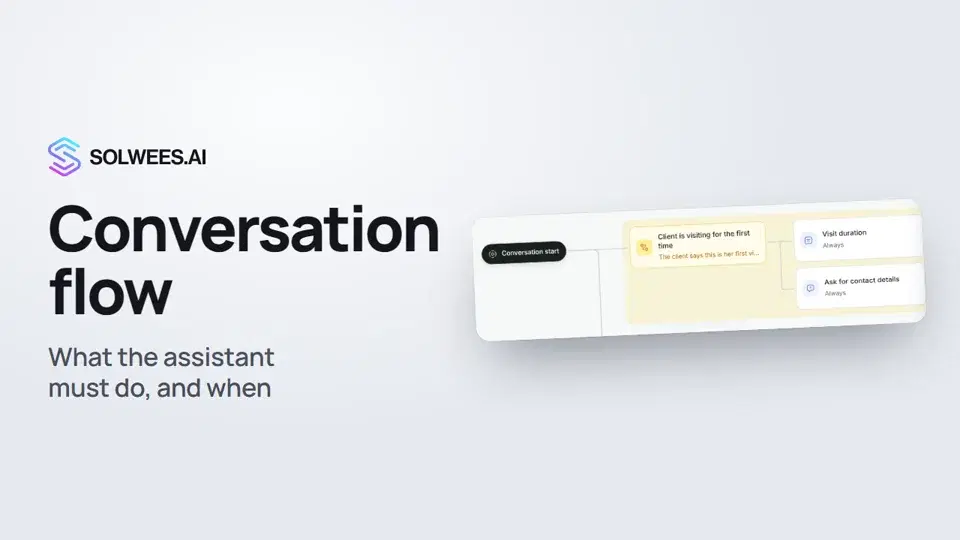
Where to find it
Open the AI Agent section and choose Conversation flow. If you have several agents, pick one above the diagram: the choice is shared with the Business Profile tab.
Fill in your business profile first. Without it the diagram won’t open: you see the hint “This agent has no business profile yet” instead.
The conversation flow is available on every plan with the AI assistant. The Hub plan has no assistant, so it has no flow either.
How to read the diagram
| On the diagram | What it means |
|---|---|
| Conversation start | Where the diagram begins. Requirements right next to it are checked in every reply |
| Yellow card (situation) | A condition in words, for example “the client says it is her first visit”. The requirements to its right apply only while the situation is true |
| White card (requirement) | What the assistant must do: tell the client something, say the price, end with a question, never say certain phrases, a rule in your own words and more |
| Dashed card with a gear | Nodes from your business profile settings: reasons to hand over to an administrator, general rules, cancellation and rescheduling rules, the promotions list and others. The group is collapsed: click it to expand |
| Red card “nothing to check” | The requirement has no text, or the profile field it uses is empty. Fill it in |
Above the diagram you see how many requirements, situations and nodes from settings it has.
The flow is off
Until you save something on this tab, the flow is off. A yellow bar above the diagram says the nodes from your settings are shown but not checked. To turn the flow on, click Turn the flow on and Save, or add your own requirements and save the diagram.
Add a rule in plain words
- Click Describe in words.
- Write in plain words what the assistant must do and in which situation. For example: “If a client comes for the first time, say the visit takes about two hours and ask for her name, surname and phone”. You can also click one of the examples under the field.
- Click Build the diagram.
- New cards appear on the diagram, with a note on top about what was added. This is a draft: review it and click Save. Undo puts the diagram back as it was.
The helper may also suggest a change to profile fields. It is saved only with Save as well.
Try a client’s message
- Click Try it.
- Type a client’s message, for example “Hello, it’s my first time with you. Anything on Monday?”.
- Click Try it under the field.
You see Situations triggered and What the agent must do: first the general rules, then the requirements of each situation that triggered. The check uses the diagram you see, even if it isn’t saved.
To check a ready reply, click Also check an agent’s reply and paste it. Below you get a Reply check: the requirements that were missed, or “All requirements are met”.
The check doesn’t message or book anyone. Tool calls, such as creating a booking, aren’t checked here: they are checked only in a live conversation.
The library of ready-made cases
Click Library and add a case with Add. There are nine cases:
| Case | What it does |
|---|---|
| First visit | How long the first visit takes and full contacts for the booking |
| Client named a master | If the master is busy, offer them at another time and other masters of the same level |
| This category only | Never switch the master’s category silently: ask, naming the price |
| Price for each slot | Each offered time has its master and its own price |
| No «I’ll check later» | The assistant checks right away instead of promising to come back |
| Dates with the weekday | A date always with its number and weekday, never «today» or «tomorrow» |
| Client’s language | Reply in the client’s language and don’t mix languages |
| Answer yourself | Parking, payment, warranty: from the knowledge base, no handover |
| End with a question | Every reply leads to the next step |
An added case appears on the diagram as a draft. Click its card, adjust the text to your salon and save the diagram.
Edit a card
Click a card on the diagram: its settings open on the right. You can change the name and text, the type of requirement, when it applies (always, when a service is named, when the price is asked, when booking comes up) and which branch it sits in. The Rewrite the reply switch: when it is off, the requirement is only logged and the client’s reply stays as written.
For a card from settings you edit the profile field itself: a change here updates both the profile and the nodes on the diagram. The Use in the flow switch turns the node off, while the setting keeps working as before.
Tips
- Fill in the business profile first: part of the diagram comes from it.
- One situation, one condition. Write it the way a client would say it.
- After changes, click Try it and test several client messages.
- Check bookings in your CRM in a live conversation, for example in the test chat (AI Agent → Agent Settings). A booking made there is real: cancel it after the test.
- While “Unsaved changes” shows above the diagram, the assistant works with the previous diagram. You can also save with Ctrl+S.
FAQ
The diagram changed after “Build the diagram”. Is it live already?
No. It is a draft. The assistant starts following the new diagram only after you click Save.
Why aren’t the nodes from settings checked?
The flow is off until the diagram is saved. Click Turn the flow on and Save, or save your own requirements.
Does “Try it” create a booking or message a client?
No. It only shows which situations triggered and what the assistant must do. Nothing is sent or saved.
Can I make the diagram bigger?
Yes, the arrows button next to Save opens the diagram full screen. To exit, click it again or press Esc.
Текст відео
Усе, що каже диктор. Таймкод вмикає відео з цього місця.
What the conversation flow is and where to find it
The conversation flow is a diagram of what the assistant must do in a reply, and in which situation. Before a reply is sent, it is checked against it. Open the AI Agent section and choose Conversation flow. Fill in your business profile first: without it, the diagram won't open. Nodes with a gear come from your profile, such as reasons to hand over to an administrator. While the flow is off, they aren't checked.
A rule in plain words and the draft
Click Describe in words and write a rule in plain words, for example about a first visit. Then click Build the diagram. A yellow card appears on the diagram: that's a situation. The assistant follows the requirements to its right only when the situation is true. This is still a draft: review the diagram and click Save, and the flow turns on. Undo puts everything back.
Checking a client's message
Click Try it and type a client's message. You see which situation triggered and what the assistant must do. The check doesn't message or book anyone. Check bookings in your CRM in a live conversation, for example in the test chat.
The library of ready-made cases
The Library has nine ready-made cases, like a first visit, a named master, or dates with the weekday. Add one and adjust the text. Done. Next: agents and their schedule, that is, when the assistant replies to clients.
Стаття відповіла на ваше запитання?
Ще з цієї теми
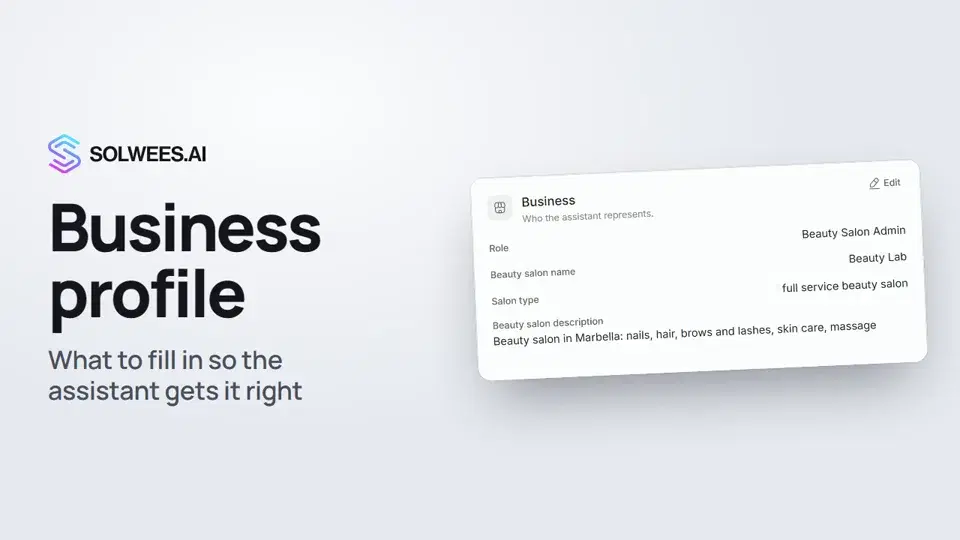 Business profile: what the assistant knows about your companyHow to fill in your business profile in Solwees so the AI receptionist answers clients accurately: name, language, contacts, address, working hours and the assistant's persona.1:35
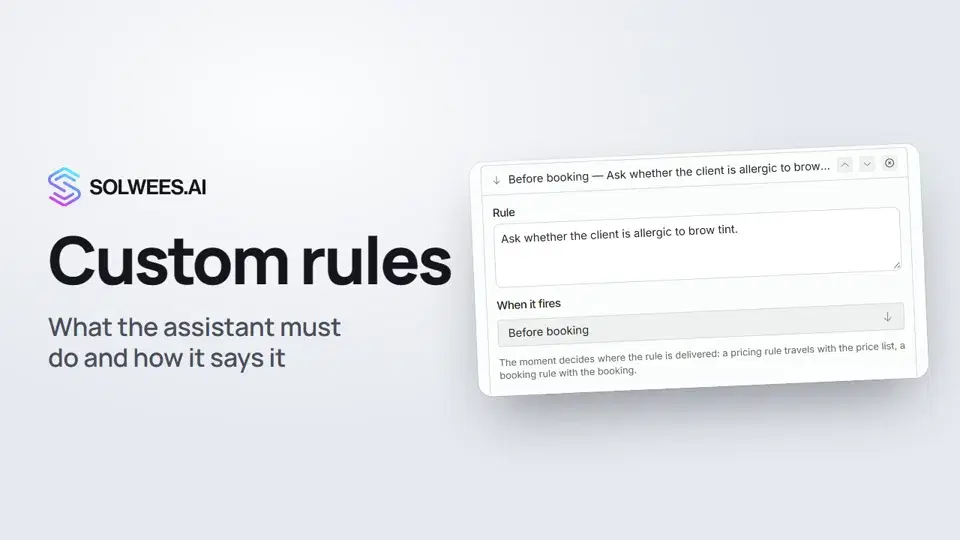 Custom rules and wordingHow to give the Solwees AI receptionist mandatory rules and wording: rules by moment, general rules and ready-made speaking styles for the key moments of a conversation.1:14
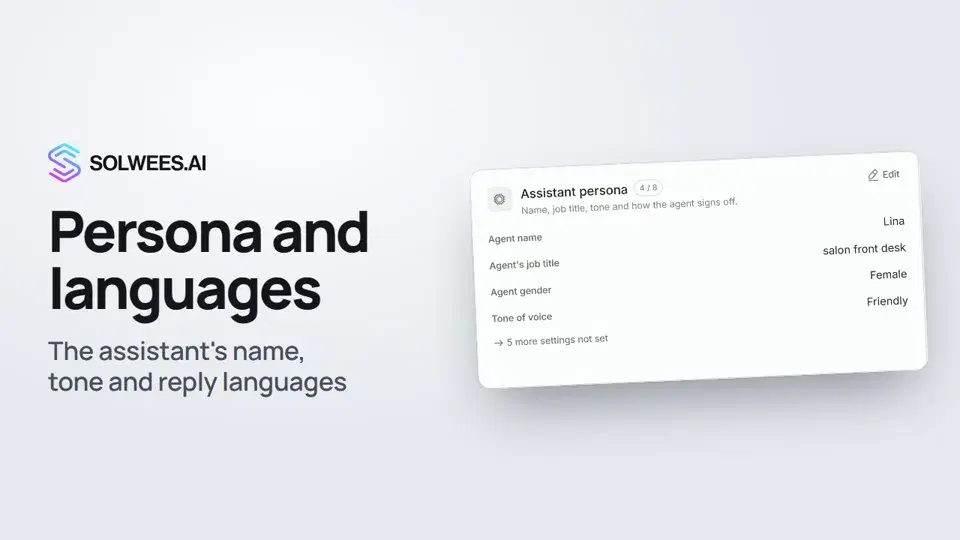 Persona and languages: how the assistant introduces itself and which languages it speaksHow to set the greeting language, allowed languages, name, job title, gender, tone of voice and closing lines of your Solwees AI receptionist in the Language and Assistant persona cards.1:22
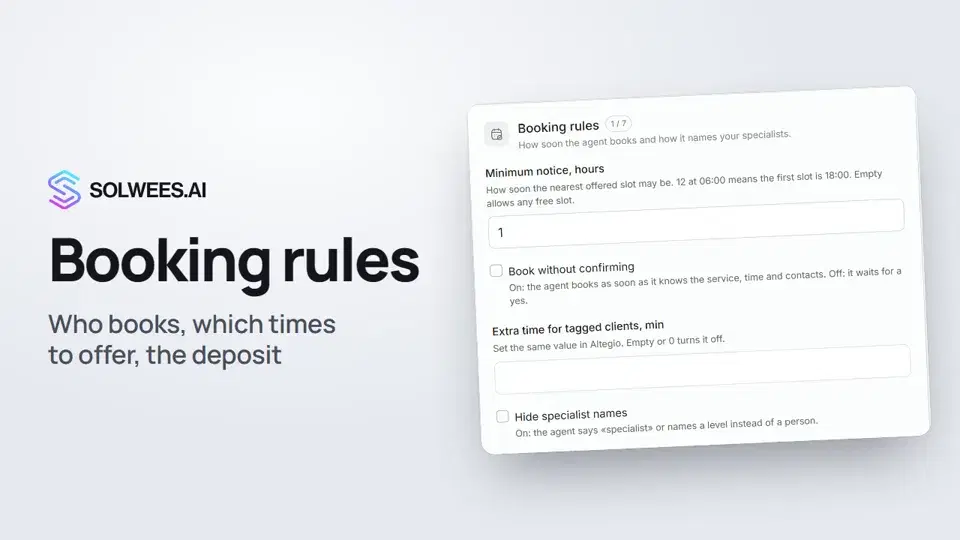 Booking rules: how the assistant books your clientsHow to set up booking rules for the Solwees AI receptionist: who makes the appointment, which windows it offers, what it says about a deposit, 4 and 6 hands services and add-on offers.1:38
Потрібна допомога?
Запитайте Sola в кабінеті
Кнопка помічника в куті будь-якої сторінки кабінету знає кожне налаштування й показує, де воно.
Відкрити кабінет