
Test chat and call: try the assistant before you go live
AI-асистент і база знаньОновлено 18 жовтня 2026 р.Відео 1:09На всіх тарифах, крім Hub
Ця стаття поки що англійською.
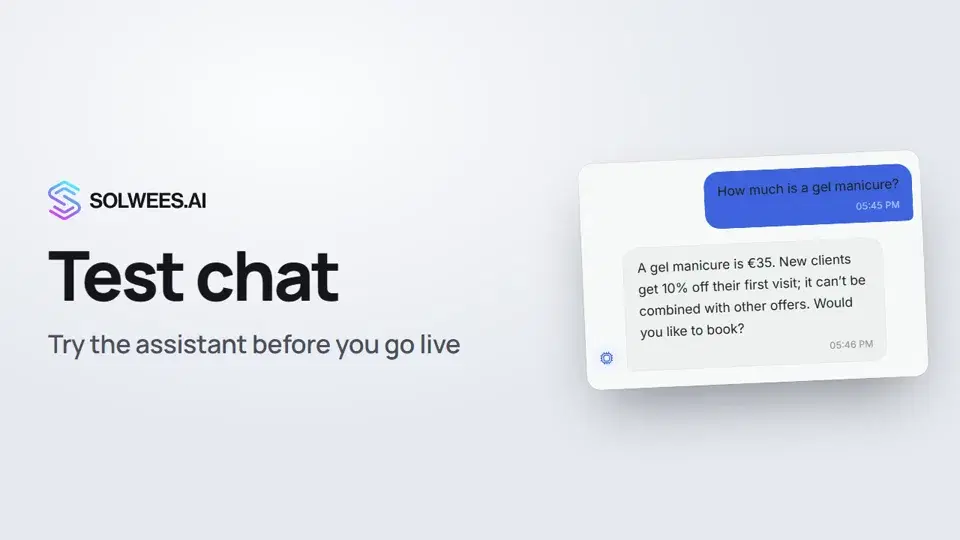
The test chat is a panel where you talk to the assistant the way a client would. Write a message or talk to it by voice and see right away how it answers. It’s the quickest way to check the assistant after every change to your business profile, services or knowledge base.
Where to find it
Open the AI Agent section and choose Agent Settings. The test chat is on the right, next to the agent card.
The test chat is available on every plan that includes the AI assistant. The Hub plan has no assistant, so it has no test chat either.
What’s in the panel
| Element | What it does |
|---|---|
| Chat / Voice | Switches between writing and talking by voice |
| Test client’s phone number | The test runs as a client with this number. The assistant looks the client up by it in your client base, just like in a real conversation. If the field is empty, +34 600 000 000 is used. The number you enter is remembered in this browser |
| Circular arrow button (Start over) | Clears the conversation and closes the test chat in Chats |
| Two-arrow button (Full screen) | Expands the panel to the whole screen. To exit, click it again or press Esc |
| Message field | Where you type your question. Enter sends, Shift+Enter starts a new line |
How to test in the chat
- Type a question the way a client would, for example “How much is a gel manicure?”.
- Press Enter or the send button.
- Read the reply. The assistant answers just as it would in a real chat: from your business profile, services and knowledge base.
- To start a new conversation, click Start over and confirm. You can tick “Don’t ask for the next 24 hours”.
How to test by voice
- Switch to Voice.
- Click Start voice session.
- Click the microphone and speak. The first time, your browser asks for access to the microphone. A live transcript appears below.
- To finish, click End.
The Simulate an outbound call box tests an outgoing call: the assistant speaks first and says why it’s calling. Pick a calling campaign, and the assistant takes its purpose, first phrase and instructions.
The voice test uses your plan’s voice minutes. It’s available during the free trial and on the Studio, Network and Enterprise plans. On the Solo plan the Voice button is locked.
Tips
- The test creates a real chat in Chats: the client is “Test” and the channel is “Chat”. The assistant’s replies stay in the panel and never go out to clients.
- A booking you make in the test is real: it appears in your calendar or connected CRM. Cancel it once you’ve checked.
- To see how the assistant recognises a regular client, enter their number in the test client field. The test chat then lands in that client’s card. Don’t book with that number: a visit reminder could go out to the client.
- Try different questions: prices, address, opening hours, a booking for a specific day. If an answer is off, fix the business profile or knowledge base and ask again.
- Click Start over before each new check, so the assistant doesn’t carry on the previous conversation.
FAQ
Do clients see my test messages?
No. The assistant’s replies only appear in the test chat panel. The conversation itself is kept in Chats so you and your team can review it.
Why is the Voice button locked?
The voice test isn’t included in the Solo plan. It’s available during the free trial and on the Studio, Network and Enterprise plans.
How do I test a reply in another language?
Write your question in that language. If your business profile is set to “Replies in the client’s language”, the assistant answers in it.
What happens if I just leave the page?
The panel is cleared, and the test chat stays in Chats. To close it right away, click Start over before you leave.
Текст відео
Усе, що каже диктор. Таймкод вмикає відео з цього місця.
What the test chat is and where to find it
Before you go live, try the assistant in the test chat. Write or talk to it as a client would and see how it answers. Open the AI Agent section, then Agent Settings. The test chat is on the right.
The test client's number and a first question
Above the chat is the test client's phone number. The assistant looks the client up by it, just like in a real conversation. Type a question the way a client would, for example about a price. The assistant answers just as it would in a real chat.
The test chat in Chats and Start over
The test creates a real chat in Chats, but no replies go out to clients. To start fresh, click Start over. The conversation is cleared and the test chat is closed.
The voice test
In Voice mode you can talk to the assistant, just like on a phone call. Click Start voice session and speak into your microphone. The voice test uses your voice minutes and isn't available on the Solo plan. That's it. Next up: the knowledge base, the articles and files the assistant answers from.
Стаття відповіла на ваше запитання?
Ще з цієї теми
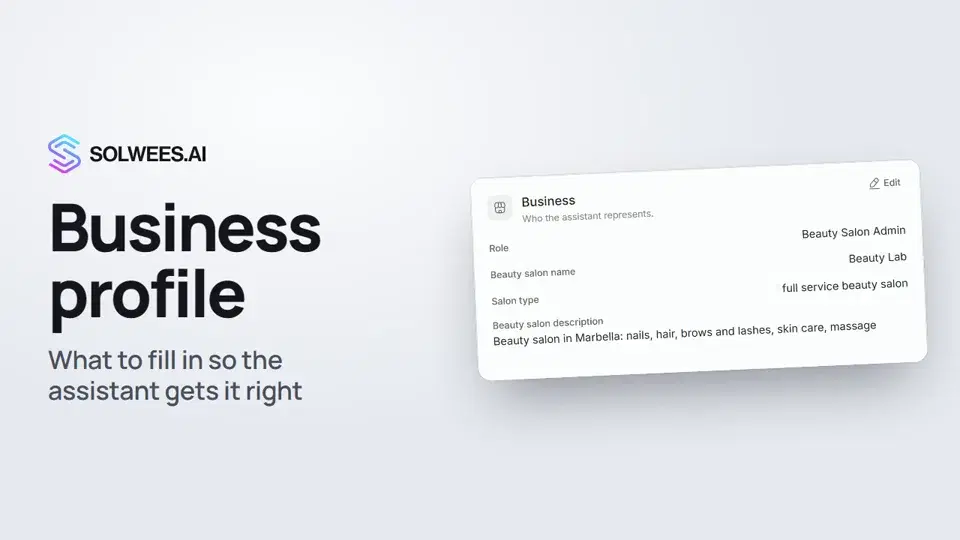 Business profile: what the assistant knows about your companyHow to fill in your business profile in Solwees so the AI receptionist answers clients accurately: name, language, contacts, address, working hours and the assistant's persona.1:35
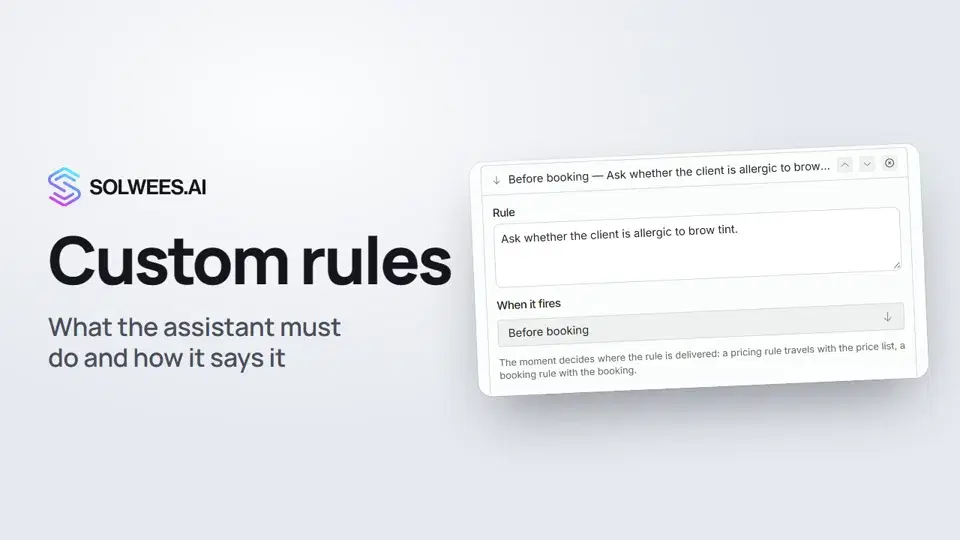 Custom rules and wordingHow to give the Solwees AI receptionist mandatory rules and wording: rules by moment, general rules and ready-made speaking styles for the key moments of a conversation.1:14
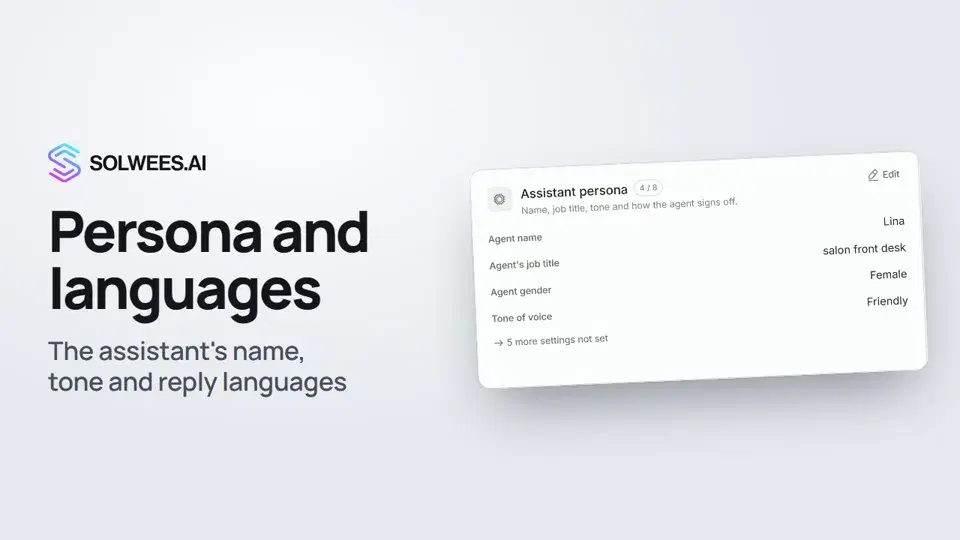 Persona and languages: how the assistant introduces itself and which languages it speaksHow to set the greeting language, allowed languages, name, job title, gender, tone of voice and closing lines of your Solwees AI receptionist in the Language and Assistant persona cards.1:22
 Booking rules: how the assistant books your clientsHow to set up booking rules for the Solwees AI receptionist: who makes the appointment, which windows it offers, what it says about a deposit, 4 and 6 hands services and add-on offers.1:38
Потрібна допомога?
Запитайте Sola в кабінеті
Кнопка помічника в куті будь-якої сторінки кабінету знає кожне налаштування й показує, де воно.
Відкрити кабінет