
Conversation summaries, printing a report and a link to a report tab
Дзвінки, звіти та сповіщенняОновлено 19 жовтня 2026 р.Відео 1:08
Ця стаття поки що англійською.
The Reports section gives you three ways to share results. A conversation summary: Solwees rereads the conversations for a period and puts on one page what the assistant was missing, where it went wrong and what to fix. Print / PDF: the report goes to a printer or into a PDF. A link: the tab and period are kept in the page address, so you can send it to a colleague.
Where to find it
Open Reports in the left menu. The Summaries and Print / PDF buttons are in the top right, next to the channel and period selectors.
Reports are available on every plan. In your team, the owner, admins, managers and viewers see them; operators don’t by default. Access is changed in the team settings.
Conversation summaries
Click Summaries. A window opens: at the top, the «Summaries» row with a switch; below it, the History on the left and the selected summary on the right.
What a summary contains
| Part | What is in it |
|---|---|
| Headline and highlights | The main point of the period in a sentence or two |
| Numbers | Conversations, bookings, booked value, no human involved, reached the till, conversations with a booking, handed to a human, no-shows. Each number is compared with the previous period |
| What to do | A short list of steps, for example «add an article on the guarantee» |
| What the assistant was missing | Client questions with no answer in the knowledge base or CRM, marked by importance, with links to the conversations. You can add these yourself |
| Assistant mistakes | Conversations where the data was there but the answer was wrong. The Solwees team reviews these |
| Conversation reviews | How many conversations were reviewed, the average score and how many requests were solved, partly solved or not solved |
Schedule
- In the Summaries window, turn on the switch in the Summaries row if it is off.
- Click Schedule and language.
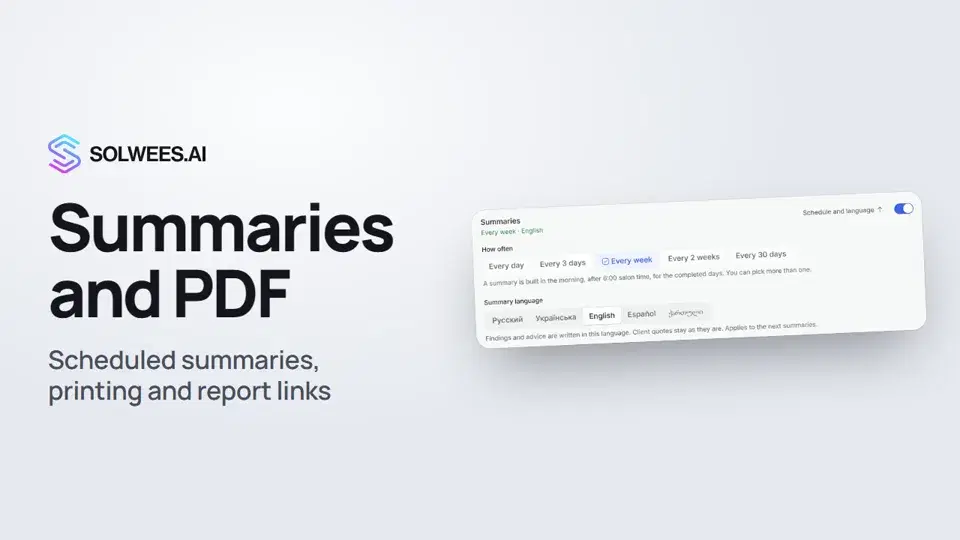
- Under How often, pick one or more options: every day, every 3 days, every week, every 2 weeks, every 30 days.
Your choice is saved at once, there is no separate button. A summary is built in the morning, after 6:00 salon time, for the completed days: a weekly one covers the last 7 days, a daily one covers yesterday. The next summary takes the next stretch of the same length, with no gaps or overlaps.
While no option is picked, the «Summaries» row says «On demand only»: summaries are built only when you ask. If you turn the switch on while no schedule is picked, it is set to «Every week» right away.
Language
In the same panel, pick the Summary language: Russian, Ukrainian, English, Spanish or Georgian. Findings and advice are written in this language. Client quotes stay as they are. A new language applies to the next summaries; the ones already built are not translated.
Where a summary arrives
- In the History of the Summaries window. All past summaries are kept there, both scheduled and built on demand.
- As a notification under the bell in the left menu. Click it, and the Summaries window opens right on that summary.
- As a push notification in the Solwees mobile app, if you have it installed.
Build a summary now
The Build for N days button above the history builds a summary for the period selected on the Reports page: 7, 30 or 90 days. It usually takes up to a minute. You can close the window: the summary will appear in the history.
How to turn summaries off
Turn off the switch in the Summaries row. New summaries stop, the ones already built stay in the history.
Print and PDF
- On the Reports page, choose the period and channel you need.
- Click Print / PDF in the top right.
- Your browser’s print window opens. Choose a printer or «Save as PDF».
The report is printed in the light theme; the menu and buttons are left off the page.
A link to a report tab
The tab and period are kept in the page address. For example, the Bookings tab for 90 days opens at an address like app.solwees.ai/en/reports?tab=bookings&days=90. If a channel is selected, it is in the address too.
- Open the tab you need and choose the period.
- Copy the address from the browser’s address bar.
- Send it to a colleague.
Your colleague sees the same tab for the same period. The numbers are as of when they open the link, not when you copied it.
Tips
- Start with a weekly summary: a week brings enough conversations, and once a week is a comfortable reading rhythm.
- Close the items under «What the assistant was missing» with articles in the knowledge base: the next summary will have fewer of them.
- For your accountant, a link to the Money tab for 30 days is easier than retelling the numbers.
FAQ
Do summaries arrive by email?
No. A summary appears in the history of the Summaries window, and a notification about it arrives under the bell in your account and as a push in the mobile app.
Why does the window say «On demand only»?
Summaries are on, but no schedule is picked. Click Schedule and language and choose how often.
Can I get both a daily and a weekly summary?
Yes. Under How often you can pick several options; each summary arrives on its own schedule.
My colleague opened the link and sees a different report. Why?
Check that they are in the same workspace and have access to Reports. The link keeps the tab, period and channel; the workspace is the one your colleague is currently in.
Текст відео
Усе, що каже диктор. Таймкод вмикає відео з цього місця.
What a summary is and where to find it
In a summary, Solwees goes through the conversations for a period and writes what the assistant was missing and what to fix. Open Reports and click Summaries. The history is on the left, the selected summary on the right.
Schedule, language and where a summary arrives
To get summaries automatically, open Schedule and language and choose how often. A summary is built in the morning, after 6:00 salon time. You can pick more than one option. Below is the summary language: findings and advice are written in it. A new summary appears in the history, with a notification under the bell and in the mobile app.
Print, PDF and a link to a report tab
The Print / PDF button opens your browser's print window: print the report or save it as a PDF. The tab and period are kept in the page address. For example, Bookings for 90 days. Copy the address and send it to a colleague: they will see the same tab for the same period. Done. Next: team notifications.
Стаття відповіла на ваше запитання?
Ще з цієї теми
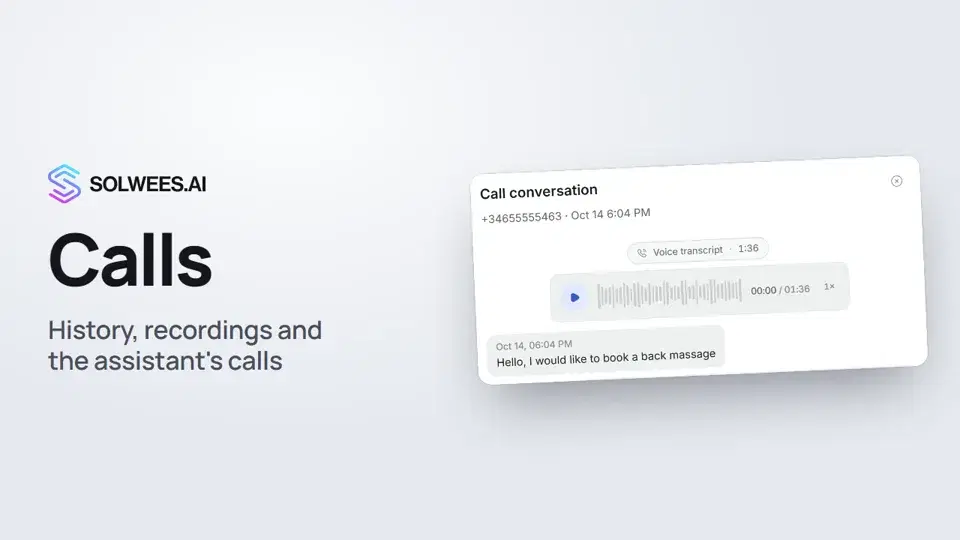 Calls: history, recordings, transcripts and the assistant's callsWhere to find every phone conversation of your AI receptionist in Solwees: call history, recordings, transcripts and scheduled calls with Call now and Cancel.1:11
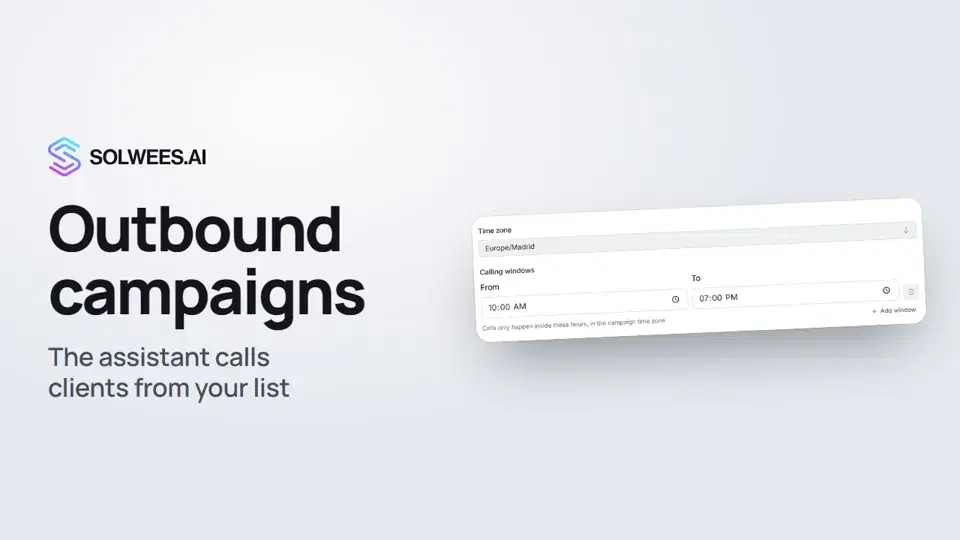 Outbound campaigns: the assistant calls clients from your listHow to run an outbound calling campaign in Solwees: upload a client file, set calling windows, pace and retries, pick a voice agent, then launch and pause it.1:43
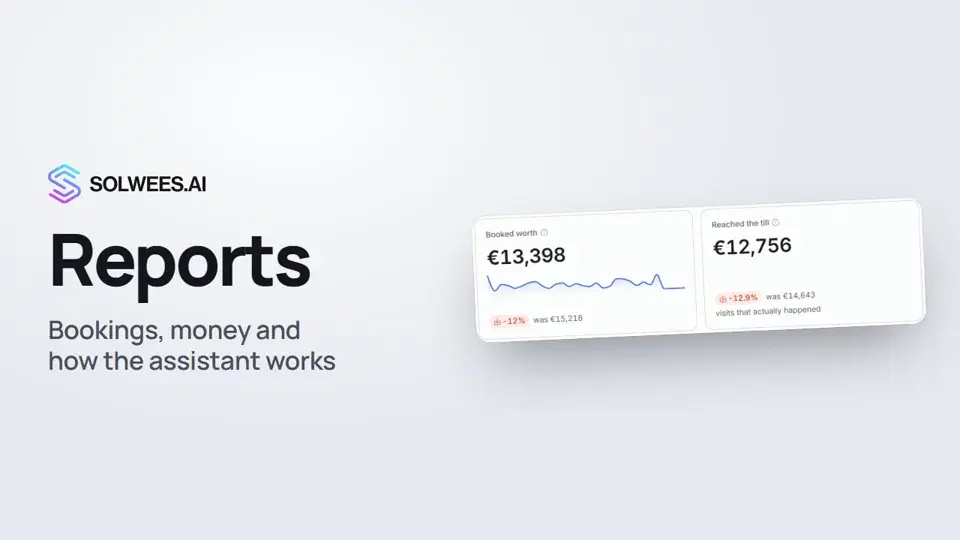 Reports: bookings, money and how the assistant worksHow to read reports in Solwees: bookings and revenue the service brought, the comparison with the previous period, how the figures are calculated, the report tabs, the period and the channel filter.1:38
 Ads: which ads bring you clientsHow to see in Solwees which Instagram, Facebook and WhatsApp ads bring you clients: the conversations, bookings and revenue from each ad, and where a chat shows which ad the client came from.1:14
Потрібна допомога?
Запитайте Sola в кабінеті
Кнопка помічника в куті будь-якої сторінки кабінету знає кожне налаштування й показує, де воно.
Відкрити кабінет