
Outbound campaigns: the assistant calls clients from your list
Chamadas, relatórios e notificaçõesAtualizado a 21 de outubro de 2026Vídeo 1:43Em Studio, Network e Enterprise
Este guia está em inglês por agora.
An outbound campaign works like this: you upload a file with your clients, and the voice assistant calls them during the hours you set. For example, it invites them back for a treatment, reminds them of a visit or checks whether a time suits them. The outcome and sentiment of every call are shown in the campaign details.
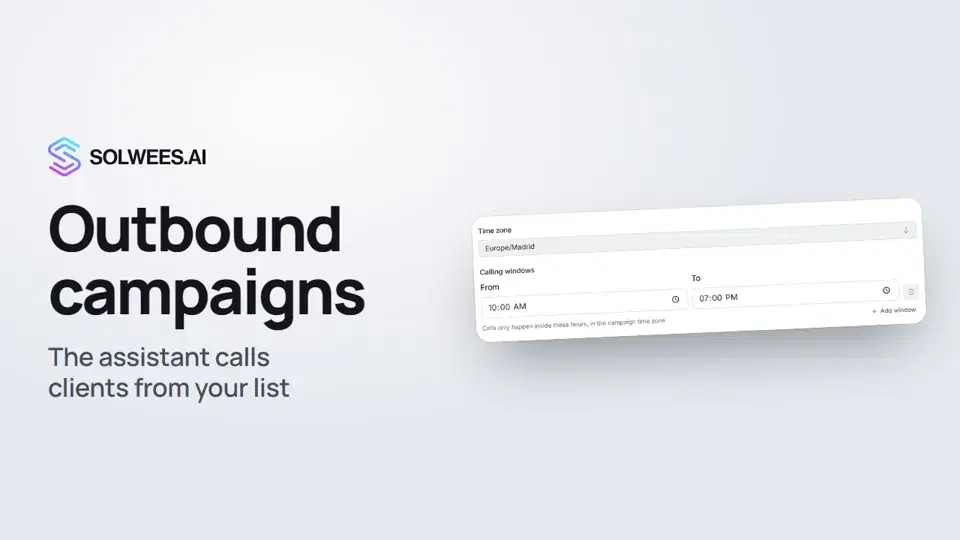
Campaigns are available on the Studio, Network and Enterprise plans.
Where to find it
Open Voice AI in the left menu and go to the Campaigns tab. Click New Campaign to create one.
How to create a campaign
The wizard has three steps.
1. Contacts
- Click Choose file and pick a CSV or Excel (XLSX) table. Up to 5 MB and 10 000 rows, with column names in the first row.
- The phone and name columns are picked automatically by their names (“Phone”, “Name”, “Телефон”, “Имя” and similar). Solwees also recognises the phone column by the numbers in it. If a column is not found, pick it yourself.
- Other columns, such as “Last service” or “Last visit”, reach the assistant as known facts about the client, so it does not ask about them again. Remove columns you don’t need in Extra columns.
- Below the fields there is a report: how many numbers were recognised, how many duplicates were merged and how many rows were skipped. Click Skipped rows to see them with their row numbers in the file.
2. Schedule
| Field | What it sets |
|---|---|
| Time zone | The time zone the calling windows follow |
| Calling windows | The hours when the assistant calls. You can add several windows, for example morning and evening |
| Calls per hour | The pace: numbers are spread across the windows at this step, from 1 to 300 per hour |
| Attempts per contact | How many times one client is called, including the first call, from 1 to 10 |
| Pauses between attempts, hours | How many hours to wait before calling again, comma separated: the first value after the first attempt, the second after the second, and so on |
| Give up after, hours | How long after the first attempt retries are still made |
Defaults: one window from 10:00 to 19:00, 30 calls per hour, 3 attempts, pauses of 6 and 12 hours, retries within 48 hours.
3. Agent and script
- Campaign name and Voice agent are required.
- Call language: pick the language your listed clients speak.
- Call goal and Call instructions: what to find out, what to offer, how to close the call. They add to the agent’s usual instructions and do not replace them.
- Already sent to the client: titles of materials, one per line. The agent can refer to them but knows only the titles.
- First phrase: leave it empty, and the agent greets in its own words.
- Click Create draft.
A draft saves the campaign with its numbers but calls no one.
Launch, pause and details
- Launch spreads the numbers across your windows at the set pace. If you launch inside a window, the first call starts right away; otherwise it starts when the next window opens.
- Pause stops new calls until you click Launch again. Only a campaign that is not running can be deleted, so pause it first.
- Details: click the campaign row. At the top you see how many numbers were processed and how many answered. Below is every call: status, duration, the outcome of the conversation, sentiment and recording. A finished call has a Call again button: the number goes to the end of the queue, and the earlier conversation stays in the history.
- In the details you can also edit Call settings (goal, first phrase, instructions, materials) and Add contacts one by one or as a list of numbers. In a running campaign new numbers join the end of the queue.
Tips
- Check the time zone on the Schedule step: the calling windows follow it. The windows apply every day, weekends included.
- Estimate how long the campaign takes: at 30 calls per hour and a 10:00 to 19:00 window, that is about 270 first calls a day.
- Keep the pauses between attempts within “Give up after”. A retry that would fall after that limit is not made.
- Write numbers with the country code, for example +34 600 000 001. If the file has local numbers without it, fill in Country code so they are read correctly.
- Add columns that help the conversation: last service, visit date, favourite stylist. The assistant uses them as facts about the client.
FAQ
Does the assistant call everyone right after the launch?
No. Numbers are spread across the windows at the pace you set. A long list takes several days.
How many times will the assistant call one client?
No more than “Attempts per contact”, the first call included. Retries happen only inside the windows, not before the pause and not after “Give up after”. With several windows, a retry skips the next window in line.
Does the assistant know what the client wrote before?
Yes, if the client has chatted with you: the assistant finds the conversation by phone number and takes it into account.
Can I change the windows or the pace after creating a campaign?
In the campaign details you can edit the call settings (goal, first phrase, instructions) and add contacts. The schedule is set when you create the campaign: to change it, create a new one.
Where else are campaign calls shown?
On the Call tab of Voice AI: “Scheduled AI calls” shows who the assistant will call and when, and the call history with recordings is below.
Transcrição do vídeo
Tudo o que o narrador diz. Um tempo reproduz o vídeo a partir desse momento.
What campaigns are and where to find them
Outbound campaigns let the assistant call clients from your list on its own, for example to invite them back for a treatment. Open Voice AI and the Campaigns tab. It's available on the Studio, Network and Enterprise plans.
The client file
Click New Campaign and choose a CSV or Excel file. The phone and name columns are picked automatically. Other columns reach the assistant as facts about the client. Below, you see how many numbers were recognised and what was skipped.
Schedule: windows, pace and retries
On the Schedule step, choose the time zone and calling windows: calls only happen inside these hours. The pace sets how many calls per hour. Below are the attempts per contact, the pauses between them, and when retries stop. Tip: check the time zone. Calling windows follow it and apply every day, weekends included.
Agent, goal and draft
On the Agent and script step, name the campaign, pick a voice agent and describe the goal. It adds to the agent's instructions. The Create draft button saves the campaign. The assistant starts calling only after you launch it.
Launch, pause and details
The draft appears in the list. Click Launch, and the numbers are spread across your windows. Pause stops the calls. Click a campaign to open its details: how many numbers were processed and answered, plus the outcome and sentiment of each call. Done. To see which channels, calls included, bring in bookings, watch the Reports video.
Respondeu à sua pergunta?
Mais sobre este tema
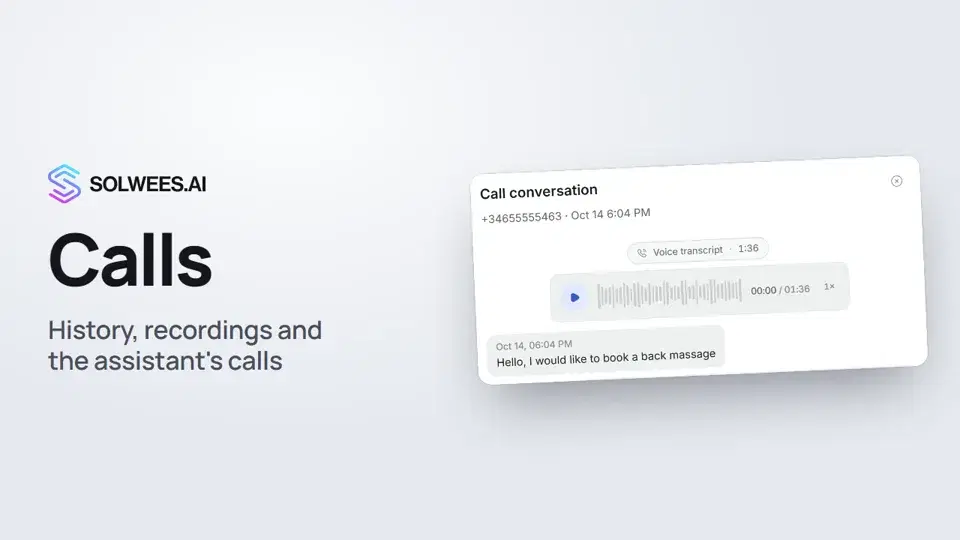 Calls: history, recordings, transcripts and the assistant's callsWhere to find every phone conversation of your AI receptionist in Solwees: call history, recordings, transcripts and scheduled calls with Call now and Cancel.1:11
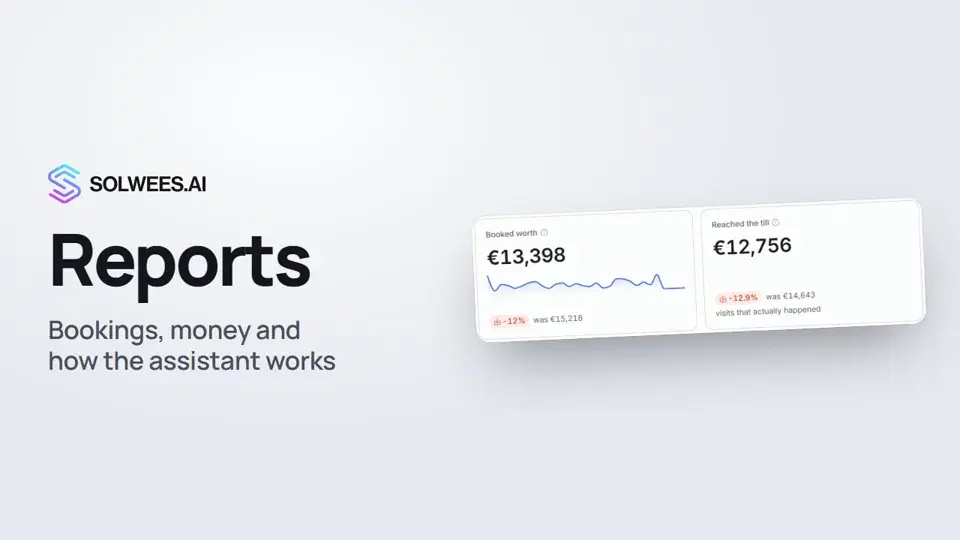 Reports: bookings, money and how the assistant worksHow to read reports in Solwees: bookings and revenue the service brought, the comparison with the previous period, how the figures are calculated, the report tabs, the period and the channel filter.1:38
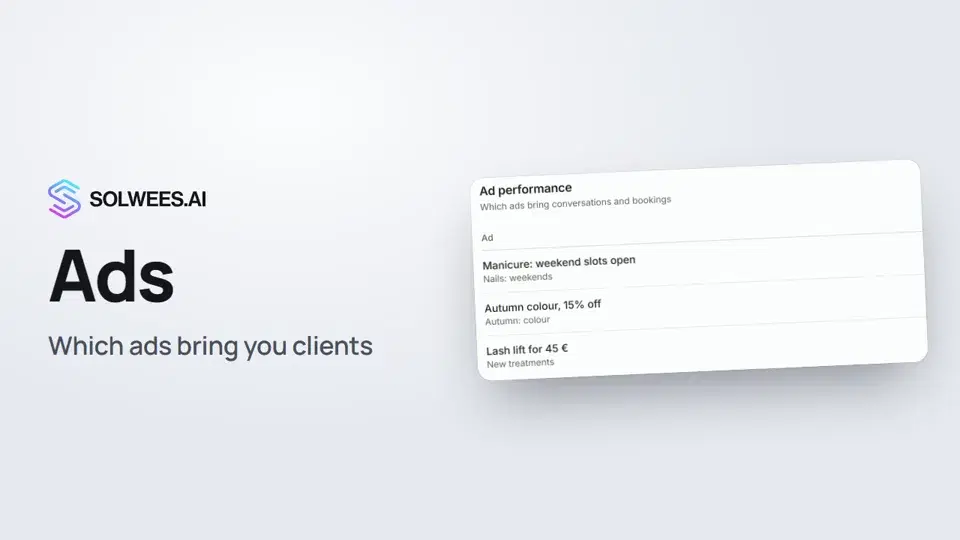 Ads: which ads bring you clientsHow to see in Solwees which Instagram, Facebook and WhatsApp ads bring you clients: the conversations, bookings and revenue from each ad, and where a chat shows which ad the client came from.1:14
 Conversation summaries, printing a report and a link to a report tabHow to get conversation summaries on a schedule in Solwees, pick their language, print a report or save it as a PDF, and send a colleague a link to the right report tab.1:08
Precisa de mais ajuda?
Pergunte à Sola no painel
O botão do assistente no canto de qualquer página do painel conhece cada definição e mostra onde está.
Abrir o painel