
Chats: every channel in one place
ChatsAtualizado a 18 de outubro de 2026Vídeo 1:35
Este guia está em inglês por agora.
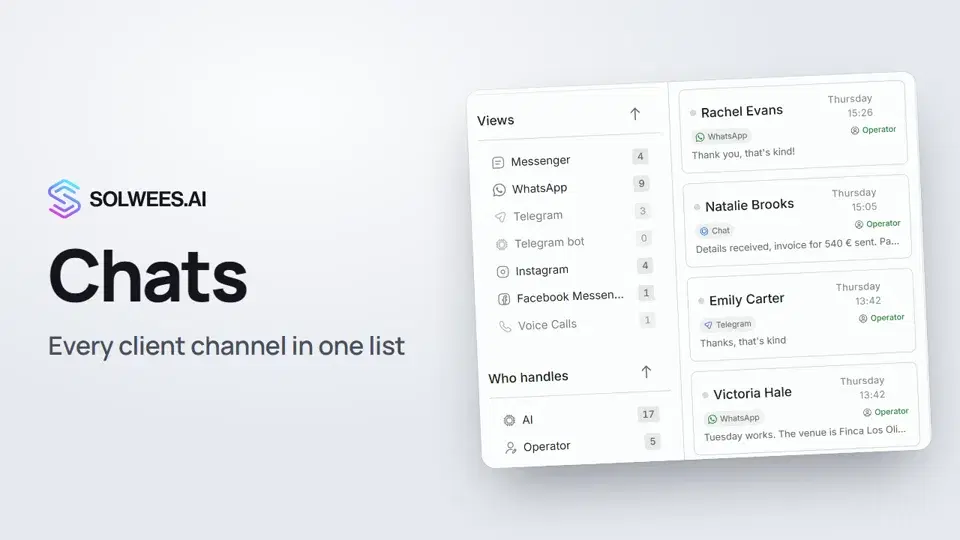
Chats brings your client conversations from every connected channel into one list: WhatsApp, Instagram, Telegram and your Telegram bot, Facebook Messenger, your website chat and calls. One row is one client. Each row shows the channel, who is handling the chat (the assistant or an operator), the last message and when it arrived.
Where to find it
Open Chats in the menu on the left (the first icon). Folders and filters are on the left, the chat list is next to them, and the open conversation with the client card is on the right.
Folders
| Folder | What it holds |
|---|---|
| Your inbox | Every chat except spam. The number shows how many chats are open right now |
| Awaiting admin | Open chats where the assistant called for a person and no admin has replied in the chat yet |
| Unread | Chats with client messages you have not read yet |
| New | First-time clients (added in the last 7 days or marked as new by hand) |
| Spam | Contacts marked as spam. They don’t appear in the other folders |
The Unsorted folder appears on plans with the CRM: it holds deals that have not been sorted yet.
Filters
| Filter | Where | What it does |
|---|---|---|
| Views | Left, the Views block | Keeps the chats of one channel. The number shows how many there are. A channel that is not connected yet is greyed out |
| Who handles | Left, the Who handles block | AI: chats the assistant is handling. Operator: chats a person is answering |
| Status | Above the list, the button with the number | Open, closed or all chats |
| Sorting | Above the list, next to the status | By default, chats with the latest activity come first |
Filters work together: for example, WhatsApp plus Operator shows only the WhatsApp chats a person is answering. The chosen filters appear above the list, and Reset filters on the left clears the channel, Who handles and New filters at once.
Finding a client
Type a name, a phone number (in any format, with or without the plus and spaces), an email or a word from the conversation into the search field above the list. Message text is searched once you type three characters or more.
Opening a chat
- Click a row in the list.
- The whole conversation opens in the middle: messages from the client, the assistant and your admins, plus the assistant’s notes for the team.
- The client card is on the right: who is handling the chat, the source, description, tags, notes, visit history and more.
The AI / Admin switch in the chat header shows who is answering the client right now.
Tips
- When there are chats where the assistant called for a person, the Awaiting admin folder turns on by itself as you open Chats. If you switch it off, it stays off until your next visit.
- Filters are remembered: status, sorting, channel, Who handles and New stay as you left them when you come back from another section, reload the page or sign in on another device. The search text is not kept.
- A handy order to work through: Awaiting admin first, then Unread.
FAQ
Why did a chat become closed?
Conversations the assistant handles close by themselves after a pause. If the client writes again, the chat opens again. How long after closing a new reply reopens the chat is set in Settings → Conversations → Resurrection window.
Why do I see only a few chats?
Check the status above the list (Open by default) and the active filters. Click Reset filters and choose All.
Why is a channel greyed out in Views?
That channel is not connected yet, and the tooltip says so too. The filter still works and shows earlier chats from that channel, if there were any.
How do I take a chat over from the assistant?
That’s the next video: AI or you.
Transcrição do vídeo
Tudo o que o narrador diz. Um tempo reproduz o vídeo a partir desse momento.
What Chats is and where to find it
Chats bring every client conversation into one list: WhatsApp, Instagram, Telegram, your website chat, calls and other channels. Open Chats in the left menu. Folders and filters are on the left, the chat list is next to them.
Folders and Awaiting admin
The folders: Your inbox with every chat, Unread, New for first-time clients, and Spam. Awaiting admin holds chats where the assistant called for a person. If there are any, it switches on by itself when you open Chats.
Channel and Who handles filters
Under Views, click a channel, for example WhatsApp, and the list shows only its chats. Who handles separates the assistant's chats from the ones an operator answers. Filters work together. Filters are remembered: go to another section, come back, and they're still set. Reset filters clears them all at once.
Search, status and sorting
Looking for a client? Search by name, phone number or a word from the conversation. Above the list, choose which chats to show: open, closed or all. Next to it is sorting: by default, chats with the latest activity come first.
Opening a chat
Click a chat to open it: messages from the client, the assistant and your admin. The client card with notes is on the right. The header shows who's handling the chat: the assistant or an admin. Taking a chat over and handing it back is in the next video.
Respondeu à sua pergunta?
Mais sobre este tema
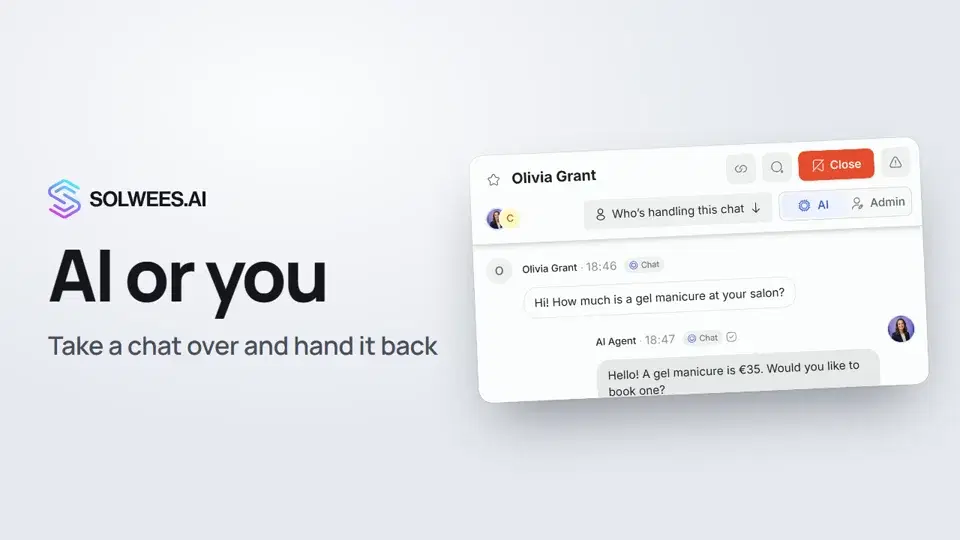 AI or you: taking a chat over from the assistant and handing it backHow to answer a client yourself instead of the Solwees AI receptionist and hand the chat back: the AI and Admin switch in the chat header, assigning a teammate and internal notes.1:13
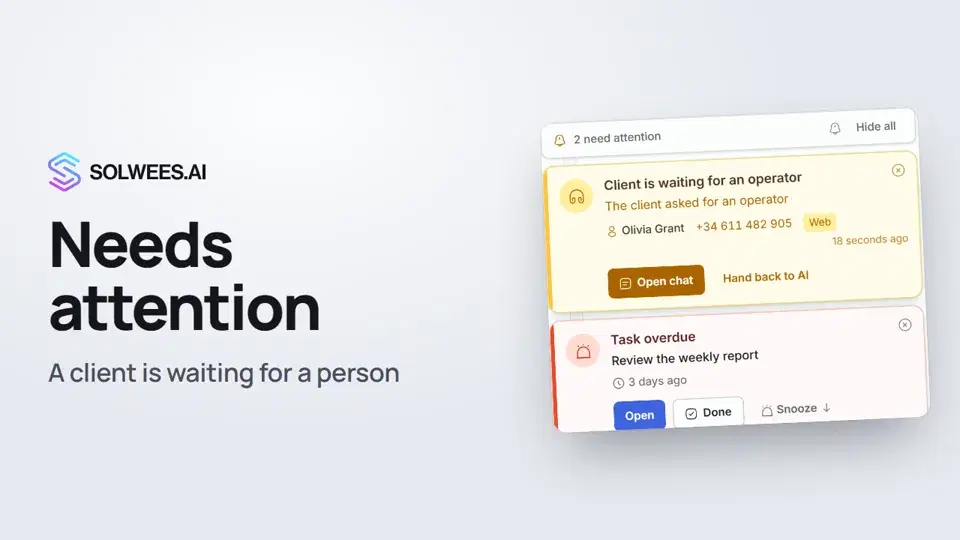 Needs attention: when a client is waiting for a personWhat to do when the Solwees AI receptionist calls for a person: the Needs attention panel, the Client is waiting for an operator card, replying, handing back to AI and task reminders.1:14
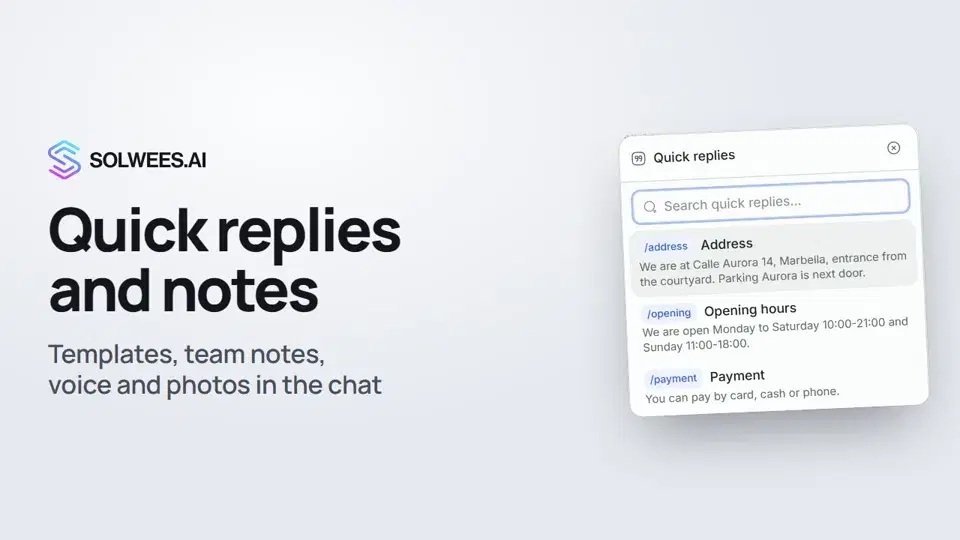 Quick replies and notes: what the chat input can doHow to answer clients faster in Solwees chats: quick replies with a slash, internal notes for your team, mentioning a teammate, voice messages and photos from your knowledge base.1:23
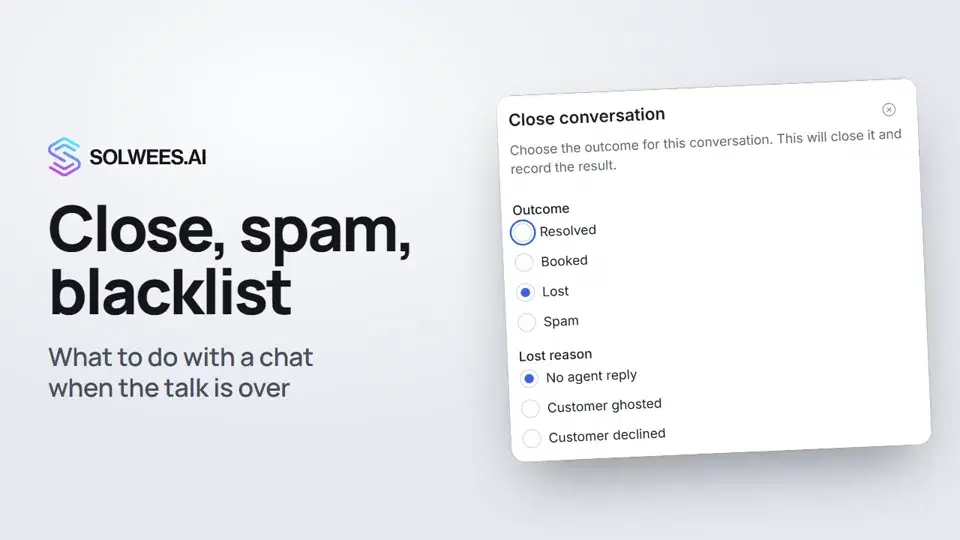 Close a chat, spam and blacklistHow to close a chat in Solwees and record the outcome, send a spammer to the Spam folder, block a client with the blacklist and merge two contacts of the same person.1:25
Precisa de mais ajuda?
Pergunte à Sola no painel
O botão do assistente no canto de qualquer página do painel conhece cada definição e mostra onde está.
Abrir o painel