
Team and access: add teammates and choose what they can do
Equipa, definições e faturaçãoAtualizado a 18 de outubro de 2026Vídeo 1:19
Este guia está em inglês por agora.
Team and access is where you add teammates to Solwees and decide what each of them can do: answer clients, work on deals, change settings or only look. It is available on every plan.
Where to find it
Open Settings and, under Workspace, choose Users. Your owner card is at the top: the owner has full access to every workspace, the team and billing. Below it is the list of teammates with their role, access, whether two-factor authentication (2FA) is on and when they last signed in.
The page opens for the owner and for anyone with the “Team and access” right (an administrator has it by default).
How to add a teammate
- Click Add teammate.
- On the Profile tab, enter a first name, last name and email. The phone is optional. Your teammate signs in to Solwees with this email.
- A password is created for you. You can generate a new one or type your own: at least 8 characters with a letter and a digit.
- Copy the password with the button next to the field. No invitation email is sent, so hand the email and password over yourself.
- Click Next: access and pick a role.
- If needed, tick pipelines and fine-tune rights by section (see below).
- Click Add. The teammate appears in the list and can sign in with their email and password.
An email that is already used by another Solwees account can’t be added. The email can’t be changed after the teammate is created.
Roles
| Role | What they can do |
|---|---|
| Owner | Everything, billing included. This is whoever created the account; the role is not assigned. |
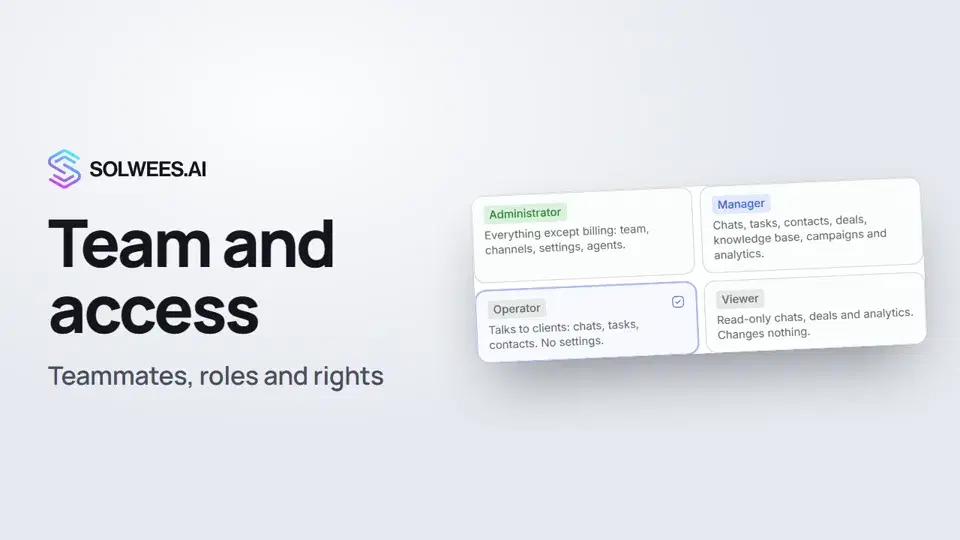
| Administrator | Everything except billing: team, channels, settings, agents. Only the owner can assign it. |
| Manager | Chats, tasks, contacts, deals, knowledge base, campaigns and analytics. Can view agent settings and calls. |
| Operator | Answers clients: chats, tasks, contacts. Can view deals, the knowledge base and calls. No analytics. |
| Viewer | Read-only: chats, tasks, contacts, deals, knowledge base, calls and analytics. Changes nothing. |
If you have several workspaces, tick the ones the teammate works in under Workspaces. The role and rights are the same in every ticked workspace.
Pipeline access
The Pipelines block shows when one workspace is ticked.
- Nothing ticked: the teammate sees every pipeline and every chat.
- Pipelines ticked: the teammate sees deals from those pipelines only, and the chats linked to those deals. Chats that have no deal yet stay visible to everyone, so a new client is never missed.
Rights by section
If a role isn’t precise enough, open Fine-tune rights by section. For each section you can tick View and Manage: chats, replying to clients, tasks, contacts, deals and pipelines, campaigns and promotions, AI agents, knowledge base, calls and numbers, analytics, channel connections, workspace settings, team and access.
- Manage includes View: untick View and Manage goes too.
- Once you change a tick, the block is marked “customised”, and the teammate’s role in the list gets an asterisk.
- Back to the role preset restores the rights of the chosen role.
- An administrator always has every right except billing; these can’t be narrowed. Billing is for the owner only.
How to change access, disable or delete a teammate
Open the menu (three dots) in the teammate’s row:
- Edit access: the same Profile and Access tabs. Change the name, phone, role, pipelines and rights, or set a new password. Click Save.
- Disable: the teammate can no longer sign in but stays in the list marked “Disabled”. Enable gives access back.
- Delete: the teammate loses access to every workspace. This can’t be undone.
How many teammates you can add
- Your plan includes a number of seats, and the owner takes one of them: Hub 3, Solo 5, Studio 5, Network 10.
- Each seat beyond the plan costs €15 a month. When the seats run out, Add teammate offers to buy a seat or change the plan. During the free trial seats can’t be bought, only the plan changed.
- On top of seats there is an overall limit: up to 5 teammates besides the owner. The “Teammates: N of 5” counter in the page header shows how many are taken.
Tips
- Start with a smaller role: an operator only needs chats, tasks and contacts. You can widen the rights at any time.
- Make someone an administrator only if you trust them with settings and the team: they can change channels and agents and add teammates.
- When someone leaves, you can disable them first: access stops at once, and you can enable them again any time. Deleting can’t be undone.
- Hand passwords over in person or in a secure messenger, not in a group chat.
FAQ
My teammate didn’t get a sign-in email.
Invitation emails are not sent. Give your teammate their email and password yourself.
A teammate forgot their password. What now?
Open the menu in their row, choose Edit access, type a new password on the Profile tab, click Save and pass the password on.
Can I change a teammate’s email?
No. The email is set once. To change it, delete the teammate and add them again with the new email.
Why is Add teammate greyed out?
The limit is reached: up to 5 teammates besides the owner. Delete a teammate who no longer works with you to free a place.
Who can grant the administrator role?
Only the owner. An administrator can add teammates with the other roles.
What next?
Set up the general workspace settings: name, time zone and report currency. That’s the next video, “General settings”.
Transcrição do vídeo
Tudo o que o narrador diz. Um tempo reproduz o vídeo a partir desse momento.
Where to find team and access
Not working alone? Add your teammates and decide what each of them can do. Open Settings and choose Users. As the owner, you have access to everything, billing included.
Adding a teammate
Click Add teammate, then enter a name and email: your teammate signs in with it. A password is created for you. No invitation email is sent, so hand the password over yourself.
Roles: administrator, manager, operator, viewer
Click Next: access and pick a role. An administrator can do everything except billing. A manager runs chats, deals and campaigns, an operator answers clients, and a viewer can only look. Then click Add.
Edit access: pipelines and rights by section
To change access, disable or delete a teammate later, use the menu in their row. Under Pipelines, tick which deals and chats the teammate sees. With none ticked, they see them all. Need more control? Open Fine-tune rights by section and tick view or manage.
Seats in your plan
Tip: the owner takes a seat in your plan too. Each seat beyond the plan costs €15 a month. Done. Next up: the general settings.
Respondeu à sua pergunta?
Mais sobre este tema
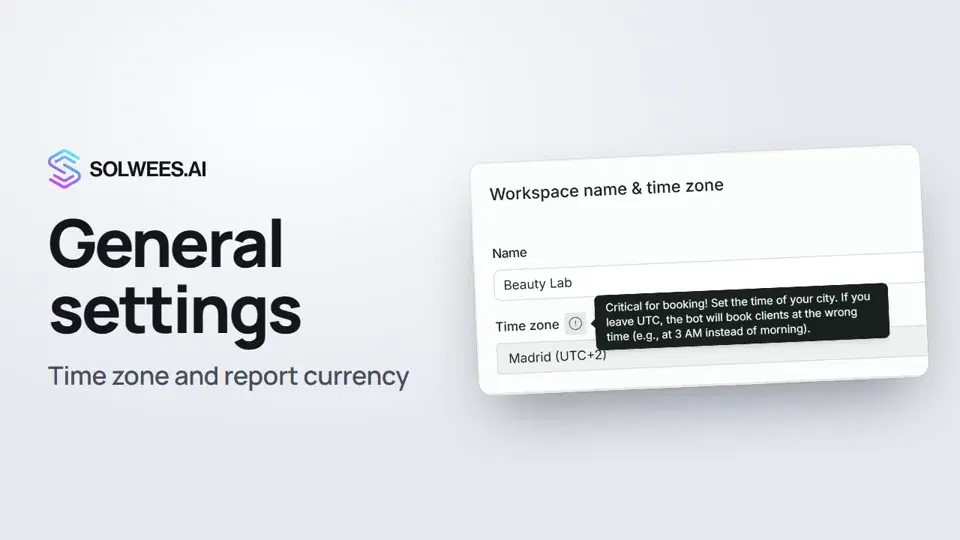 General settings: workspace name, time zone and report currencyWhere to set your workspace name, time zone, report currency and admin hourly rate in Solwees, and what they affect: booking times, the agent's schedule and the amounts in reports.1:02
 Billing and invoices: your plan, modules, invoices and cancellingWhere to see your Solwees plan and limits, change plan, add modules, buy a voice minutes pack, download invoices and cancel your subscription.1:28Clientes ativosQuem conta como cliente ativo, o que acontece ao atingir o limite e os pacotes de clientes.Guia em textoPacotes de minutos de chamadasMinutos de chamadas extra, comprados uma só vez, para qualquer plano com o assistente.Guia em texto
Precisa de mais ajuda?
Pergunte à Sola no painel
O botão do assistente no canto de qualquer página do painel conhece cada definição e mostra onde está.
Abrir o painel