
Security: two-factor authentication, attachments and allowed domains
Segurança e dadosAtualizado a 19 de outubro de 2026Vídeo 1:03
Este guia está em inglês por agora.
Security is where you protect how you sign in to Solwees and the chat on your website. Here you turn on two-factor authentication, choose which files clients can send in your website chat, and limit the chat to your own websites.
Where to find it
Open Settings (the icon at the bottom of the left menu) and choose Security. There are three tabs:
| Tab | What’s there | What it does |
|---|---|---|
| Workspace | Two Factor Authentication (2FA) | Signing in needs a code from an app on your phone, not just your password |
| Messenger | Identity Verification and Allowed domains | The website chat works only on your own websites |
| Attachments | Allow attachments and input types | Clients in your website chat can send only what you allow |
Two-factor authentication (2FA)
Once it’s on, signing in to Solwees takes two steps: your password, then a 6-digit code from an authenticator app on your phone. Even if someone learns your password, they can’t sign in without your phone.
How to turn it on:
- On the Workspace tab, click the Enable 2FA switch.
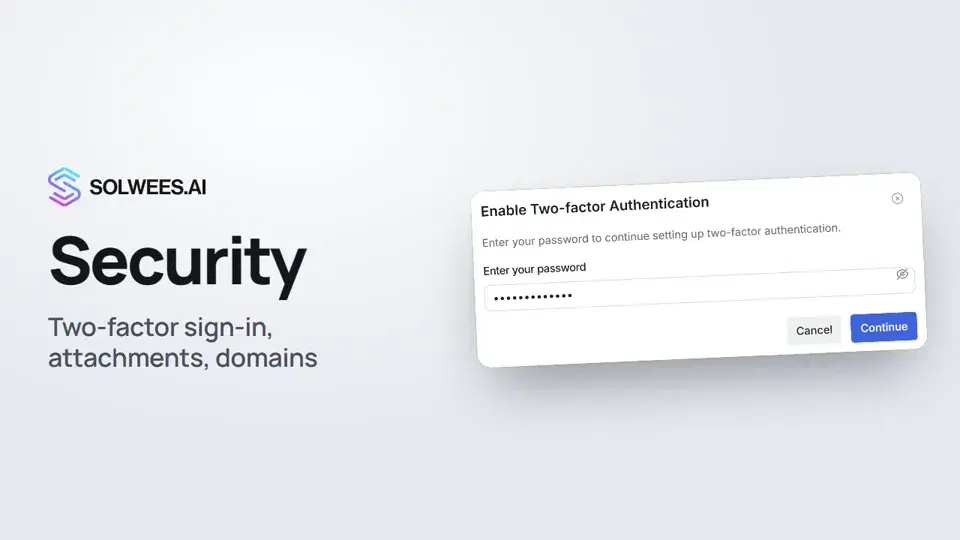
- Enter your account password and click Continue.
- Scan the QR code with an authenticator app on your phone. If scanning doesn’t work, open “Can’t scan the code?” and type the secret key into the app. Click Next.
- Enter the 6-digit code from the app and click Verify.
- Save your backup codes with Copy all or Download .txt, then click Done.
Two-factor authentication is turned on for your own account, not for the whole workspace. The Security section is open to the owner and administrators: each of them turns 2FA on for themselves, signed in under their own name.
Backup codes
On the last step Solwees shows 10 backup codes. If your phone isn’t at hand or you’ve lost it, enter one of these codes instead of the app code when you sign in, in the same “Verification code” field. Each code works only once.
How to turn it off
Click the switch again, enter your password and a 2FA code: from the app or one of your backup codes. Then click Disable 2FA.
Attachments in the website chat
On the Attachments tab:
- Allow attachments turns file sending in your website chat on or off. When it’s off, the paperclip button disappears from the chat.
- Messenger input types: tick what clients can send: images, voice notes, files.
- On the right is a preview of the message field: it shows which buttons the client will see in the chat.
Changes on this tab are saved at once, there is no separate button. Clients can send files in PDF, JPG and PNG format.
Allowed domains
By default, the website chat works on any site where its code is installed. To make it work only on your own websites:
- Open the Messenger tab.
- In Allowed domains, type your website address and press Enter. It appears as a separate chip. Add any other addresses the same way.
- Click Save domains.
- Above, under Identity Verification, turn on Web messenger.
While the Web messenger switch is off, the domain list has no effect. You can’t turn the switch on with an empty list, so save your domains first.
How to write an address:
- The domain is enough, for example
yoursite.com:https://is added for you. - Leave out any path: not
yoursite.com/contact, justyoursite.com. - Addresses with and without
wwwcount as different. If your site opens on both, add both. - To allow all subdomains, add
*.yoursite.com. Addyoursite.comitself separately. http://is accepted only forlocalhost; a real website needshttps://.
Tips
- Save your 2FA backup codes right away, while the window is open: download the file or copy them to a password manager. You can’t view them in Solwees later.
- Don’t keep your backup codes on the same phone as your authenticator app.
- After turning on Web messenger, open your website and check that the chat loads. If it doesn’t, check that the address in the list matches the one in your browser (with or without
www).
FAQ
I lost my phone. How do I sign in?
Enter your password, then one of your backup codes instead of the app code. Once you’re in, turn 2FA off and on again with your new phone: you’ll get new backup codes.
A backup code doesn’t work.
Each code works once. Use the next code on your list.
If I turn on 2FA, does it turn on for my teammates too?
No. Two-factor authentication belongs to an account, not to the whole workspace. Each administrator turns it on for themselves.
The chat stopped loading on my site after I turned on Web messenger.
Most likely your site’s address isn’t in Allowed domains, or it’s written differently (for example, without www). Add the exact address and save, or turn Web messenger off.
If I turn off attachments, will clients stop seeing the file button?
Yes. When Allow attachments is off, the paperclip button disappears from your website chat.
Transcrição do vídeo
Tudo o que o narrador diz. Um tempo reproduz o vídeo a partir desse momento.
Where to find Security settings
Security protects how you sign in to your account and the chat on your website. Open Settings and choose Security.
Two-factor authentication and backup codes
Turn on two-factor authentication: besides your password, signing in will ask for a code from an app on your phone. Click the switch, enter your password, and then scan the QR code with the app. Tip: save your backup codes. If you lose your phone, you can sign in with one of them.
Website chat attachments
On the Attachments tab, decide whether clients can send files in your website chat. Below, tick what they can send, and on the right you see which buttons appear in the chat.
Allowed domains for the chat
On the Messenger tab, add your website to Allowed domains and save. Then turn on Web messenger, and the chat works only on those sites. Done. Next: billing and invoices.
Respondeu à sua pergunta?
Mais sobre este tema
Precisa de mais ajuda?
Pergunte à Sola no painel
O botão do assistente no canto de qualquer página do painel conhece cada definição e mostra onde está.
Abrir o painel