
WhatsApp templates: messages approved by Meta
KanäleAktualisiert am 19. Oktober 2026Video 1:30
Diese Anleitung ist vorerst auf Englisch.
A WhatsApp template is a ready message that Meta reviews in advance. WhatsApp lets you write to a client in plain text for 24 hours after their last message. If the client hasn’t written for longer, or has never written to you, only an approved template reaches them: a booking reminder, for example, or a message about a promotion.
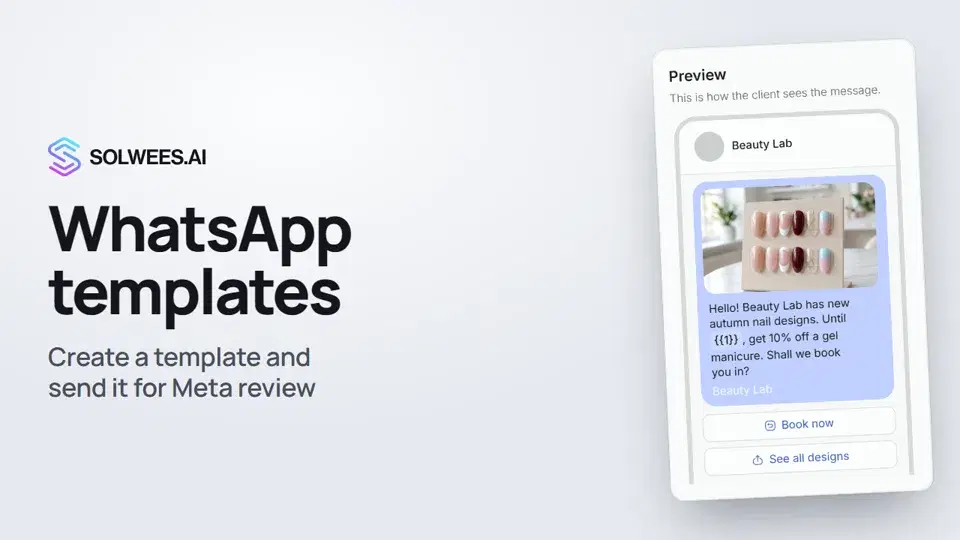
Where to find it
Open Settings → WhatsApp and the Templates tab. The same templates open in Marketing with the WhatsApp templates button (Marketing is there when the marketing module is on).
You need WhatsApp connected through Meta. Until WhatsApp is connected, the tab says “Connect WhatsApp first” and New template is unavailable.
What the list shows
Each template shows its name, language and category, the text, the status and the date of the last change. At the top: search by name or text and a category filter: All, Utility, Marketing, Authentication.
| Status | What it means |
|---|---|
| Approved | Meta approved the template, you can send it |
| Pending Meta review | The template is being reviewed |
| Rejected, Disabled, Paused | Meta turned the template down or stopped it, it can’t be sent |
| Not submitted | The template is saved but never reached Meta. The “⋯” menu has “Submit for review” |
| Ready to send | A template of a number connected by QR code: it needs no Meta review |
How to create a template
- Click New template.
- Template name: lowercase Latin letters, words joined by underscores, for example
autumn_nails. A space turns into an underscore by itself, other characters (digits included) can’t be typed. Only you see the name, the client doesn’t. - Category: Utility for bookings, reminders and confirmations, Marketing for promotions and news, Authentication for one-time codes.
- Language code: the language of the template text. English is the default, pick your clients’ language.
- Above the text you can add a header: Text, Image, Video or Document. Upload the file with Upload file, after that it goes into every send by itself.
| Header | Format and size |
|---|---|
| Image | JPEG or PNG, up to 5 MB |
| Video | MP4 or 3GPP, up to 16 MB |
| Document | PDF, up to 100 MB |
- Body: the message text. Add variable puts a placeholder
{{1}},{{2}}and so on into the text: you fill in its value when sending. Give a sample for each placeholder under Example values: Meta reviews the template with them. - Footer (optional): a short line at the bottom of the message, such as your salon’s name.
- Buttons (optional): quick reply, link, phone number or offer code. Up to 10 buttons in total, no more than two links, one phone and one offer code. A button label is up to 25 characters, an offer code up to 15.
- On the right, Preview shows the message as the client will see it.
- Click Save template. For a number connected through Meta, the template goes to review right away.
Meta review
Review takes from a few minutes to a day. The status in the list updates on its own. Only templates with the Approved status can be sent: a broadcast (Marketing → Send template) offers only those.
To change a template, choose Edit in the “⋯” menu. After saving, it goes to review again.
Tips
- Don’t start or end the text with a variable: Meta doesn’t accept such templates. Add variable puts the placeholder at the end of the text, so add at least a few words after it.
- Make the example values realistic: a name, a date, a time. Meta reviews the template with them.
- An image in the header stands out more than text: for a promotion, use a photo of your work or your salon.
- If a button link ends with
{{1}}, the form asks for a sample full link for the review.
FAQ
Why do I need a template if the assistant already replies to clients?
Until 24 hours have passed since the client’s last message, the assistant and you reply in plain text. A template lets you write first, or after that window.
How long does approval take?
From a few minutes to a day. No need to refresh the page: the status changes to “Approved” on its own.
Do I need templates for a number connected by QR code?
Such a number needs no Meta review: the template is “Ready to send” right away and goes out as plain text.
Where do I send a template to clients?
In Marketing: Send template starts a broadcast. Choose the recipients and the template, and fill in the variable values.
Transkript des Videos
Alles, was der Sprecher sagt. Ein Zeitstempel spielt das Video ab dieser Stelle ab.
What WhatsApp templates are and where to find them
WhatsApp templates are messages approved by Meta in advance. They let you message a client first, for example about a promotion. Open Settings, then WhatsApp and the Templates tab. Your number must be connected through Meta. The list shows each template's category, text and status. Click New template.
Name, category and language
Write the name in lowercase letters, with underscores between words. Choose a category: utility for bookings and reminders, marketing for promotions. And the message language.
Image, text and variables
Above the text you can add an image, a video or a document. Images can be JPEG or PNG, up to 5 MB. Add variable puts a placeholder in the text, and you fill in its value when sending. Below, give a sample for the review.
Buttons and Meta review
Buttons can be a quick reply, a link, a phone number or an offer code. On the right, you see the message as the client will. Save template sends it to Meta for review, which takes from a few minutes to a day. The status updates on its own.
Templates in Marketing and the 24-hour rule
Templates are also in Marketing. If a client hasn't written for more than a day, WhatsApp only lets an approved template through. Done. Next, we'll connect Instagram.
Hat das Ihre Frage beantwortet?
Mehr zu diesem Thema
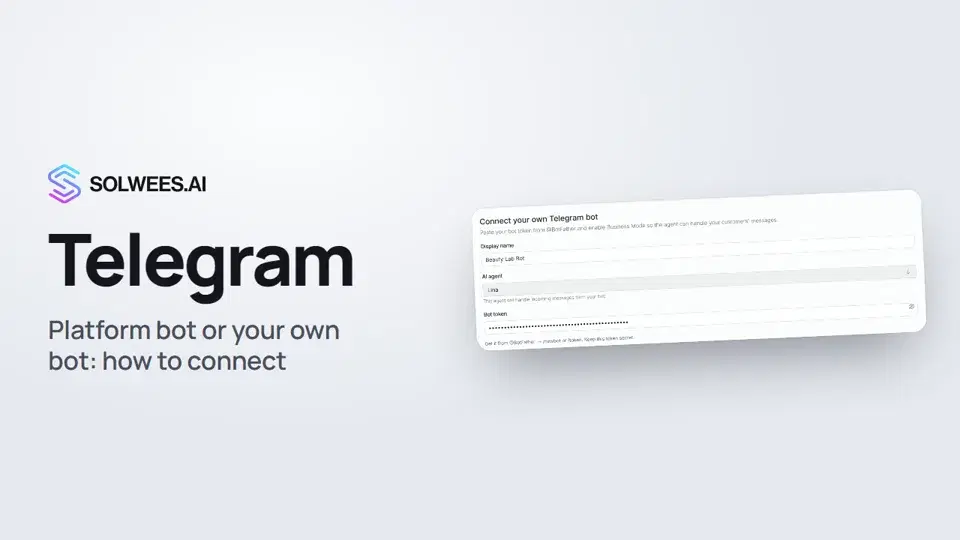 Telegram: how to connect the assistantHow to connect Telegram to Solwees so the AI assistant replies to your clients: through the platform bot and Telegram Business, or through your own bot with a token from BotFather.1:31
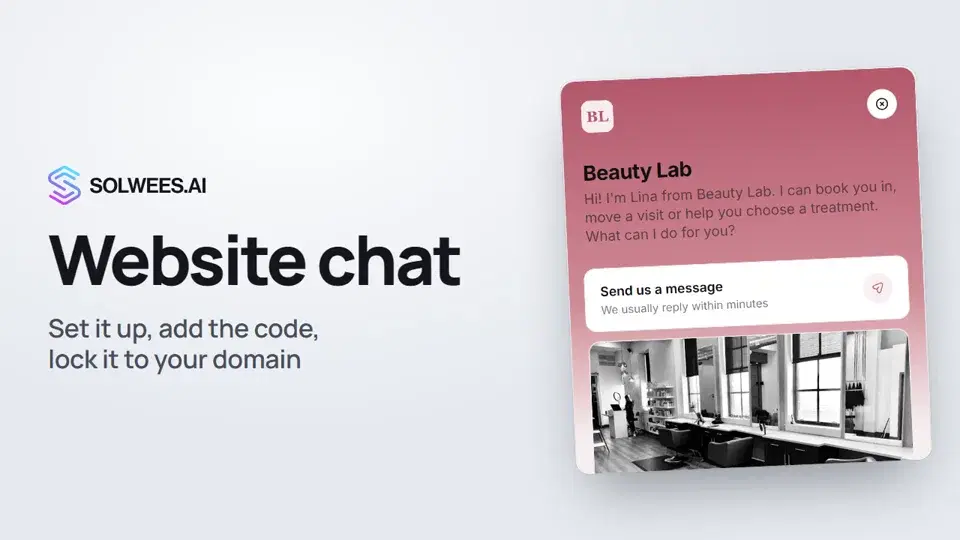 Website chat: how to set it up and install itHow to add the Solwees chat to your website: languages, visitor contact, welcome message, appearance, chat button, the install code and allowed domains. Visitors write in the chat and the AI assistant replies right away.1:52
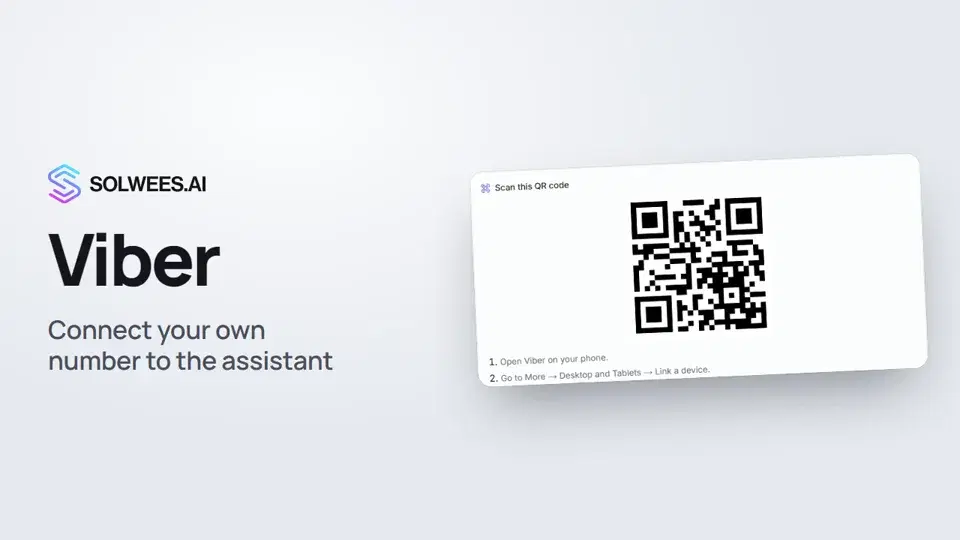 Viber: how to connect your own number to the assistantHow to connect Viber to Solwees so the AI assistant replies to your clients: paying for the channel, display name and AI agent, Connect number and linking with a QR code in Viber.1:11
 Phone: a number for the assistantHow to buy a phone number for your AI receptionist in Solwees: applicant verification and documents, choosing a number, assigning an agent, call recording and transcription.1:56
Noch Fragen?
Fragen Sie Sola im Dashboard
Der Assistent-Button in der Ecke jeder Dashboard-Seite kennt jede Einstellung und zeigt, wo sie ist.
Dashboard öffnenAn den Support schreiben
Unter support@solwees.ai antwortet ein Mensch aus unserem Team.
support@solwees.ai