
Needs attention: when a client is waiting for a person
ChatsAktualisiert am 21. Oktober 2026Video 1:14
Diese Anleitung ist vorerst auf Englisch.
The Needs attention panel gathers everything that needs a person right now: clients the assistant has handed over to your team, and reminders for your tasks. It appears in the top right corner of the dashboard, in every section.
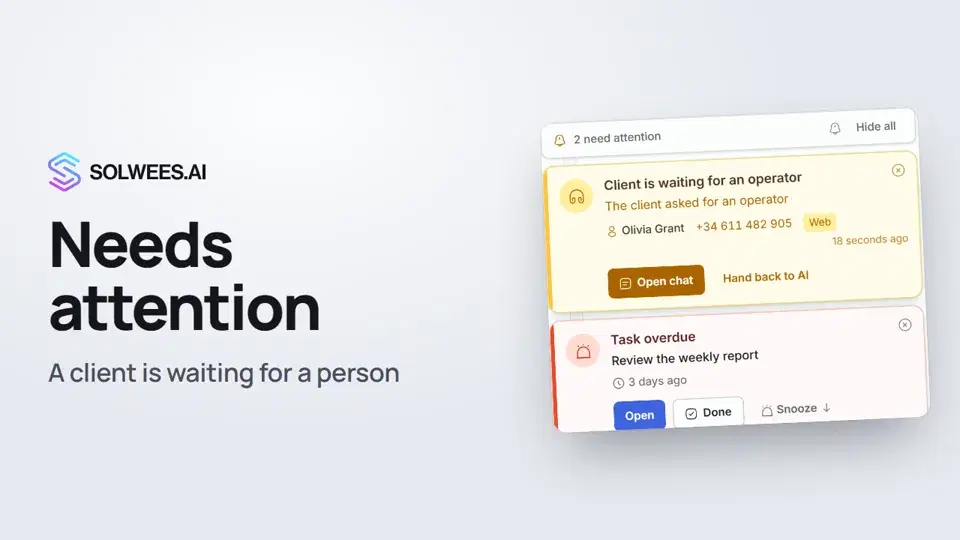
What’s in the panel
At the top is a line with the number of cards, for example “1 needs attention”. Next to it are the bell button, which mutes and unmutes the sound, and Hide all when there is more than one card. Up to four cards are shown, the rest open with the N more button.
| Card | When it appears | Buttons |
|---|---|---|
| Client is waiting for an operator | The assistant handed a chat to a person | Open chat, Hand back to AI, the cross to hide it |
| Call: operator needed | The assistant hands a phone call to a person | Open chat, Answer, Hand back to AI |
| Task reminder | A reminder for one of your tasks is due | Open, Done, Snooze |
| Task overdue | The task’s due time has passed | Same as the reminder |
The “Client is waiting for an operator” card
The card shows the reason (for example, “The client asked for an operator” or “Client complaint”), the client’s name and phone, the channel and how long ago it happened.
- Open chat opens the conversation. While a person has the chat, the assistant stays quiet and you answer. The card is removed.
- Hand back to AI returns the chat to the assistant right away if no person is needed. You don’t have to open the chat.
- The cross hides the card; the chat stays with your team.
When you’re done, click AI in the chat header, and the assistant answers the client again.
When the assistant hands over a call
The card is called Call: operator needed and has an Answer button. It connects you to the call right in your browser: the dashboard asks for access to your microphone, and the card shows the status (“Connecting to the call…”, “You are on the line”) with microphone and hang-up buttons.
Task reminders
When a reminder for a task assigned to you is due, a task card appears in the panel: the title, the due time and the client, if there is one.
- Open opens the task.
- Done completes the task.
- Snooze: for 15 minutes, 1 hour, 3 hours or until tomorrow, 10:00.
Sound and notifications
- A new card arrives with a sound. If the client is still waiting after 3 minutes, the sound plays again.
- If you allowed browser notifications and the dashboard tab is minimised or another tab is open, you also get a browser notification.
- To catch handovers outside the dashboard, connect Telegram alerts in Settings → Notifications.
Tips
- Keep the dashboard open in its own tab and allow browser notifications: a handover won’t get lost even while you work in another tab.
- No person needed? Don’t open the chat, click Hand back to AI right on the card.
- A task card you dismissed won’t come back after a reload, but if the task is rescheduled, the reminder comes again.
FAQ
Do the cards disappear if I reload the page?
No. Handover cards are kept in this browser for up to two hours and come back after a reload. Before showing one again, the dashboard checks the chat: if it has already been assigned to a teammate, handed back to the assistant or closed, the card doesn’t come back. Task reminders are loaded from the server.
Where do I find the chat if I hid the card?
In Chats, in the Awaiting admin folder.
Why didn’t a card appear although the client asked for a person?
When your business is closed according to your working hours, the assistant doesn’t promise to connect the client right away: it notifies your team and tells the client someone will get back to them during working hours. Such a chat also goes to the Awaiting admin folder, and an alert goes to Telegram if it’s connected.
Transkript des Videos
Alles, was der Sprecher sagt. Ein Zeitstempel spielt das Video ab dieser Stelle ab.
The Needs attention panel and the client card
When a client needs a person, the Needs attention panel appears in the top right corner. You see it in every section. The Client is waiting for an operator card shows the reason, the client's name and phone, the channel and how long ago it happened. The card arrives with a sound and plays it again after three minutes if nobody has picked it up.
Open the chat, reply, hand back to AI
The bell button mutes it. If no person is needed, Hand back to AI returns the chat to the assistant right away. Click Open chat and answer the client yourself. While the chat is yours, the assistant stays quiet. Done? Click AI in the chat header, and the assistant carries on.
Calls and task reminders
If the assistant hands over a phone call, the card has an Answer button: you join the call right in your browser. Task reminders show up here too. You can open a task, mark it done or snooze it.
After a reload and browser notifications
Cards stay after you reload the page. And if the tab is in the background and notifications are allowed, you also get a browser notification. Done. Next: quick replies and notes.
Hat das Ihre Frage beantwortet?
Mehr zu diesem Thema
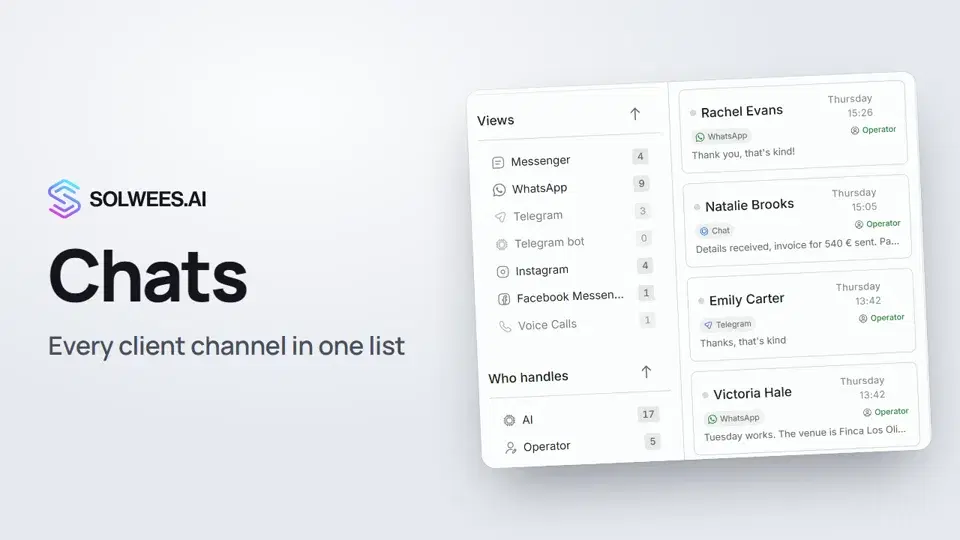 Chats: every channel in one placeHow to work with Chats in Solwees: folders, the channel and Who handles filters, search, status, sorting and opening a conversation with the client card.1:35
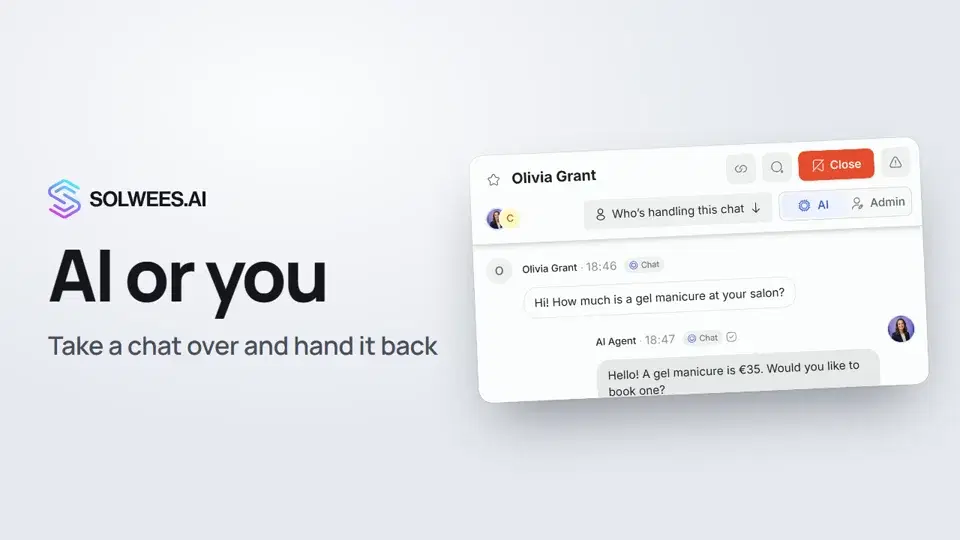 AI or you: taking a chat over from the assistant and handing it backHow to answer a client yourself instead of the Solwees AI receptionist and hand the chat back: the AI and Admin switch in the chat header, assigning a teammate and internal notes.1:13
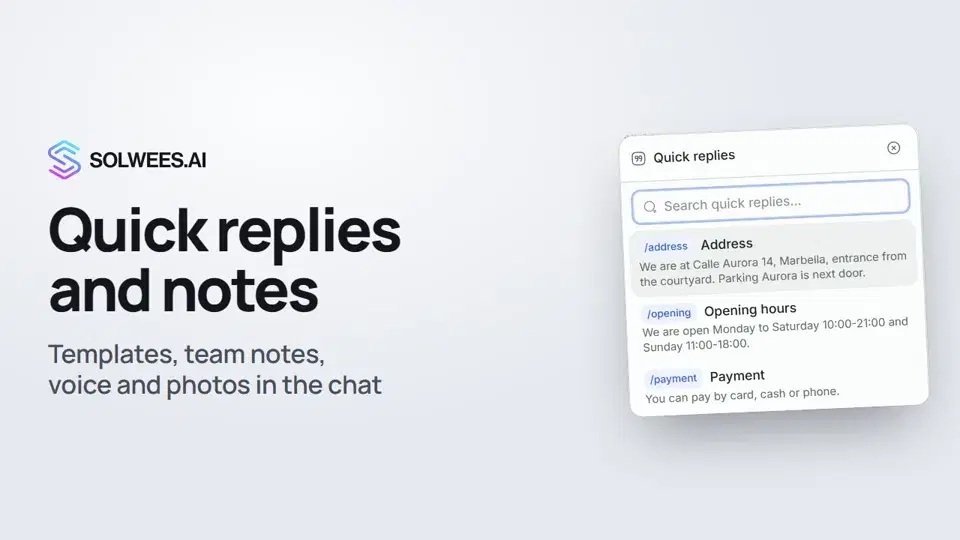 Quick replies and notes: what the chat input can doHow to answer clients faster in Solwees chats: quick replies with a slash, internal notes for your team, mentioning a teammate, voice messages and photos from your knowledge base.1:23
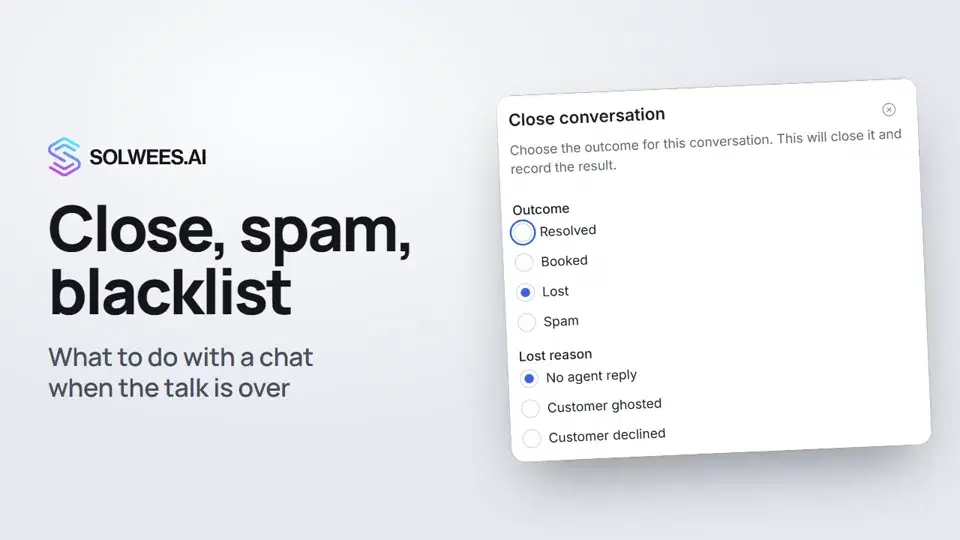 Close a chat, spam and blacklistHow to close a chat in Solwees and record the outcome, send a spammer to the Spam folder, block a client with the blacklist and merge two contacts of the same person.1:25
Noch Fragen?
Fragen Sie Sola im Dashboard
Der Assistent-Button in der Ecke jeder Dashboard-Seite kennt jede Einstellung und zeigt, wo sie ist.
Dashboard öffnenAn den Support schreiben
Unter support@solwees.ai antwortet ein Mensch aus unserem Team.
support@solwees.ai