
Solwees in 2 minutes: a tour of the menu
Bien démarrerMis à jour le 21 octobre 2026Vidéo 2:10
Ce guide est en anglais pour l’instant.
A short tour of your Solwees dashboard: which sections the left menu has, what each one is for, where Settings and your profile are, and how not to miss what needs you.
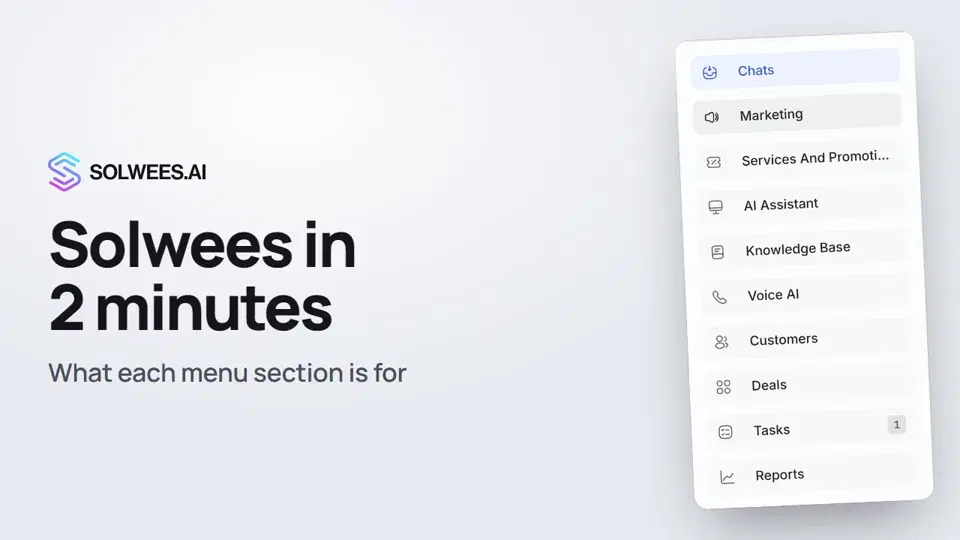
Where you start
After you sign in, Chats opens: it’s the home page of your dashboard. The left menu is folded into icons. Hover over it to see the section names. To keep it open, click the pin icon next to the Solwees logo (this is remembered in your browser).
Menu sections
| Section | What it’s for | Availability |
|---|---|---|
| Chats | Conversations from every channel in one list: WhatsApp, Instagram, Telegram, Facebook Messenger, website chat, calls. Each chat shows who is replying: the assistant or an operator | All plans |
| Marketing | Messages that go to clients on their own (visit reminder, booking confirmed or changed, review request and more), broadcasts to your client base, WhatsApp templates and client groups | Not on Hub. Auto campaigns and broadcasts need the Campaigns module, the marketing helper on the left needs the AI in marketing module |
| Services and promotions | Your services and the promotions on them. Base prices come from your CRM, you set only the promo ones | All plans |
| AI Assistant | Agents, business profile, conversation flow, app directory and the test chat: this is where you set how the assistant answers clients. Inside, the section is called AI Agent | Not on Hub |
| Knowledge Base | Articles and files about your business. The assistant uses them to answer client questions | Not on Hub |
| Voice AI | Call history, incoming and outgoing, and call campaigns to a list of clients (the Campaigns tab) | Studio, Network, Enterprise |
| Customers | Your client base: phone, number of bookings, last visit. The Waiting List and Blacklist tabs are here too | All plans |
| Deals | Client requests on a board, stage by stage through your pipeline | CRM and tasks module |
| Tasks | To-dos with a due date and a reminder, yours and your team’s | CRM and tasks module |
| Reports | How many bookings and how much money the service brought in, what no-shows cost, how much time you saved | All plans |
On the free trial and on Enterprise every module is already open. On other plans you add a module in Settings → Billing or right from the section’s page. If a section isn’t part of your plan, it opens a card that suggests the plan that includes it.
Menu items also depend on the user’s rights: a team member sees only the sections their role has access to.
Settings and profile
There are two items at the bottom of the menu:
- Settings: workspace (general, security, notifications, users, conversations, quick replies), billing and modules, channels, pipelines, tags and people.
- Profile: the menu opens on hover. It has your name, the partner program, theme, language, workspace switching, documents and log out.
Needs attention
When a client is waiting for an operator or one of your tasks is due, the Needs attention panel appears in the top right of any page:
- Client is waiting for an operator: the reason, the client’s name and phone, the channel. Buttons Open chat and Hand back to AI.
- Task reminder or Task overdue: buttons Open, Done and Snooze.
The cards stay after a page reload and arrive with a sound. The bell icon on the panel mutes the sound, Hide all clears every card at once.
Tips
- Start your day in Chats: open conversations and chats where the assistant called a person are right there.
- Can’t find a setting? Click the Sola button in the bottom right corner and ask, for example, “Where do I connect WhatsApp?”. Sola tells you where the setting is and shows it.
- Before you turn the assistant on for clients, try it in the test chat: AI Assistant → Agent Settings, the panel on the right.
FAQ
Why does my menu have fewer sections?
Menu items depend on your role’s rights in the workspace. Ask the owner or an admin to give you access in Settings → Users.
A section opens a plan or module offer instead of its content. Why?
The section isn’t part of your plan or needs a module. For example, Deals and Tasks need the CRM and tasks module, and Voice AI is available from the Studio plan.
Where do I change the dashboard language?
Hover over Profile at the bottom of the menu and choose Language.
Transcription de la vidéo
Tout ce que dit le narrateur. Un repère lance la vidéo à ce moment.
The home page and the menu
Here's your dashboard in two minutes: let's go through the menu and see what each section is for. After you sign in, Chats opens: it's your home page. Hover over the menu on the left to see the section names.
Chats, Marketing, Services and promotions
Chats brings conversations from every channel into one list. Each chat shows who is replying: the assistant or an operator. Marketing: messages that go to clients on their own, like a visit reminder, and broadcasts to your client base. Services and promotions: your services and the promotions on them. Base prices come from your CRM, you set only the promo ones.
AI Assistant, Knowledge Base, Voice AI
The AI Assistant section has your agents, business profile and the test chat. This is where you set how the assistant answers clients. Knowledge Base: articles and files about your business. The assistant uses them to answer client questions. The Voice AI section has your call history, incoming and outgoing, and call campaigns to a list of clients.
Customers, Deals, Tasks, Reports
Customers: your client base with phone numbers, bookings and the last visit. The waiting list and blacklist are here too. Deals shows client requests on a board, stage by stage through your pipeline. Tasks: to-dos with a due date and a reminder, yours and your team's. Reports: how many bookings and how much money the service brought in, what no-shows cost and how much time you saved.
Settings, Profile and Needs attention
At the bottom of the menu, Settings: users, billing, channels and pipelines. Below it, Profile: theme, language and log out. Tip: when a client is waiting for an operator or a task is due, Needs attention appears in the top right of any page. Can't find something? Ask Sola about any setting, and she'll tell you where it is.
Cet article a-t-il répondu à votre question ?
Plus sur ce thème
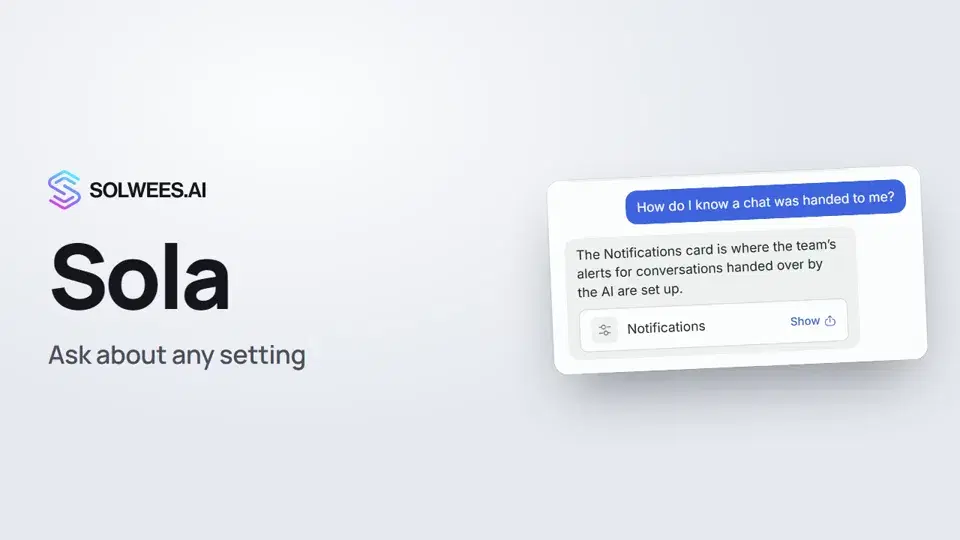 Sola: the setup assistant in SolweesHow to use Sola, the setup assistant in Solwees: ask in your own words, jump to the right place with the Show button, ask her to make a change, or start the interface tour.1:03
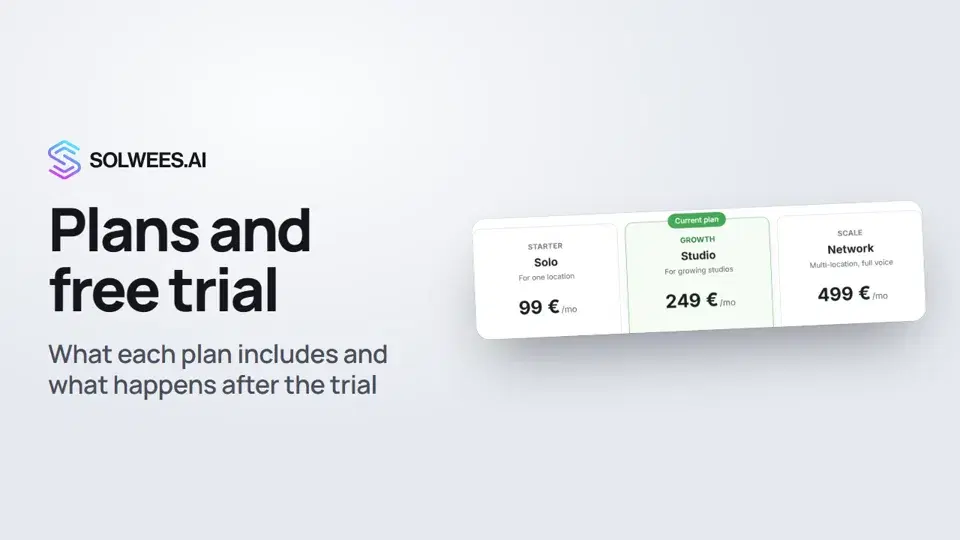 Plans and free trial: what's included and how to chooseWhich plans Solwees offers, how they differ, what your plan includes and how the free trial works.1:19
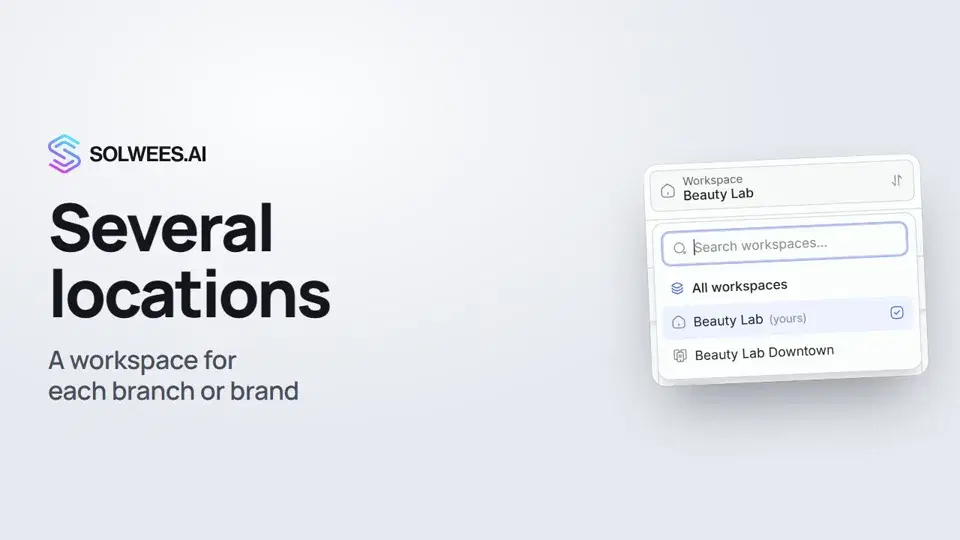 Several locations or brands: workspacesHow to run several locations or brands in Solwees: create a workspace, switch between workspaces and see every location's chats in one list.1:01La configuration avec SolaComment Sola, l'assistant de configuration, crée votre assistant à partir de votre site et de vos fichiers.Guide écrit
Besoin d’aide ?
Demandez à Sola dans votre tableau de bord
Le bouton de l’assistant, dans le coin de chaque page du tableau de bord, connaît chaque réglage et vous montre où il se trouve.
Ouvrir le tableau de bord