
Chat side panel: everything about the client next to the conversation
ChatsAktualisiert am 19. Oktober 2026Video 1:17
Diese Anleitung ist vorerst auf Englisch.
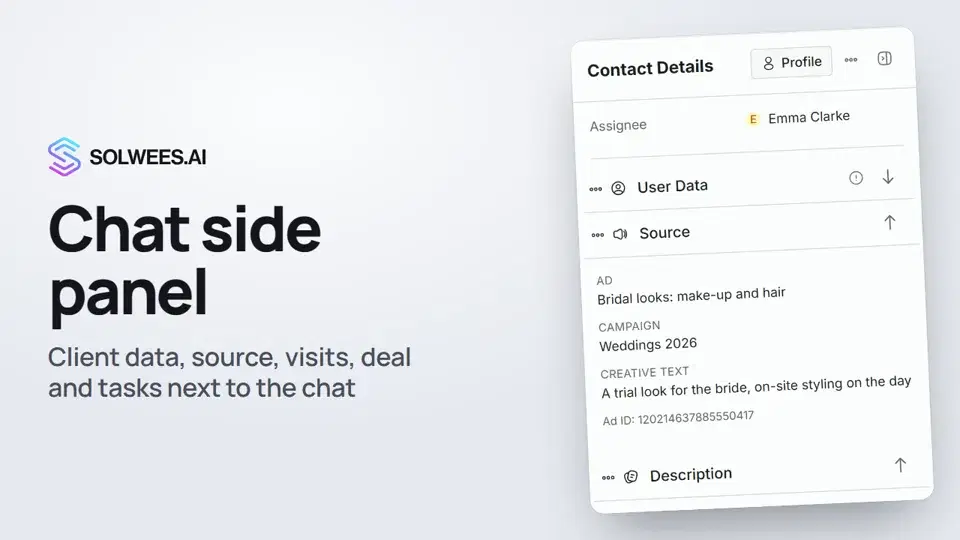
When you open a chat, the Contact Details panel appears on the right. It holds what you need to know about the client while you are talking to them: their data, where they came from, your team’s notes, visit history, the deal and tasks. No need to switch to another section.
Where to find it
Open Chats in the left menu and click a chat in the list. The panel appears to the right of the conversation.
- At the top, Assignee shows who handles the chat right now: an operator or the assistant.
- The Profile button opens the client’s full card in Customers.
- The three-dot button next to it: merge the contact, mark as spam, add to the blacklist.
- The last button hides the panel. Bring it back with the button in the chat header. In a narrow browser window the panel opens over the chat.
What the panel shows
| Block | What it shows |
|---|---|
| User Data | Name, email, phone numbers, country, city, language, birthday, company and other client fields. Folded by default |
| Source | If the client came from an ad: the ad, campaign, ad text and ad ID (what exactly depends on what the ad passed on). If they wrote to you on their own: Direct inquiry and the channel |
| Description | A short description of the client |
| Tags | The client’s tags |
| Notes | Your team’s notes about this client. Click a note and the chat scrolls to it |
| Visit history | The client’s bookings by phone number: service, date and time, amount and status (confirmed, completed, cancelled and others). Without a phone number the panel asks you to add one |
| Conversation data | Who on your team read this chat, and when |
| Deal | The deal for this chat or client: name, status, pipeline, amount and stage. You can change the stage right here, and Open in deals takes you to Deals. With no deal, there is a Create deal button |
| Tasks | The client’s tasks with their due date and reminder. Create task adds a new one |
How to correct the client’s data
- Unfold User Data.
- Click a field, for example Phone or Email.
- Type the value and save with the check mark.
The change shows up in the client’s card in Customers right away.
How to put the blocks in your own order
- Point at the dots to the left of a block’s name.
- Hold and drag the block up or down.
- Let go where you want it.
To fold or unfold a block, click its name.
The block order and folded blocks are remembered in this browser. In another browser or on another device the panel opens in the default order, and your order is not shared with colleagues.
Tips
- Work with deals every day? Move Deal and Tasks to the top, right under the client’s data.
- Check Source before you reply: if the client came from an ad, you see which offer they saw.
- Visit history needs the client’s phone number. Add it in User Data.
FAQ
Why does Source say Direct inquiry?
The client wrote to you on their own, not from an ad. Ad details appear only when the client came from an ad.
Why is the visit history empty?
The client has no bookings under this phone number, or there is no number. Check the phone in User Data.
Will my colleagues see my block order?
No. The order is kept in your browser only.
Where are all deals and tasks at once?
In Deals and Tasks in the left menu (the CRM module). The chat panel shows only this client’s deal and tasks.
Transkript des Videos
Alles, was der Sprecher sagt. Ein Zeitstempel spielt das Video ab dieser Stelle ab.
The client panel and where to find it
To the right of the chat is the client panel: everything you need to know about the client, right next to the conversation. Open a chat in Chats. The top of the panel shows who handles the chat, and the Profile button opens the full client card.
User data and source
User Data holds the client's name, email and phone. You can correct any field right here. The Source block shows which ad and campaign the client came from. If they wrote to you on their own, it says Direct inquiry.
Notes and visit history
Below are the description, tags and your team's notes about this client. Visit history collects the client's bookings by phone number: service, date, amount and status.
Deal and tasks
Deal shows the pipeline, amount and stage, and you can change the stage without leaving the chat. Tasks lists the to-dos for this client with due dates. The Create task button adds a new one.
Ordering the blocks
You can put the blocks in any order: drag a block by the dots to the left of its name. This browser remembers the order. How to answer with quick replies and leave notes for your team is in the next video, Quick replies and notes.
Hat das Ihre Frage beantwortet?
Mehr zu diesem Thema
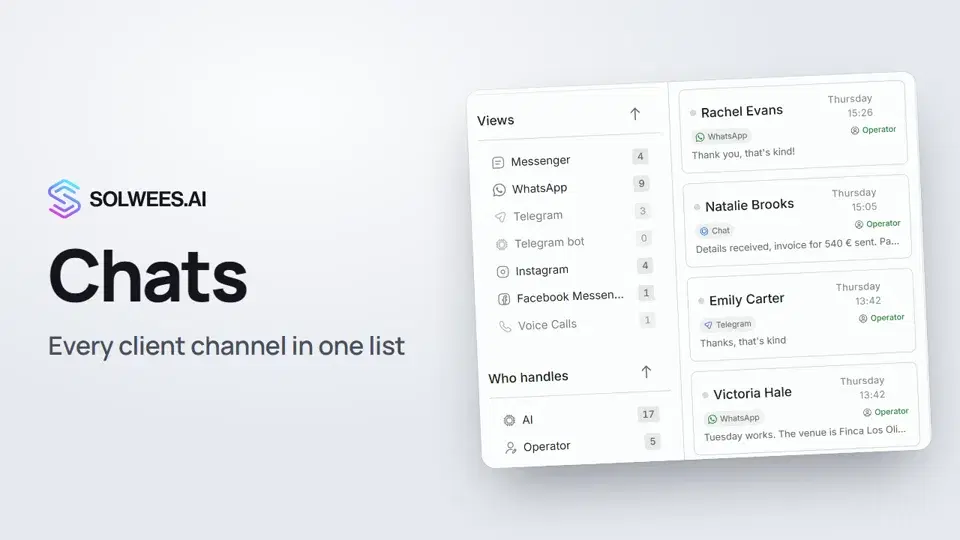 Chats: every channel in one placeHow to work with Chats in Solwees: folders, the channel and Who handles filters, search, status, sorting and opening a conversation with the client card.1:35
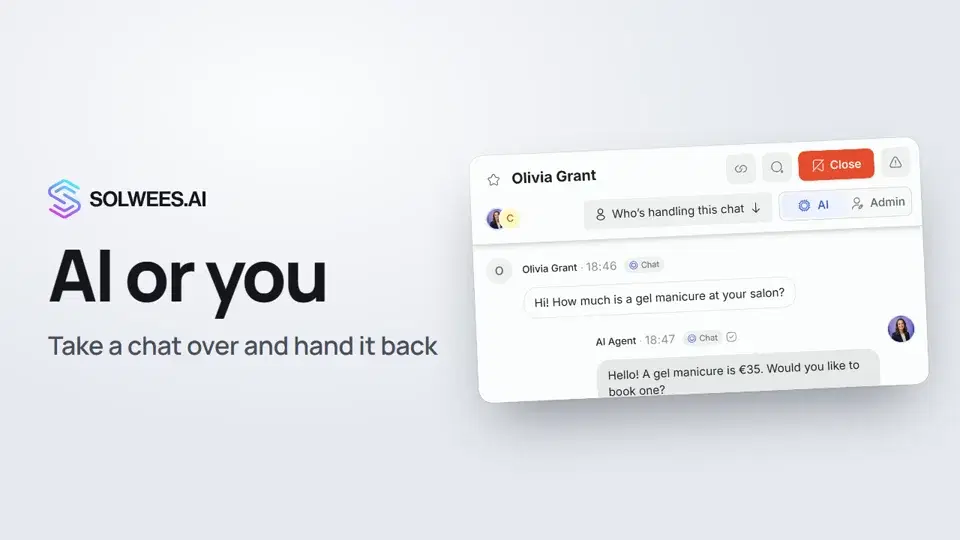 AI or you: taking a chat over from the assistant and handing it backHow to answer a client yourself instead of the Solwees AI receptionist and hand the chat back: the AI and Admin switch in the chat header, assigning a teammate and internal notes.1:13
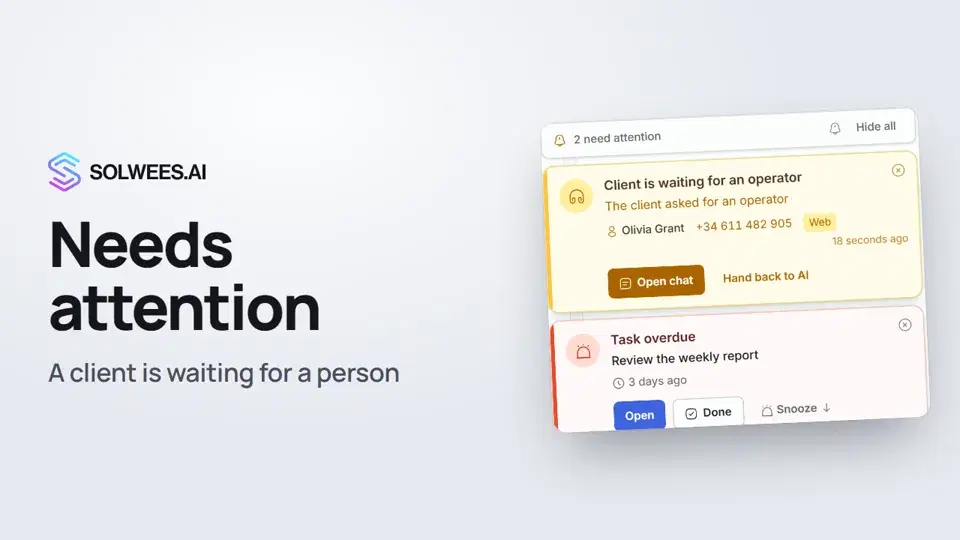 Needs attention: when a client is waiting for a personWhat to do when the Solwees AI receptionist calls for a person: the Needs attention panel, the Client is waiting for an operator card, replying, handing back to AI and task reminders.1:14
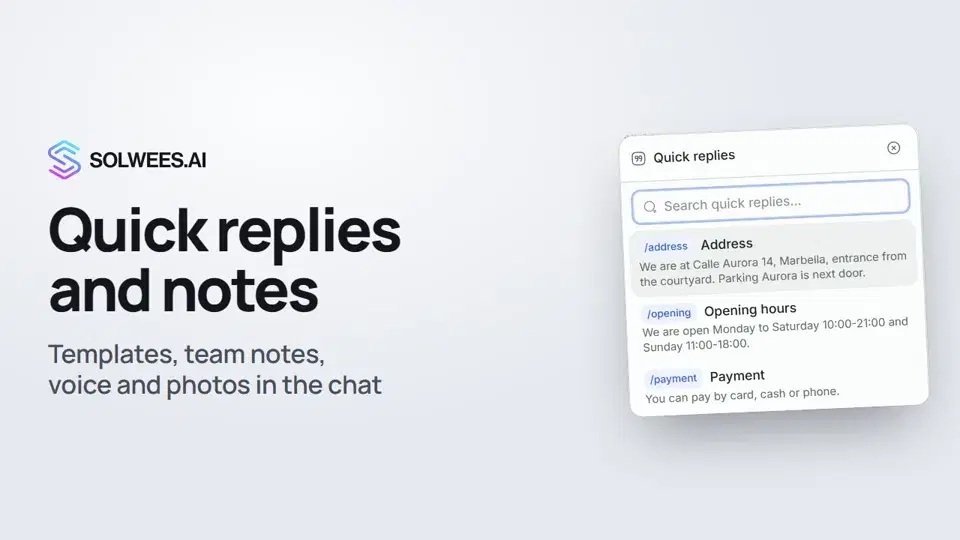 Quick replies and notes: what the chat input can doHow to answer clients faster in Solwees chats: quick replies with a slash, internal notes for your team, mentioning a teammate, voice messages and photos from your knowledge base.1:23
Noch Fragen?
Fragen Sie Sola im Dashboard
Der Assistent-Button in der Ecke jeder Dashboard-Seite kennt jede Einstellung und zeigt, wo sie ist.
Dashboard öffnenAn den Support schreiben
Unter support@solwees.ai antwortet ein Mensch aus unserem Team.
support@solwees.ai