
Bitrix24: client conversations in your Open Lines
IntegrationenAktualisiert am 21. Oktober 2026Video 1:03
Diese Anleitung ist vorerst auf Englisch.
Connect your Bitrix24 portal, and the assistant’s conversations with clients go to your portal’s Open Lines: the client’s messages and the assistant’s replies in one Open Line chat. A manager can reply to the client right from Bitrix24. The reply goes to the channel the client wrote from, such as WhatsApp, Instagram or Telegram, and the assistant goes quiet in that conversation.
Where to find it
Open the AI Agent section, choose App Directory and search for Bitrix24. The card has two tabs: Overview and Open Lines. Under the name, you can see whether a portal is connected.
How to connect
- Open the Open Lines tab.
- Pick the agent’s tab. Each agent has its own Open Line: this agent’s messages go only there.
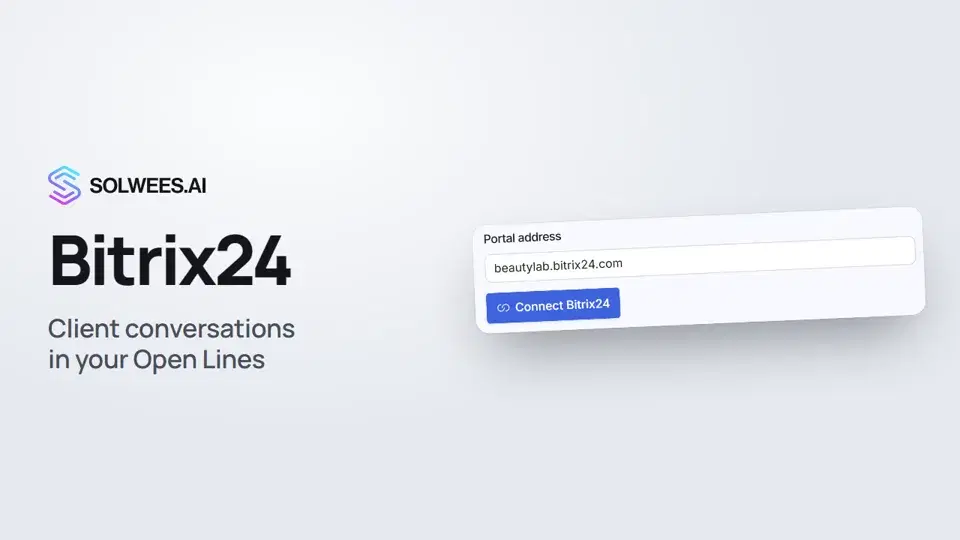
- In Connect your Bitrix24 portal, enter your portal address, for example
company.bitrix24.com. - Click Connect Bitrix24. Your portal opens: confirm access there.
- The portal brings you back to the Open Lines tab. In Bind to an Open Line, choose a line on your portal and click Connect to line.
There are no app keys or webhooks to enter: access is confirmed on the portal itself. You can also connect another way: install the Solwees app from the Bitrix24 Market.
If your portal has no Open Lines yet, create one in the Bitrix24 Contact Center, then choose it in Solwees.
How it works
| What happens | Where you see it |
|---|---|
| A client writes, the assistant replies | The whole conversation is in the Open Line chat. The assistant’s replies, your replies from Solwees and broadcasts are marked, so they aren’t mixed up with the client’s messages |
| A manager replies in the Open Line | The reply goes to the client’s channel. The conversation in Solwees switches to Admin mode: the assistant stays quiet in it |
| A new inquiry | The Open Line creates a deal or a lead in Bitrix24 CRM, as set up in the line |
To let the assistant reply in that conversation again, open it in Chats and click AI in the chat header.
Channels without an agent
If some channels are handled only by managers, open the No agent tab. Choose a channel or All other channels: conversations from these channels go to their own line, and the assistant doesn’t reply there.
What appears after connecting
The Open Lines tab shows CRM settings:
- What the line creates: deals or leads.
- Deal from a broadcast: create it right away or after the client replies.
- Pipeline and Deal stages: which stages the deal moves to as the conversation goes on. The map fills in by itself from the stage names, and you can adjust it.
- AI is silent on stages: while a deal is in a marked stage, the assistant doesn’t reply.
- The Disconnect Bitrix24 button.
Tips
- Connect the portal from the right agent’s tab: the line is tied to that agent.
- If you need deals, check that automatic deal creation is on in the line’s settings on your portal.
- If you change a client’s name in Bitrix24, it updates in Solwees too.
FAQ
Do I need to create an app or a webhook in Bitrix24?
No. Enter the portal address and confirm access on the portal itself.
Can one portal be connected to two Solwees workspaces?
No, a portal connects to one workspace only. To move it, first click Disconnect Bitrix24 in the old workspace.
What happens if I disconnect Bitrix24?
Solwees stops receiving and sending this portal’s Open Line messages, and the line settings are deleted. The app stays on the portal, so you can connect it again.
The connection didn’t go through. What now?
The reason shows under the portal address: for example, access wasn’t confirmed on the portal, or the portal is already connected to another workspace. Click Connect Bitrix24 again, or disconnect the portal in the other workspace.
Transkript des Videos
Alles, was der Sprecher sagt. Ein Zeitstempel spielt das Video ab dieser Stelle ab.
What Bitrix24 gives you and where to find it
With Bitrix24, the assistant's conversations with clients show up in your portal's Open Lines. A manager can reply from there, and the assistant goes quiet in that conversation. Open the AI Agent section and choose App Directory.
The Bitrix24 card and the Open Lines tab
Search for Bitrix24 and open its card. Under the name, you can see whether a portal is connected. Go to the Open Lines tab. Each agent has its own line, so pick the agent's tab first.
Connecting the portal and picking a line
Enter your portal address and click Connect Bitrix24. Your portal opens: confirm access there. There are no keys or webhooks to enter. The portal brings you back here, and all that's left is to pick the Open Line for the agent.
Channels without an agent
Channels that only managers handle have their own tab, No agent. The assistant doesn't reply there. Done. Next: how to connect Kommo.
Hat das Ihre Frage beantwortet?
Mehr zu diesem Thema
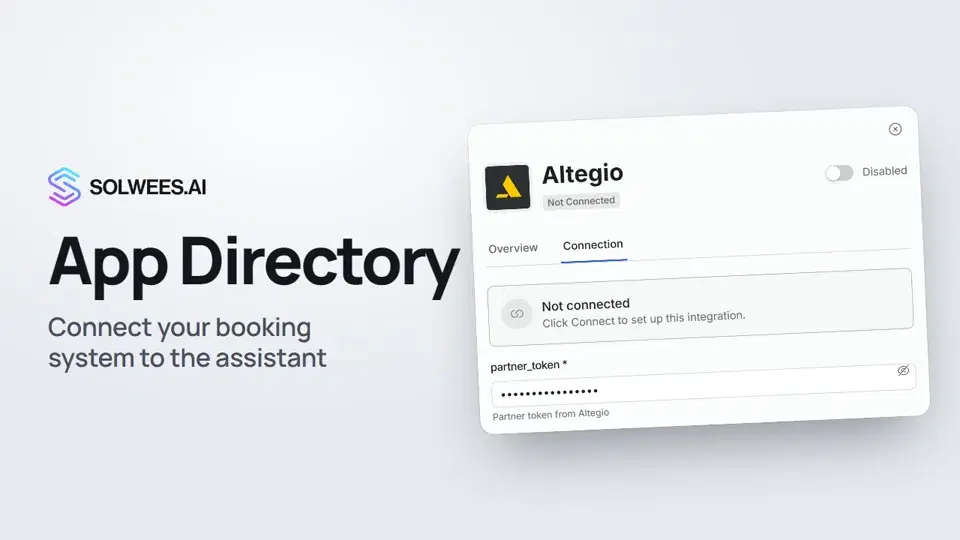 App Directory: connect your booking system, CRM and paymentsWhere to find the App Directory in Solwees and how to connect a booking system, CRM or payments to your AI receptionist: tabs, search, the integration card and the Connect button.1:06
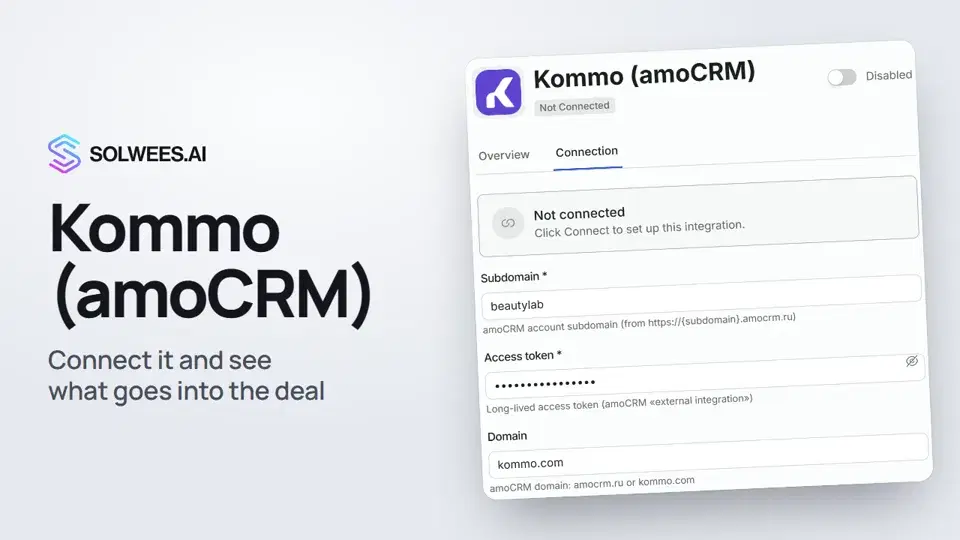 Kommo (amoCRM): how to connect it and what goes into the dealHow to connect Kommo (amoCRM) to your Solwees AI assistant: subdomain, long-lived token and domain, what the assistant sends into the deal and which assistant role it takes.1:19
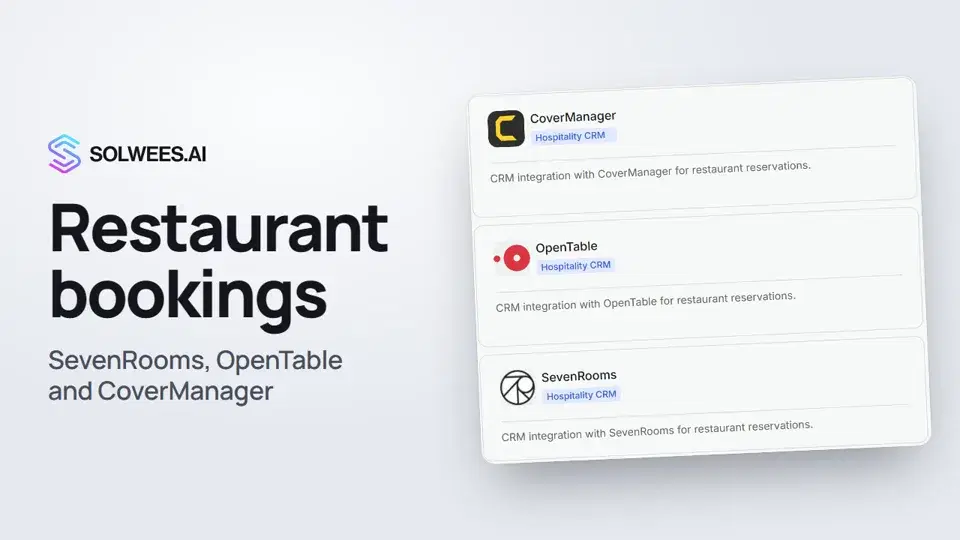 Restaurant bookings: connecting SevenRooms, OpenTable and CoverManagerHow to connect your restaurant booking system to the Solwees AI receptionist: SevenRooms and CoverManager connect in the App Directory, OpenTable is switched on by support. Once connected, the assistant checks for free tables and books right in your system.1:21
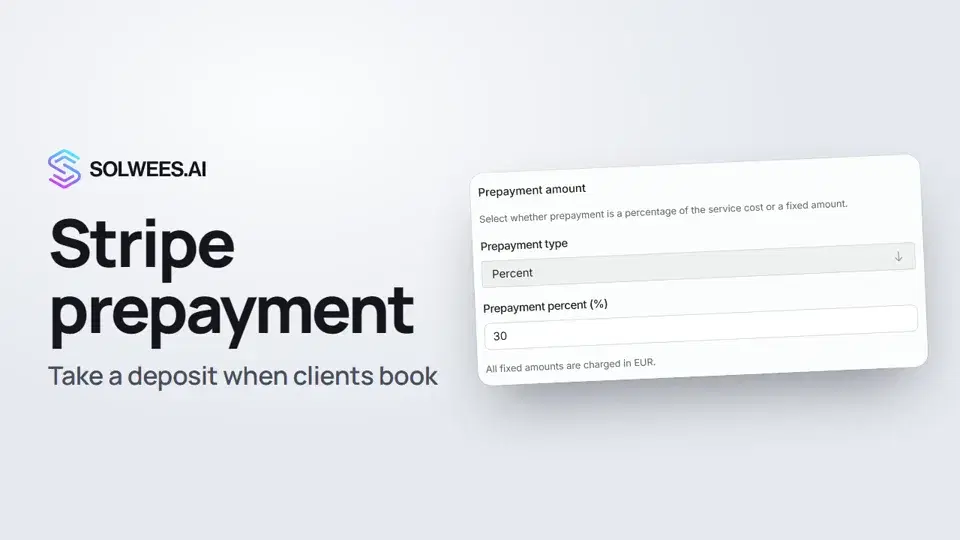 Stripe prepayment: take a deposit when clients bookHow to connect Stripe to Solwees and set up prepayment: the AI receptionist names the deposit before booking and sends the client a payment link, and you get notified once it's paid.1:28
Noch Fragen?
Fragen Sie Sola im Dashboard
Der Assistent-Button in der Ecke jeder Dashboard-Seite kennt jede Einstellung und zeigt, wo sie ist.
Dashboard öffnenAn den Support schreiben
Unter support@solwees.ai antwortet ein Mensch aus unserem Team.
support@solwees.ai