
General settings: workspace name, time zone and report currency
Équipe, réglages et facturationMis à jour le 18 octobre 2026Vidéo 1:02
Ce guide est en anglais pour l’instant.
General settings hold your workspace name, time zone and the report settings: currency and the admin hourly rate. The time zone matters most: it tells the assistant what time it is for you, so clients are booked at the right time. Set it up before the assistant goes live.
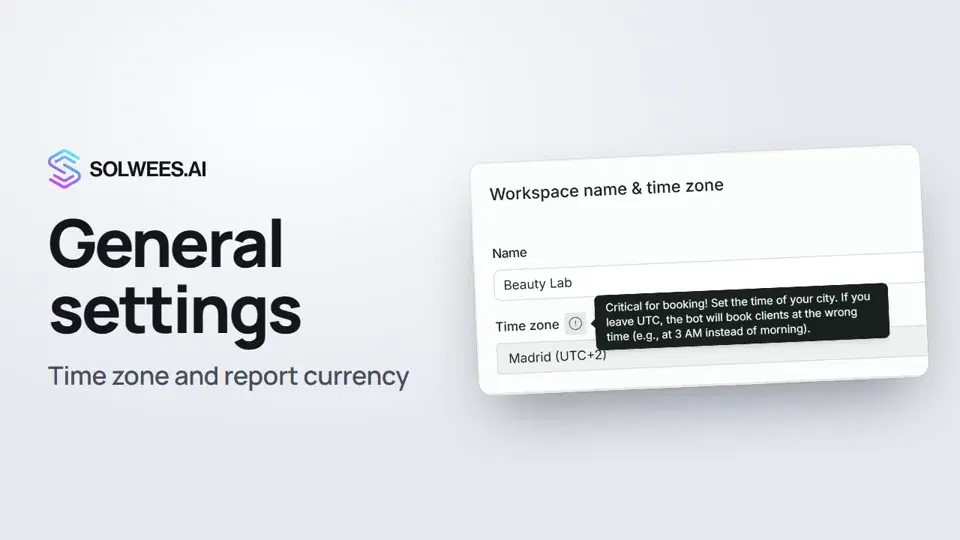
Where to find it
Open Settings at the bottom of the left menu and choose General. The section is open to the account owner and administrators, and to team members who have the «Workspace settings» right.
What is on the page
| Card and field | What to set | What it affects |
|---|---|---|
| Workspace name & time zone → Name | The workspace name | How the workspace is labelled in Solwees: in the page header and in My Workspaces. The assistant gives clients the name from your business profile |
| Workspace name & time zone → Time zone | The city you work in | Booking times, «today» and «tomorrow» in the assistant’s conversations, the agent’s schedule, days in reports, quiet hours for reminders |
| Analytics and money → Report currency | A currency from the list | Reports show amounts in this currency |
| Analytics and money → Admin hourly rate | What an hour of an administrator’s work costs | Reports turn saved time into money |
Time zone
- Click the Time zone field.
- Pick your city from the list. You can type to search: «Mad» finds Madrid. Each city shows its current offset from UTC, daylight saving included.
- Click Save at the top of the page.
What depends on the time zone:
- Bookings. The assistant checks the time in your time zone: it knows what day it is, which slots have already passed, and books the client at the right time. A wrong time zone shifts booking times. If you leave UTC, a booking can land at night instead of the morning.
- The agent’s schedule. Limited working hours on AI Agent → Agent Settings use the same time zone. The schedule card shows it with a «Change in Settings» link.
- Reports. Days and the Today block in reports are counted in your time zone.
- Reminders. Reminders to clients are not sent at night in your time (by default from 22:00 to 9:00); they move to the morning.
Report currency and admin hourly rate
- In Analytics and money, choose the Report currency.
- Enter the Admin hourly rate, for example 15.
- Click Save in the same card.
You see the result in Reports, on the Money tab. The Time saved tile shows how much time the assistant’s replies would have taken an administrator, with an amount next to it: the hours times your rate. Until the rate is set, the tile shows hours only and the hint «set an admin hourly rate in settings».
If you don’t choose a currency, the report takes it from your business profile (the Currency and price list card), from the bookings or from the country of your time zone, and as a last resort shows euros. The report says above the numbers where the currency came from. Amounts in other currencies are not converted: the report shows them separately.
Which button saves what
- The Save button at the top of the page saves the name and time zone. Until you change something, it reads «Settings saved successfully».
- The Save button inside Analytics and money saves the currency and rate.
If you changed both the time zone and the rate, click both buttons.
Tips
- Check the time zone before the assistant goes live and after you move to another city.
- Use what an hour of an administrator’s work really costs you. Then the money saved in reports is your own figure, not a market average.
- The report currency does not change the prices the assistant quotes to clients. The price currency is set in your business profile.
FAQ
Does the workspace name change how the assistant introduces itself?
No. The assistant gives clients the name from your business profile, the Business card.
My city is not in the list. What should I pick?
Pick a city whose time matches yours all year round, summer included. If there is none, write to our support.
Why are amounts in euros when I work in another currency?
No report currency is chosen and none was found elsewhere. Choose it in Analytics and money and click Save in that card.
Why does the report show saved hours but no money?
The admin hourly rate is not set. Enter it in Analytics and money and save.
Transcription de la vidéo
Tout ce que dit le narrateur. Un repère lance la vidéo à ce moment.
Where to find General settings
General settings hold your workspace name, time zone and report currency. Set them up before the assistant goes live. Open Settings at the bottom of the left menu, then General.
Time zone and what depends on it
Here you set the workspace name and time zone. Pick your city from the list. The time zone tells the assistant what time it is for you. A wrong one shifts booking times. The agent's schedule runs on it too, and reports count days by it.
Report currency and admin hourly rate
Below are the report currency and the admin hourly rate: it turns saved time into money. The top button saves the name and time zone. Currency and rate have a button of their own.
The result in Reports
See the result on the Money tab in Reports. Without a rate, it shows hours only. Done. Next: your business profile, everything the assistant knows about your company.
Cet article a-t-il répondu à votre question ?
Plus sur ce thème
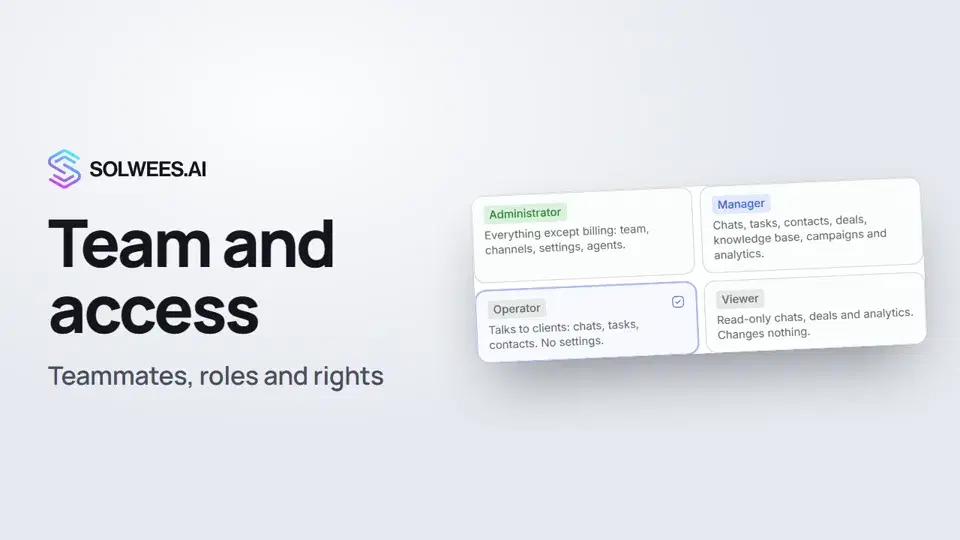 Team and access: add teammates and choose what they can doHow to add a teammate in Solwees, give them a role (administrator, manager, operator or viewer) and limit their access by section and pipeline.1:19
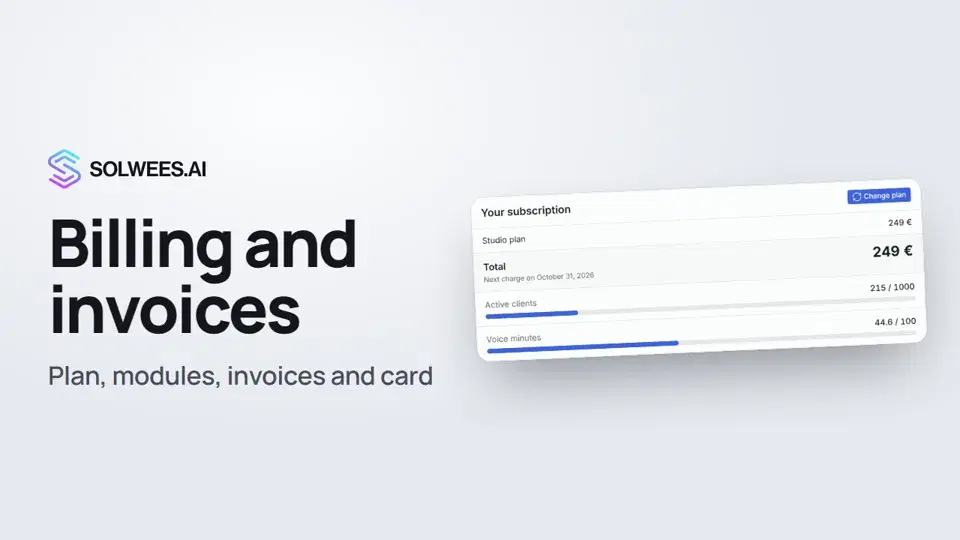 Billing and invoices: your plan, modules, invoices and cancellingWhere to see your Solwees plan and limits, change plan, add modules, buy a voice minutes pack, download invoices and cancel your subscription.1:28Les clients actifsQui compte comme client actif, ce qui se passe à la limite, et les packs de clients.Guide écritPacks de minutes vocalesDes minutes d'appel en plus, achetées une fois, pour tout forfait avec l'assistant.Guide écrit
Besoin d’aide ?
Demandez à Sola dans votre tableau de bord
Le bouton de l’assistant, dans le coin de chaque page du tableau de bord, connaît chaque réglage et vous montre où il se trouve.
Ouvrir le tableau de bord