
Agents and the AI schedule: when the assistant replies to clients
Assistant IA et base de connaissancesMis à jour le 18 octobre 2026Vidéo 1:31Dans toutes les offres sauf Hub
Ce guide est en anglais pour l’instant.
An agent is the assistant that replies to clients in your channels. In Agent Settings you create agents, turn them on and off, set a working schedule per channel and see when inactive conversations close on their own.
Available on every plan except Hub: Hub has no assistant, so only your team replies in the channels.
Where to find it
Open the AI Agent section and choose Agent Settings. On the left is the agent card: name, status, working schedule and conversation auto-close. On the right is the test chat.
How to create an agent
- Click Create agent in the top right corner.
- Enter the agent name.
- Pick the business profile the agent will answer from. An agent works with one profile.
- Leave Agent status on if it should start working right away.
- Click Create.
A workspace can have up to five agents. Once you reach the limit, the Create agent button is inactive.
To rename an agent, click its name on the card, type the new one and press Enter.
How to turn an agent on and off
The switch next to the agent’s name turns it on and off. It works immediately, there is no need to click Save. Next to the name you see the state: Active or Disabled.
A disabled agent does not reply in any channel, neither in messages nor on calls. Client messages still arrive in Chats, and you can reply to them yourself.
Working schedule
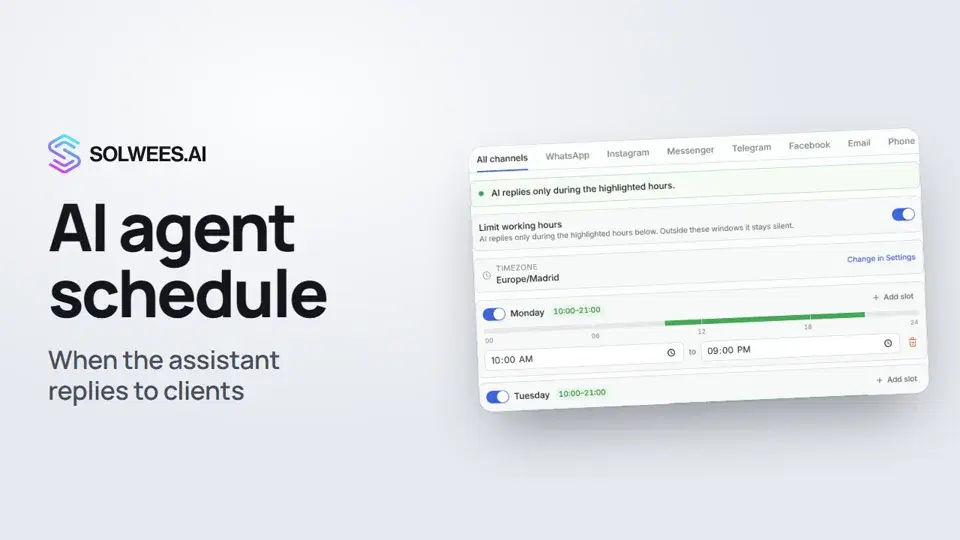
The schedule decides on which days and at what times the agent replies to clients.
| Setting | What it does |
|---|---|
| All channels tab | The shared schedule. It applies to every channel that has no schedule of its own |
| Channel tabs (WhatsApp, Instagram, Messenger, Telegram, Facebook, Email, Phone) | Turn on “Use a different schedule for this channel” to give the channel its own hours. It starts from the All channels schedule |
| Limit working hours | Off: the agent replies around the clock. On: only during the hours you mark |
| Days of the week | The switch next to a day turns it on. Each day can have up to three time ranges, for example with a lunch break |
| Timezone | Taken from the workspace’s general settings. The Change in Settings link takes you there |
How to set the hours
- On the All channels tab (or on a channel’s tab), turn on Limit working hours.
- Turn on the days you need and set the start and end times.
- To add a break, click Add slot and set a second range.
- Click Save above the tabs. Without it, the changes don’t apply.
Outside the marked hours, the agent does not reply. When you save, the schedule is checked: at least one range is set, every end time is later than its start time, and ranges on the same day don’t overlap.
Conversation auto-close
At the bottom of the card is Conversation auto-close. When a client goes quiet, the conversation with the assistant closes on its own. The block shows after how many minutes of silence this happens: separately for WhatsApp (for example, 720 minutes, that is 12 hours) and for other conversations.
Tips
- The working hours in your business profile and the agent’s schedule are different settings. The assistant tells clients your working hours and only offers bookings within them. The agent’s schedule decides when the agent replies at all. If you leave Limit working hours off, the assistant also replies at night, but it books only within your working hours.
- Which agent replies in a channel is chosen in that channel’s settings: Settings → Channels, in the agent field (on the Telegram page it is called AI agent). If no agent is chosen for a channel, the assistant does not reply there and your team handles the chats from Chats.
- After any change, test the agent in the test chat on the right.
FAQ
The agent doesn’t reply. What should I check?
That the agent is on (status Active), that it is within its working hours on the right channel’s tab, and that this agent is selected in the channel’s settings.
Can I delete an agent?
There is no delete button on this page. If you don’t need an agent, turn it off with the switch next to its name.
How do schedules differ between channels?
They don’t, until you turn on a separate schedule on a channel’s tab. Then that channel follows its own hours and the rest follow the All channels tab.
Why are the schedule’s hours shifted?
The schedule uses the workspace timezone. Check it in the general settings through the Change in Settings link.
Transcription de la vidéo
Tout ce que dit le narrateur. Un repère lance la vidéo à ce moment.
What an agent is and where to find it
An agent is the assistant that replies to clients in your channels. Here you create agents and decide when they reply. Open the AI Agent section and choose Agent Settings. The agent card shows its name, status and schedule.
Create, turn on and turn off an agent
To add an agent, click Create agent. Enter a name, pick a business profile and click Create. The switch next to the name turns the agent on and off. A disabled agent stays silent in every channel.
Working schedule and conversation auto-close
In Working schedule, the All channels tab applies everywhere. A channel's own tab can give it a separate schedule. While Limit working hours is off, the agent replies around the clock. Turn it on and mark the days and hours: outside them, the agent stays silent. Don't forget to click Save. At the bottom, Conversation auto-close: when a client goes quiet, the conversation closes on its own. On WhatsApp, for example, after 12 hours.
Business hours and the agent for a channel
Tip: the assistant tells clients the working hours from your business profile. The agent's schedule decides when it replies. Which agent replies in a channel is set in that channel's settings, in the AI agent field. Done. Next, try the agent in the test chat: that's in the next video.
Cet article a-t-il répondu à votre question ?
Plus sur ce thème
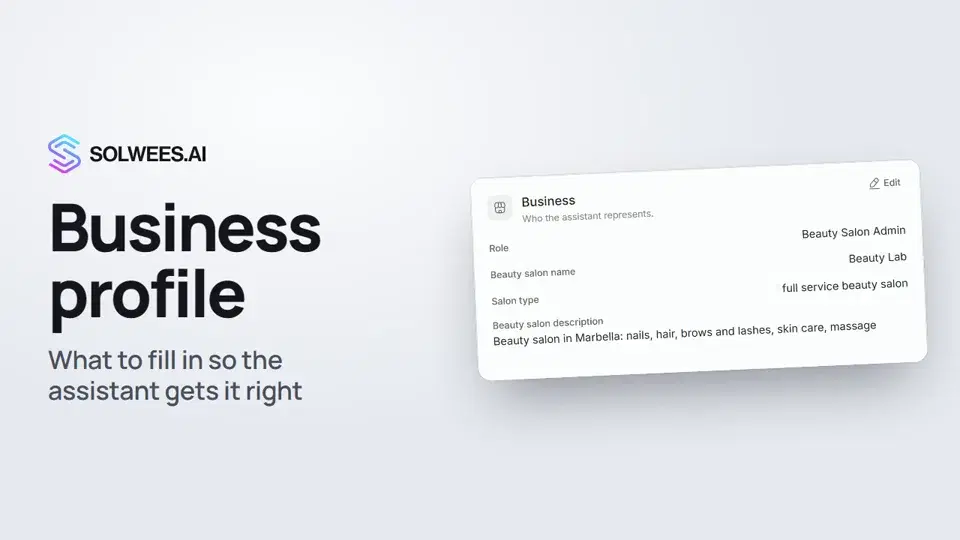 Business profile: what the assistant knows about your companyHow to fill in your business profile in Solwees so the AI receptionist answers clients accurately: name, language, contacts, address, working hours and the assistant's persona.1:35
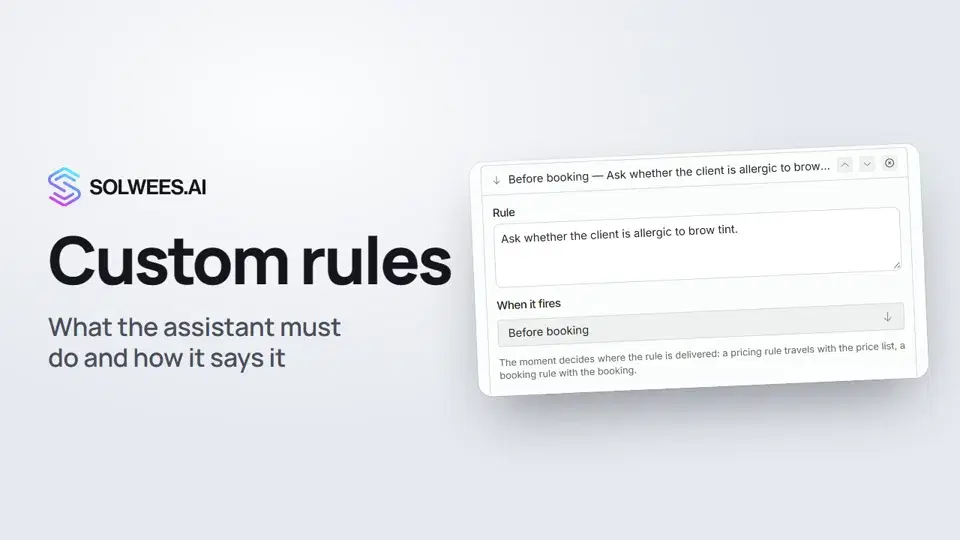 Custom rules and wordingHow to give the Solwees AI receptionist mandatory rules and wording: rules by moment, general rules and ready-made speaking styles for the key moments of a conversation.1:14
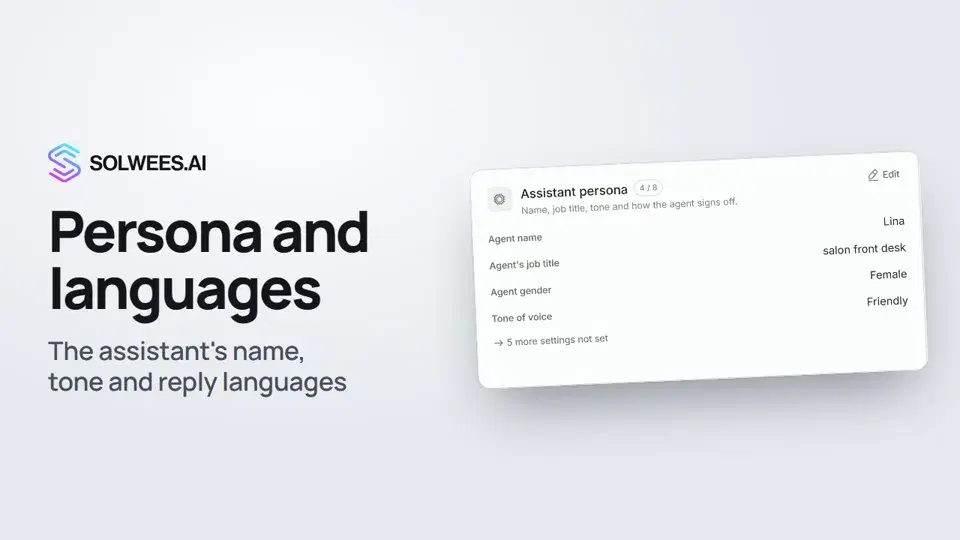 Persona and languages: how the assistant introduces itself and which languages it speaksHow to set the greeting language, allowed languages, name, job title, gender, tone of voice and closing lines of your Solwees AI receptionist in the Language and Assistant persona cards.1:22
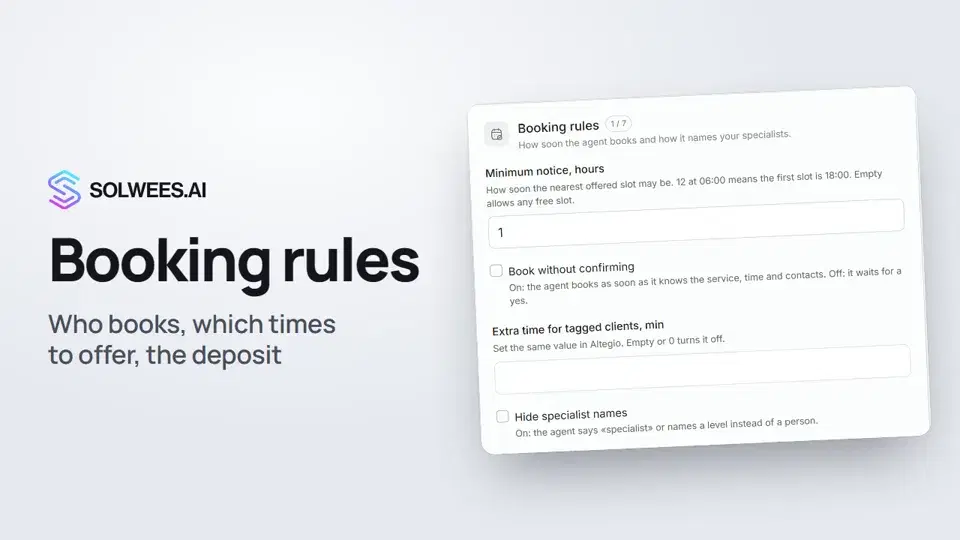 Booking rules: how the assistant books your clientsHow to set up booking rules for the Solwees AI receptionist: who makes the appointment, which windows it offers, what it says about a deposit, 4 and 6 hands services and add-on offers.1:38
Besoin d’aide ?
Demandez à Sola dans votre tableau de bord
Le bouton de l’assistant, dans le coin de chaque page du tableau de bord, connaît chaque réglage et vous montre où il se trouve.
Ouvrir le tableau de bord