
Reports: bookings, money and how the assistant works
Appels, rapports et notificationsMis à jour le 19 octobre 2026Vidéo 1:38
Ce guide est en anglais pour l’instant.
Reports show how many bookings and how much money the service brings, how the assistant works, where clients come from and how your campaigns perform. Every figure is compared with the previous period, and most have a hint that explains exactly how they are calculated.
Where to find it
Open Reports in the left menu. Reports are available on every plan. In your team, the owner, administrators, managers and viewers see them; an operator needs the “Analytics” permission in the access settings.
What is on the page
At the top is the Today block: today’s conversations and bookings, the value booked, today’s visits and how many clients have already come. It refreshes by itself every minute. On a day with nothing in it, the block is hidden.
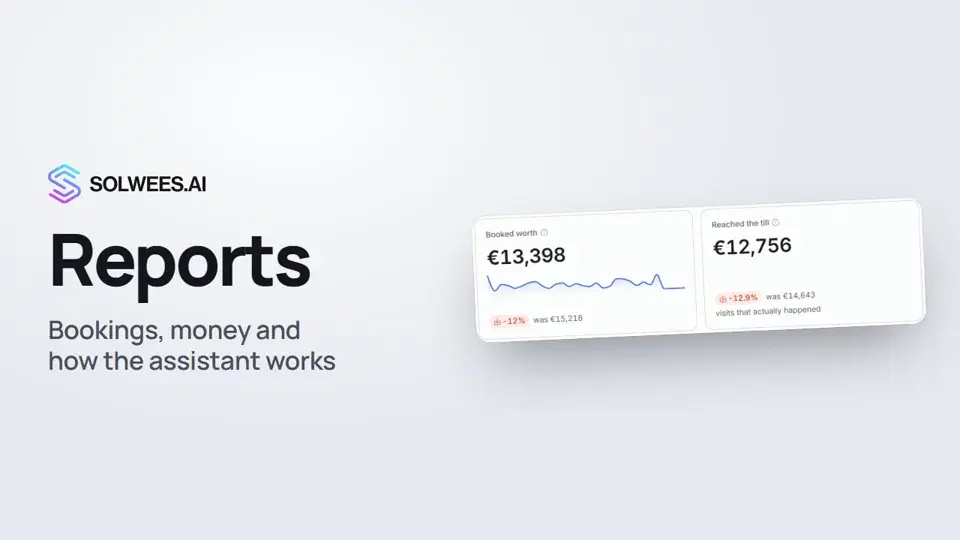
Below it is a summary line, for example “Bookings in 30 days: 155, worth €13,398. That is 9% fewer bookings than the previous period”, and the tabs:
| Tab | What it shows |
|---|---|
| Money | Booked worth, reached the till, lost to no-shows, number of bookings, value booked by the assistant, average ticket, chat to booking rate, share handled without a human, no-show rate, time saved. Below: the “What got booked” chart, the assistant’s and the team’s bookings by day with the previous period as a line |
| Conversations | The funnel from conversation to visit (looked for a time, offered a time, booked, showed up), quality of work: handed to a human, the assistant’s and a human’s first reply, conversation length, customer sentiment, handover reasons, why clients did not book, what they ask about and the “When clients write” map by day and hour |
| Bookings | Amounts, visit outcomes (showed up, no-show, past but not marked in the CRM, visit ahead), total bookings, cancellations, no-show rate, who cancelled and why, breakdown by service and specialist |
| Channels | Conversations, bookings, conversion and revenue per channel, plus the list of connections: what is connected and what is not |
| Ads | The ads clients wrote from: conversations, bookings, conversion and revenue for each |
| Customers | Customers in the period, new ones, share who wrote before, average customer value, the usual days between visits, the most valuable clients and those who stopped coming, with a Message button |
| Campaigns | Messages sent, delivery rate, response rate, activity by day and results per campaign (reminders, confirmations, cancellations, reactivation, Google reviews and others) |
Comparison with the previous period
Each period is compared with the previous period of the same length right before it: the last 30 days with the 30 days before them. Under a figure you see how many percent it went up or down and what it was. For shares the difference is shown in percentage points (pp).
The colour tells you whether that is good: green when things got better, red when worse. For money lost to no-shows, cancellations and the no-show rate, growth is red.
If there is no data for the previous period, for example because you connected recently, the figure says “nothing to compare with” instead of a percentage.
How a figure is calculated
Hover over the “i” icon next to a tile’s label: a hint with the formula appears. For example, “Booked worth”: the total of live bookings created in the period, without cancelled ones; the day is the booking date in the salon’s time zone.
A few formulas people ask about most:
- Reached the till: the total of visits marked “attended” whose date falls in the period.
- Lost to no-shows: the total of visits marked “no-show”. Cancellations are not included.
- Chat → booking: conversations that got a live booking in the period, divided by all conversations where the client wrote in the period.
- Handled without a human: conversations the assistant answered with no person involved, divided by all conversations of the period.
- No-shows: no-shows divided by visits with a known outcome. Future and unmarked visits are excluded.
- Time saved: how long the assistant’s replies would have taken an admin: each reply counts as the pause before it, up to 5 minutes. Broadcasts are not counted.
Period and filters
- Period: at the top right, 7, 30 or 90 days. It applies to every tab.
- Channel: the “All channels” list next to the period: WhatsApp, Instagram, Facebook, Telegram, Viber, website chat, calls, Bitrix24. It applies to every tab and to the Today block. The Channels and Campaigns tabs do not have it: Channels is already split by channel, and campaigns go out outside conversation channels.
- Agent: if your workspace has several agents, an “All agents” list appears next to the channel. With one agent there is no such list.
The tab, period and filters are kept in the page address: you can send the link, and the recipient opens the same report.
Settings that keep the figures accurate
Open Settings → General:
- Time zone: the report cuts days and “today” by it. Without a time zone, days are counted in UTC and a warning appears above the figures.
- Report currency: amounts are shown in it. If none is chosen, the report takes the currency from the business profile (the “Currency and price list” card), from the bookings or by the country of your time zone, and as a last resort shows euro and says so above the figures. Amounts in other currencies are not converted or added to the main one: the report shows them on a separate line and notes this in the Money block header.
- Admin hourly rate: it turns time saved into money. Without a rate, the “Time saved” tile shows only hours and the hint “set an admin hourly rate in settings”.
Tips
- Watch “Lost to no-shows” and “No-shows”: if they grow, turn on reminders or a deposit.
- The “When clients write” map shows which hours are worth staffing or adding to your opening hours.
- “Long time no visit” lists clients who broke their usual visit rhythm. The Message button opens the conversation with that client.
- If the Bookings tab shows many visits “past, not marked in the CRM”, mark the outcomes in your CRM: “Reached the till” and the no-show rate depend on them.
FAQ
Why are amounts shown in euro?
No report currency is chosen, and none was found in the business profile, the bookings or by time zone. Choose it in Settings → General, in the “Analytics and money” block.
Why is “Time saved” only in hours?
No admin hourly rate is set. Enter it in Settings → General and save it with the button in the “Analytics and money” block.
Why does it say “nothing to compare with”?
There is no data for the previous period, for example because the workspace was connected recently. The comparison appears once a full previous period has data.
A block says “Not checked”. Is that an error?
No. The “Needs attention” and “What they ask about” blocks on the Conversations tab are filled from the conversation review. If no conversation of the period went through review, the report says “Not checked” instead of showing zero.
How do I save the report or send it to my accountant?
The Print / PDF button at the top right prints the whole report, every tab at once; in the print dialog choose “Save as PDF”. The next video covers this and conversation summaries.
Transcription de la vidéo
Tout ce que dit le narrateur. Un repère lance la vidéo à ce moment.
Where to find Reports
Reports show how many bookings and how much money the service brings, how the assistant works and where clients come from. Open Reports in the left menu. The Today block at the top refreshes every minute.
Money and the previous period
The Money tab sums up the period: what was booked, what reached the till and what was lost to no-shows. Figures are compared with the previous period of the same length: green when things got better, red when worse. Hover over the icon next to a label to see how that figure is calculated.
Conversations, Bookings, Channels, Ads, Customers, Campaigns
The Conversations tab shows the funnel from enquiry to visit, reply speed and the hours when clients write. Bookings covers visit outcomes and cancellations. Channels and Ads show which channel and which ad bring bookings. Customers lists your most valuable clients and those who stopped coming, and Campaigns shows messages sent and replies.
Period and channel filter
Pick the period at the top right: 7, 30 or 90 days. It applies to every tab. The channel filter narrows the report, for example to WhatsApp. With several agents, an agent filter appears next to it.
Settings for accurate figures
In General settings, set your time zone, currency and admin hourly rate: without a rate, time saved shows only in hours. Done. Next: conversation summaries and printing the report to PDF.
Cet article a-t-il répondu à votre question ?
Plus sur ce thème
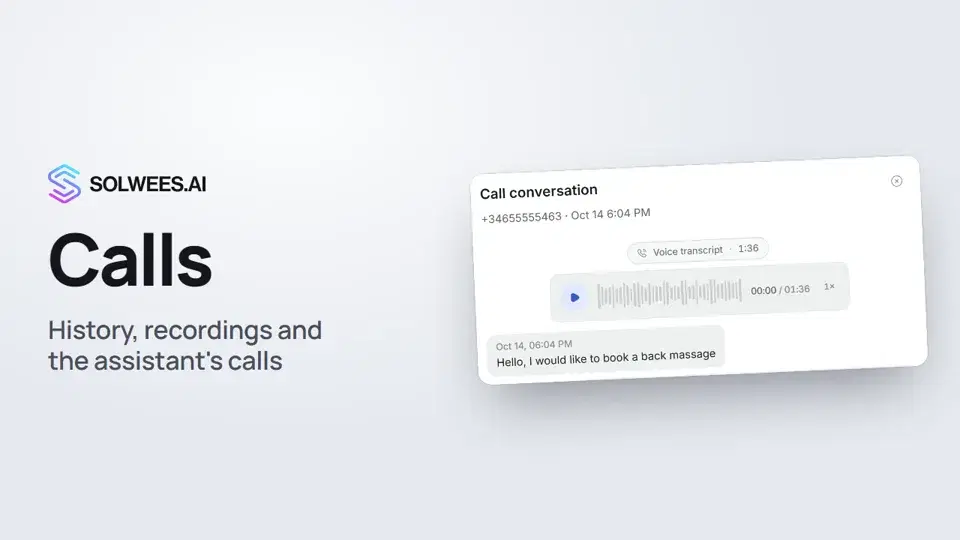 Calls: history, recordings, transcripts and the assistant's callsWhere to find every phone conversation of your AI receptionist in Solwees: call history, recordings, transcripts and scheduled calls with Call now and Cancel.1:11
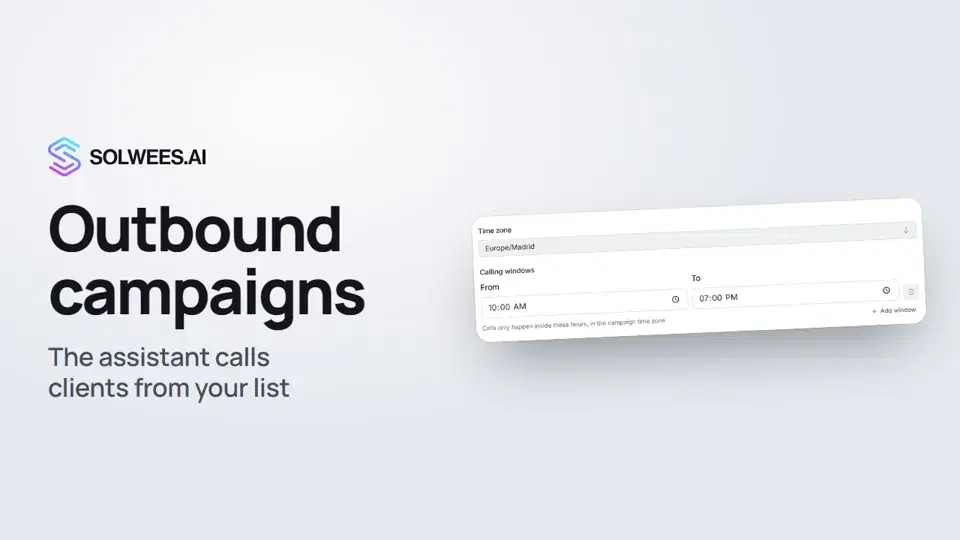 Outbound campaigns: the assistant calls clients from your listHow to run an outbound calling campaign in Solwees: upload a client file, set calling windows, pace and retries, pick a voice agent, then launch and pause it.1:43
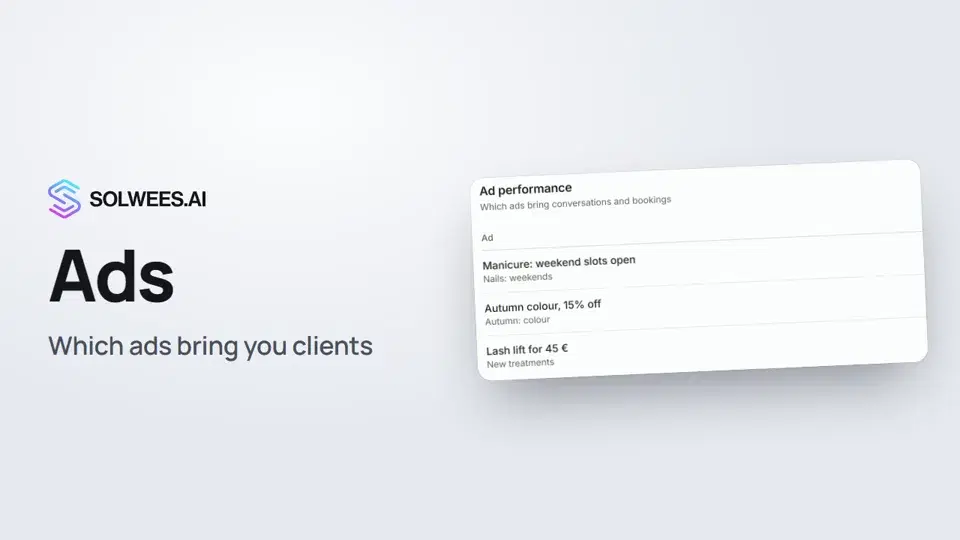 Ads: which ads bring you clientsHow to see in Solwees which Instagram, Facebook and WhatsApp ads bring you clients: the conversations, bookings and revenue from each ad, and where a chat shows which ad the client came from.1:14
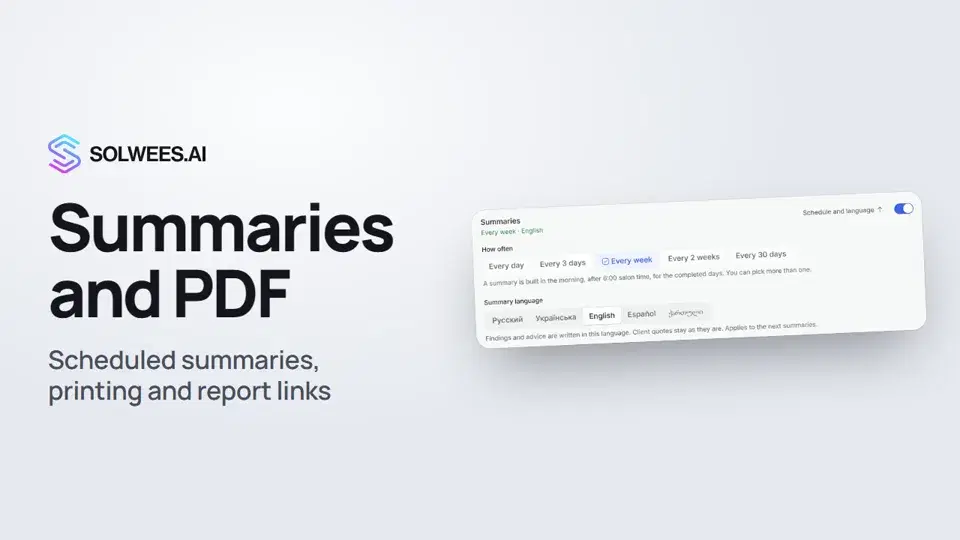 Conversation summaries, printing a report and a link to a report tabHow to get conversation summaries on a schedule in Solwees, pick their language, print a report or save it as a PDF, and send a colleague a link to the right report tab.1:08
Besoin d’aide ?
Demandez à Sola dans votre tableau de bord
Le bouton de l’assistant, dans le coin de chaque page du tableau de bord, connaît chaque réglage et vous montre où il se trouve.
Ouvrir le tableau de bord