
Deals: the board
Clients, affaires et tâchesMis à jour le 19 octobre 2026Vidéo 1:28Avec le module CRM et tâches
Ce guide est en anglais pour l’instant.
The Deals section lays out all your sales by pipeline stage, like a board with columns. You see at a glance which stage each client is at, how many deals each stage holds and for how much, which deals have an overdue task and where no next step is planned yet.
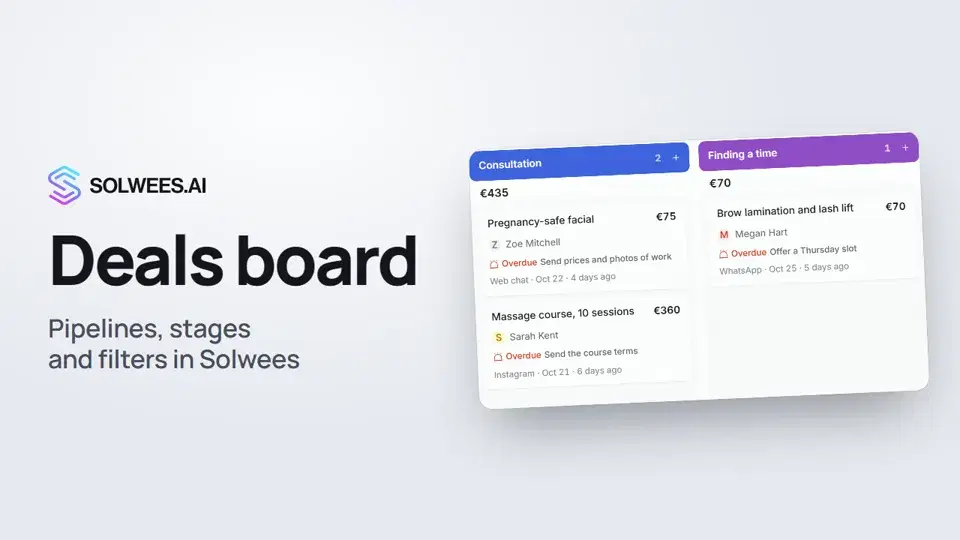
The section is part of the CRM and tasks module. If the module isn’t connected, the Deals page offers to connect it.
Where to find it
Open Deals in the left menu. Your main pipeline opens first: it’s marked with a star ★ in the pipeline switcher.
What’s on the board
| Element | What it shows |
|---|---|
| Next to the title | How many deals the pipeline has and their total amount (closed ones included) |
| Pipeline switcher | All your pipelines, the main one with a star |
| Columns | The pipeline’s stages in order. Above each column: the number of deals in the stage and their total |
| Deal card | Name and amount, client and owner, the next step (a task and its due time), unread messages, channel, expected close date and last activity |
| Closing columns on the right | The stages that close a deal (for example Paid and Lost). Their deals are hidden by default, the eye button shows them |
How deals get onto the board
- On their own. If the Solwees CRM app is connected in the App Directory (AI Agent → App Directory), a deal appears on its own as soon as a client writes in any connected channel. It lands in the first column of the main pipeline. A client has one open deal per pipeline: later messages are attached to it, and a new deal appears only once the previous one is closed.
- Quick deal. Click + above a column. Find the client by name or phone, or choose New client and enter a name and phone number. The name and amount are optional: without a name, the deal is named after the client. Click Create, and the deal appears in that column. All fields opens the full form. The first column has no plus: new enquiries land there on their own.
- New deal. The button in the top right opens the full form.
How to move a deal to another stage
- Grab the card and drag it to the right column.
- Let go: the deal moves to that stage straight away, and its history gets an entry.
While you drag a card, the closing stages, for example Paid and Lost, appear at the bottom of the board. Drop the card on one of them to close the deal. For a lost deal, Solwees asks for the reason, so you can later see why clients leave.
Filters
| Filter | What stays on the board |
|---|---|
| Overdue | Open deals with a task whose due time has passed |
| No next step | Open deals with no task planned |
| New messages | Deals where the client wrote and you haven’t read it yet |
| All assignees | One team member’s deals |
| All channels | Deals from one channel |
| Search | Deals by name, client name or phone |
The number next to a filter shows how many such deals the pipeline has. Of the first three filters, one is on at a time; the others can be combined. Reset clears all filters.
Saved filters
Turn on the filters you need, open Saved filters, type a name and click Save. Later, that set turns on with one click.
Saved filters are kept only in this browser: on another computer, in another browser or in a private window they won’t be there, and you need to save them again.
List view
The Board / List switch at the top shows the same deals as a table: stage, amount, next step, assignee, channel, activity and creation date. You can sort the table by name, amount, activity and creation date.
Tick several deals, and actions for all of them appear at the top: Move to stage, Assign an owner or Delete deal.
Tips
- Start your day with the Overdue and No next step filters: these are the deals that can slip away.
- You can reorder columns right on the board: drag a column header. The new order is saved to the pipeline settings too.
- Stages, names and colours of pipelines are changed in Manage pipelines (the gear icon next to the switcher). Pipeline automation next to it sets which stage a deal moves to on its own.
FAQ
Why don’t new deals appear on their own?
Check that the Solwees CRM app is connected in the App Directory. Deals appear in the main pipeline, the one with a star. If the client already has an open deal in that pipeline, the new message is attached to it.
How do I make another pipeline the main one?
In Manage pipelines, choose the pipeline and make it the default. The board will open on it, and new deals will land in it.
How many pipelines can I have?
Up to ten.
Where did a deal go after I moved it to Lost or Paid?
Closed deals are hidden in the closing columns on the right by default. Click the eye icon in the column header to show them, or switch to List view.
Transcription de la vidéo
Tout ce que dit le narrateur. Un repère lance la vidéo à ce moment.
What the deals board is and where to find it
The Deals section lays out your sales by stage: where each client is and how much money each stage holds. Open Deals in the left menu. Your main pipeline opens first, marked with a star. With the Solwees CRM app connected, new deals appear in the first column on their own as soon as a client writes.
Pipelines, stages and cards
You can have several pipelines, for example for treatments and for weddings. Switch between them here. Columns are stages. Above each: the deal count and total. On a card: the client and the next step.
Quick deal and moving between stages
The plus above a column opens a quick deal: find the client or add a new one. To move a deal to another stage, drag its card to the right column. Paid and Lost then appear at the bottom: that's how you close a deal.
Filters and saved filters
Overdue keeps the deals with a task past its due time, and No next step keeps the ones with no task planned. You can save a set of filters and turn it on with one click, but only in this browser.
List view
List view shows the same deals as a table: you can sort them and change several at once. Next, we'll open a deal card and see what's inside.
Cet article a-t-il répondu à votre question ?
Plus sur ce thème
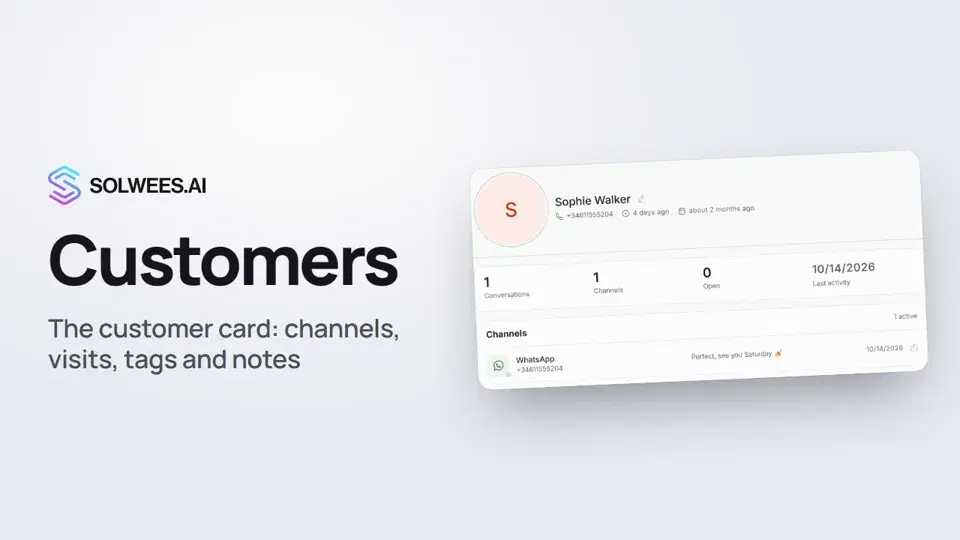 Customers and the customer cardHow to work with Customers in Solwees: finding a client, the card with channels and Start chat, details, the visit history from your CRM with the average per visit, tags and team notes.1:19
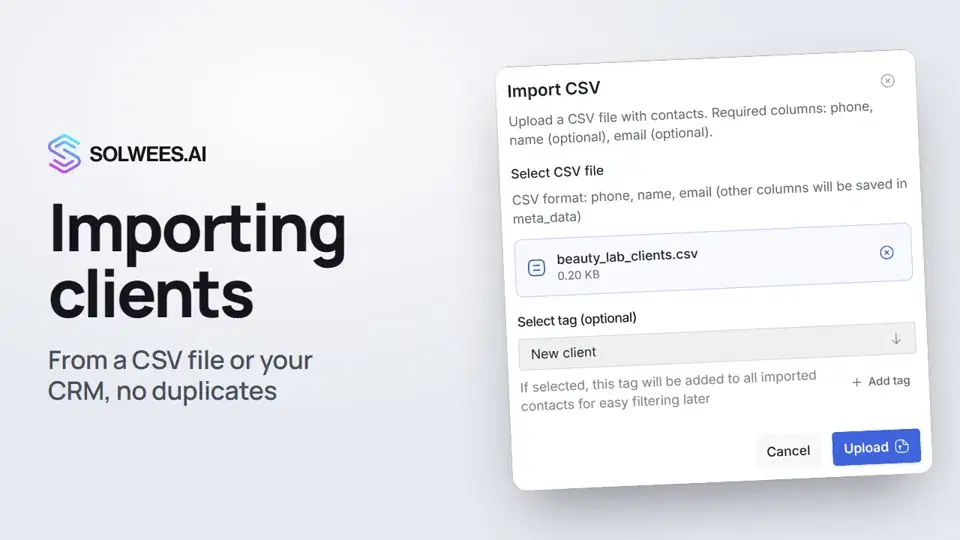 Importing clients: from a CSV file or from your CRMHow to bring your client base into Solwees: upload a CSV file with names, phones and emails, or pull clients with their visit history from a connected Altegio. Clients with the same phone are updated, never duplicated.0:57
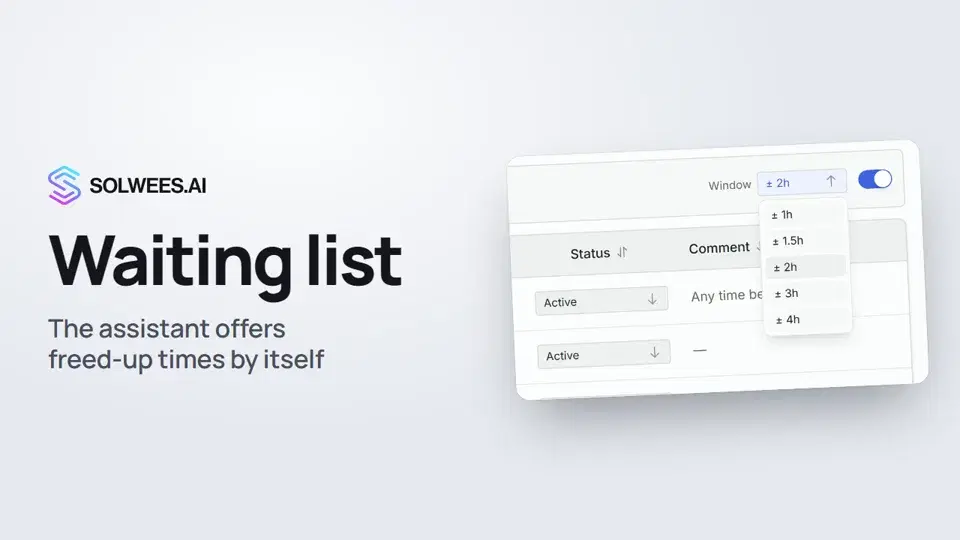 Waiting list: the assistant offers a freed-up time by itselfHow the waiting list works in Solwees: the assistant adds clients when the time they want is taken, and with AI auto-rebooking on it offers them a freed-up time by itself.0:54
 The deal card: stage, fields, activities and chat in one placeHow to work with a deal card in the Solwees CRM: move the deal to another stage, change the amount and your own fields, plan an activity, leave a note, message the client, open the chat and close the deal as won or lost.1:15
Besoin d’aide ?
Demandez à Sola dans votre tableau de bord
Le bouton de l’assistant, dans le coin de chaque page du tableau de bord, connaît chaque réglage et vous montre où il se trouve.
Ouvrir le tableau de bord