
Calendly and Cal.com: the assistant knows your clients' meetings
IntegrationenAktualisiert am 21. Oktober 2026Video 1:04
Diese Anleitung ist vorerst auf Englisch.
If your clients book with you through Calendly or Cal.com, connect your calendar to Solwees. Every new meeting, reschedule and cancellation reaches Solwees. The assistant knows the meeting date and time, the video call link and the client’s personal reschedule and cancel links, so in chat it answers “when is my meeting?” and “where is the link?” precisely. And every meeting becomes a task with a reminder.
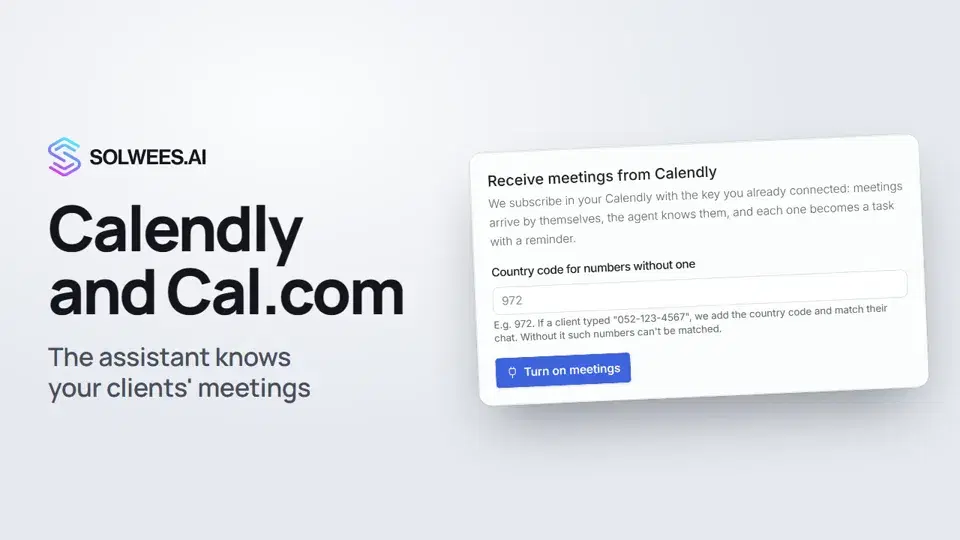
The assistant does not offer free times and does not book in these calendars itself: the client picks a time on your Calendly or Cal.com page.
Where to find it
Open AI Agent, choose App Directory and the Scheduling tab. There are two cards: Cal.com and Calendly.
Connecting Cal.com
- Click the Cal.com card. The Connection tab opens.
- In Country code for numbers without one, enter your country code without “+”, for example 34 for Spain. You can leave it empty if your clients always type their number with the country code.
- Click Connect. The Webhook URL and the Secret appear.
- Copy the secret right away: it is shown once. Lost it? Click Issue a new secret and paste the new one into Cal.com.
- In Cal.com, open Settings → Developer → Webhooks → New: - paste the webhook URL into Subscriber URL; - paste the secret into Secret; - under Event Triggers select Booking Created, Booking Rescheduled, Booking Cancelled, Booking Rejected, Booking Requested, Meeting Ended and Booking No-Show Updated.
- Save the webhook in Cal.com and press Ping test. The card in Solwees shows a “Ping test” event.
- In your Cal.com event type (Event Type → Advanced → Booking questions), make the phone field required.
The same steps are listed in the card itself, below the settings.
Connecting Calendly
You need a paid Calendly plan (Standard or higher): on the free plan Calendly sends no meeting events.
- Click the Calendly card and open the Connection tab.
- Paste your personal access token into Personal Access Token. You create it in Calendly: Integrations → API & Webhooks → Personal Access Tokens → Generate New Token.
- You can leave the other fields empty: Solwees fills them in by itself.
- Click Connect. A Meetings tab appears.
- On the Meetings tab, enter a country code if you need one and click Turn on meetings. Solwees subscribes in your Calendly with the same token, so there is no URL or secret to paste.
- In Calendly, add a required “Phone” question to your booking form (Event Type → Booking questions).
Settings after connecting
| Setting | What it does |
|---|---|
| Accept events | Turn it off and the calendar is refused: new meetings don’t reach Solwees |
| Country code for numbers without one | Added to numbers like “052-123-4567” so the client’s chat can be found |
| Your cal.com address | Only for a self-hosted Cal.com. Usually leave it empty |
| Create a task for every meeting | The meeting appears in Tasks with its time and link. A reschedule moves the task, a cancellation closes it |
| Remind before the meeting | When the task reminder arrives: 15 or 30 minutes, 1 or 2 hours, or 1 day before. 1 hour by default |
| Send our reminders and review requests | Off by default. Turn it on only if your calendar doesn’t remind clients itself, otherwise they get reminders twice |
After changes, click Save at the top of the card. The card also shows how many events arrived and what the last one was.
Tips
- Make the phone number a required field in your booking form. The assistant finds the client’s chat by it. Without a phone the meeting and the task still appear, but the assistant can’t link the meeting to the chat.
- Enter a country code if clients often type their number without it.
- After connecting, create a test booking in your calendar: it shows up in the card’s events within seconds.
- Meetings stopped arriving from Calendly? Open Meetings and click Refresh subscription.
FAQ
Does the assistant book clients in Calendly or Cal.com itself?
No. The client picks a time in your calendar. The assistant learns about the meeting once it is created and answers questions about it.
Can the assistant send a Calendly booking link?
Yes, if the agent works in the Sales role and Calendly is connected: it sends the client a single-use booking link, and the client picks the time.
What happens when a client reschedules or cancels?
A reschedule moves the task to the new time, a cancellation closes it. The assistant knows the new time or that the meeting was cancelled.
How do I disconnect the calendar?
Click Disconnect at the bottom of the card and confirm. The calendar can no longer send events; meetings already received stay.
Transkript des Videos
Alles, was der Sprecher sagt. Ein Zeitstempel spielt das Video ab dieser Stelle ab.
What connecting gives you and where to find it
Do your clients book through Calendly or Cal.com? Connect your calendar, and the assistant will know their meetings. Go to the AI Agent section, choose App Directory and the Scheduling tab.
Connecting Cal.com
For Cal.com, open the card, enter your country code and click Connect. Copy the URL and the secret into your Cal.com webhook settings. The steps are listed below. Every meeting becomes a task with a reminder, and the assistant tells clients when their meeting is and where the link is.
Connecting Calendly and turning on meetings
Calendly needs a paid plan. Paste your personal access token and click Connect. Then, on the Meetings tab, click Turn on meetings. No URL or secret needed here.
Tip: the phone number in your booking form
Tip: make the phone number a required field in your booking form. That's how the assistant finds the client's chat. Done. Next: team and access.
Hat das Ihre Frage beantwortet?
Mehr zu diesem Thema
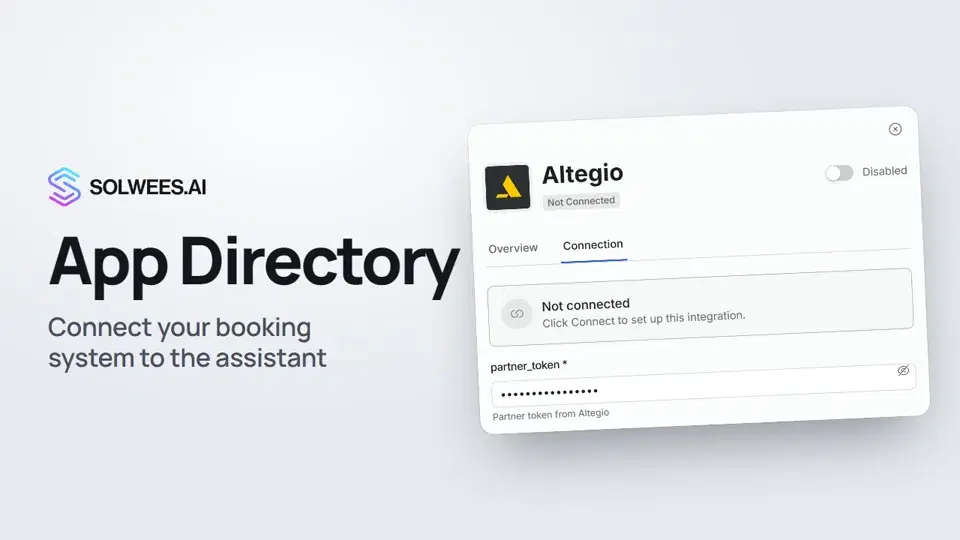 App Directory: connect your booking system, CRM and paymentsWhere to find the App Directory in Solwees and how to connect a booking system, CRM or payments to your AI receptionist: tabs, search, the integration card and the Connect button.1:06
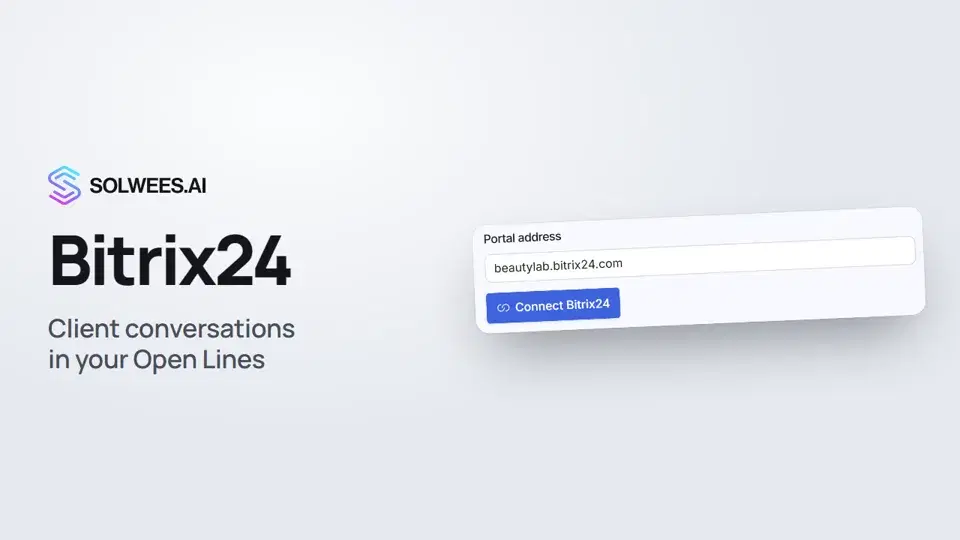 Bitrix24: client conversations in your Open LinesHow to connect your Bitrix24 portal to Solwees so the AI receptionist's conversations with clients go to your Open Lines: the portal address, confirming access on the portal, the agent's line and the No agent tab.1:03
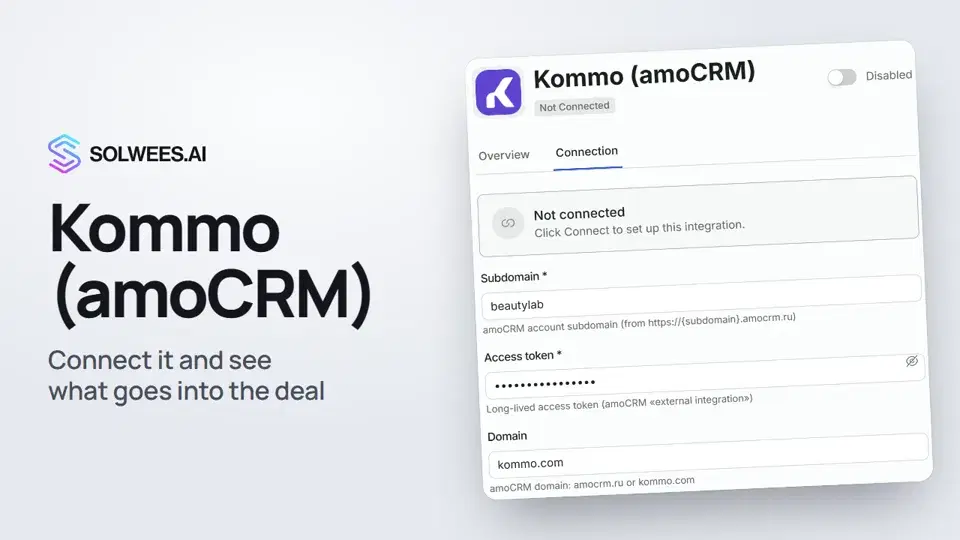 Kommo (amoCRM): how to connect it and what goes into the dealHow to connect Kommo (amoCRM) to your Solwees AI assistant: subdomain, long-lived token and domain, what the assistant sends into the deal and which assistant role it takes.1:19
 Restaurant bookings: connecting SevenRooms, OpenTable and CoverManagerHow to connect your restaurant booking system to the Solwees AI receptionist: SevenRooms and CoverManager connect in the App Directory, OpenTable is switched on by support. Once connected, the assistant checks for free tables and books right in your system.1:21
Noch Fragen?
Fragen Sie Sola im Dashboard
Der Assistent-Button in der Ecke jeder Dashboard-Seite kennt jede Einstellung und zeigt, wo sie ist.
Dashboard öffnenAn den Support schreiben
Unter support@solwees.ai antwortet ein Mensch aus unserem Team.
support@solwees.ai