
Quick replies and notes: what the chat input can do
ChatsUpdated 19 October 2026Video 1:23
Under the input field of every chat there is a toolbar. It helps your team answer faster: insert ready text by its shortcut, write a note for the team, bring in a teammate, record a voice message and send photos from your knowledge base.
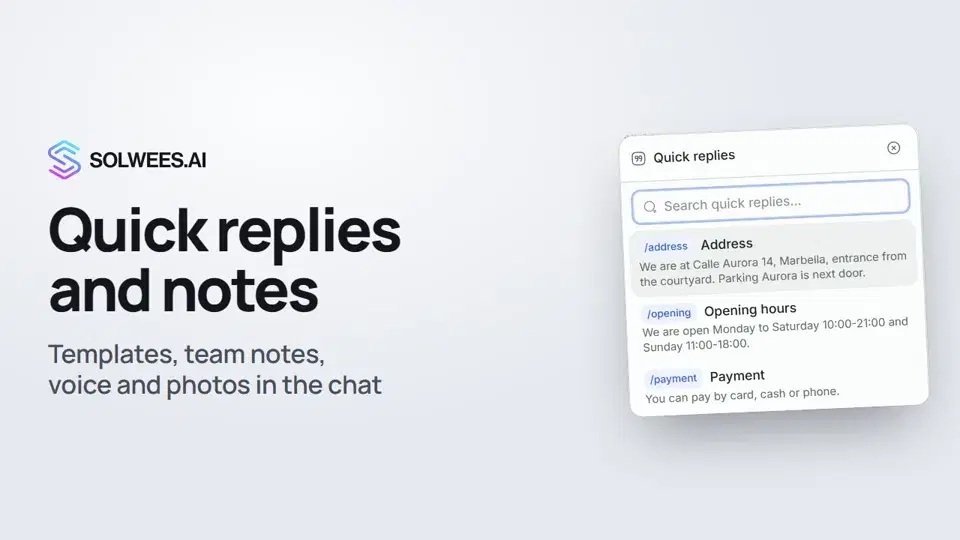
Where to find it
Open Chats and pick a client’s chat. The tools sit on the bar under the input field. If the conversation is closed and there is no open one, the input field is not shown.
The buttons under the input field
| Button | What it does |
|---|---|
| Emoji | Inserts an emoji where the cursor is |
| Internal note | Switches the field to the yellow note mode: only your team sees it |
| Attach file | Attaches PDF, JPG and PNG files, up to 20 MB each, up to 5 at a time |
| Photo from knowledge base | Opens your knowledge base photos to tick and attach |
| Quick replies | Opens the list of ready templates with search |
| Microphone | Records a voice message |
Quick replies
A quick reply is ready text that goes into the field in one step: your opening hours, address or cancellation terms, for example.
By shortcut. In an empty field type «/» and the template shortcut, for example /opening, and press Enter (or Tab). The template text replaces the shortcut in the field. You can edit it before you send.
From the list. Click the Quick replies button under the field. The list shows the shortcut, title and the start of the text, with a search box on top that looks through all three. Click a template and it goes in where the cursor is.
How to create a template
- Open Settings, section Quick replies. The Manage quick replies link at the bottom of the list in a chat leads there too.
- Click New template.
- Fill in the Title and Message. The Shortcut is optional, but with it the template goes in with «/».
- Click Save.
Each template has edit and delete buttons. If there are no templates yet, Add examples creates three samples you can edit.
The owner and administrators can create and change templates. Anyone on the team who answers clients can use them in chats.
Internal note
Click the note button and the field turns yellow. Write your text and send it as usual.
- Only your team sees the note in this chat. It never reaches the client in any channel.
- A note does not take the chat from the assistant: it keeps answering the client as before.
- To delete a note, hover over it, click the bin on its left and confirm.
Mentioning a teammate
Type «@» and pick a teammate from the list (you can narrow it by typing the start of their username). Their username goes into the text, for example @grace.en. Once you send, your teammate gets a notification.
Mention teammates in notes. A mention works in a normal message too, but then the text with «@» goes to the client.
Voice message
Click the microphone and speak. While recording you see a timer and a live sound wave. The arrow stops the recording and sends the voice message to the client right away, as a separate message. The bin cancels the recording without sending anything. One recording can last up to 5 minutes.
Your browser will ask for microphone access. If there is no microphone button, the browser cannot record sound.
Photos from the knowledge base
Click the picture button. It opens the photos from Knowledge base → Images, which you can filter by folder or search. Tick the ones you need (up to 5) and click Attach. The photos go into your message, you can add text and send. Each photo goes as a separate message, and the text goes with the first one.
Tips
- Quick replies are for your team. The assistant doesn’t use them: it answers from your business profile and knowledge base. If you want the assistant to give the same answer, add that information to the profile or the knowledge base.
- Give templates short shortcuts that are easy to remember:
address,opening,cancellation. - Check the shortcut before you press Enter: if there is no such shortcut, Enter sends the typed text to the client as it is. Tab sends nothing in that case.
- Don’t record a voice message in note mode: it still goes to the client, not to the team.
FAQ
Does the assistant hand the chat over to me when I start typing?
No. The chat moves to you when you send a message to the client. Typing and inserting a template send nothing, and a note doesn’t take the chat either.
Will I lose unfinished text if I switch to another chat?
No. The draft is kept for each client in this browser, and the chat list shows it marked «Draft».
Does the client see a note or a mention in it?
No. A note stays inside your team and never goes to the client.
Video transcript
Everything the narrator says. A time code plays the video from that moment.
What's in the chat input
To answer clients faster, the chat has quick replies, notes for your team, voice messages and photos from your knowledge base. Open a chat in Chats. The tools sit on the bar under the input field.
Quick replies with a slash and the list
Type «/» and a template shortcut, for example «/opening», and press Enter. The ready text drops into the field, and you can edit it. Can't remember the shortcut? Click the quick replies button and pick a template from the list.
Where to set up quick replies
Templates are set up in Settings, under Quick replies: a title, a shortcut and the message text. Quick replies are for your team. The assistant doesn't use them, it answers from your business profile and knowledge base.
Notes and mentioning a teammate
The note button turns the field yellow. Only your team sees a note: it never reaches the client, and the chat stays with the assistant. To bring in a teammate, type «@» and pick a name. Your teammate gets a notification.
Voice messages and knowledge base photos
The microphone records a voice message. The arrow sends it to the client right away, and the bin cancels the recording. The picture button opens photos from your knowledge base: tick the ones you need and click Attach. Done. Next, we'll show how to message a client first.
Did this answer your question?
More in this topic
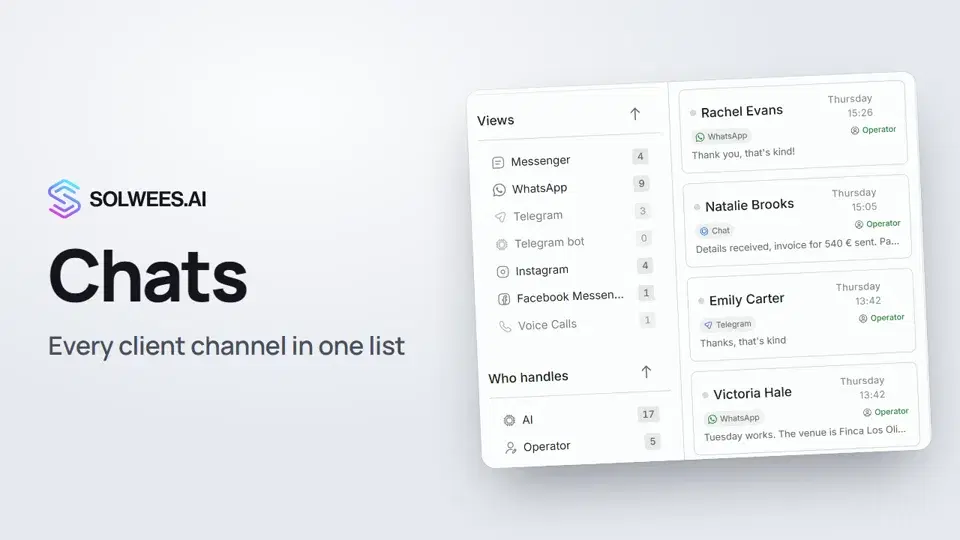 Chats: every channel in one placeHow to work with Chats in Solwees: folders, the channel and Who handles filters, search, status, sorting and opening a conversation with the client card.1:35
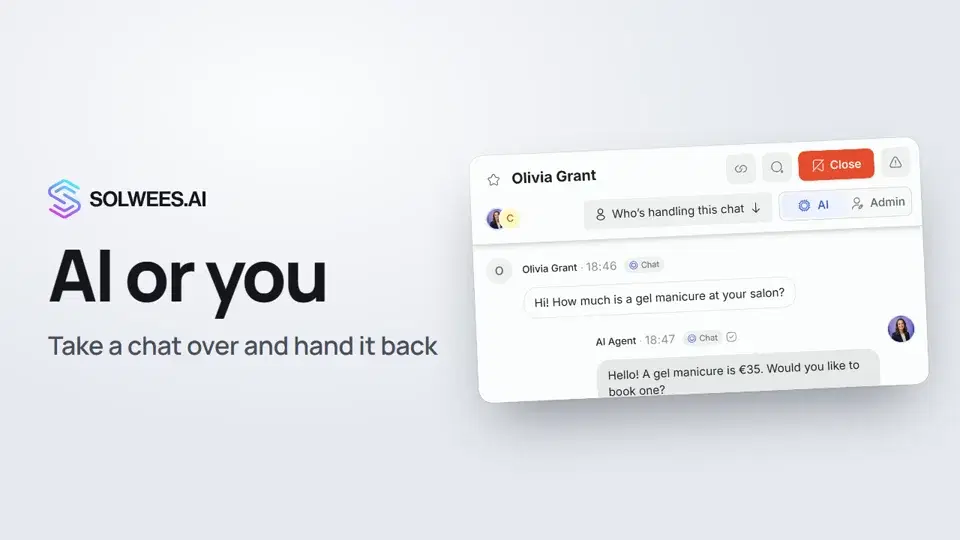 AI or you: taking a chat over from the assistant and handing it backHow to answer a client yourself instead of the Solwees AI receptionist and hand the chat back: the AI and Admin switch in the chat header, assigning a teammate and internal notes.1:13
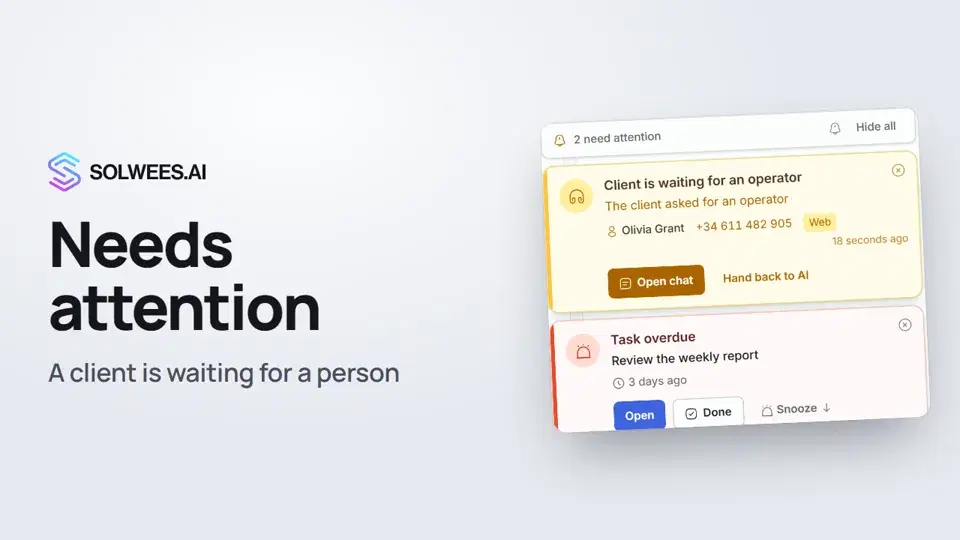 Needs attention: when a client is waiting for a personWhat to do when the Solwees AI receptionist calls for a person: the Needs attention panel, the Client is waiting for an operator card, replying, handing back to AI and task reminders.1:14
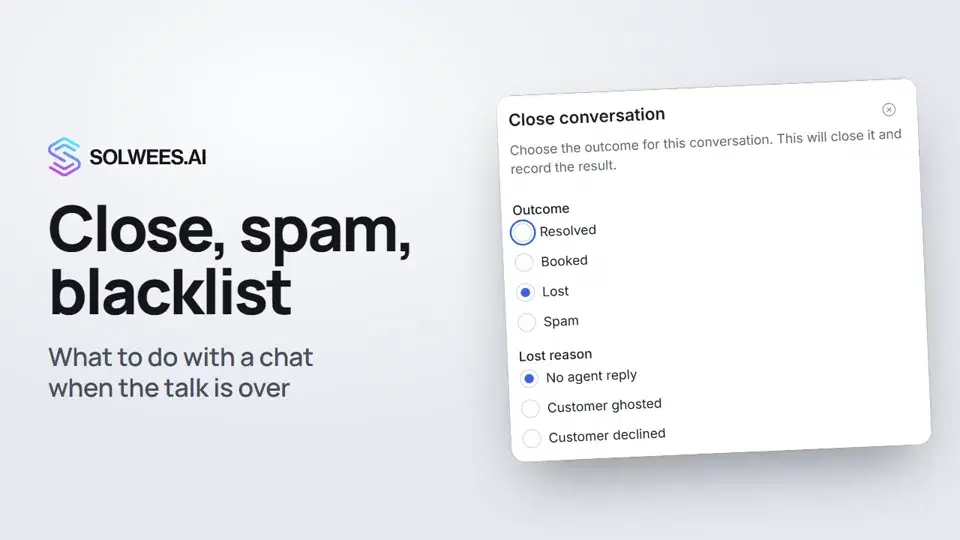 Close a chat, spam and blacklistHow to close a chat in Solwees and record the outcome, send a spammer to the Spam folder, block a client with the blacklist and merge two contacts of the same person.1:25
Still need help?
Ask Sola in your dashboard
The assistant button in the corner of any dashboard page knows every setting and shows you where it is.
Open the dashboard