
Customers and the customer card
Clients, deals and tasksUpdated 18 October 2026Video 1:19
Customers holds all your clients: people who messaged or called you and clients you imported from a file or your CRM. Every client has a card with their channels, details, visit history, tags and your team’s notes.
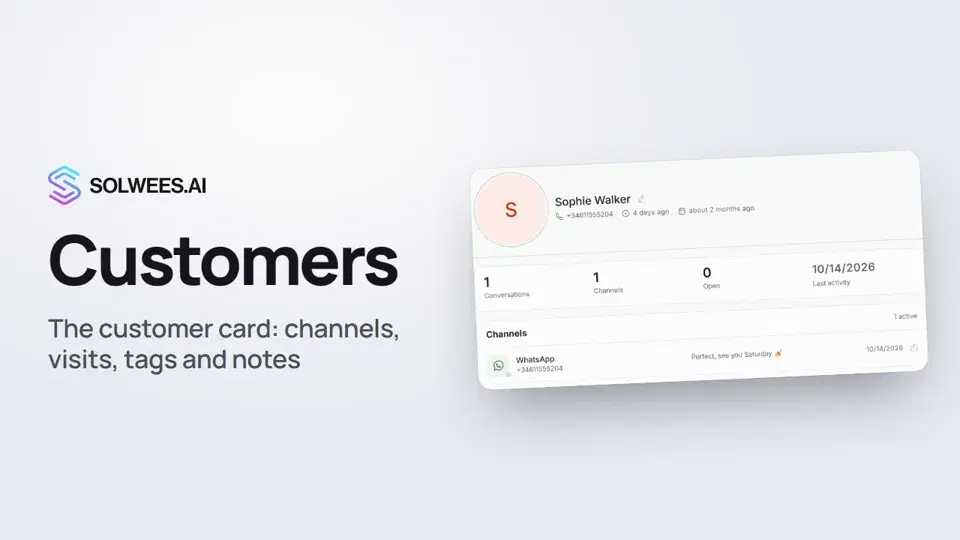
Where to find it
Open Customers in the left menu. The table shows the name, email, phone, bookings, last seen, sign-up date and last contact. Bookings and Last Seen come from the visits in your CRM; for a client who isn’t in the CRM, Last Seen shows their latest activity in a conversation.
Finding a client
Search by name, phone or email. The phone number can be typed in any format. Click the client’s row to open their card.
What’s on the card
| Block | What it shows | What you can do |
|---|---|---|
| Channels | Where the client has messaged you (WhatsApp, Instagram, Telegram, website chat, calls) and where there’s no conversation yet | Click a channel with a conversation to open it in Chats; add a phone or username by hand; Start chat |
| Visit history | Visits from your CRM: service, date and time, staff member, amount and status. The header shows the number of visits and the average per visit | View only |
| Details | Name, email, phone, second phone, external id, note; country, city, language, birthday, company; source and activity dates | Edit your own fields right on the card |
| Tags | Client labels, for example Regular or VIP | Add or remove a tag |
| Notes | Your team’s internal notes from every chat with this client | Click a note to open it in the chat |
How to edit a field
- Click the value in Details (or the pencil that appears on hover).
- Type the new value.
- Click the check mark or press Enter (in the Note field Enter adds a new line, Ctrl+Enter saves). To cancel, click the cross or press Esc.
An empty field works the same way: click the dash.
Writing to a client first
In Channels, on a channel with no conversation yet, click Start chat. The New chat window opens: choose the account, find the client and write your message. You can start a chat in WhatsApp and Telegram. In WhatsApp, when there’s no open conversation with the client, the first message is sent as a ready-made greeting template; once the client replies, you can write freely.
Tags
Click + in Tags, tick a tag or type the name of a new one and create it. A tag is saved as soon as you tick it. To edit the list of all tags, use the Manage Tags link in the same window.
CRM data is read-only
If your clients came from your CRM, some data on the card can’t be changed here:
- Discount and Spent under About the client;
- Visit history and the average per visit;
- the Imported data block (marked “from the CRM, read-only”).
Change them in the CRM itself: the card updates with your next import from the CRM. Messenger usernames are edited in the Channels card, and activity dates fill in by themselves.
Tips
- The average per visit counts only visits that took place: cancellations and no-shows are left out.
- Use the Note field in Details for things any admin should know: preferences, agreements, special requests.
- Internal notes are written in the chat with the client (Internal note mode). The client never sees them, and they show up in the card’s Notes block.
- Tags make it easy to mark regulars, VIPs or clients with allergies, so the whole team sees it at once.
FAQ
Why is the visit history empty?
Visits appear after you import clients from your CRM. If there was no import yet or the client isn’t in the CRM, the block stays empty.
Can I change a client’s discount in Solwees?
No. The discount and the amount spent come from your CRM and are changed there.
What happens when I click a channel?
The conversation with the client in that channel opens in Chats.
How do I bring clients in from a CRM or a file?
Use the Import and Import from CRM buttons above the client list. See the article “Importing clients”.
Video transcript
Everything the narrator says. A time code plays the video from that moment.
Customers and search
Customers keeps all your clients in one list, and every client has a detailed card. Open Customers in the left menu. The table shows the phone, bookings and when the client was last seen. Search by name, phone or email, then click the client to open their card.
Channels and Start chat
The Channels card shows where the client has messaged you. Click a channel to open the conversation. Where there's no conversation yet, Start chat opens a new chat: pick the client and write first.
Details, visit history and CRM data
Details are on the right. Click a field, type the value and save it with the check mark. Visit history comes from your CRM: services, staff and amounts, with the average per visit at the top. Discount, amount spent and visits from the CRM are read-only here. Change them in the CRM itself.
Tags and notes
Add tags with the plus button: tick one or create a new one. Notes collects your team's notes from every chat with this client. How to bring clients in from a CRM or a file, we show in the next video, Importing clients.
Did this answer your question?
More in this topic
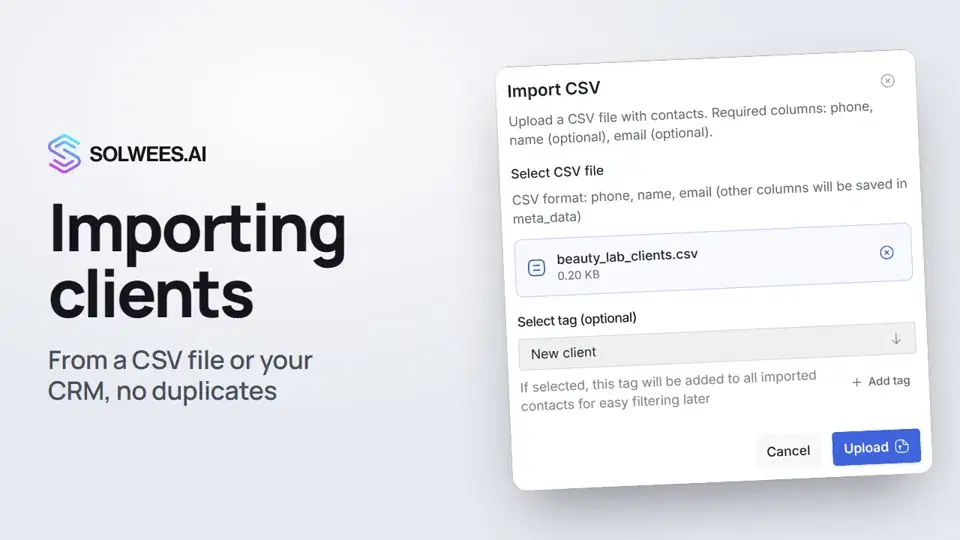 Importing clients: from a CSV file or from your CRMHow to bring your client base into Solwees: upload a CSV file with names, phones and emails, or pull clients with their visit history from a connected Altegio. Clients with the same phone are updated, never duplicated.0:57
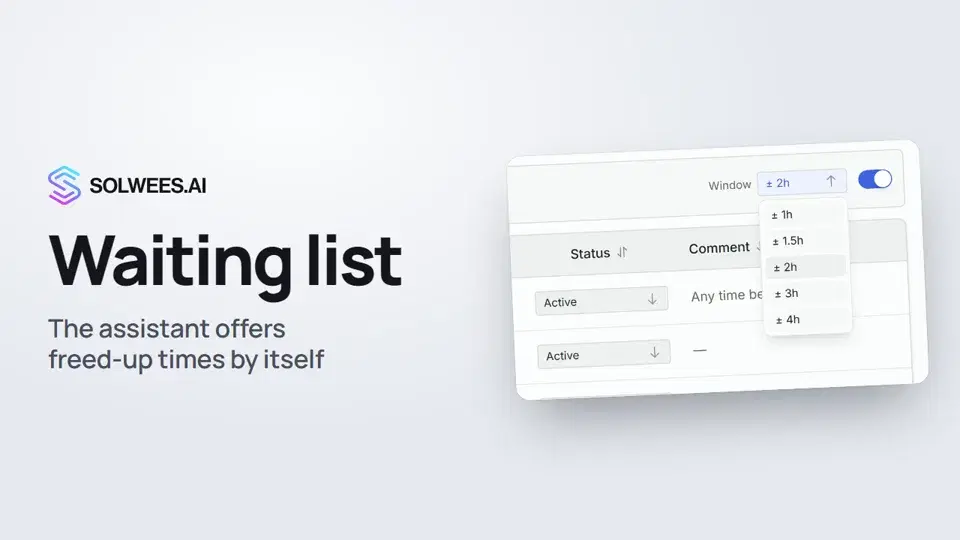 Waiting list: the assistant offers a freed-up time by itselfHow the waiting list works in Solwees: the assistant adds clients when the time they want is taken, and with AI auto-rebooking on it offers them a freed-up time by itself.0:54
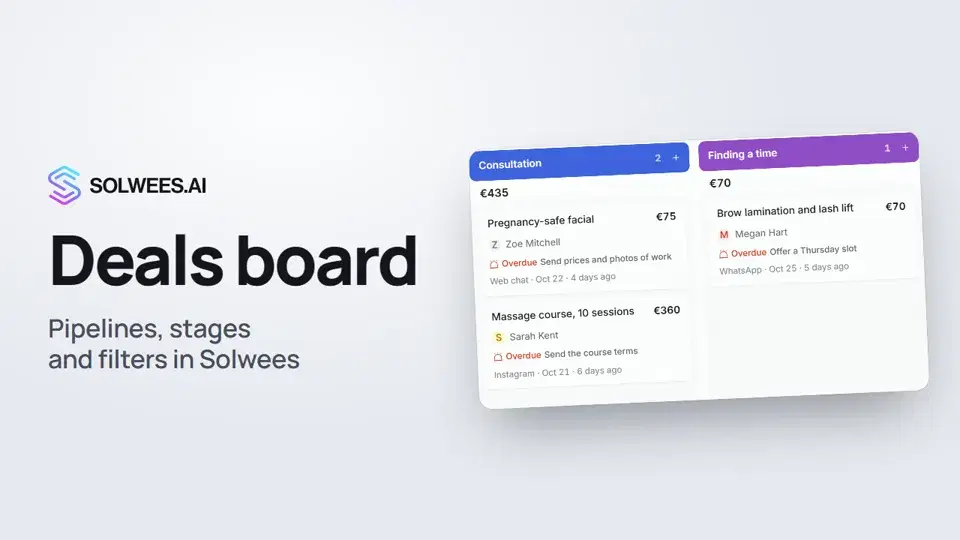 Deals: the boardHow to work with the deals board in Solwees: switch pipelines, add a quick deal, drag cards between stages, find overdue deals and view them as a list.1:28
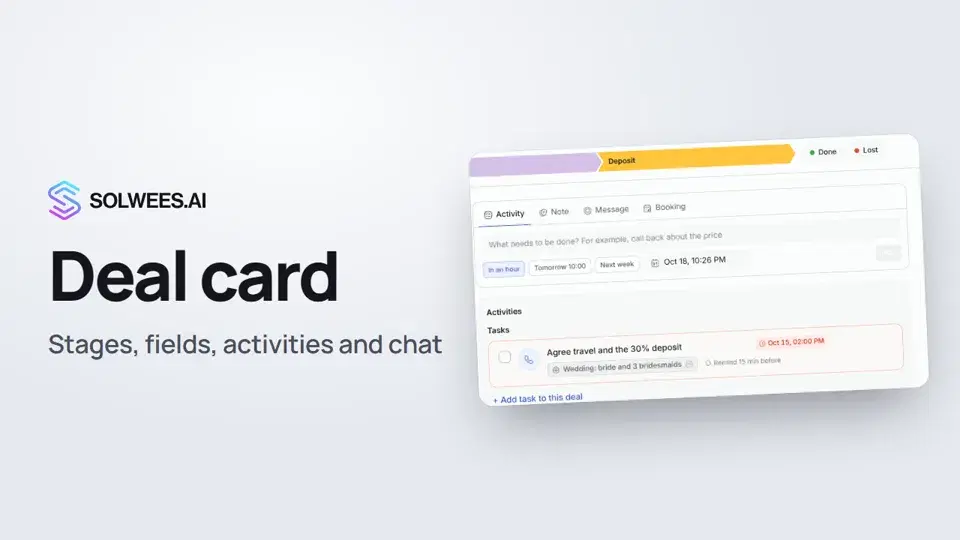 The deal card: stage, fields, activities and chat in one placeHow to work with a deal card in the Solwees CRM: move the deal to another stage, change the amount and your own fields, plan an activity, leave a note, message the client, open the chat and close the deal as won or lost.1:15
Still need help?
Ask Sola in your dashboard
The assistant button in the corner of any dashboard page knows every setting and shows you where it is.
Open the dashboard