
Broadcasts: how to message clients in WhatsApp and Telegram
Marketing and promotionsUpdated 19 October 2026Video 1:26With the Campaigns module
A broadcast is a message you send yourself to many clients at once, for example about a promotion, a new service or free slots. In Solwees, broadcasts go out in WhatsApp (as a template) and in Telegram (as plain text). Everything for them is on the Marketing page.
Where to find it
Open Marketing in the left menu. The broadcast buttons are at the top of the page:
| Button | What it does |
|---|---|
| Campaign analytics | Opens Reports → Campaigns: the numbers for auto campaigns |
| Broadcasts | The history of manual broadcasts and what happened to each message |
| WhatsApp templates | Your templates and a new one |
| Client groups | Groups by conditions and broadcasts to a group |
| Send template | A manual broadcast to the clients you pick |
The broadcast buttons appear once the Campaigns module is on. Without it, only Campaign analytics is shown.
Client groups
A group gathers the clients worth writing to: for example, clients not seen for 60+ days, regulars with 5+ visits, or everyone who had a colouring in the last six months.
- A group keeps conditions, not a list. It is recounted every time you open it, and new clients who match join it on their own.
- The table shows Why in the group for each client, plus the last visit, amount spent, last service and birthday.
- You can add or remove a client by hand. A client added by hand gets the broadcast only if they can be reached in the group’s channel and are not on the stop list.
- Send campaign writes to the whole group. The Campaigns tab in the same window shows how many messages to the group were sent, delivered and read, and how many clients replied and booked.
How to send a template
- Click Send template.
- Choose the channel: WhatsApp or Telegram.
- Pick the recipients: clients who wrote in this channel, any contact with a phone number, or type numbers by hand (WhatsApp only).
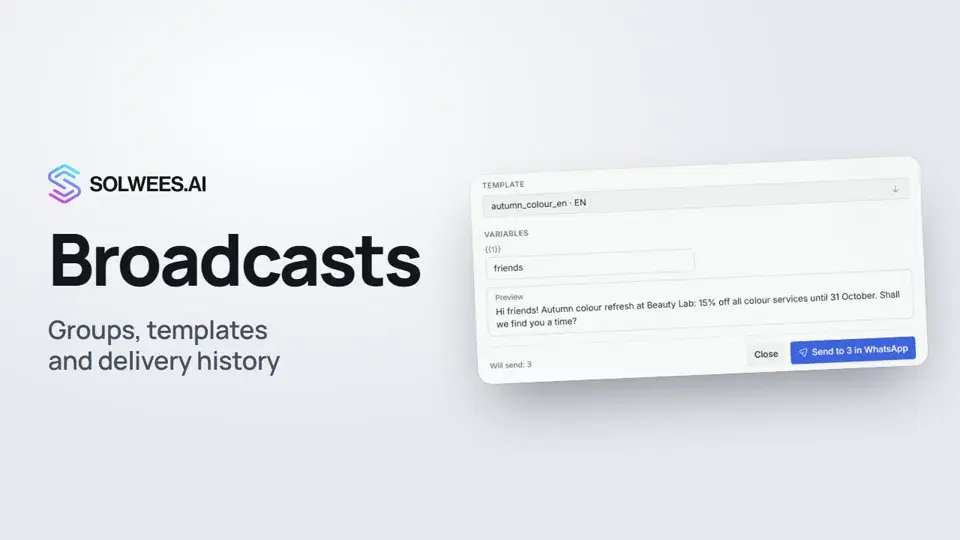
- For WhatsApp, choose a template. If it has variables, fill them in: a preview appears below, showing what the client will get. For Telegram, just write the text.
- Check the number of recipients at the bottom of the window and click the send button.
Sending runs in the background: you can close the window and follow the progress in the history.
Broadcast history
Broadcasts opens every manual broadcast. For each one you see the number of recipients and how many messages were delivered, read and not delivered. The recipient list can be filtered by outcome.
The last three broadcasts are also shown right on the Marketing page, in the card on the right.
Campaign analytics
Campaign analytics opens the Campaigns tab in Reports. It shows the auto campaigns (visit reminders, booking messages, Google reviews, reactivation, follow-up after a dropped call): how many messages were sent, what share was delivered, how many clients replied, activity by day and by campaign. For manual broadcasts, use the Broadcasts history; for group broadcasts, the Campaigns tab of the Client groups window.
Tips
- WhatsApp connected via Meta needs a template approved by Meta. While a template is under review, it is not in the list. A number connected by QR code needs no approval.
- Variables in Send template are the same for every recipient. If the template contains the client’s name, send it to a group via Client groups → Send campaign: there each client’s own name is filled in.
- Group broadcasts are never sent at night: if the time falls at night, sending moves to the salon’s daytime (9:00 to 21:00).
- A client gets a group broadcast at most once every three days, even if the group has no such condition.
- In Telegram, only clients who have written to your bot themselves receive the broadcast.
FAQ
Why is my template not in the list?
For WhatsApp via Meta, the list shows approved templates only. Check the status in WhatsApp templates. Approval usually takes from 1 to 24 hours.
A message says “Unconfirmed” in the history. Is that an error?
No. WhatsApp accepted the message but has not confirmed delivery yet. The confirmation usually arrives within seconds or minutes.
Can I schedule a broadcast?
Yes, for a group broadcast: choose Schedule and set the time. A manual broadcast from Send template goes out right away.
Who can help me prepare a broadcast?
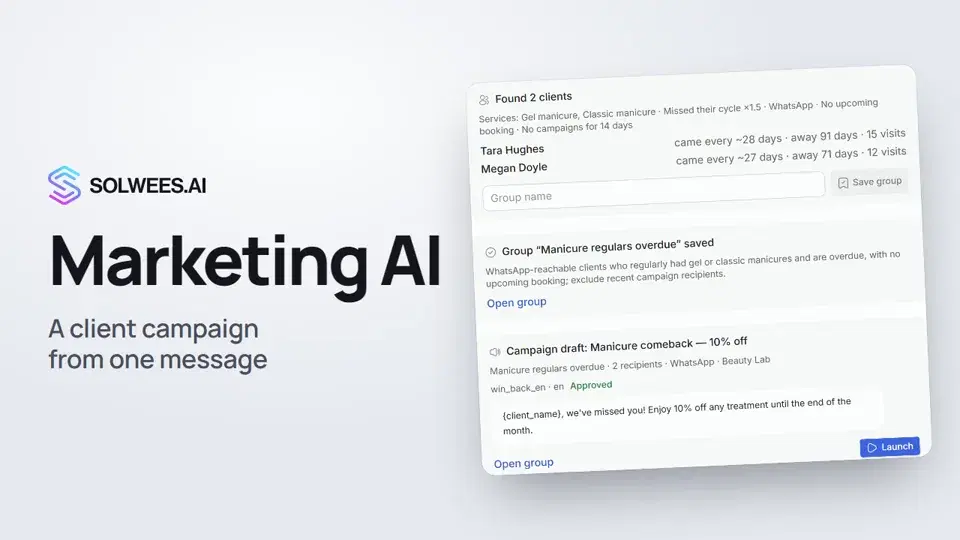
The chat on the left of the Marketing page, Solwees Marketing AI: it finds the clients, builds the group and prepares a draft. You launch the broadcast yourself.
Video transcript
Everything the narrator says. A time code plays the video from that moment.
What broadcasts are and where to find them
Broadcasts are messages you send to clients yourself in WhatsApp or Telegram, for example about a promotion. Open Marketing in the left menu. Everything for broadcasts is in the buttons at the top.
Client groups
In Client groups, gather who to write to: for example, clients you haven't seen for over 60 days. The table shows why each client is in the group. New clients who match join it on their own.
Send template
To message clients, click Send template and choose the channel: WhatsApp or Telegram. Pick the recipients, choose a template and fill in the variables. Below, you see what the client gets.
Meta-approved templates and sending
WhatsApp via Meta needs a template approved by Meta. A number connected by QR code needs no approval. The button at the bottom starts sending. It runs in the background, so you can close the window.
Broadcast history and analytics
Broadcasts holds the history: for each one, you see who got the message, who read it and who didn't receive it. Campaign analytics opens the report on auto campaigns: how many messages went out, arrived and got replies. Done. You can also prepare a broadcast in the chat on the left, Solwees Marketing AI. More on it in the next video.
Did this answer your question?
More in this topic
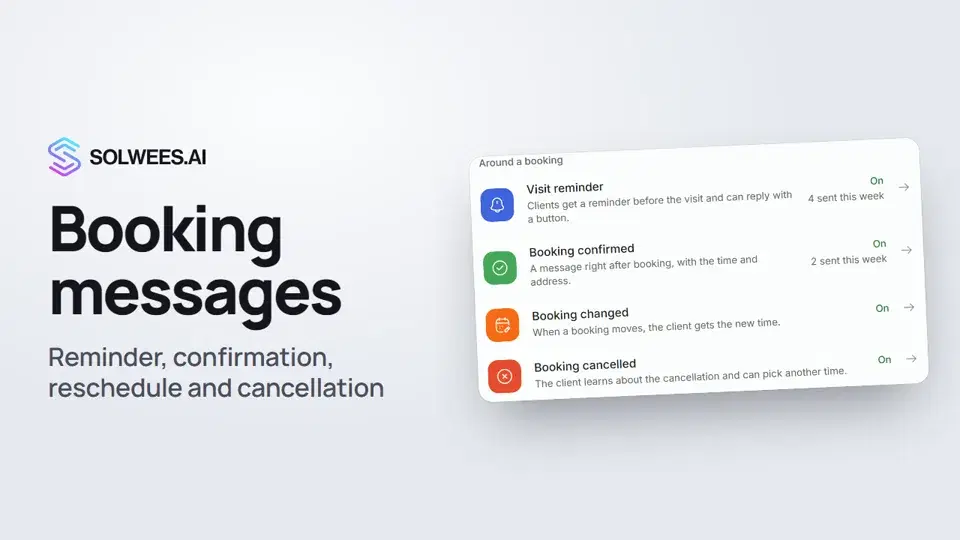 Booking messages: reminder, confirmation, reschedule and cancellationHow to turn on automatic booking messages in Solwees: the visit reminder, booking confirmed, changed and cancelled, and where they are sent.1:27
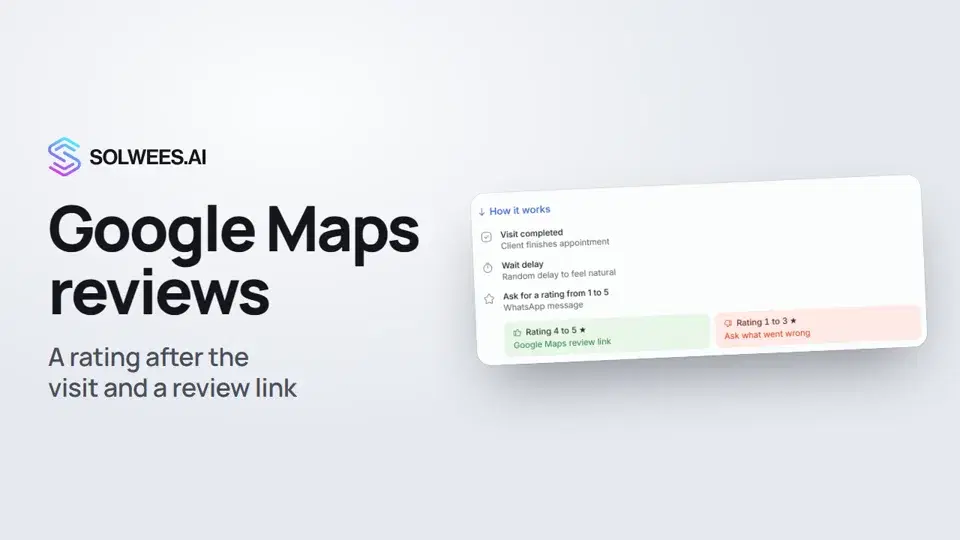 Google Maps reviews: a rating after the visit and a review linkHow to set up the after-visit rating request in Solwees: happy clients get a link to review you on Google Maps, unhappy ones are asked what went wrong.0:54
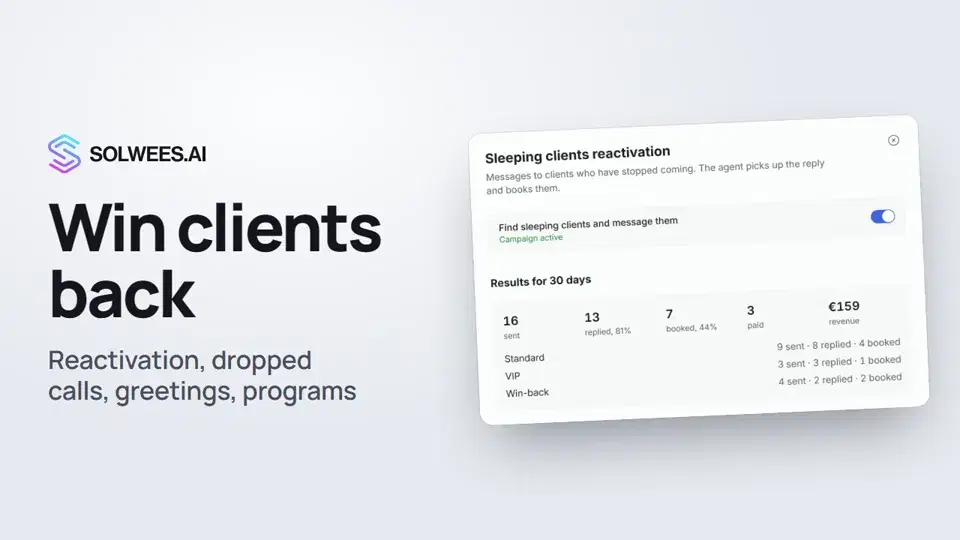 Winning clients back: reactivation, call follow-up, greetings and programsHow to win clients back with Solwees: sleeping clients reactivation, a follow-up after a dropped call, birthday and holiday greetings, and retention programs after a visit.1:36
 Solwees Marketing AI: the assistant that prepares your campaignsHow to ask Solwees Marketing AI to prepare a campaign: the assistant finds clients in your base, saves a group and prepares a draft, and you launch it.1:14
Still need help?
Ask Sola in your dashboard
The assistant button in the corner of any dashboard page knows every setting and shows you where it is.
Open the dashboard