
Business profile: what the assistant knows about your company
AI assistant and knowledge baseUpdated 18 October 2026Video 1:35On every plan except Hub
Your business profile is the information the assistant relies on in every conversation: your name, address, working hours, contacts, and the assistant’s own name and tone. The more complete it is, the more accurately the assistant answers clients and the less often it hands questions over to you.
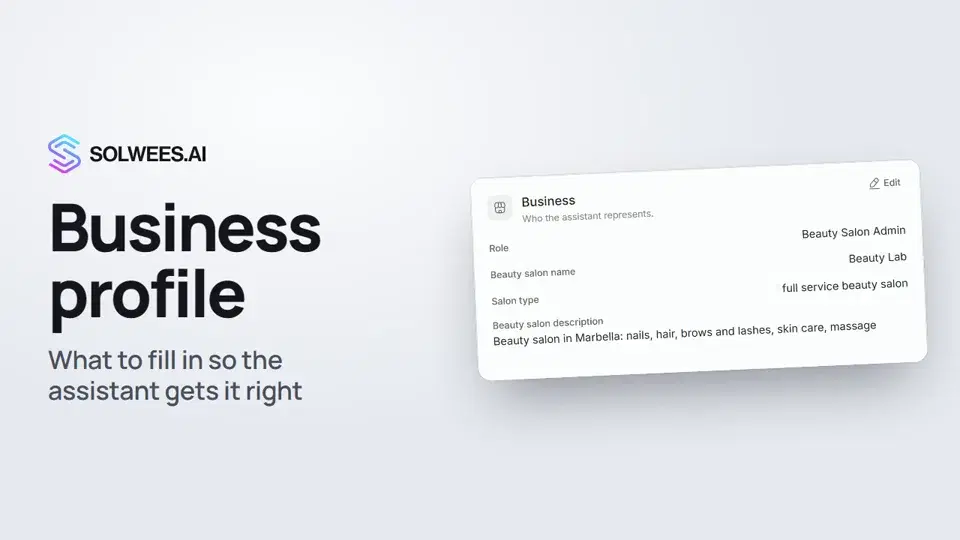
Where to find it
Open the AI Agent section and choose Business Profile. Only the name is required, you can fill in the rest later.
What’s in the profile
| Card | What to fill in | How the assistant uses it |
|---|---|---|
| Business | What you do, your name, a short description | Introduces your company and answers “what do you do” |
| Language | Greeting language and which languages to reply in | Greets in your language, then talks in the client’s language |
| How clients reach you | Phone, email, website | Shares your contacts when a client asks |
| Location & directions | Address, map link, a hint about the entrance | Explains how to get there and sends the map link |
| Working hours | Days and hours, days off | Offers booking times within these hours and tells clients when you’re closed |
| Assistant persona | Name, job title, tone of voice | How the assistant introduces itself and sounds |
| Advanced settings | Fine-tuning: handing over to a person, currency, booking rules, deposit and more | Adjusts behaviour in special cases |
The cards under Advanced settings depend on your type of business. Usually you can leave them as they are.
How to change a card
- Click Edit on the card.
- Make your changes.
- Click Update.
To change everything at once, click Edit all above the cards.
Tips
- Write the description the way you’d explain it to a client on the phone: what you do, where, and for whom.
- Add a landmark to the address, for example “entrance from the courtyard”. The assistant passes it on to clients.
- A map link saves messages: the assistant sends it when someone asks how to get there.
- Turn days off in Working hours. The assistant then won’t offer bookings on those days and tells clients you’re closed.
- After any change, try the assistant in the test chat: ask for your address or opening hours.
Can’t find a field?
Click the Sola button in the bottom right corner and ask, for example, “Where do I change the opening hours?”. Sola tells you where the setting is, and the Show button opens the right card and highlights it.
FAQ
Do I have to fill in every card?
No. Only the name is required. But every card you fill in saves you from questions the assistant couldn’t answer.
How are working hours different from the agent’s working schedule?
Working hours in the profile are when your business is open. The assistant shares them with clients and books only within them. The working schedule on the agent page is when the agent replies in your channels. While “Limit working hours” is off, the agent replies around the clock.
How do I check that the assistant picked up my changes?
Open AI Agent → Agent Settings and ask a question in the test chat on the right. The reply uses your updated profile.
Video transcript
Everything the narrator says. A time code plays the video from that moment.
What the business profile is and where to find it
Your business profile is everything the assistant knows about your company. The more complete it is, the more accurately the assistant answers clients. Open the AI Agent section and choose Business Profile. Only the name is required, you can fill in the rest later.
The Business card and how to edit it
In the Business card, say what you do, add your name and a short description. That's how the assistant introduces your company. To change a card, click Edit, make your changes and click Update.
Language, contacts, address, hours, persona
In the Language card, set the greeting language and which languages the assistant replies in. For example, the client's own language. Phone, email, website and address: the assistant shares them when a client asks how to reach you or how to get there. The assistant offers booking times within your working hours. Turn a day off, and it tells clients you're closed. In Assistant persona, set its name, job title and tone of voice.
Advanced settings
Advanced settings hold the fine-tuning: handing over to a person, currency, booking rules and deposit. Usually you can leave them as they are.
Finding a field with Sola
Can't find a field? Ask Sola. She tells you where it is, and the Show button opens the right card.
Testing in the test chat
Done. Now try the assistant in the test chat: ask for your address, for example, and it answers from your profile.
Did this answer your question?
More in this topic
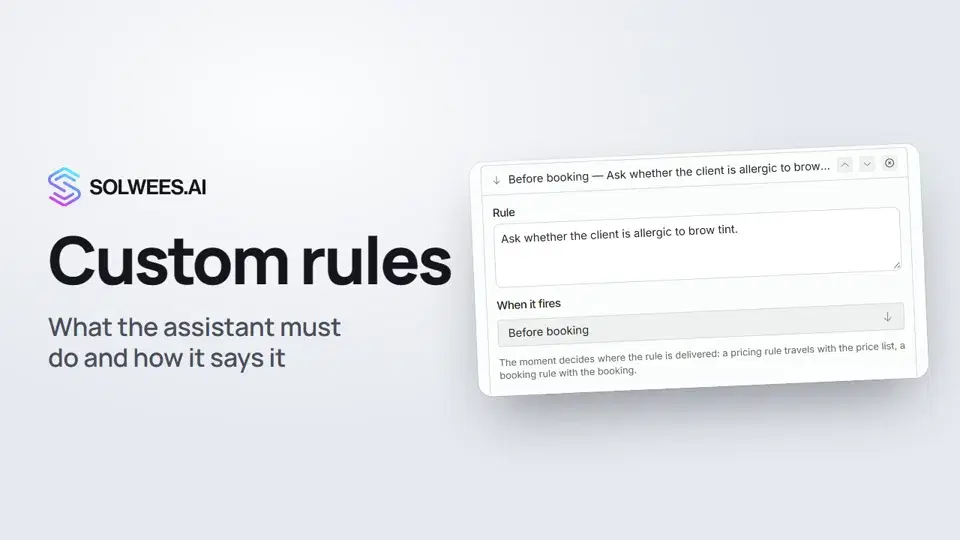 Custom rules and wordingHow to give the Solwees AI receptionist mandatory rules and wording: rules by moment, general rules and ready-made speaking styles for the key moments of a conversation.1:14
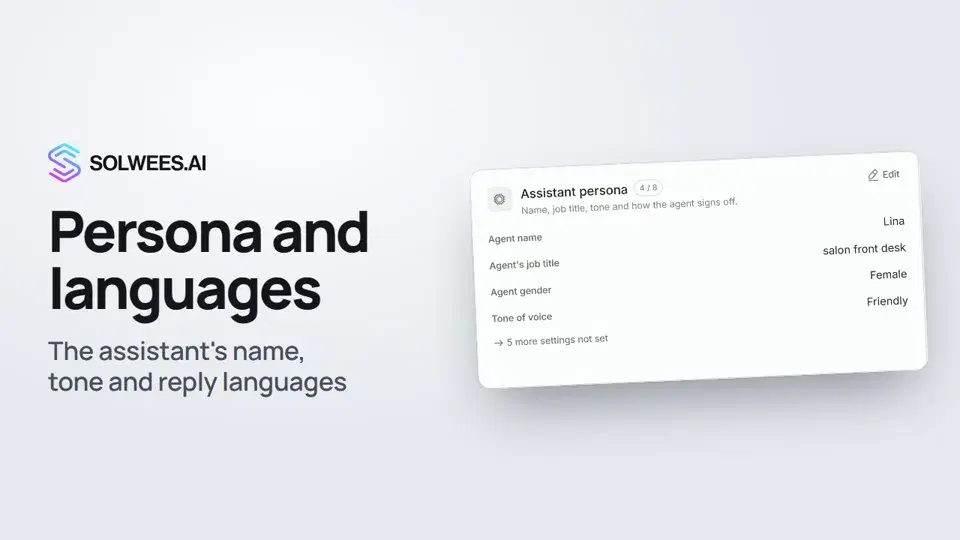 Persona and languages: how the assistant introduces itself and which languages it speaksHow to set the greeting language, allowed languages, name, job title, gender, tone of voice and closing lines of your Solwees AI receptionist in the Language and Assistant persona cards.1:22
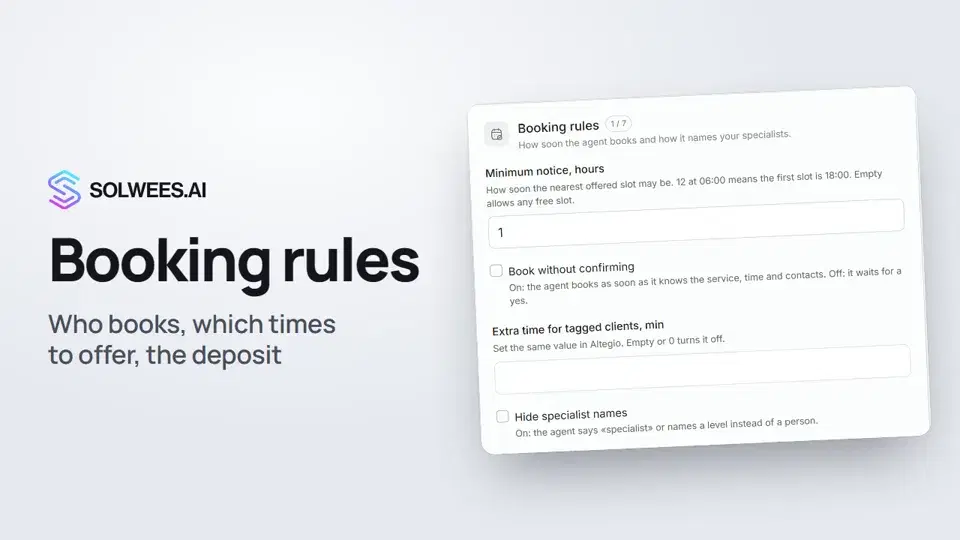 Booking rules: how the assistant books your clientsHow to set up booking rules for the Solwees AI receptionist: who makes the appointment, which windows it offers, what it says about a deposit, 4 and 6 hands services and add-on offers.1:38
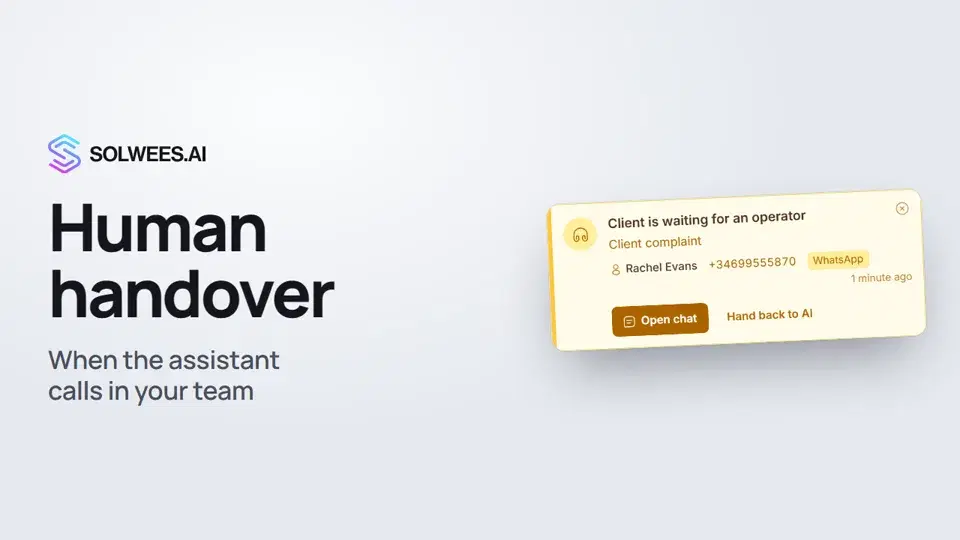 Handing over to a person: when the assistant calls in your teamHow the Solwees AI receptionist hands a conversation to your team: handover reasons in the business profile, the Client is waiting for an operator card, handing the chat back to AI and Telegram alerts.1:16
Still need help?
Ask Sola in your dashboard
The assistant button in the corner of any dashboard page knows every setting and shows you where it is.
Open the dashboard