
Knowledge base: the articles and files your assistant answers from
AI assistant and knowledge baseUpdated 18 October 2026Video 1:16On every plan except Hub
The knowledge base holds the texts your assistant uses to answer clients: prices, booking and cancellation rules, aftercare tips, answers to frequent questions. Anything clients ask often that doesn’t fit into the business profile belongs here.
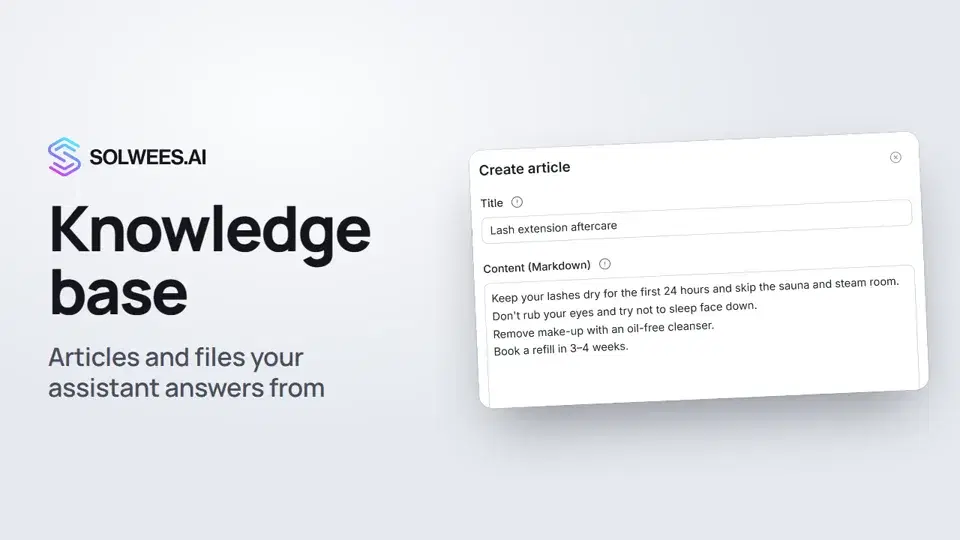
Available on every plan except Hub.
Where to find it
Open Knowledge Base in the menu on the left. Folders are at the top of the page, the list of all articles is below.
What’s on the page
| Item | What it’s for |
|---|---|
| Folders | Group articles so you can find them faster. They don’t affect answers: the assistant searches the whole base. |
| Create article | Write an answer by hand: title, text, folder, status. |
| Add file | Upload a ready document: PDF, DOCX or TXT, up to 20 MB. |
| Create folder | A new folder: a name is all it needs. |
| Open Editor | A full-screen editor: the article list on the left, the article on the right. |
| Status in the list | Published: the assistant uses the article. Draft and Archived: it doesn’t. |
| Knowledge sources | Connect a Google Sheet: its content is pulled into the base automatically. |
| Images tab | Photos with descriptions the assistant can show to clients. |
How to add an article
- Click Create article.
- In Title, name the article the way a client would ask: “Lash extension aftercare”, “Can I bring my child”.
- In Content, write the full answer. Lists and bold text help.
- Choose a Folder if you like and leave the status as Published.
- Click Create.
If you open a folder first and then click Create article, the folder is filled in for you.
How to upload a file
- Click Add file and choose a document: PDF, DOCX or TXT, up to 20 MB. XLSX and CSV spreadsheets work too.
- The file becomes an article with the same name and the document’s text inside. It arrives with the status Draft.
- Click Edit on that article, check the text, set the status to Published and click Save changes.
While the article is a draft, the assistant doesn’t see it. A file uploaded inside an open folder lands in that folder.
Linking an article to an agent
Open the article’s menu (the three dots at the end of the row). Under Scope (owner) choose:
- Shared (all agents): every agent you have uses the article;
- an agent’s name: only that agent sees it.
New articles and files are linked to the agent selected at the top of the page under Agent scope. That switch appears once you have two or more agents. With one agent, articles are linked to it right away.
Search model and re-sync
Above the article list there is a Search model setting and a Re-sync articles button (the arrows icon). Changing the model doesn’t rebuild the articles by itself: after a change, click the button. The rebuild runs in the background and shows how many articles are left. Until it’s done, the assistant may not find every article.
Tips
- One article, one topic. Short, precise answers like “How to get here from the metro” are easier for the assistant to find and retell.
- Large price lists and internal guidelines are easier to upload as a file.
- After uploading a file, read the text in the editor. Service lines such as “--- Page 1 ---” can be deleted.
- Changed an article? Test the assistant in the test chat: AI Agent → Agent Settings, the chat on the right.
FAQ
The assistant doesn’t answer from my article. What should I check?
The status must be Published. In the article’s menu the scope must be Shared or the right agent. If you changed the search model, click Re-sync articles.
Do folders affect the assistant’s answers?
No. Folders only keep things tidy for you; the assistant searches all published articles in its scope.
Which files can I upload?
PDF, DOCX and TXT, plus XLSX and CSV spreadsheets. Up to 20 MB per file.
Why didn’t my uploaded file show up in answers?
An article made from a file is created as a draft. Open it, set the status to Published and save.
Video transcript
Everything the narrator says. A time code plays the video from that moment.
What the knowledge base is and where to find it
The knowledge base holds the articles and files your assistant answers clients from: prices, policies, aftercare tips. Open Knowledge Base in the menu. Folders are at the top, all articles below.
Folders and a new article
Folders only keep things tidy: the assistant searches the whole base. To add one, click Create folder. To add an article, click Create article. Name it the way a client would ask, and write the full answer. Leave the status as Published and click Create. The assistant doesn't see drafts.
Linking to an agent and uploading a file
To link an article to an agent, use its menu. Shared articles are seen by all agents. To upload a ready document, click Add file: PDF, DOCX or TXT, up to 20 MB. A file becomes a draft. Open it, set the status to Published and save.
Re-sync and a check in the test chat
If you change the search settings, click Re-sync articles: the base updates in the background. Done. Ask the assistant in the test chat, and it answers from the new article. Next, we'll connect WhatsApp through Meta.
Did this answer your question?
More in this topic
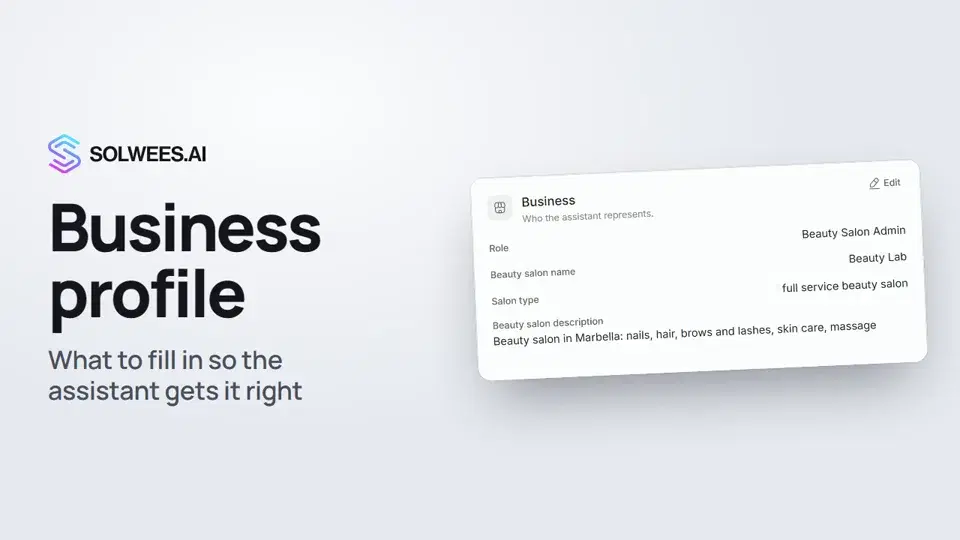 Business profile: what the assistant knows about your companyHow to fill in your business profile in Solwees so the AI receptionist answers clients accurately: name, language, contacts, address, working hours and the assistant's persona.1:35
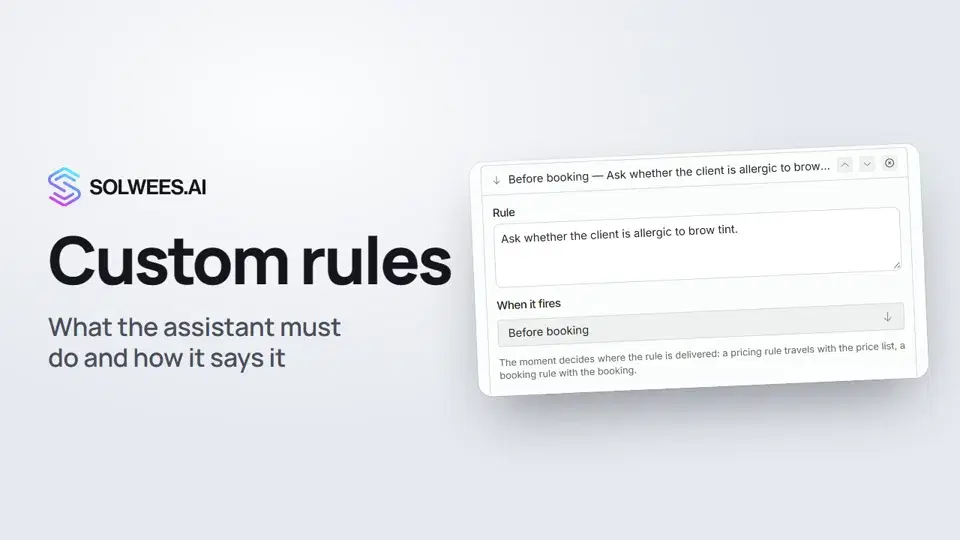 Custom rules and wordingHow to give the Solwees AI receptionist mandatory rules and wording: rules by moment, general rules and ready-made speaking styles for the key moments of a conversation.1:14
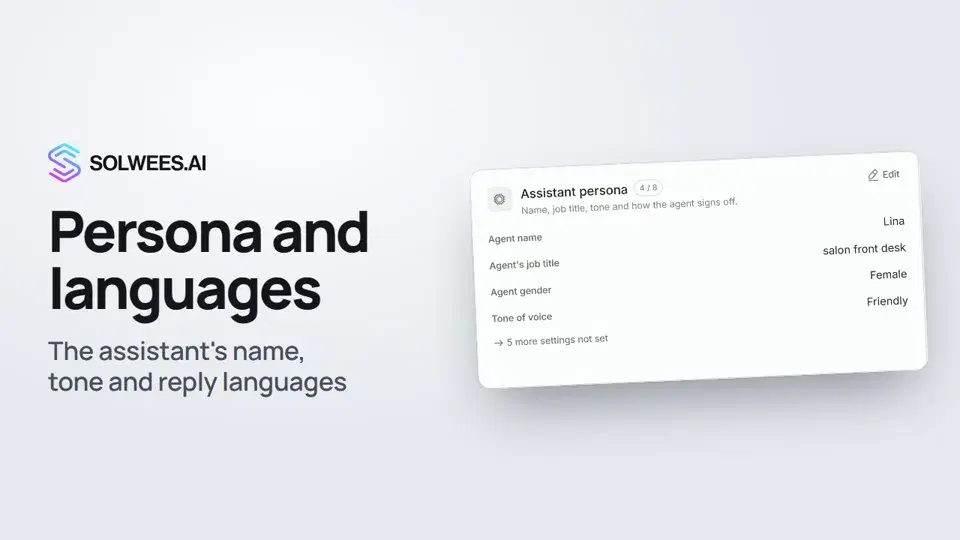 Persona and languages: how the assistant introduces itself and which languages it speaksHow to set the greeting language, allowed languages, name, job title, gender, tone of voice and closing lines of your Solwees AI receptionist in the Language and Assistant persona cards.1:22
 Booking rules: how the assistant books your clientsHow to set up booking rules for the Solwees AI receptionist: who makes the appointment, which windows it offers, what it says about a deposit, 4 and 6 hands services and add-on offers.1:38
Still need help?
Ask Sola in your dashboard
The assistant button in the corner of any dashboard page knows every setting and shows you where it is.
Open the dashboard