
Viber: how to connect your own number to the assistant
ChannelsUpdated 21 October 2026Video 1:11A paid channel
Connect Viber, and the assistant replies to clients who message you on Viber. You link your own number with a QR code, no extra SIM needed. The conversations arrive in Chats, next to your other channels.
What it costs
Viber is a paid channel. It is not included in any plan and is added as a separate subscription.
| Price | 25 € a month on top of your plan |
|---|---|
| How it is billed | Added to your subscription and charged together with your plan |
| First charge | A partial amount for the days left in the current period is charged to your card right away |
| Free trial | Not available: choose a paid plan first |
| Who pays | The business owner: only they can see Billing |
How to pay for the channel
- Open Settings → Billing.
- Under Paid channels, next to Viber, click Connect for 25 €.
- Confirm in the window that opens.
While the channel is not paid for, the same button is also on Settings → Channels → Viber.
How to connect your number
- Open Settings, go to Channels and choose Viber.
- Set a Display name: that’s how the channel appears in the dashboard.
- In the AI agent field, choose the agent that will reply on Viber.
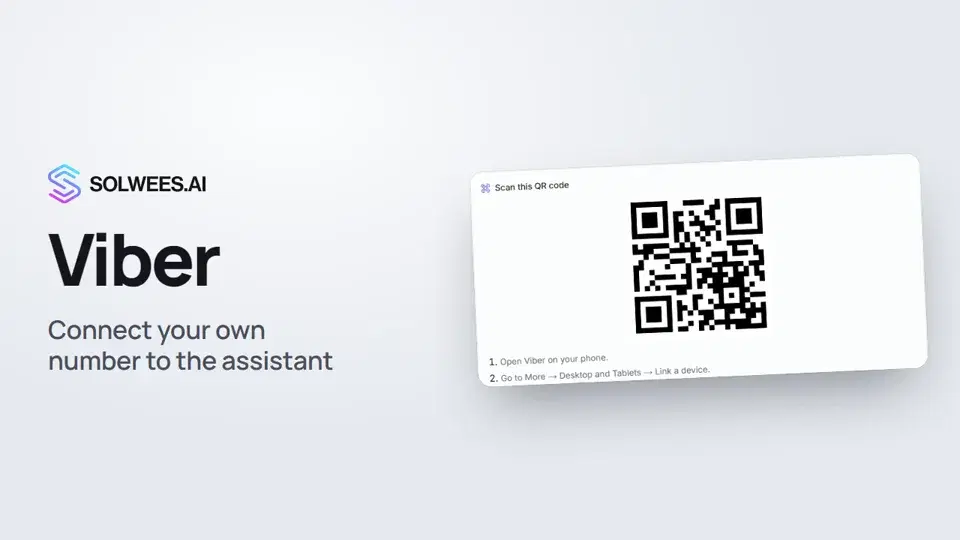
- Click Connect number. While Viber is getting ready, the page says “Preparing your Viber and generating a QR code”. Then a QR code appears.
- On your phone, open Viber, go to More → Desktop and Tablets → Link a device and point the camera at the code.
- Wait for linking to finish. The page checks the status by itself every few seconds; to check right away, click Refresh.
A bar of four steps shows the progress: starting, QR code, linking, done. The status next to the title changes from Pending to Active, and the page shows “Connected and active”, the number and the chosen agent.
Good to know
- Your phone stays connected: this links a secondary device, the same way as signing in to Viber on a computer.
- You don’t need an extra SIM or a new number: the channel works with your existing Viber number.
- The page holds one connection. To connect a different number, disconnect the current one first.
- All Viber messages arrive in Chats, together with your other channels.
How to turn it off
- The number: on the Viber page, click Disconnect and confirm. The assistant stops replying to incoming Viber messages.
- The channel subscription: Settings → Billing → Paid channels → Turn off. The remaining days of the period are not refunded.
FAQ
Why isn’t Viber available during the free trial?
The channel is added as an item to a paid subscription, and during the trial there isn’t one yet. Choose a plan in Settings → Billing, then connect Viber.
Do I need a separate number or phone?
No. The channel works with your existing Viber number, and your phone stays connected.
The QR code is taking a while. What should I do?
Wait a moment: the page refreshes by itself. Click Refresh to check right away.
How do I change the agent that replies on Viber?
The agent is chosen when you connect the number. To change it, disconnect the number and connect it again with a different agent. Next: a phone number for the assistant.
Video transcript
Everything the narrator says. A time code plays the video from that moment.
Paying for the Viber channel
Connect Viber, and the assistant replies to your clients there. The conversations arrive in Chats, next to your other channels. Viber is a paid channel. Open Settings, then Billing, and find the Paid channels block. Click Connect for 25 €: that's the monthly price on top of your plan. Viber isn't available during the free trial, so choose a plan first.
Display name and AI agent
After paying, open Channels and choose Viber. Set a display name: that's how the channel appears in the dashboard. Choose the AI agent that will reply, and click Connect number.
Linking your number with a QR code
A QR code appears. In Viber on your phone, go to More, Desktop and Tablets, Link a device, and point the camera at the code. No extra SIM is needed, and your phone stays connected. Once linking is done, the status changes from Pending to Active. Done. To have the assistant answer calls too, watch the next video: a phone number for the assistant.
Did this answer your question?
More in this topic
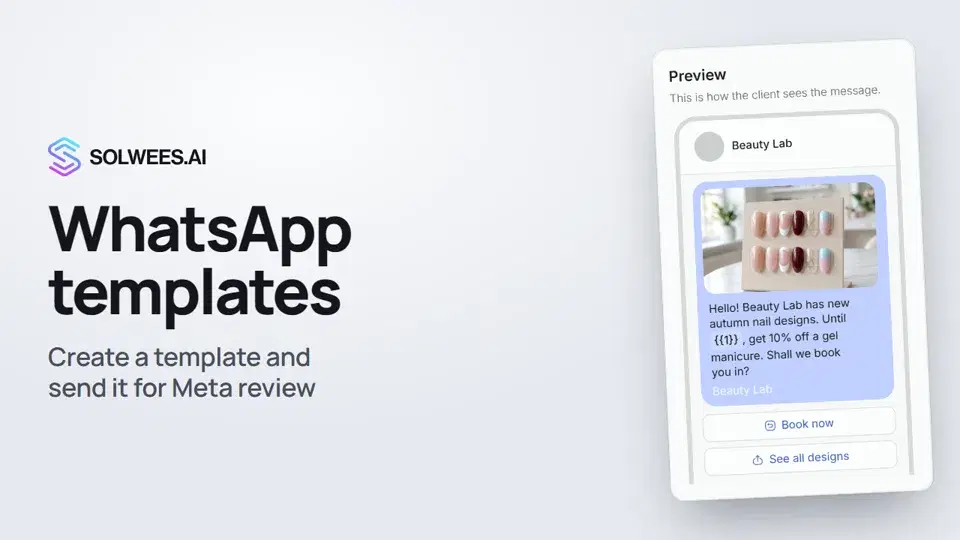 WhatsApp templates: messages approved by MetaHow to create a WhatsApp template in Solwees and send it for Meta review: category, language, image, variables in the text and buttons. You need a template to message a client who hasn't written to you for more than 24 hours.1:30
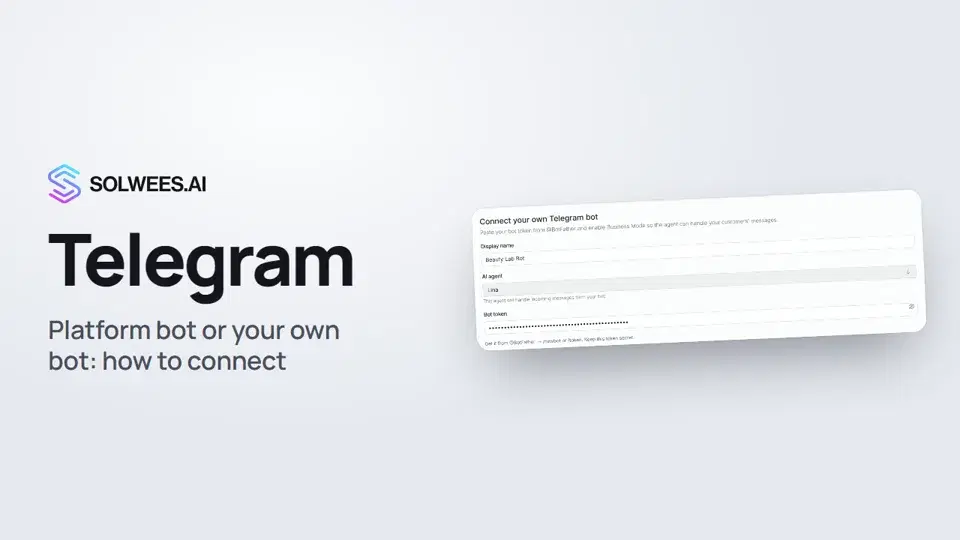 Telegram: how to connect the assistantHow to connect Telegram to Solwees so the AI assistant replies to your clients: through the platform bot and Telegram Business, or through your own bot with a token from BotFather.1:31
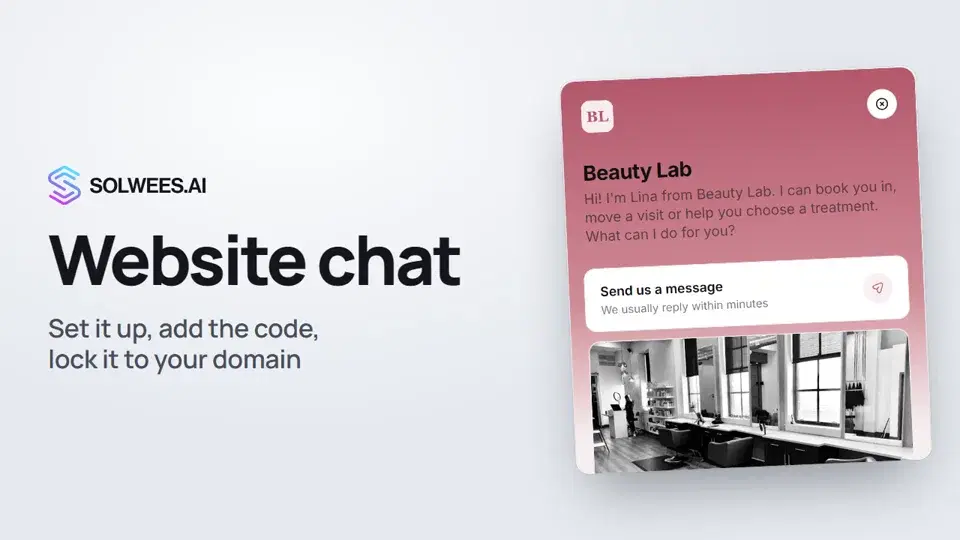 Website chat: how to set it up and install itHow to add the Solwees chat to your website: languages, visitor contact, welcome message, appearance, chat button, the install code and allowed domains. Visitors write in the chat and the AI assistant replies right away.1:52
 Phone: a number for the assistantHow to buy a phone number for your AI receptionist in Solwees: applicant verification and documents, choosing a number, assigning an agent, call recording and transcription.1:56
Still need help?
Ask Sola in your dashboard
The assistant button in the corner of any dashboard page knows every setting and shows you where it is.
Open the dashboard