
Request an integration
IntegrationsUpdated 4 October 2026
Your booking system or CRM isn’t in the App Directory? Here is what to send us.
Write to support@solwees.ai with the name of the system, your country and how many locations you have.
We check whether the system lets us read free time, create, change and cancel bookings and find a client by phone. That is what the assistant needs to book.
Never send passwords by email. If we build the integration, you connect it yourself in the App Directory, or we agree a safe way with you.
Until then, the assistant can answer clients and pass booking requests to your team.
Did this answer your question?
More in this topic
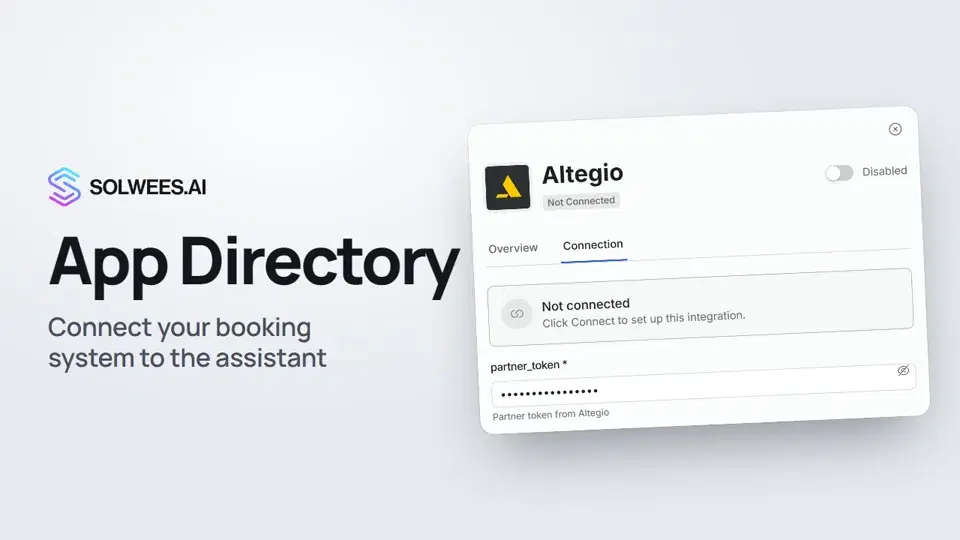 App Directory: connect your booking system, CRM and paymentsWhere to find the App Directory in Solwees and how to connect a booking system, CRM or payments to your AI receptionist: tabs, search, the integration card and the Connect button.1:06
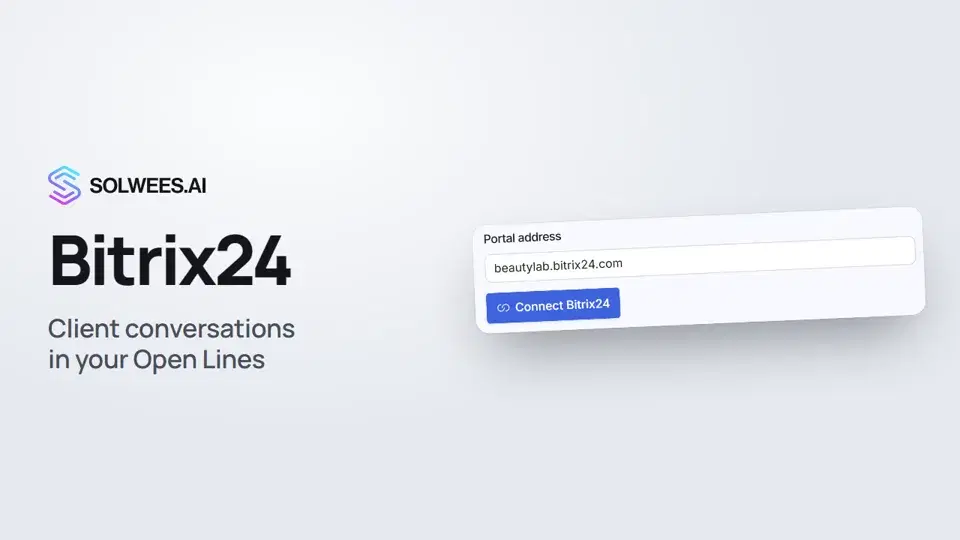 Bitrix24: client conversations in your Open LinesHow to connect your Bitrix24 portal to Solwees so the AI receptionist's conversations with clients go to your Open Lines: the portal address, confirming access on the portal, the agent's line and the No agent tab.1:03
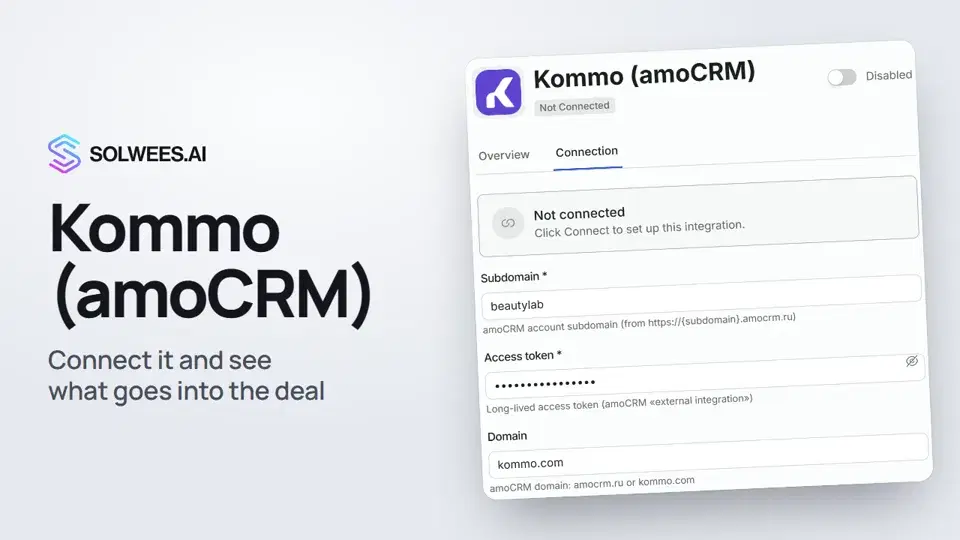 Kommo (amoCRM): how to connect it and what goes into the dealHow to connect Kommo (amoCRM) to your Solwees AI assistant: subdomain, long-lived token and domain, what the assistant sends into the deal and which assistant role it takes.1:19
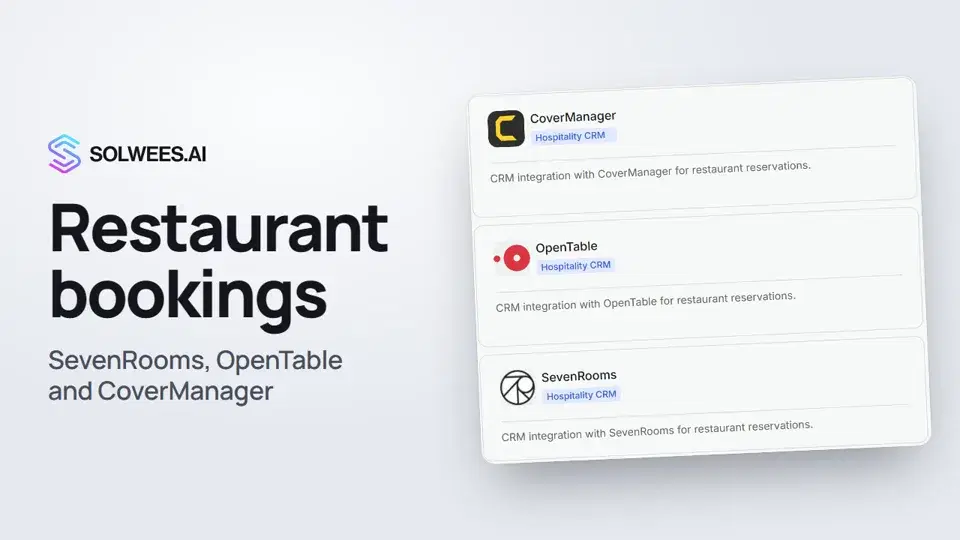 Restaurant bookings: connecting SevenRooms, OpenTable and CoverManagerHow to connect your restaurant booking system to the Solwees AI receptionist: SevenRooms and CoverManager connect in the App Directory, OpenTable is switched on by support. Once connected, the assistant checks for free tables and books right in your system.1:21
Still need help?
Ask Sola in your dashboard
The assistant button in the corner of any dashboard page knows every setting and shows you where it is.
Open the dashboard