
Chats
Une boîte pour tous les canaux : quand l’assistant répond, quand vous reprenez, réponses rapides et notes.
7 articles · 7 vidéos
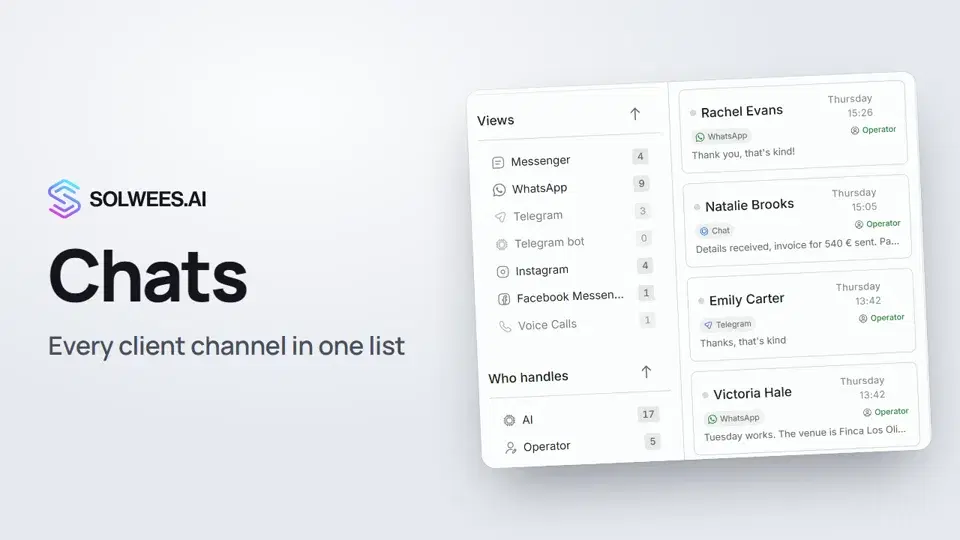 Chats: every channel in one placeHow to work with Chats in Solwees: folders, the channel and Who handles filters, search, status, sorting and opening a conversation with the client card.1:35
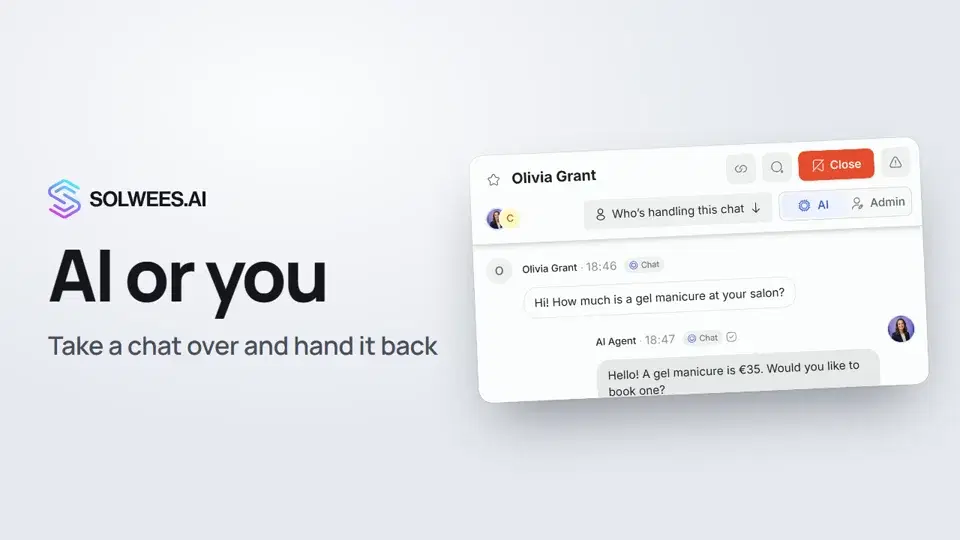 AI or you: taking a chat over from the assistant and handing it backHow to answer a client yourself instead of the Solwees AI receptionist and hand the chat back: the AI and Admin switch in the chat header, assigning a teammate and internal notes.1:13
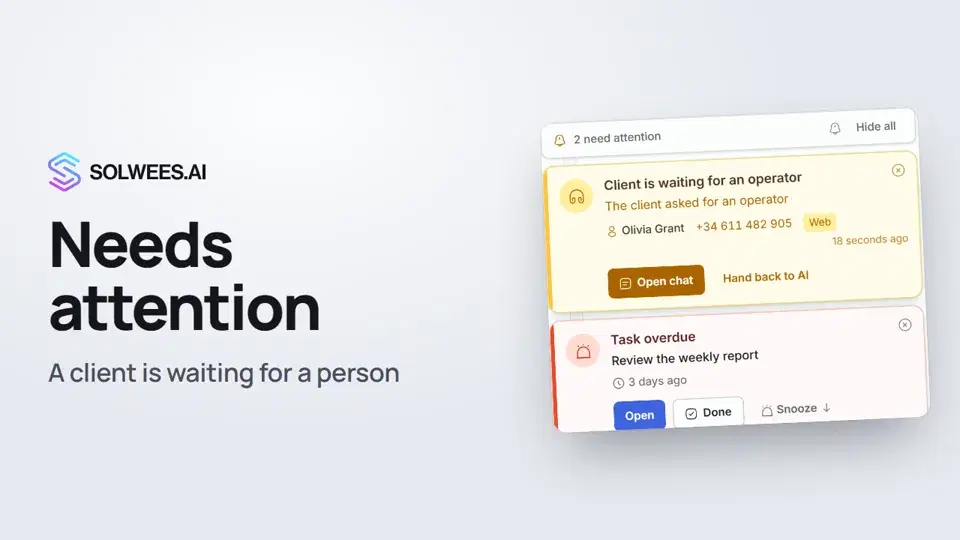 Needs attention: when a client is waiting for a personWhat to do when the Solwees AI receptionist calls for a person: the Needs attention panel, the Client is waiting for an operator card, replying, handing back to AI and task reminders.1:14
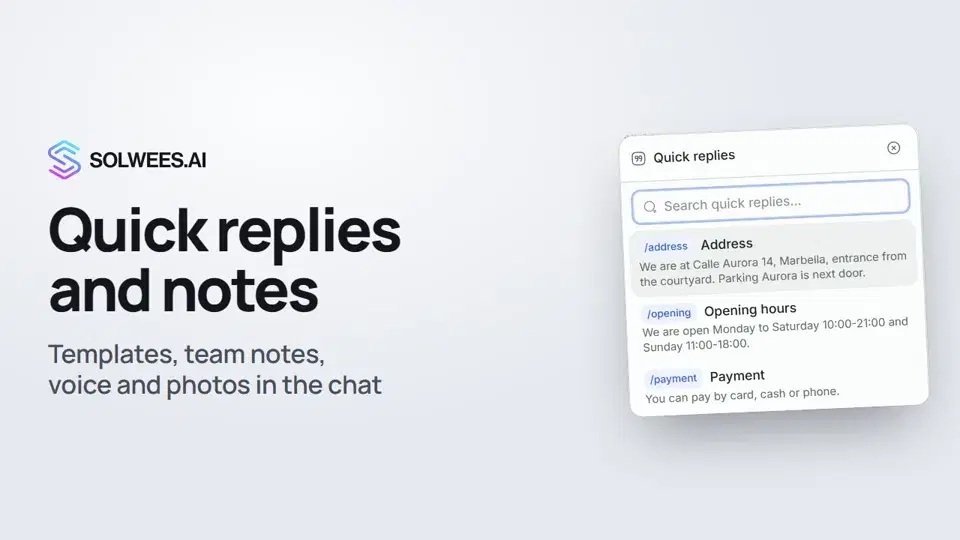 Quick replies and notes: what the chat input can doHow to answer clients faster in Solwees chats: quick replies with a slash, internal notes for your team, mentioning a teammate, voice messages and photos from your knowledge base.1:23
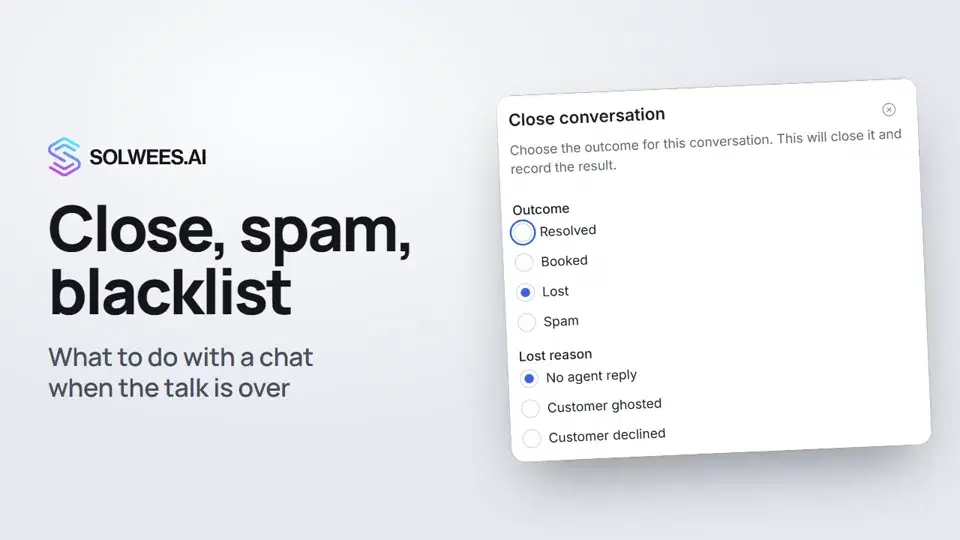 Close a chat, spam and blacklistHow to close a chat in Solwees and record the outcome, send a spammer to the Spam folder, block a client with the blacklist and merge two contacts of the same person.1:25
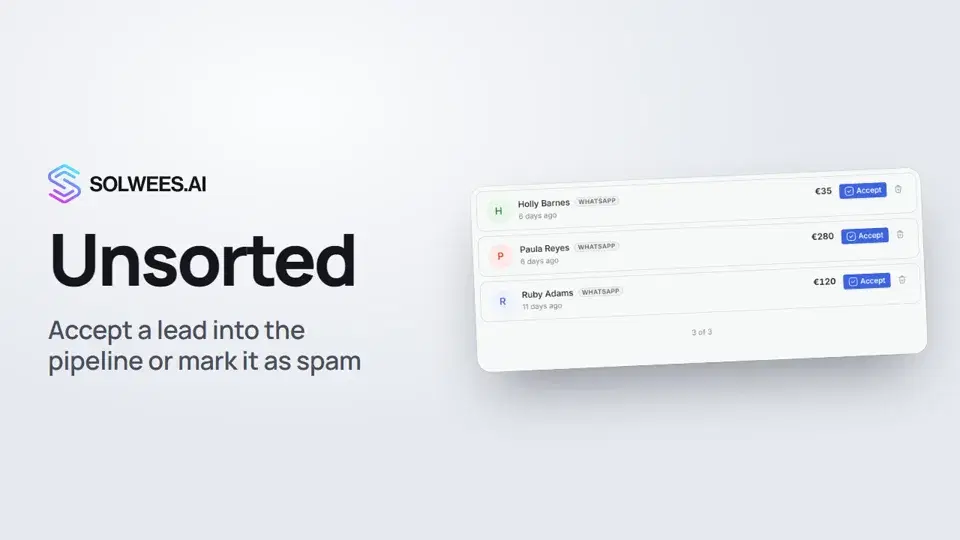 Unsorted: how to triage new leadsHow to triage new leads in the Unsorted folder in Solwees: Accept moves the deal to the first working stage of your main pipeline, Mark as spam deletes the lead while the contact and the chat stay.0:57
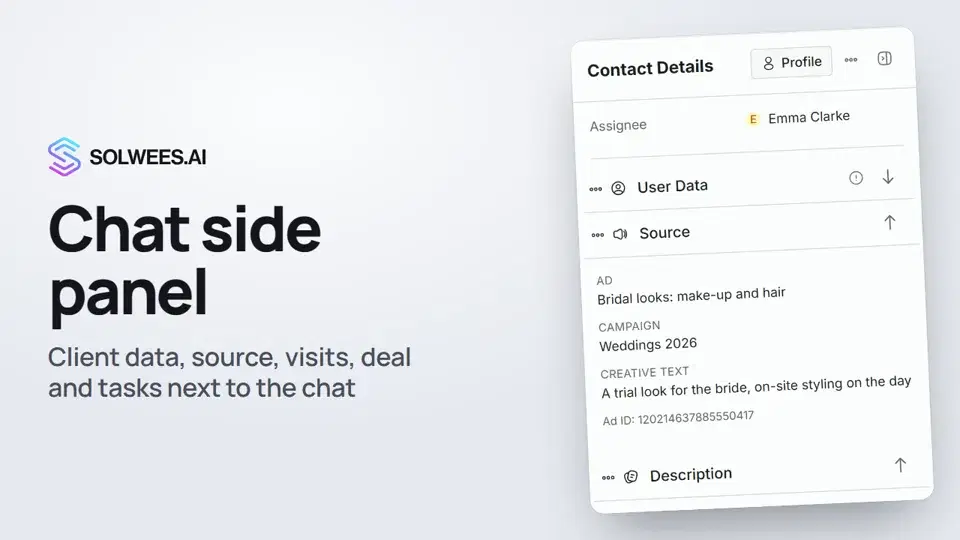 Chat side panel: everything about the client next to the conversationWhat the right-hand panel of an open chat in Solwees shows: client data, the source (an ad or a direct inquiry), notes, visit history, the deal and tasks. And how to put the panel's blocks in your own order.1:17
Besoin d’aide ?
Demandez à Sola dans votre tableau de bord
Le bouton de l’assistant, dans le coin de chaque page du tableau de bord, connaît chaque réglage et vous montre où il se trouve.
Ouvrir le tableau de bord